Console User Guide
Authentication for the console is implemented using Auth0. Upon successful login, users are returned to the application with appropriate access tokens.
Homepage
Section titled “Homepage”Users will see the main dashboard, which serves as a centralised interface providing access to all relevant services and features. The dashboard presents all available applications, with unauthorised applications greyed out based on the user’s organisational access. For quick navigation, recently used applications appear at the bottom of the interface, while the user feed can be accessed via the “Feed” button located on the right-hand side.
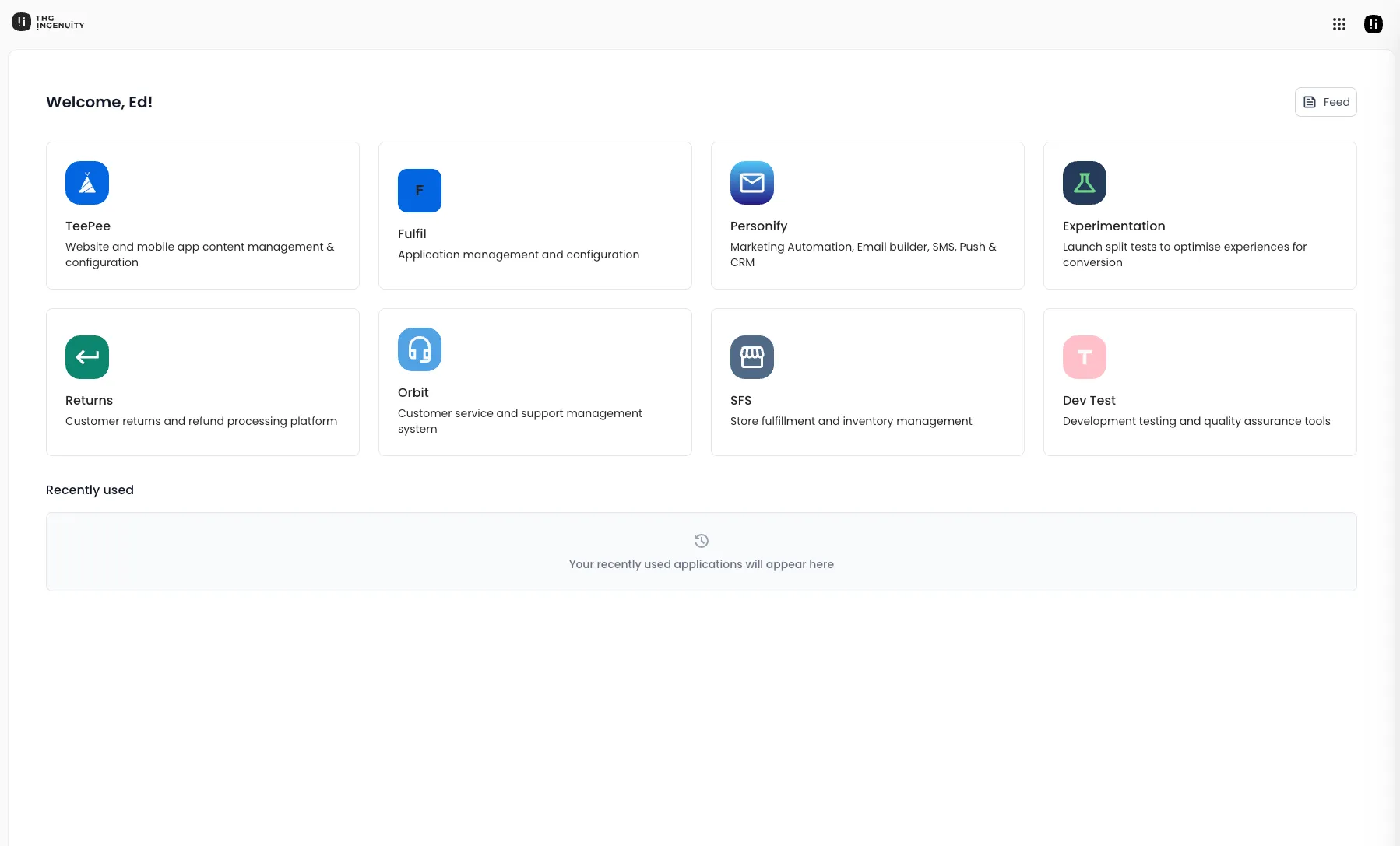
What is available to the user will depend on their level of permissions as well as their organisational affiliations. All of this information will be provided by the ingenuityToken and the refreshToken that authenticates each user session.
Navigating through apps
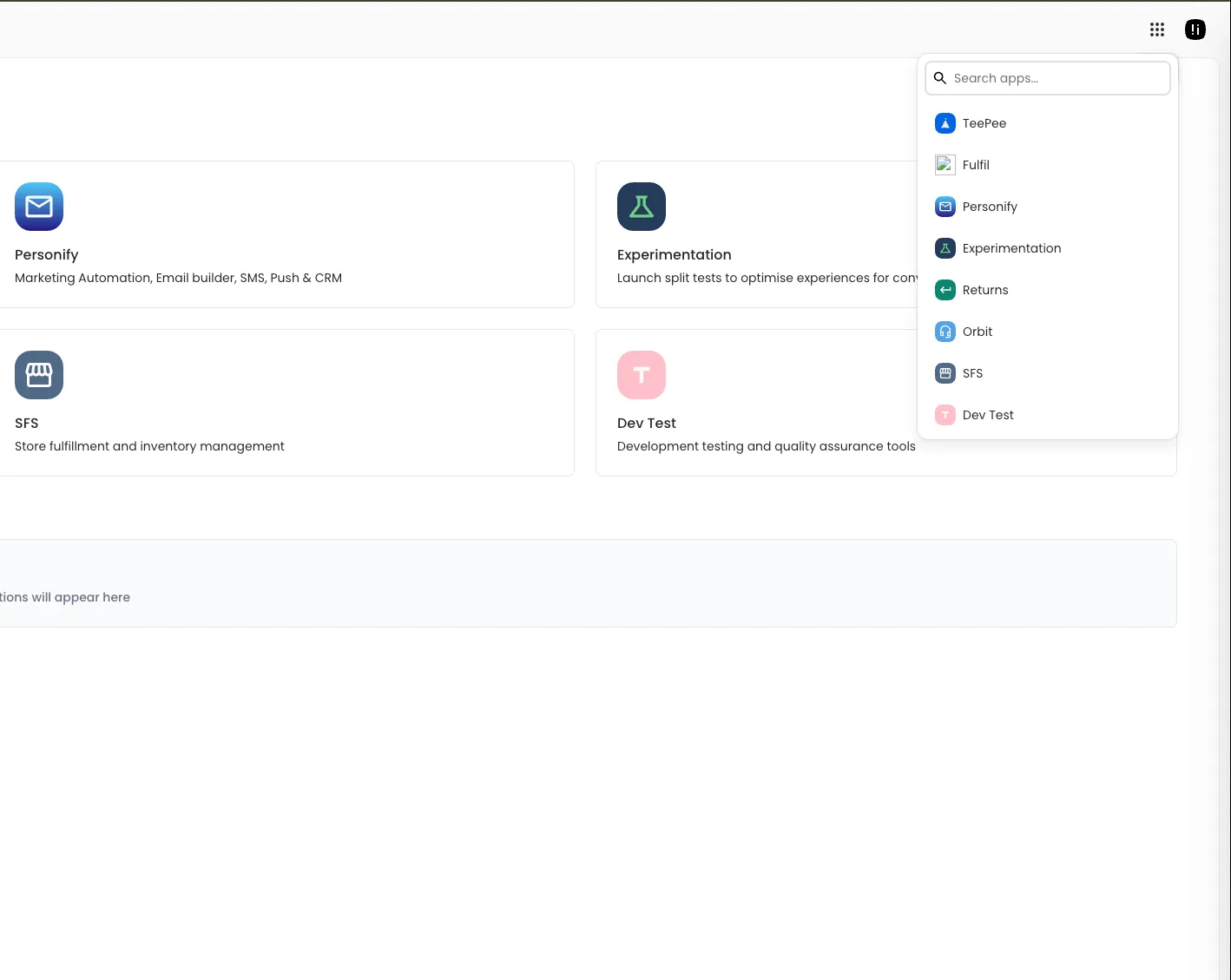
Section titled “Navigating through apps”In addition to the apps displayed on the dashboard, users can utilise the app switch button to navigate between applications. This button opens a dropdown menu listing all available applications accessible to the user. As part of the global appshell, this navigation feature remains consistently available across all pages and apps, enabling application switching from any location or context.
Managing Users
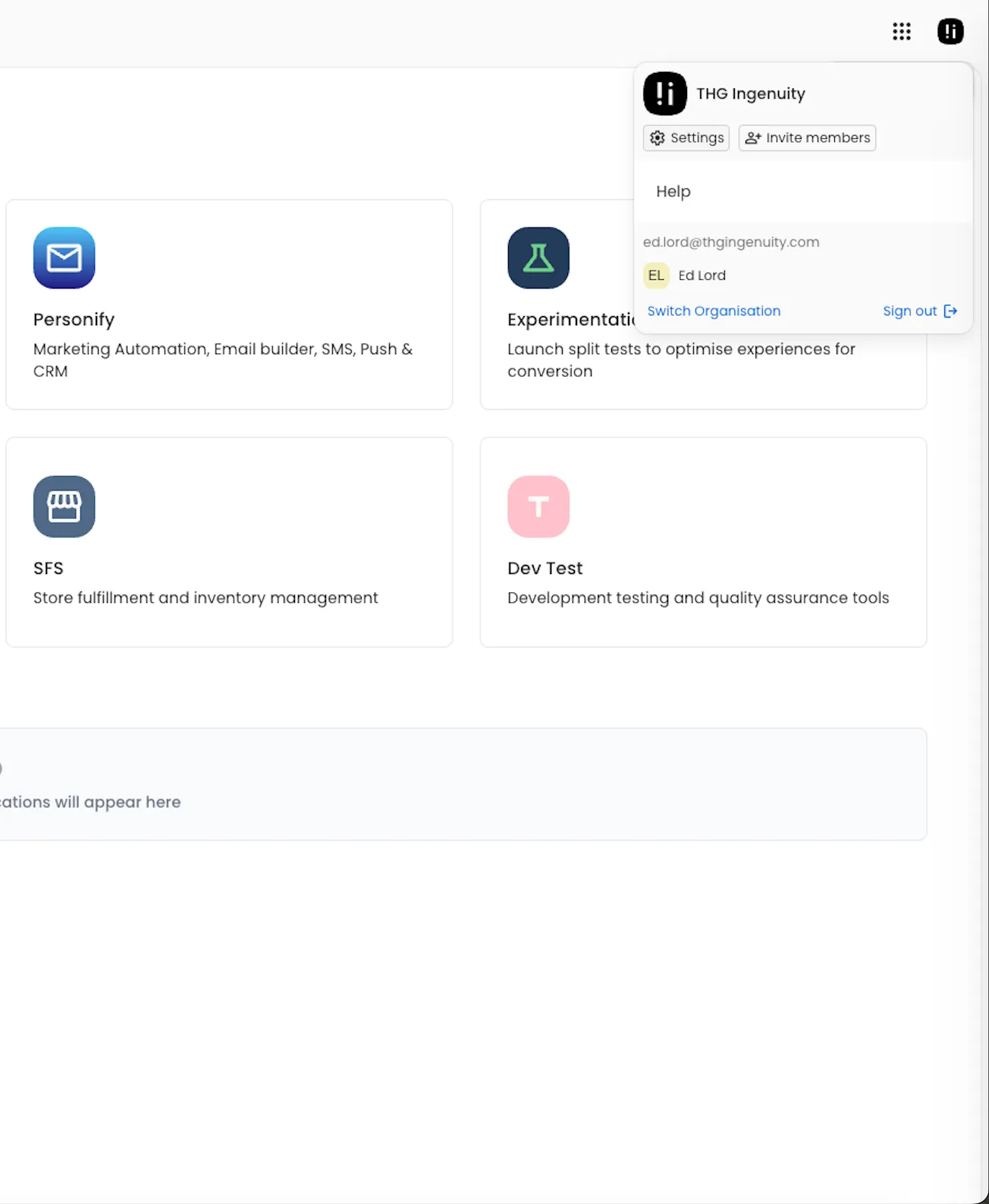
Section titled “Managing Users”Users can access the account options via the button located in the top right of the appshell, which opens the account dropdown menu. From this menu, the settings button provides access to the management portal, where users can manage their organisation’s roles and users (subject to appropriate permissions).
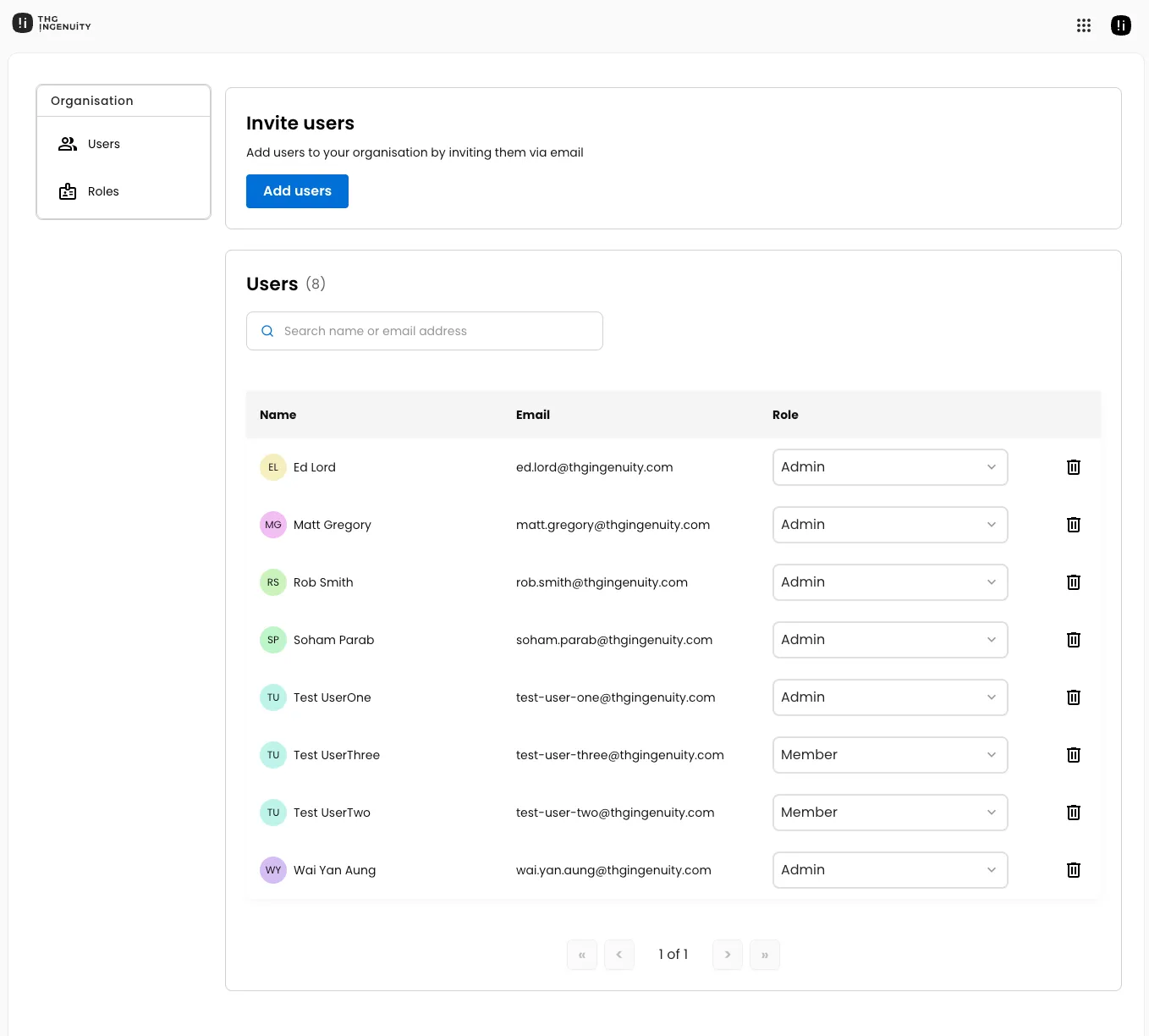
Users may manage the organisation’s user base by editing existing users and their assigned roles, removing users from the organisation, and adding new users with appropriate role assignments during the creation process.
Managing roles
Section titled “Managing roles”Depending on their permissions, a user can also access this page to manage the permissions for each role in their organisation:
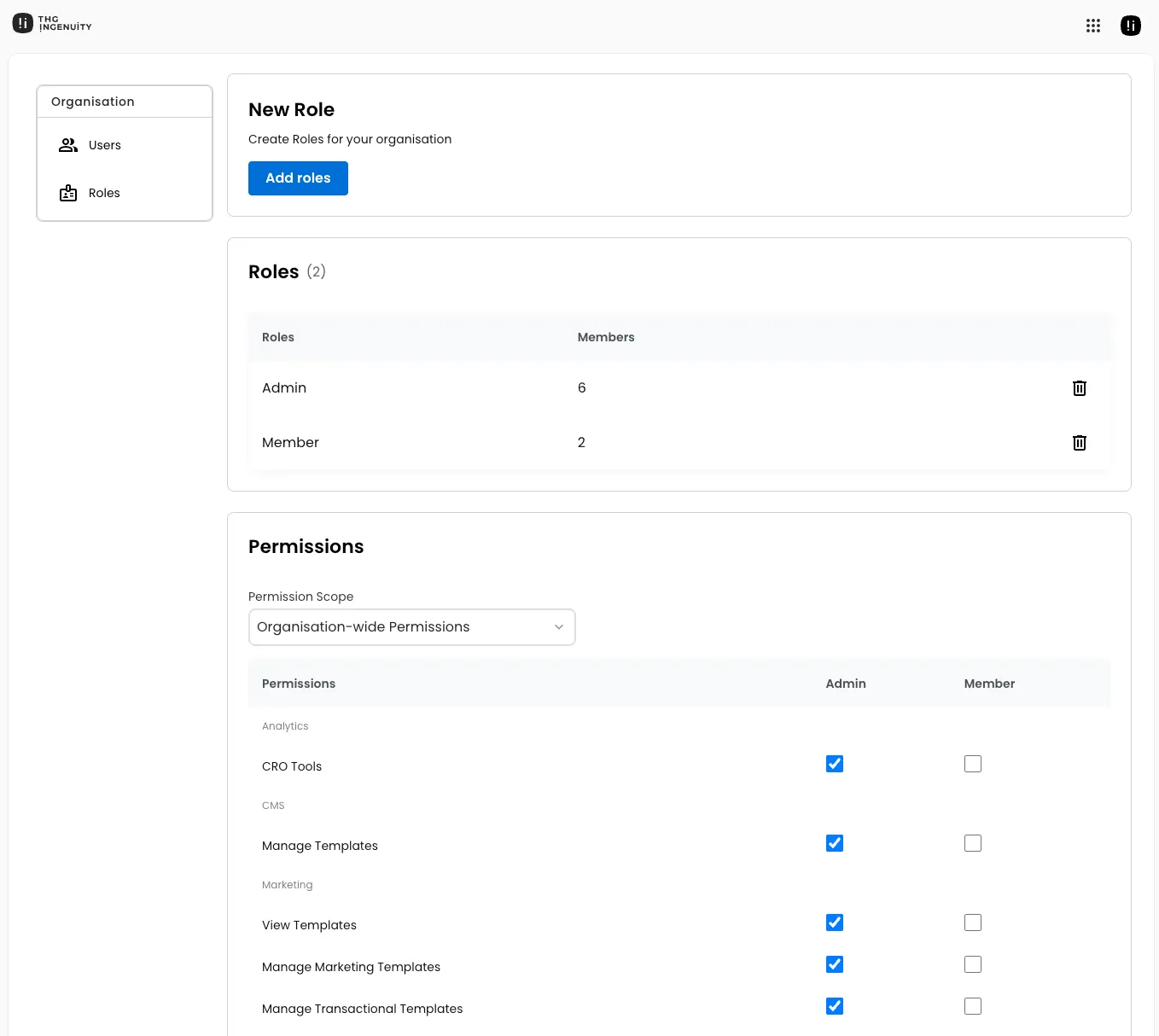
Similar to the user management interface, authenticated users can edit and delete organisational roles, as well as create new roles. Crucially on this page, users can easily edit role permissions within their organisation:
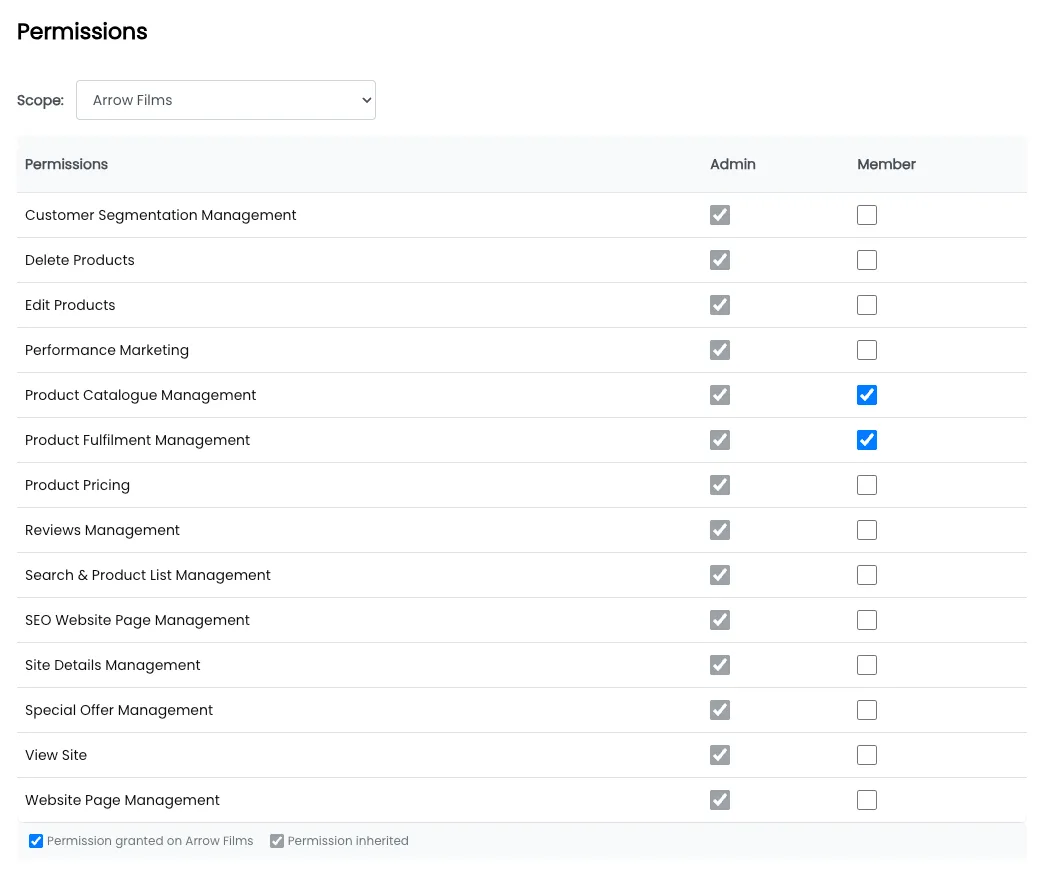
The permissions table displays global permissions by default, allowing users to view each role’s specific permissions and modify them using the provided checkboxes. Using the dropdown selector at the top of the table, users can switch from global permissions to entity-specific permissions, enabling granular permission overrides at the entity level. For example, a “Warehouse Manager” role might not have the global “View activity” permission, but could be granted this permission specifically for the warehouse they oversee.
See Permissions and Entites Page for more information on permissions hierarchy and inheritance.