Customer Lists
Summary
Section titled “Summary”Customer lists are a way to group customers. These lists are used across the platform for a variety of use cases, for example when creating special offers for a particular group of customers.
Customer List Types
Section titled “Customer List Types”Approved Account List (to be deprecated)
Section titled “Approved Account List (to be deprecated)”See standard list.
Newsletter Sign-Ups List
Section titled “Newsletter Sign-Ups List”Automatically includes every customer who has opted-in for marketing / newsletter.
Product Restriction List
Section titled “Product Restriction List”Automatically keeps a list of customers who bought a particular product or products. Tech support is required to manually configure the SKU for such a list.
Professional List (to be deprecated)
Section titled “Professional List (to be deprecated)”See standard list.
Reward Card list
Section titled “Reward Card list”Automatically includes customers with reward card.
Segment Based
Section titled “Segment Based”Generated from an eCRM segment once a day.
Standard
Section titled “Standard”Arbitrary list of manually selected customers.
Standard (CS Editable)
Section titled “Standard (CS Editable)”Same as Standard, but Customer Agents can edit these via Contact Centre.
Student list
Section titled “Student list”Includes customers with email domain suffix .ac.uk.
Subscriber List
Section titled “Subscriber List”Automated includes customers subscribed to a particular sku. If the sku is defined as null, this list will automatically include all customers with any subscription on the site.
View Existing Customer Lists
Section titled “View Existing Customer Lists”Use the Search by Name, ID or Type search bar at the top left to filter your view of the existing customer lists.
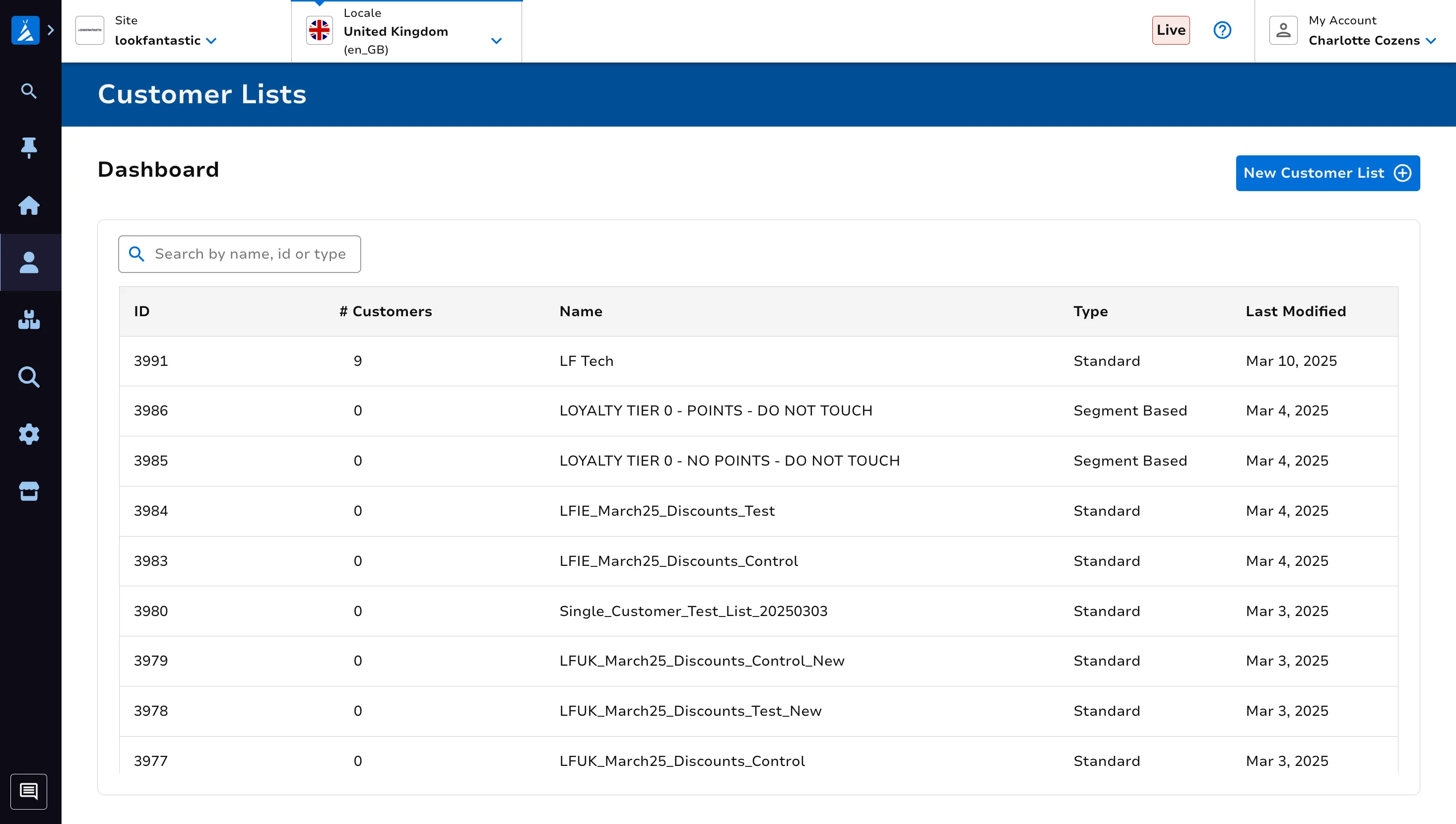
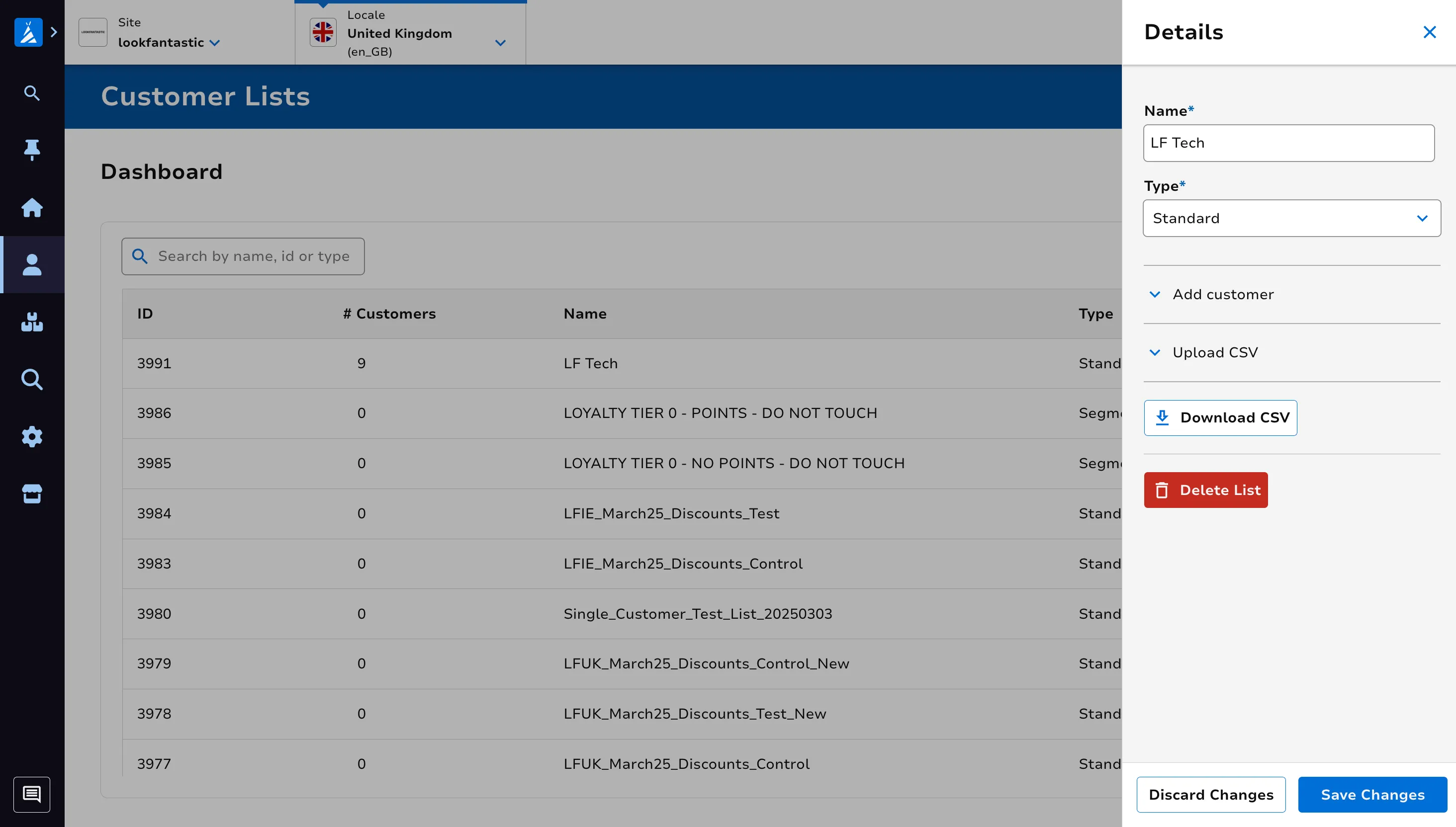
Click on a particular list to view the list details.
Create a new Customer List
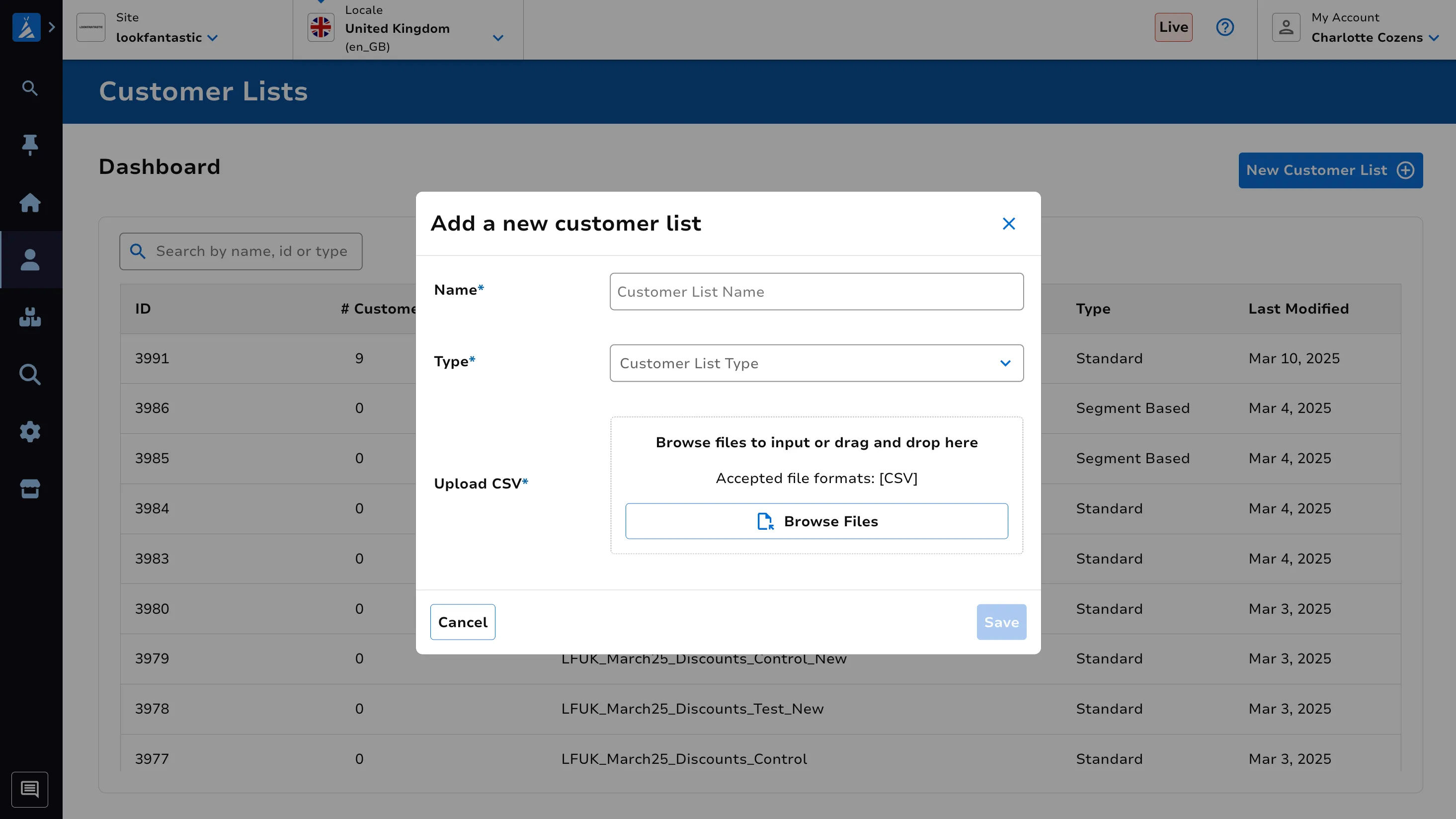
Section titled “Create a new Customer List”Click on the New Customer List button at the top right of the screen. Enter your customer list name, the list type and the relevant details. Click Save once ready.
Adding Customers to a Standard List
Section titled “Adding Customers to a Standard List”There are two ways to add customers to a standard customer list:
Upload CSV
Section titled “Upload CSV”You can upload a CSV file containing customer IDs or email addresses. The CSV file should contain one entry per line.
Important: CSV upload replaces the entire list. Each time you upload a CSV, it overwrites all existing customers in the list. It does not add to the previous list — it replaces it entirely. If you need to build a list from multiple sources, combine all customer IDs into a single CSV file before uploading.
Add Single Customer
Section titled “Add Single Customer”You can add individual customers one at a time by entering their customer ID in the “Add customer” field.
This operation appends to the existing list — it will not remove any customers already on the list.
CSV File Warnings
Section titled “CSV File Warnings”Spreadsheet software may silently truncate your data. Applications such as Microsoft Excel and Apple Numbers have a row limit of approximately 1,000,000 rows. If your customer list exceeds this limit, the file will be silently truncated when opened and re-saved — customers beyond the row limit will be lost without any warning. To avoid this:
- Use a plain text editor (e.g. Notepad, VS Code, Sublime Text) to prepare or verify large CSV files.
- Avoid opening large CSV files in Excel or Numbers before uploading.
- If you must use Excel, verify the row count matches your expected number of customers before saving.
Edit or Delete a Customer List
Section titled “Edit or Delete a Customer List”Click on a particular list to view the list details. Make your changes, then click Save.