Bundles
Summary
Section titled “Summary”The bundles module is used for managing personalised bundle configurations to offer grouped products to customers. It allows users to create, view, edit, and manage bundle configurations.
Bundles for a SKUs are set against a particular site, locale. See the Glossary at the bottom of this page for a description of each of these terms.
Please speak with your account manager to discuss enabling this module for your organisation.
Homepage
Section titled “Homepage”The homepage displays all existing bundles for the currently selected site and provides bundle management capabilities, with below details:
- Bundle Count Display - Shows total number of bundles configured on a site (e.g., “Bundles (5)”)
- Create Bundle Button - Primary action button to create new bundles (requires bundles-write permission)
- View Toggle - Switch between Card view and Table view
- Search - Search bundles by product name or product ID
- Filtering - Filter by locales and published status
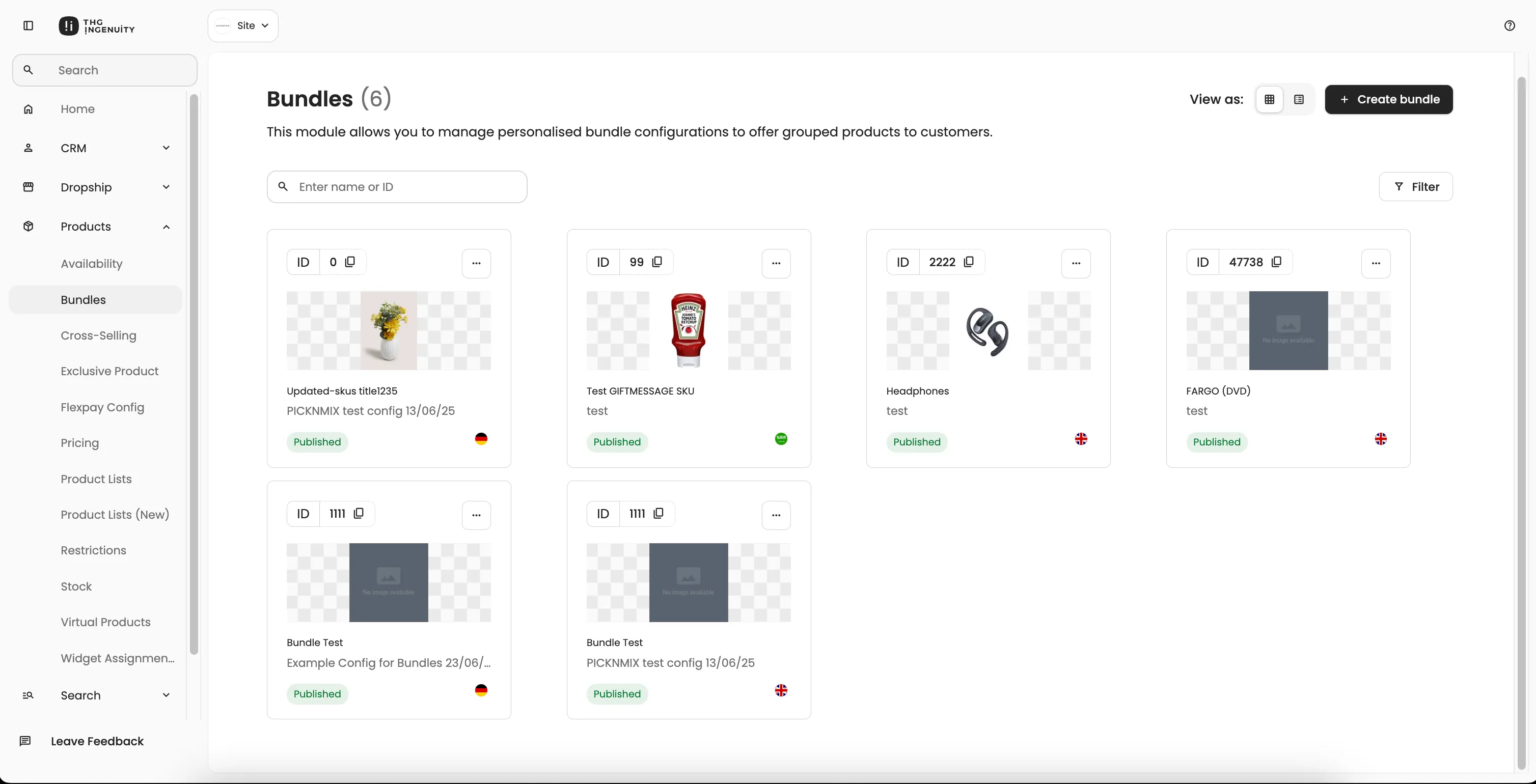
Bundle Display Options:
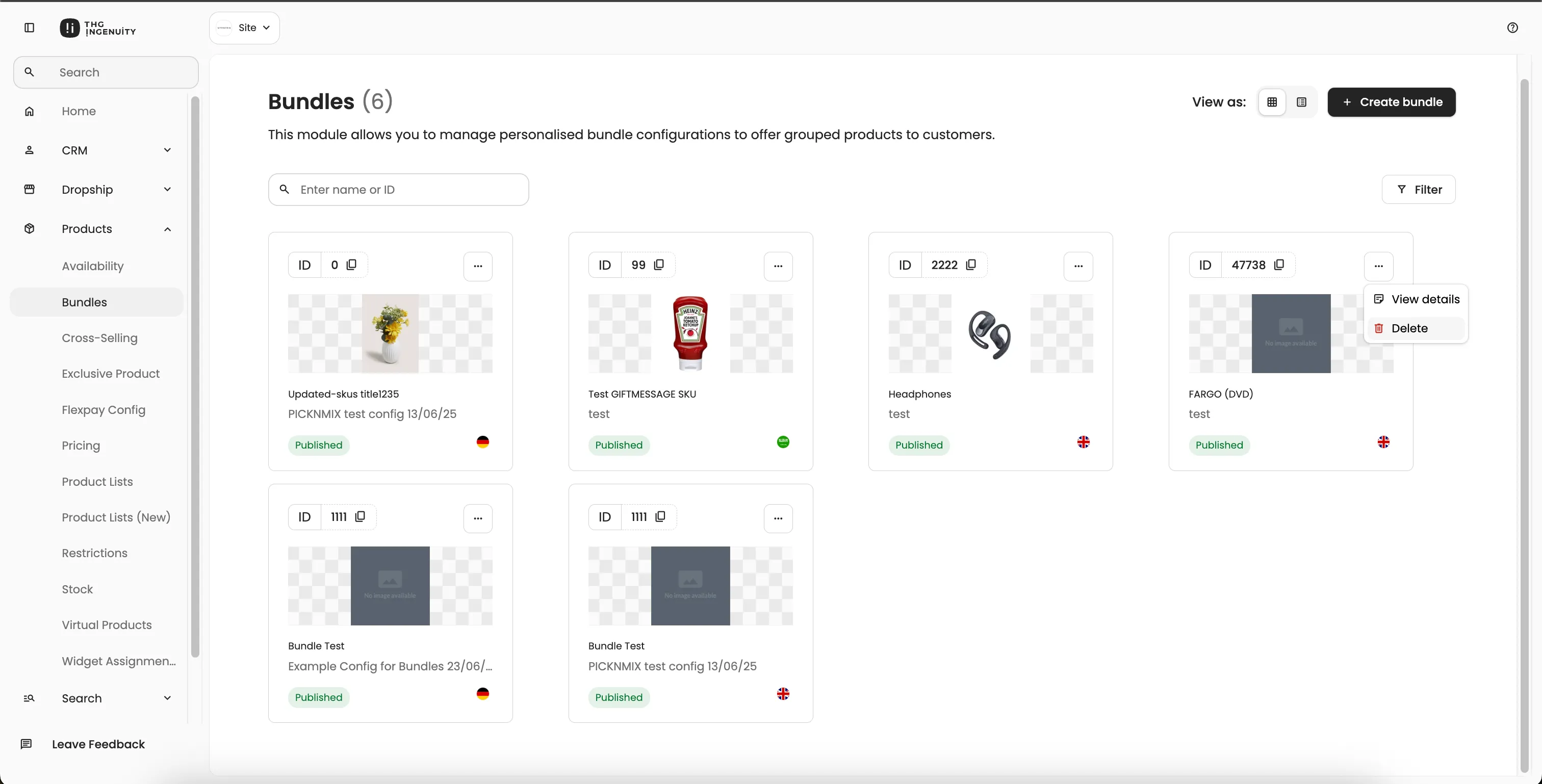
- Card View - Visual grid of bundle cards showing:
- Product image
- Bundle name
- Description
- Locales (flag icons)
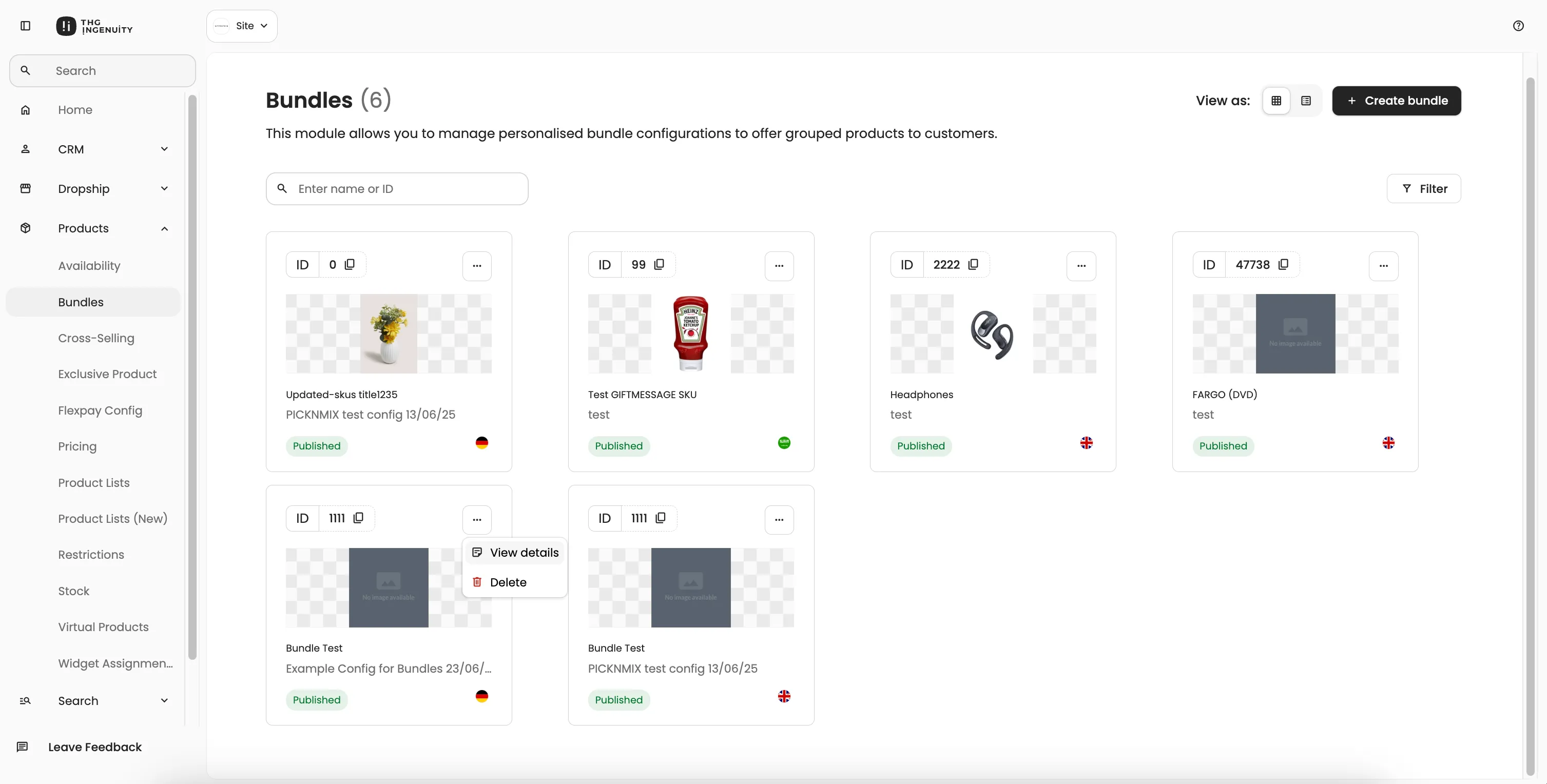
- Actions: View Details, Delete
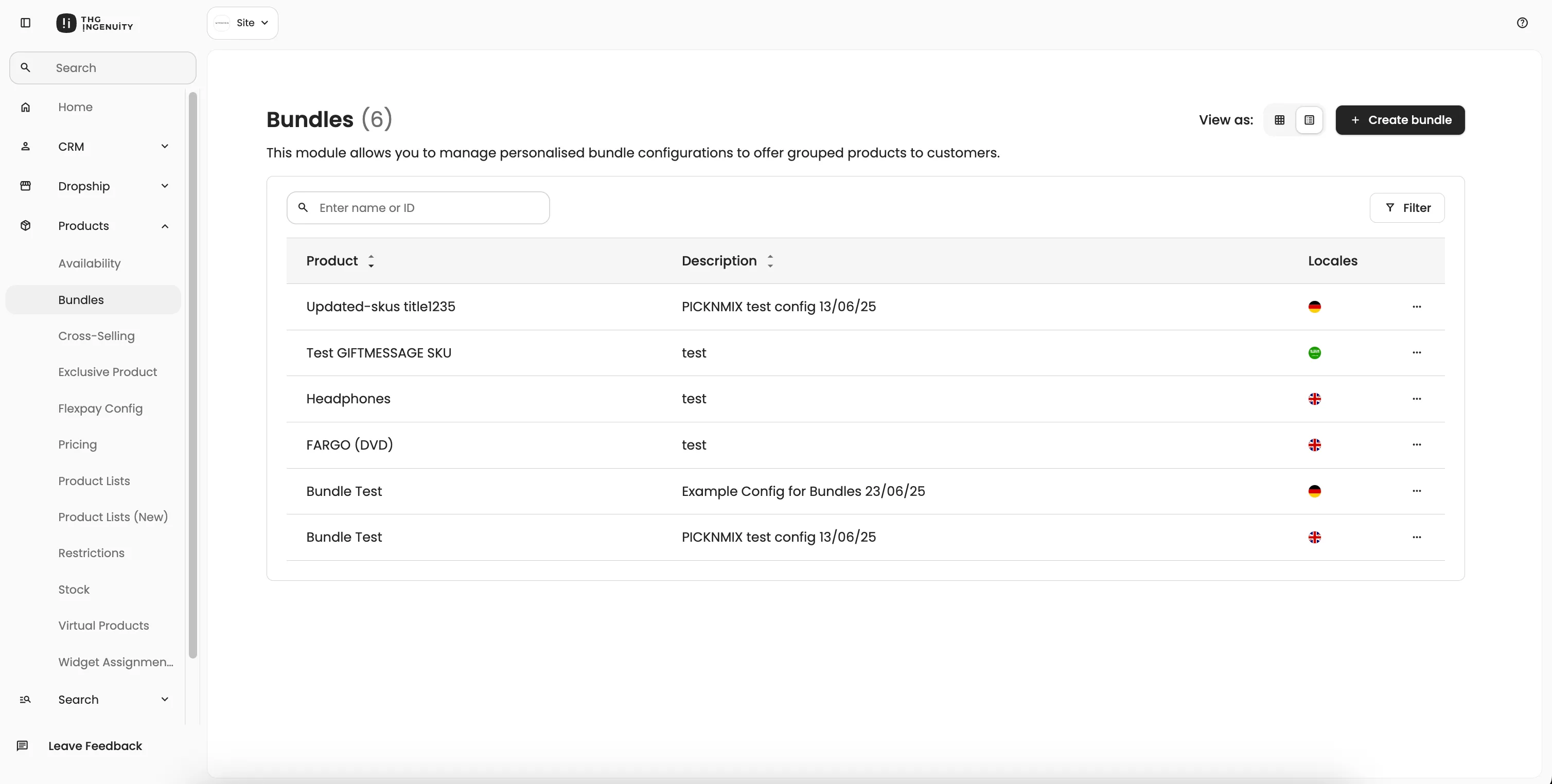
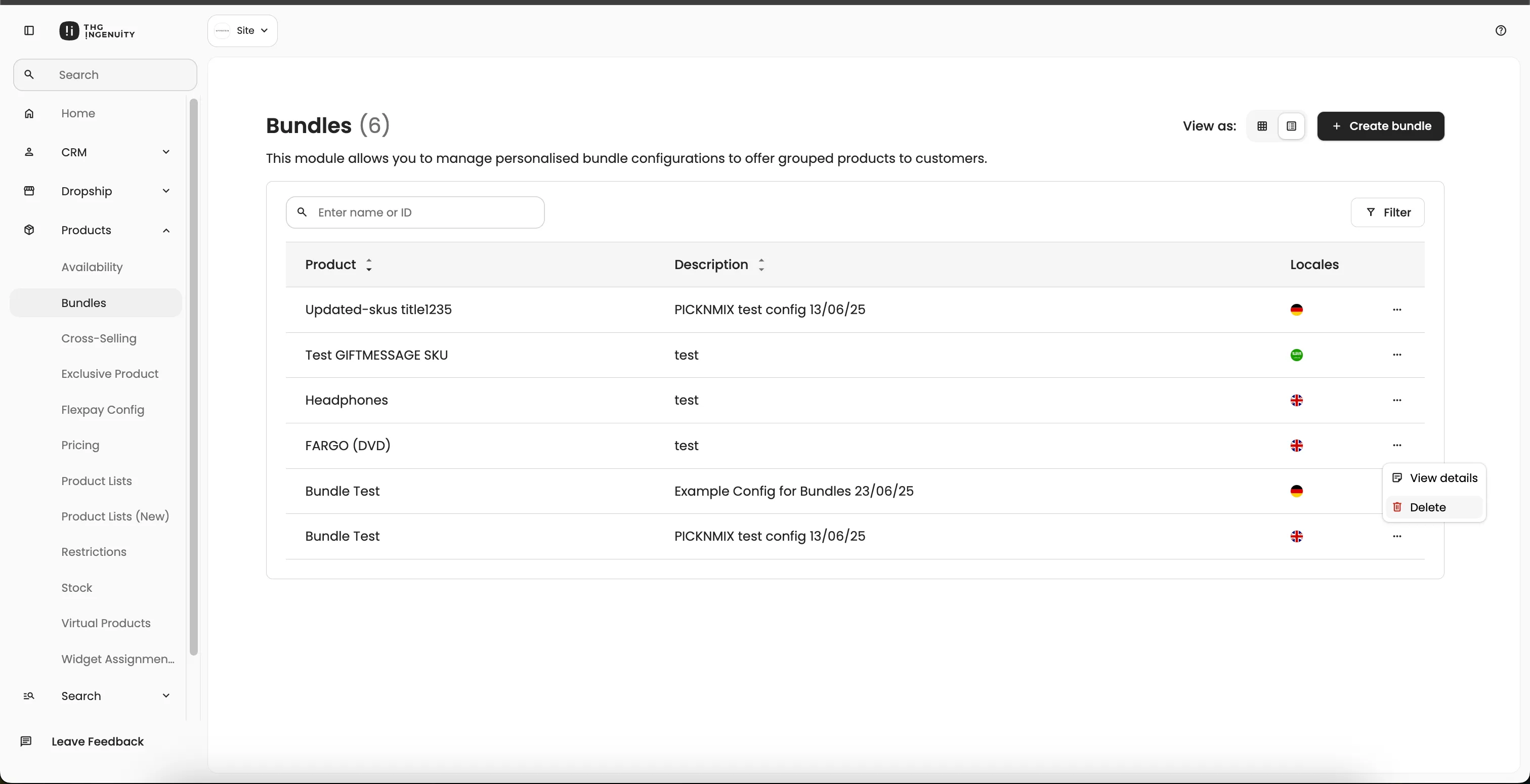
- Table View - Tabular list with sortable columns
View Bundle
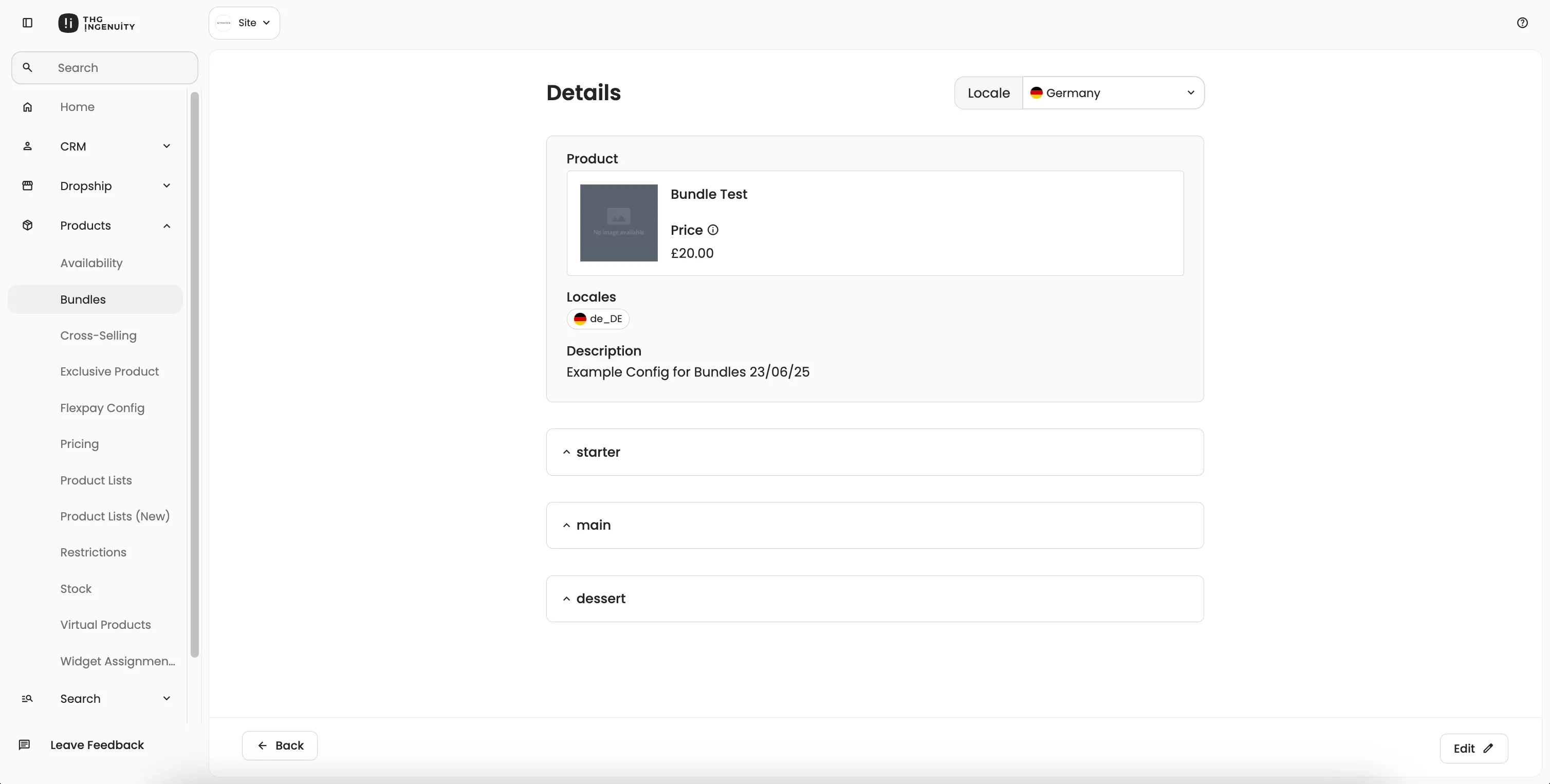
Section titled “View Bundle”From homepage card: Click on bundle name OR select “View details” from mini menu
From homepage table: Click “View details” action
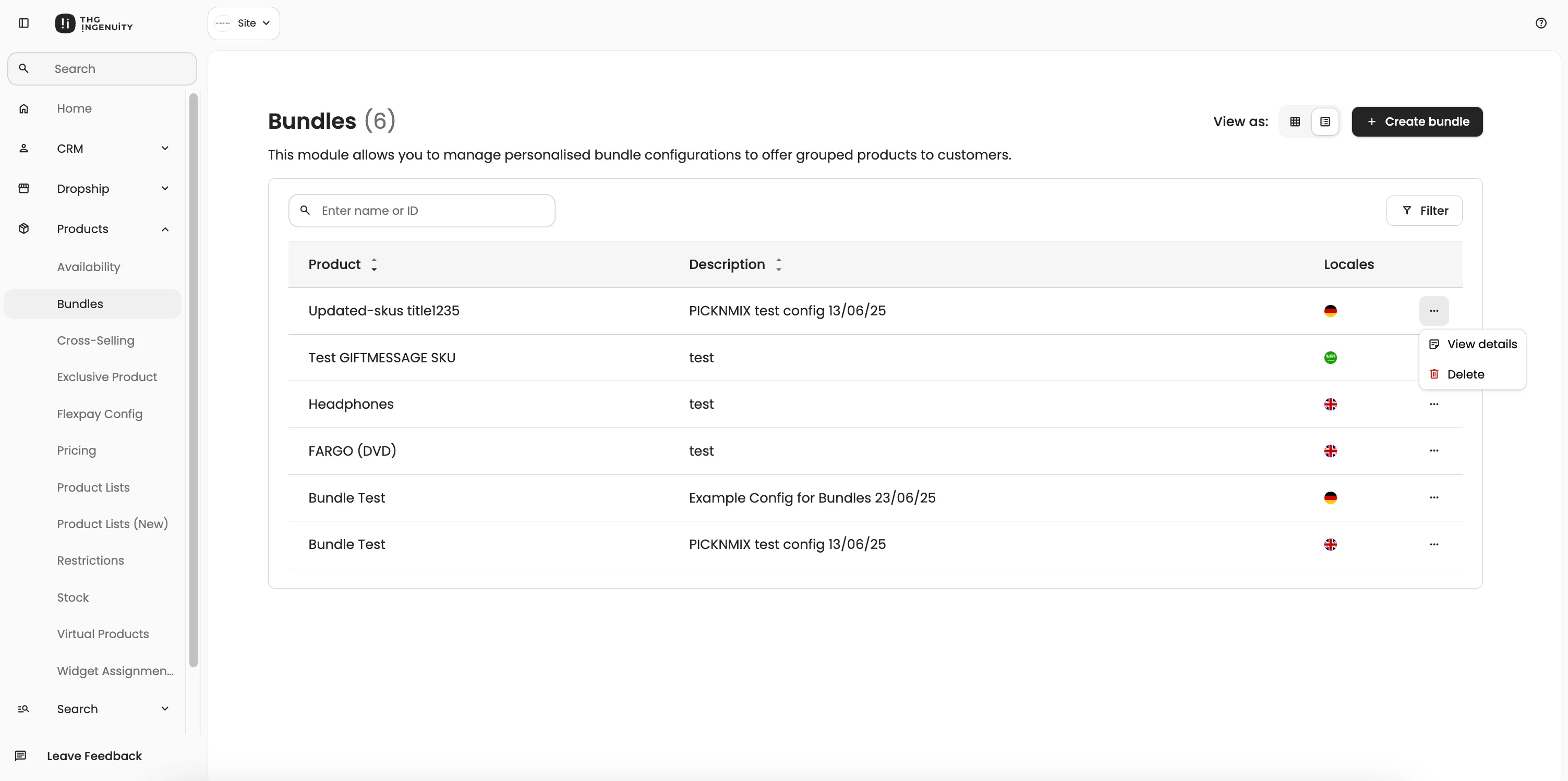
The Bundle Details page provides a read-only view of an existing bundle configuration like products, locale, description and expandable view of groups added in bundle.
Edit Bundle
Section titled “Edit Bundle”From Bundle Details page: Click Edit button in footer. The Edit Bundle allows user to edit details for existing bundles.
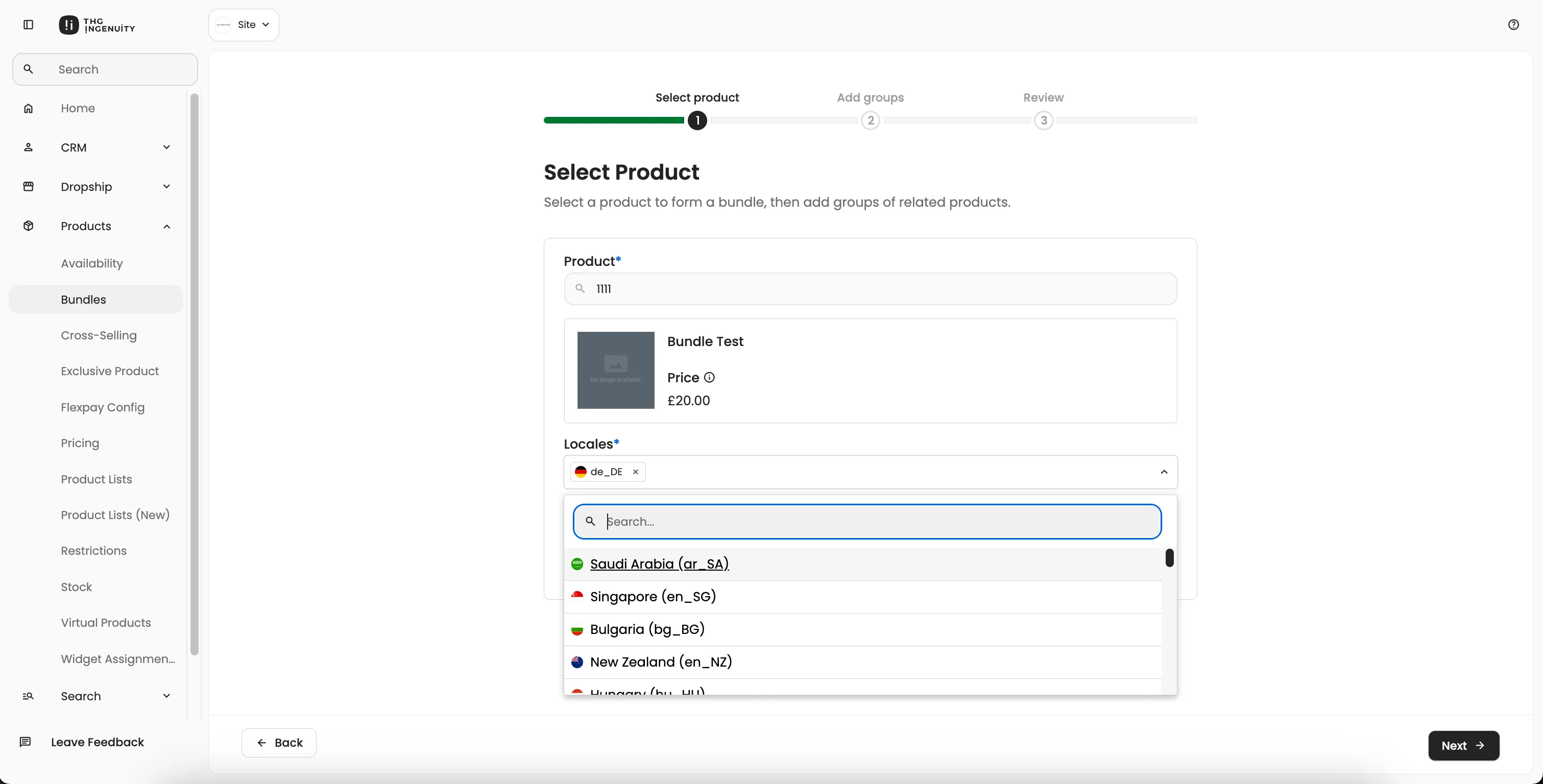
- Stage 1: Select Product (Pre-populated)
- Product - Already selected (cannot change bundle product)
- Locales - Pre-selected with existing locales (can add/remove)
- Description - Pre-filled with existing description
- Stage 2: Add Groups (Pre-populated)
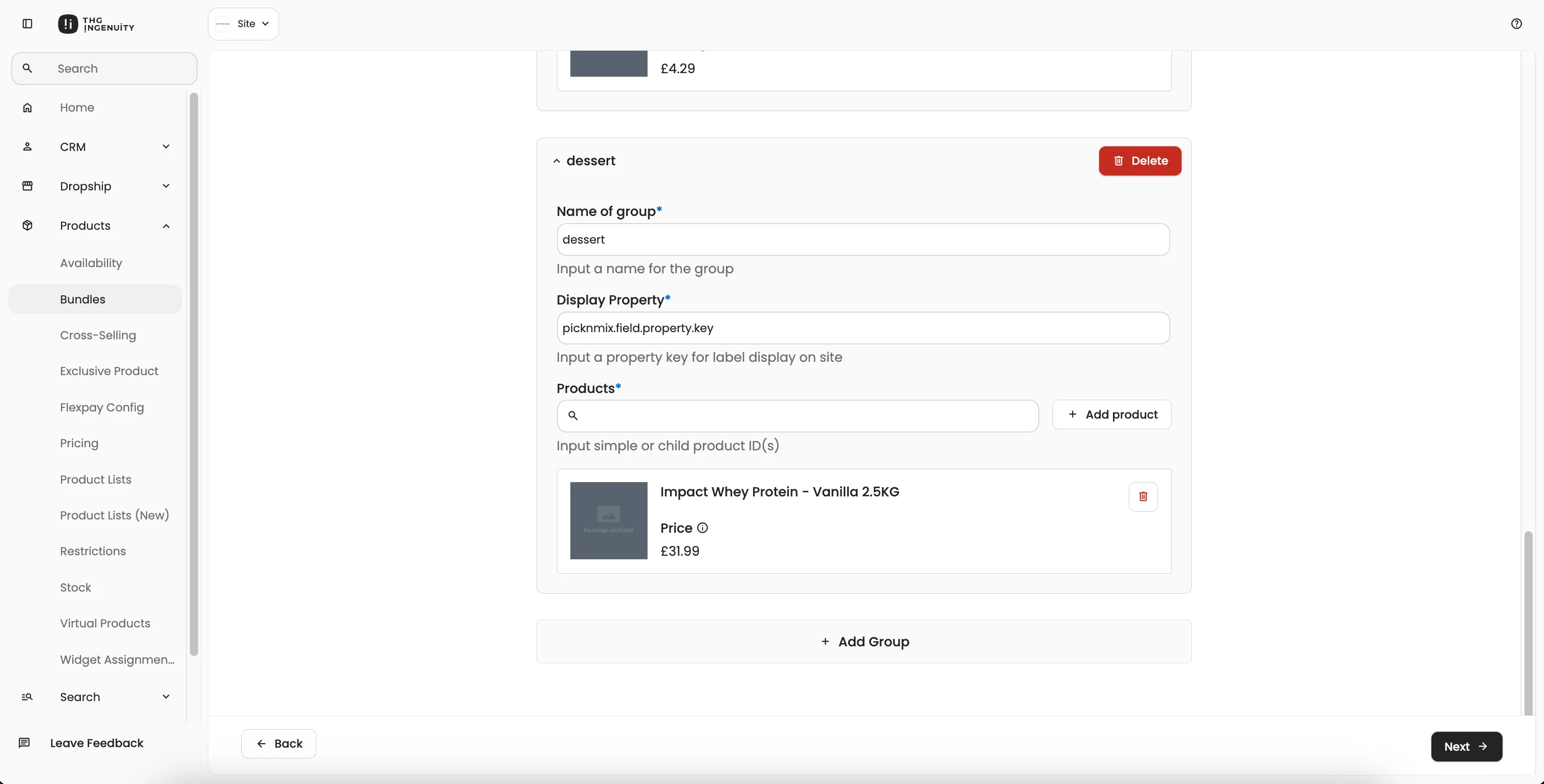
- Bundle Type - Already set (quantity or weight)
- Groups - All existing groups loaded with:
- Group name and display property
- Fixed/Max quantity or weight values
- All products in each group
- Stage 3: Review
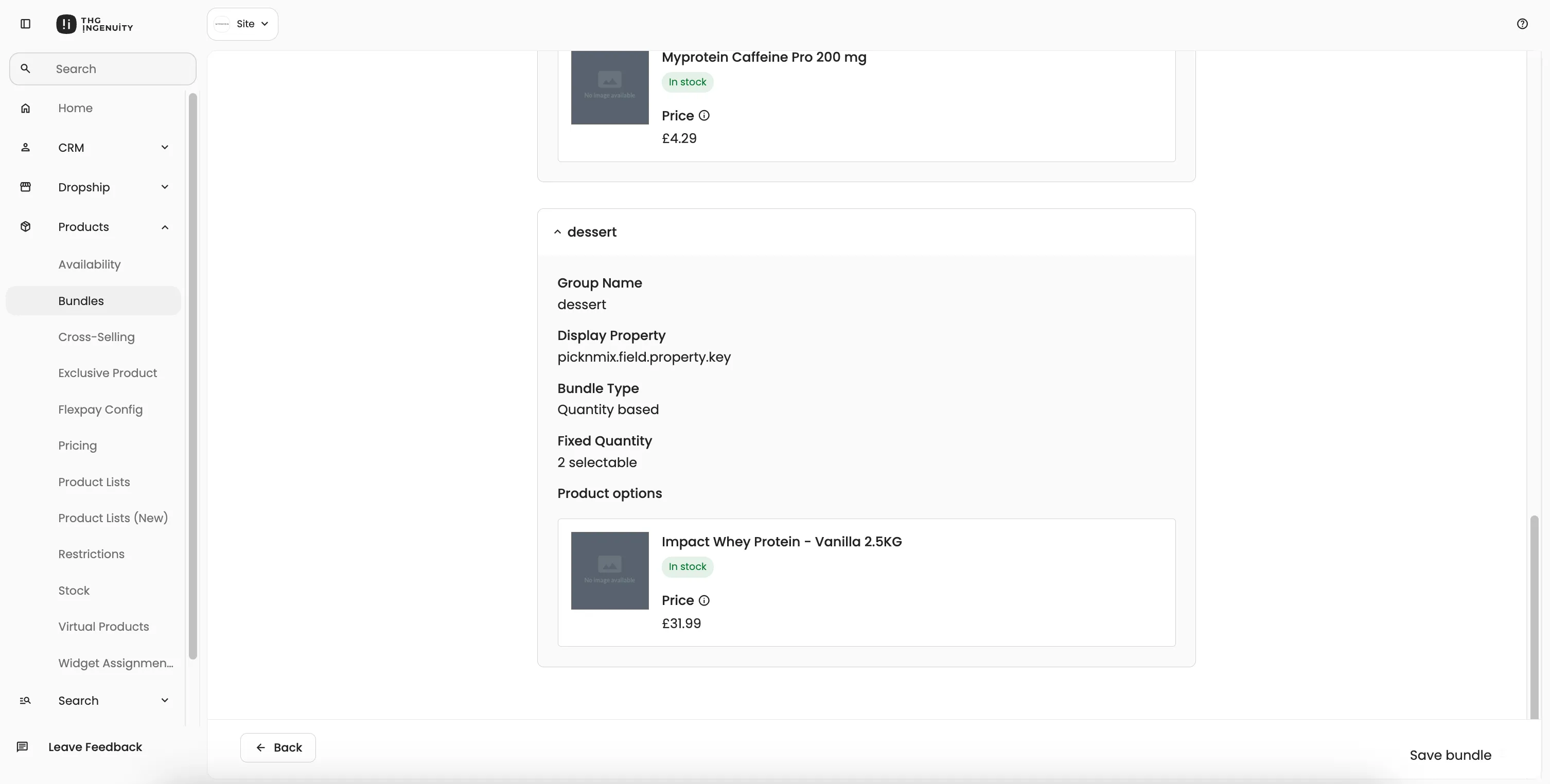
- Review all changes and click on
Save bundlebutton to save the changes
- Review all changes and click on
Create Bundle
Section titled “Create Bundle”Clicking “Create Bundle” on the homepage navigates to create bundle page:
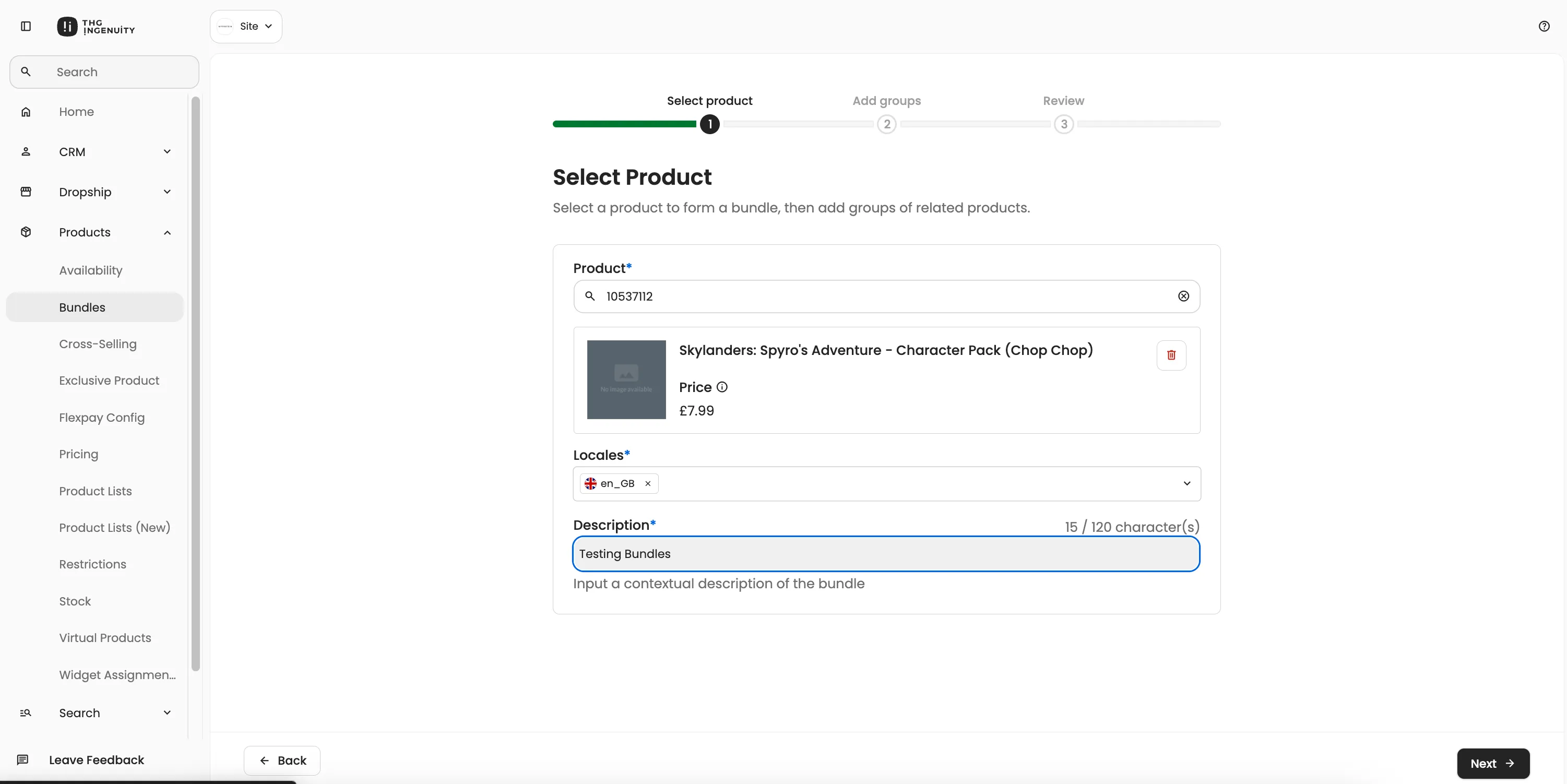
- Stage 1: Select Product
- Search and select the product SKU for the bundle
- Choose target locales/subsites
- Add bundle description
Fixed vs Max Quantity/Weight:
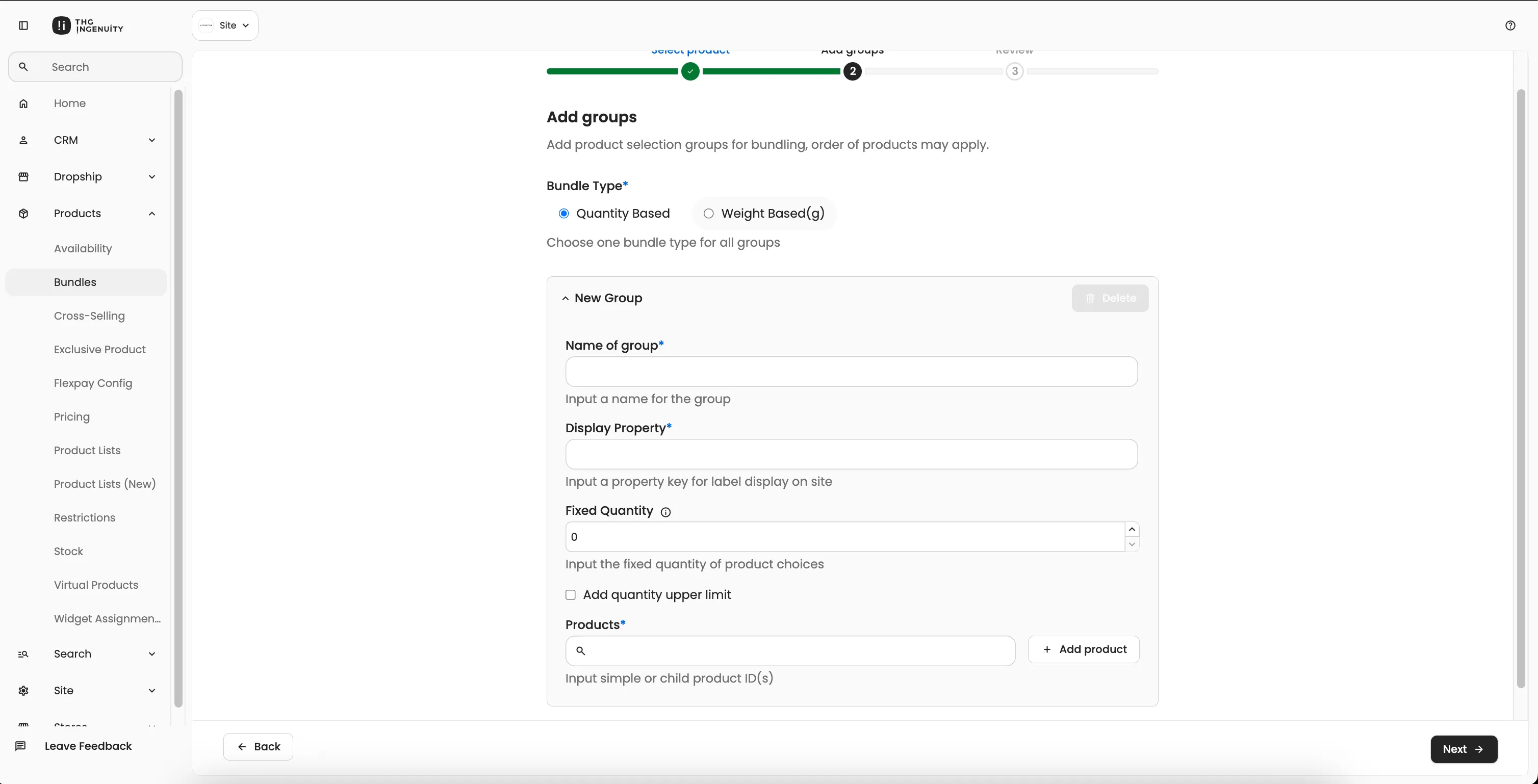
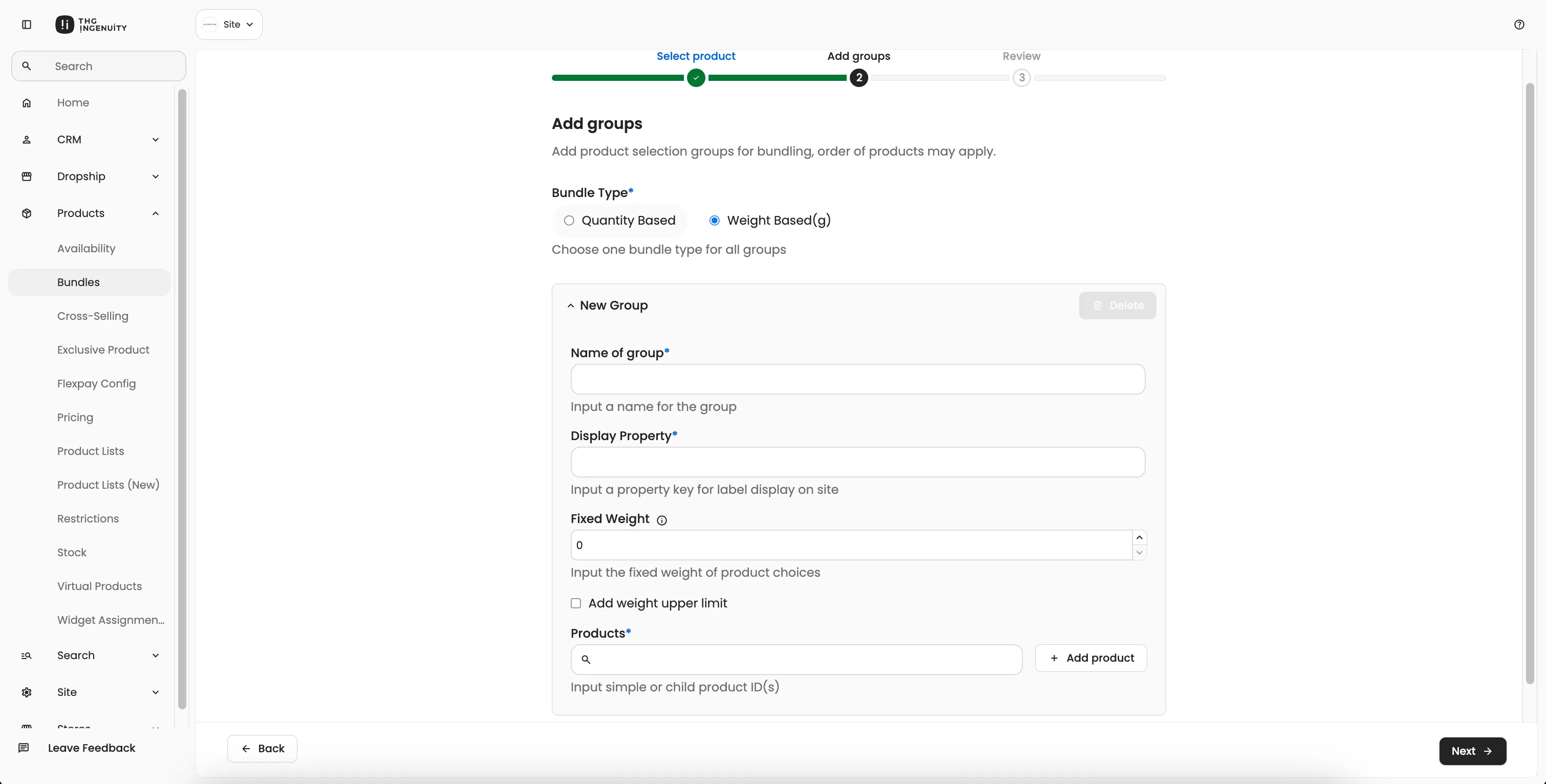
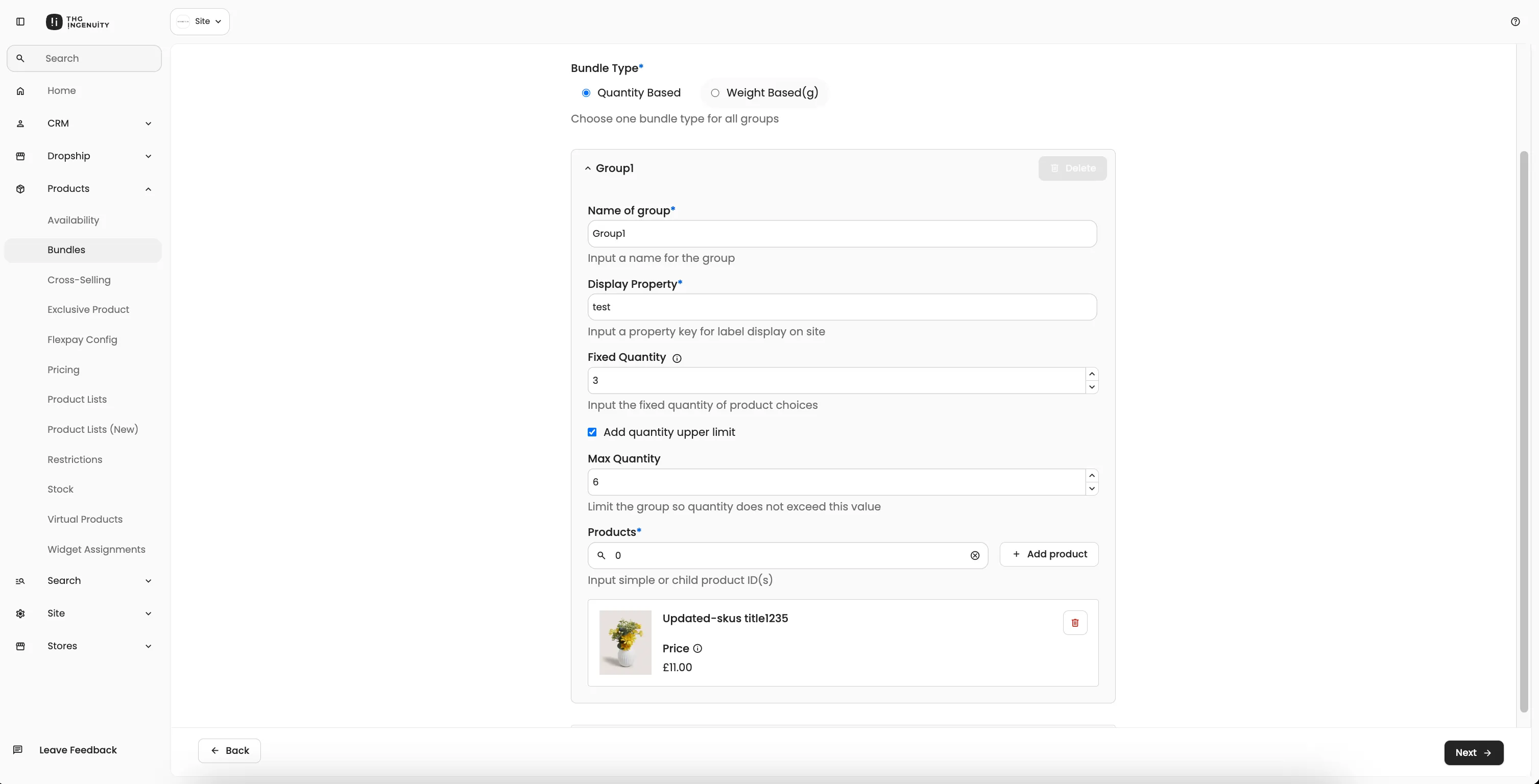
Section titled “Fixed vs Max Quantity/Weight:”When configuring bundle groups, you must choose between Quantity-based or Weight-based bundles. Each type has Fixed and optional Max limits that control how customers can select products.
- Quantity-base → Limits based on number of items. e.g. “Pick 5 chocolates”
- Weight-based → Limits based on total weight. e.g. “Pick 500g of sweets”
Fixed Value (Required): The Fixed value sets the minimum amount the customer must select from the group.
Max Value (Optional - Upper Limit): When you enable “Add quantity/weight upper limit”, you can set a Max value that creates a range for customer selection.
- Stage 2: Add Groups
- Define one or more groups with products
- Configure group settings:
- Quantity-based: Fixed quantity or max quantity limits
- Weight-based: Fixed weight or max weight limits
- Quantity-based: Fixed quantity or max quantity limits
- Stage 3: Review
- Final review of all bundle configuration
- Confirm and click on
Create Bundlebutton to save the bundle
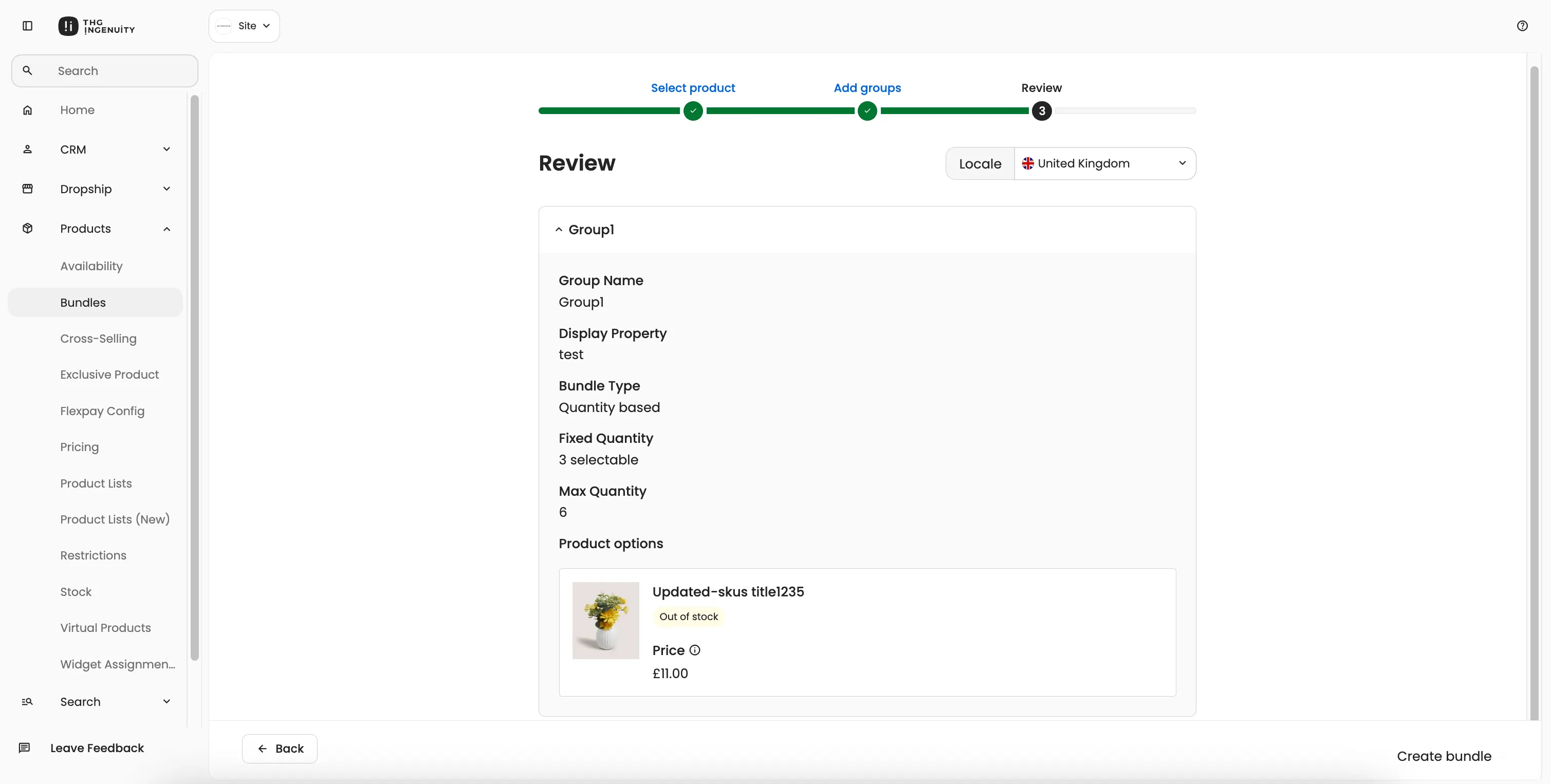
Adding Products to Groups
Section titled “Adding Products to Groups”- Enter product ID and click “Add product”
- Only simple or child products allowed (not master SKUs)
- Cannot add the bundle’s own product to a group
- Duplicate products are prevented
Delete Bundle
Section titled “Delete Bundle”-
From homepage card: Select “Delete” from mini menu
-
From homepage table: Click “Delete” action
-
Confirmation dialog appears, click on
Deletebutton to confirm, then it deletes bundle assignments for all locales and bundle is removed from homepage list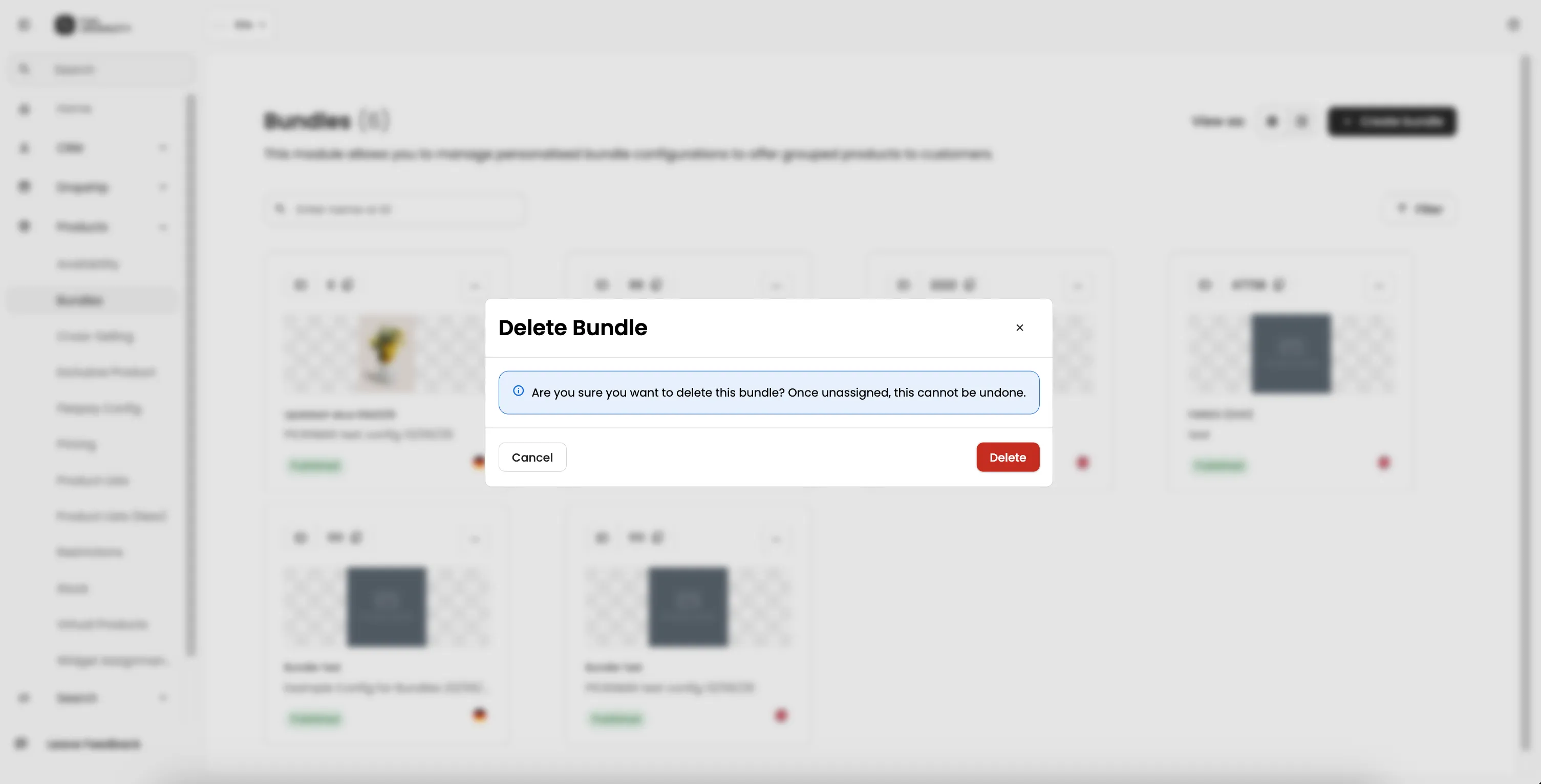
Glossary
Section titled “Glossary”Channel
Section titled “Channel”The terms Channel and Site are used interchangeably. Examples would be ‘Look Fantastic’ or ‘MyProtein’.