Pricing
Summary
Section titled “Summary”The Pricing modules are used to change the selling price and the RRP of products shown on site.
Pricing for a SKU is set against a particular site, locale, currency and country group. See the Glossary at the bottom of this page for a description of each of these terms.
Please speak with your account manager to discuss enabling this module for your organisation.
Homepage
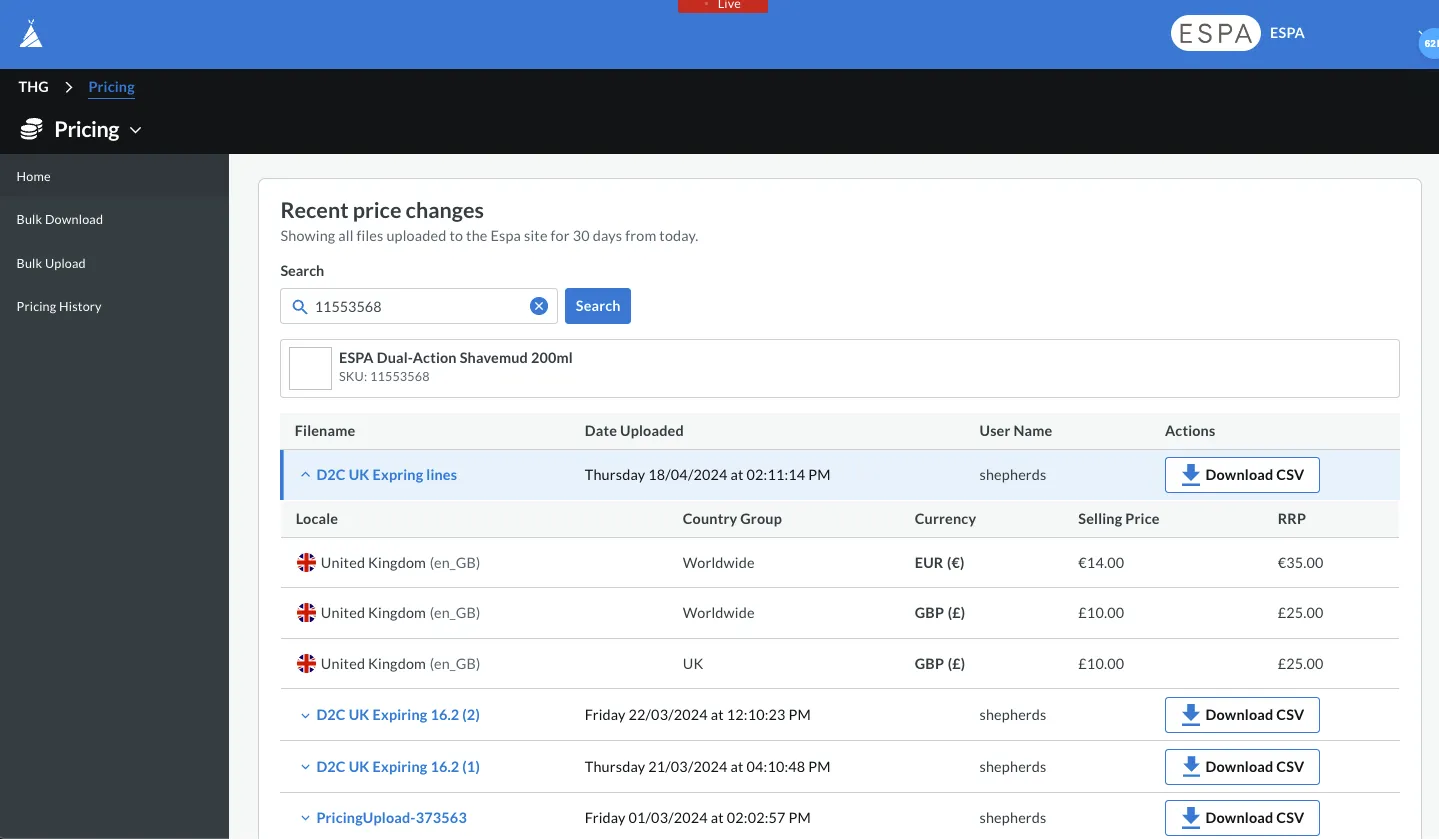
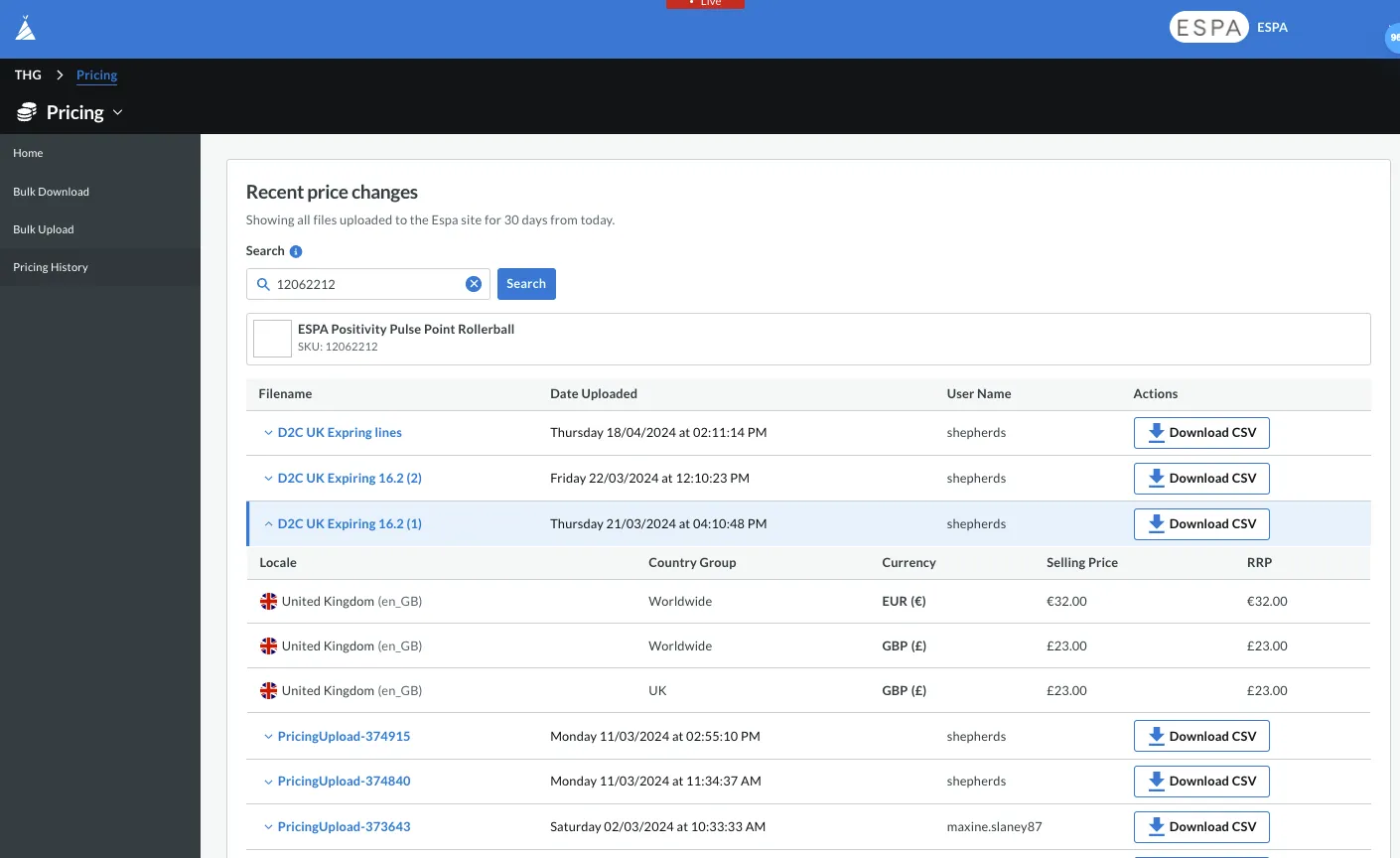
Section titled “Homepage”Within Recent price changes, view price change upload files which have been uploaded for the specified site within the past 30 days. Click the Download CSV button within the actions column to download the referenced file.
To filter results based on a particular SKU, use the search bar. Click the dropdown within the Filename column to see which selling price and RRP were uploaded for the SKU in that file.
Bulk Download
Section titled “Bulk Download”Use this page to download current pricing data in the system for a given set of products.
These files are also to be used as templates for pricing upload files; i.e. download the file, change the pricing, upload via the Bulk Upload module. There are four ways to filter which products you download pricing for: Manual, Product List, DDL Search, All.
Manual
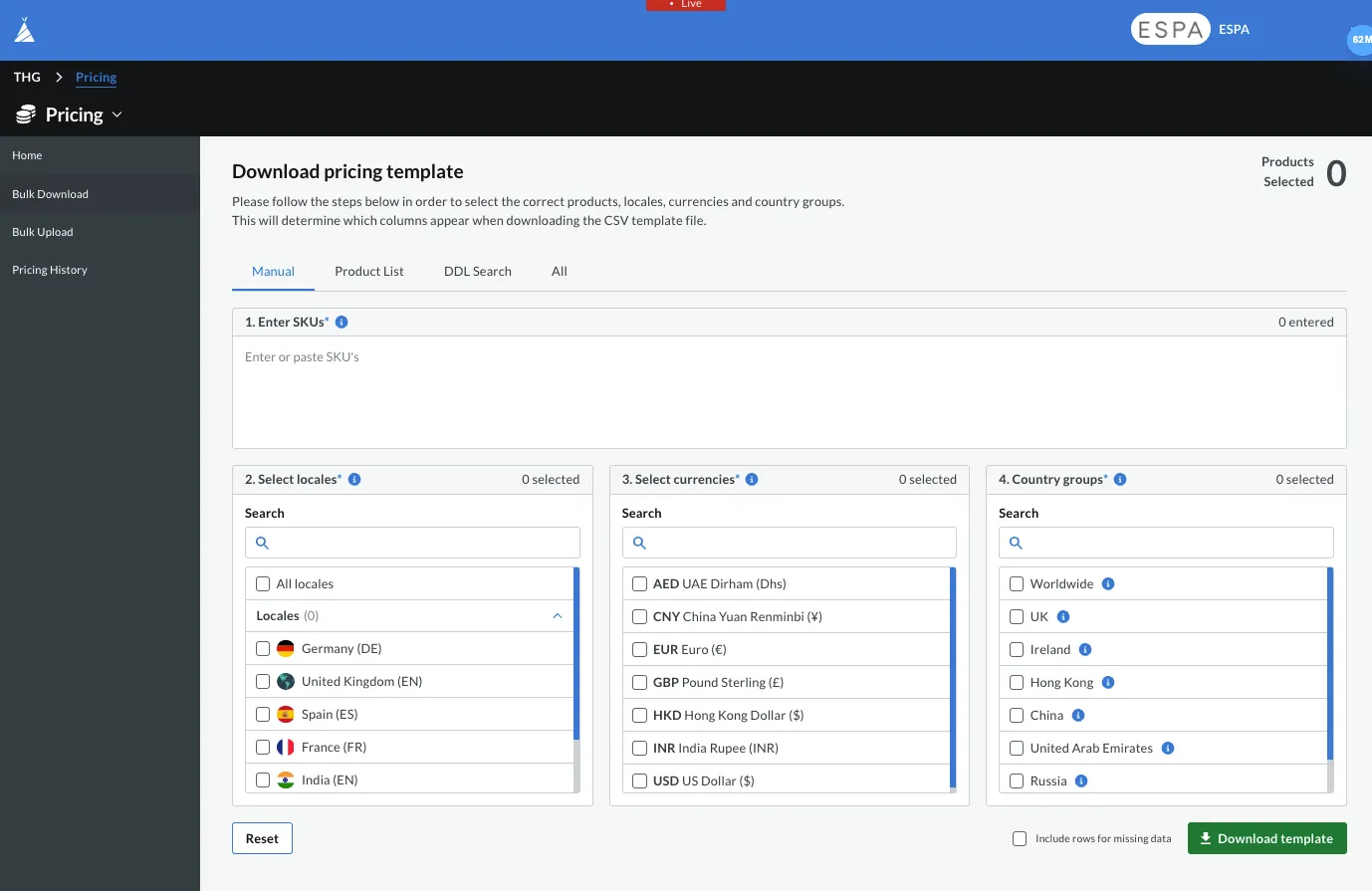
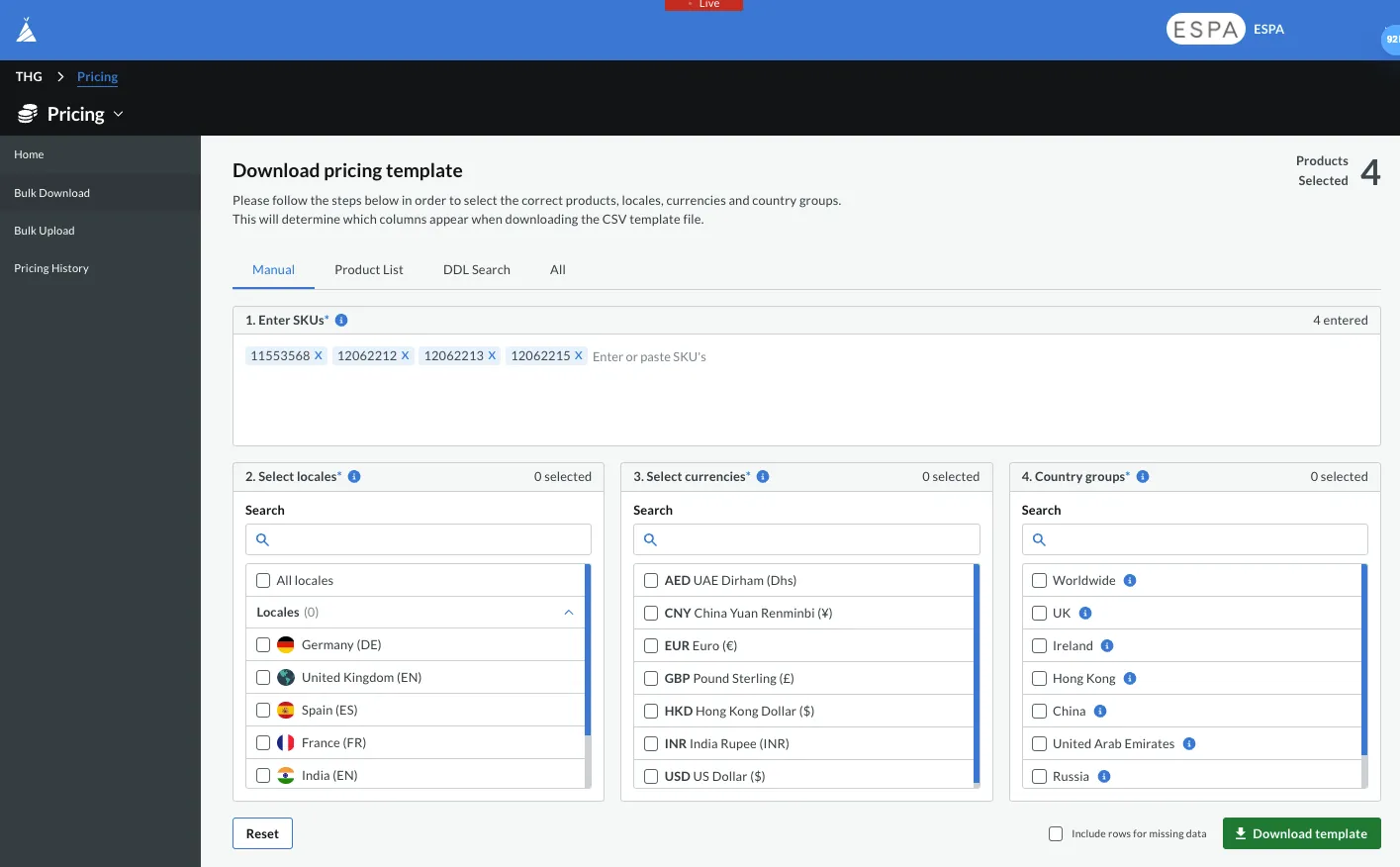
Section titled “Manual”This tab is to be used if you have a known set of products you wish to view or change prices for.
Enter the SKUs you wish to download pricing for.
Select which locales, currencies and country groups you wish to include. Once ready, click the Download template button. Click the Include rows for missing data tickbox if you wish to include a row for a product in your template file, even if previously pricing has not been set for this product.
Product List
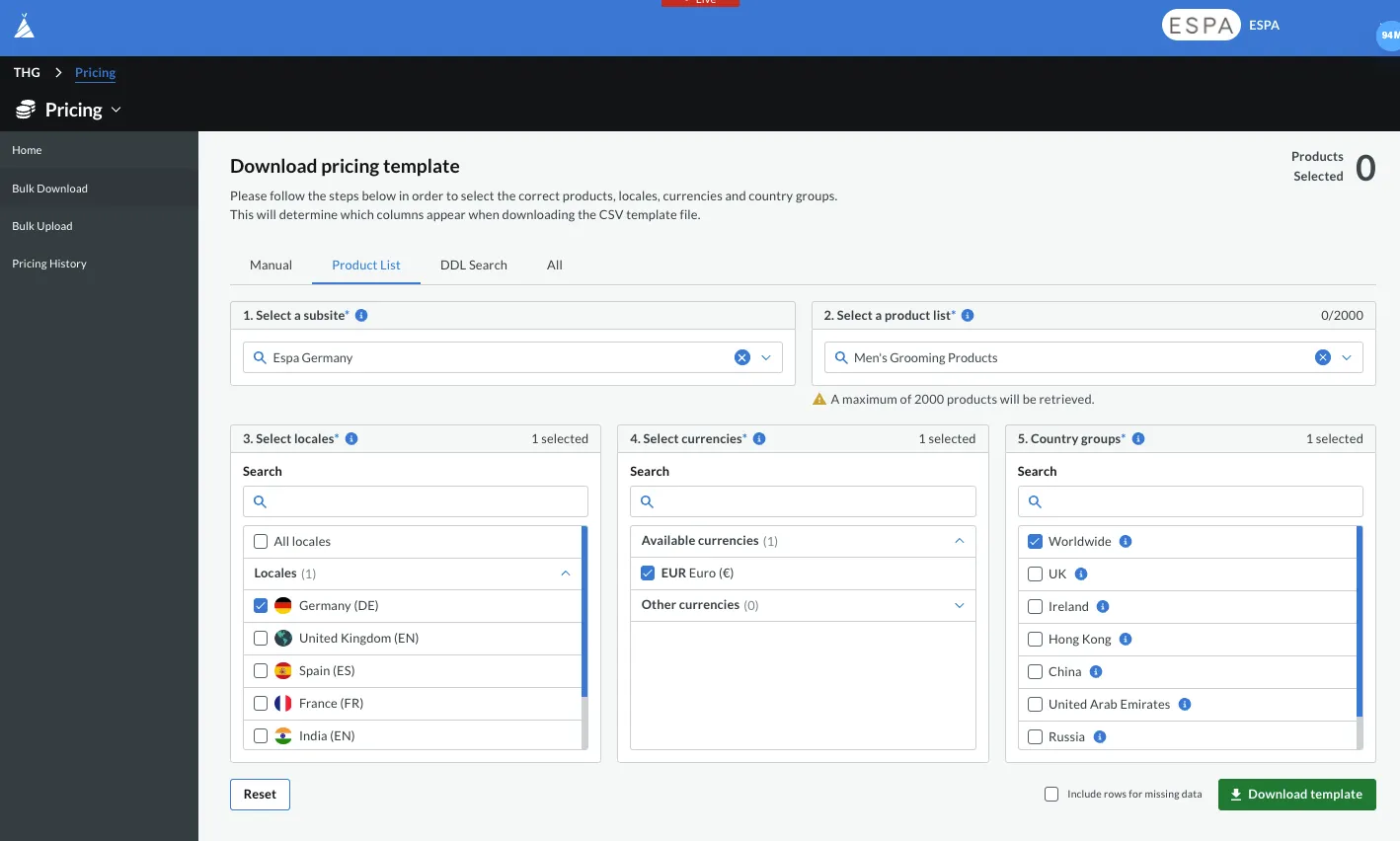
Section titled “Product List”This tab is to be used to view or change pricing for all products within a particular product list.
Select which subsite you wish to download pricing for. Then search for the product list you require.
Select which locales, currencies and country groups you wish to include. Once ready, click the Download template button. Click the Include rows for missing data tickbox if you wish to include a row for a product in your template file, even if previously pricing has not been set for this product.
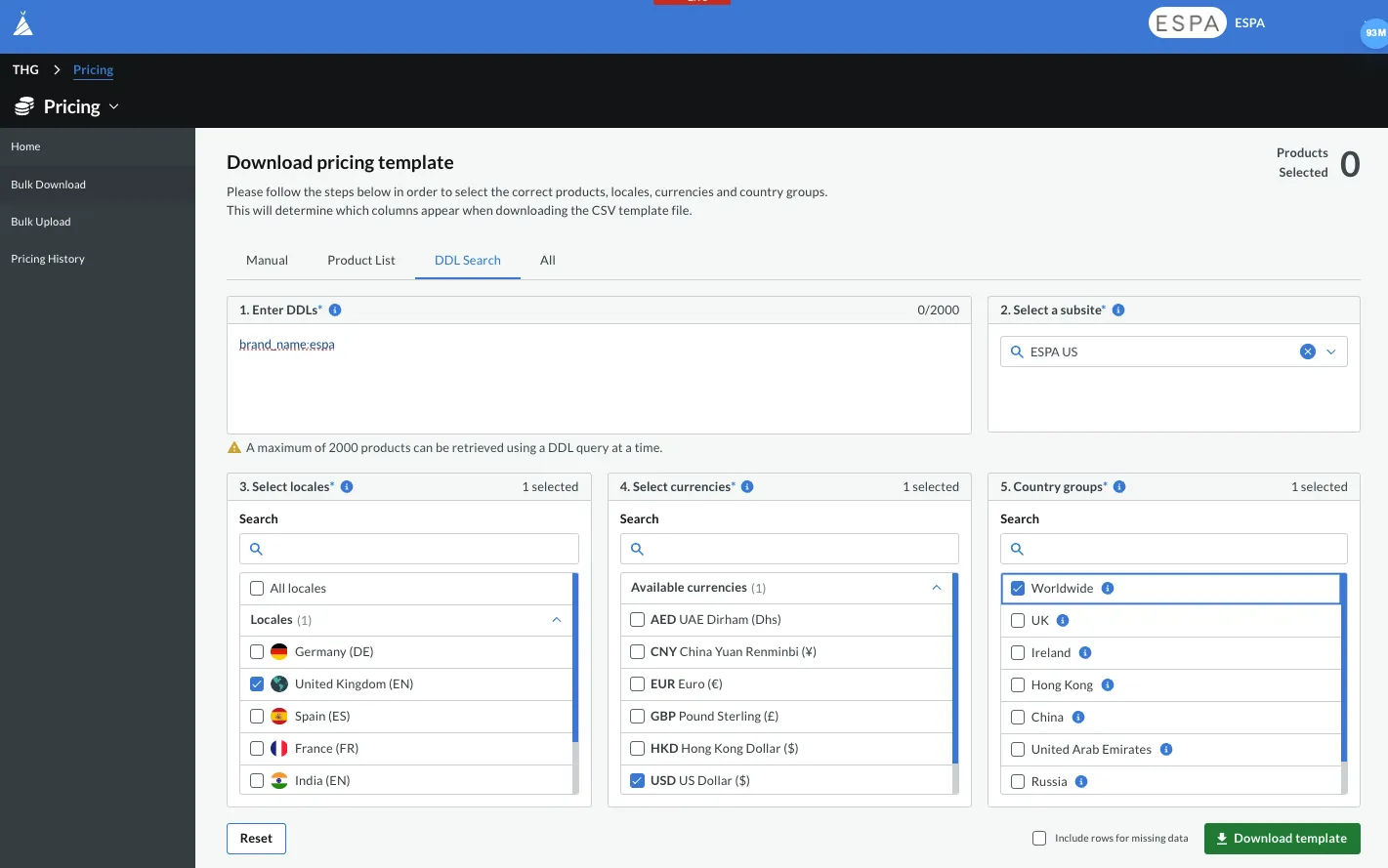
DDL Search
Section titled “DDL Search”This tab is to be used to view or change pricing for all products retrieved via a DDL query.
Enter the DDL query. Then select which subsite you wish to retrieve results for.
Select which locales, currencies and country groups you wish to include. Once ready, click the Download template button. Click the Include rows for missing data tickbox if you wish to include a row for a product in your template file, even if previously pricing has not been set for this product.
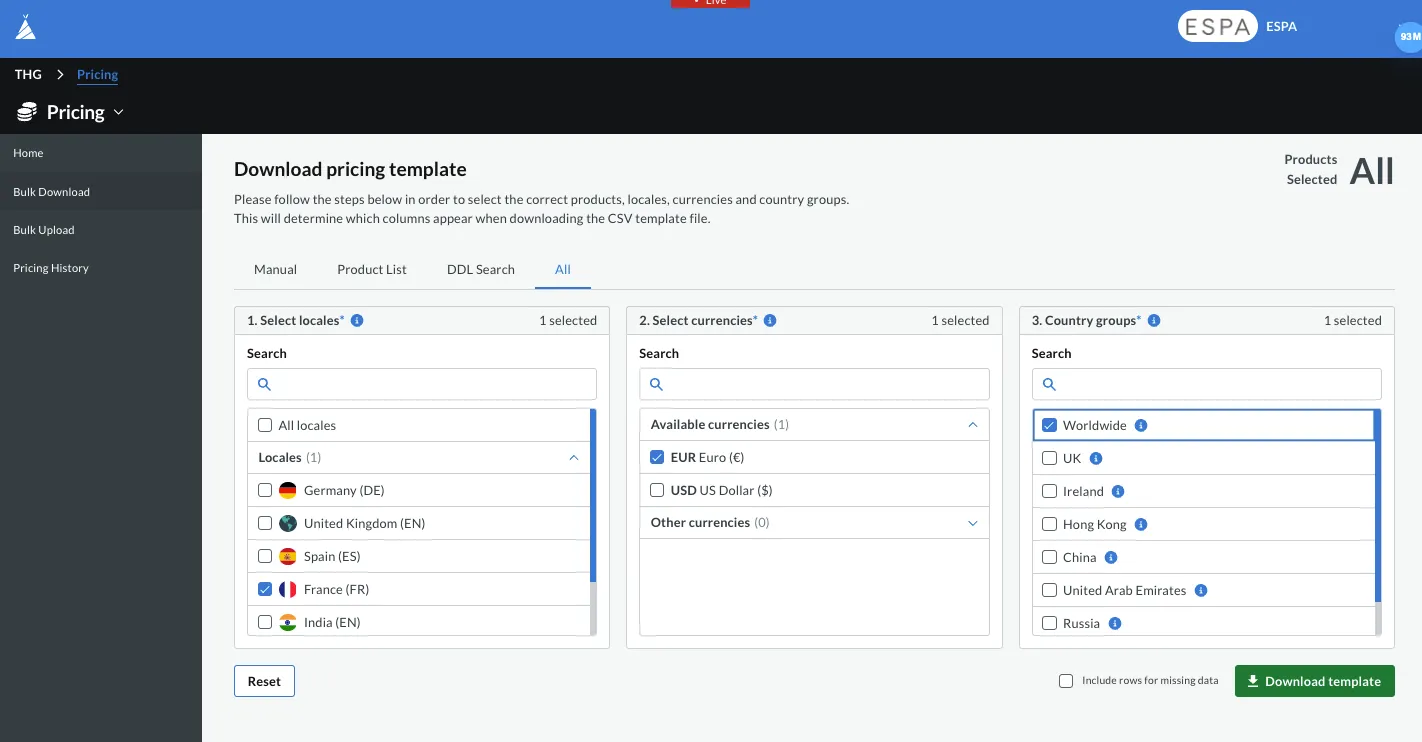
This tab is to be used to view or change pricing for all products for a given set of locales, currencies and country groups.
Select which locales, currencies and country groups you wish to include. Once ready, click the Download template button. Click the Include rows for missing data tickbox if you wish to include a row for a product in your template file, even if previously pricing has not been set for this product.
Bulk Upload
Section titled “Bulk Upload”To change the selling price or RRP for a product, download a file containing all of the relevant products using the Bulk Download submodule. Begin by editing this file locally. Do not edit the column headers.
Edit the selling price via the Price column. Edit the RRP via the RRP column. If you would like the selling price to be the same as the RRP, populate both columns with the same value. See the fallback section of the glossary below for more information on how price fallbacks work.
You may edit the cells within Subsite (i.e. locale), Currency and Country Group columns to apply pricing to the entered values.
The Expiry Date and Campaign Details columns are just used as notes and reference points for you and your team, they do not have any automatic implications in the system.
Either drag and drop your edited CSV, or click the Browse Files button to select your local file. When ready, click the Upload File button to apply your changes to the system.
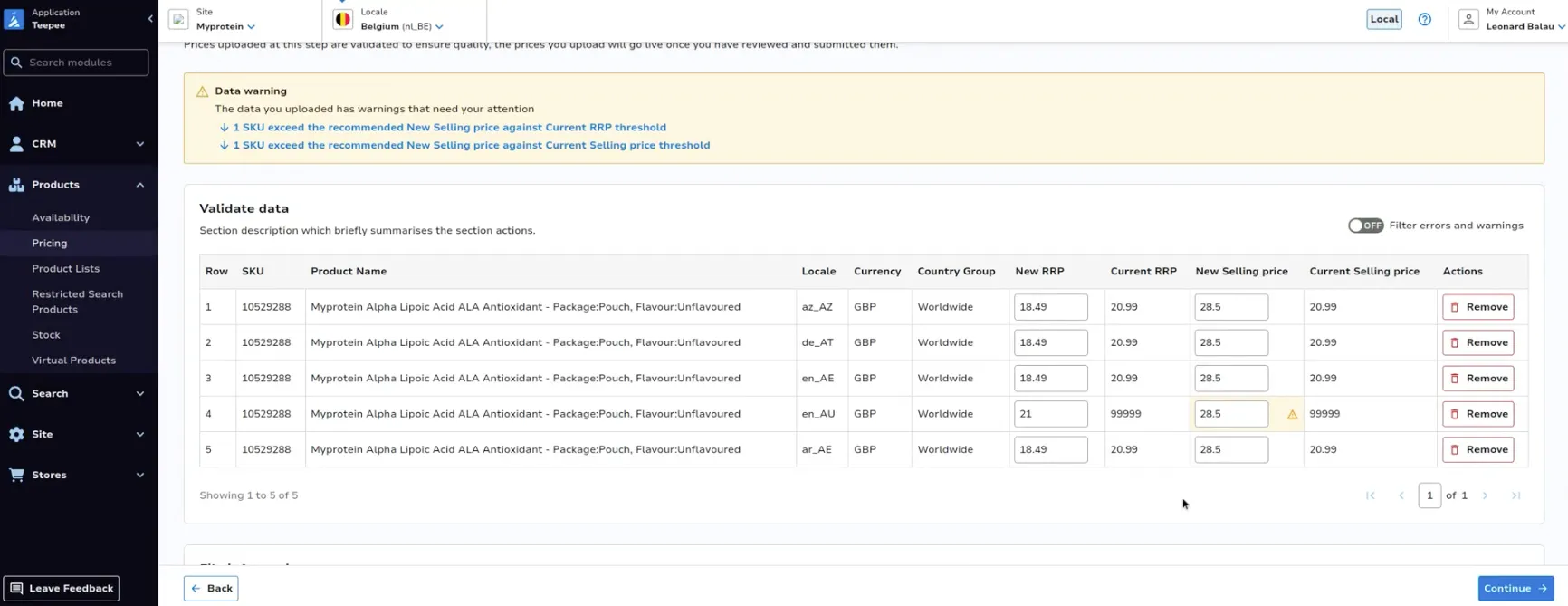
If the percentage a selling price has changed compared to either the currently live selling price, or the currently live RRP, exceeds the threshold for this site, a warning will appear for the corresponding row. Similarly, if the percentage a RRP has changed compared to the existing RRP exceeds the threshold for this site, a warning will appear for the corresponding row. You can either then change the value in your file and reupload, or if you’d like to proceed and ignore the warning, continue with the current upload.
Campaigns
Section titled “Campaigns”Price campaigns are temporary price changes which override the permanent pricing set within the above submodules (bulk upload). The changes can be scheduled ahead of time and always have a start and end date specified.
The selling price and RRPs can be changed as part of a price campaign.
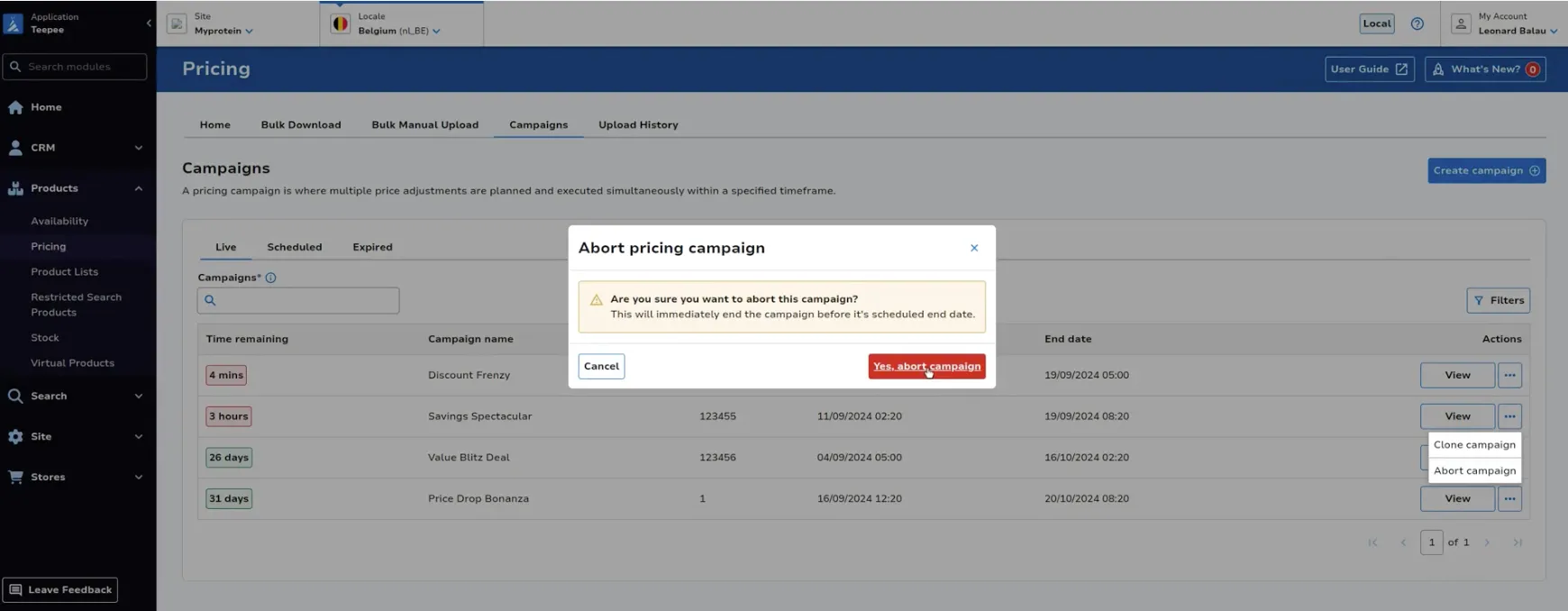
This tab is to be used to view any campaigns currently live, meaning the prices in these campaigns will reflect on site.
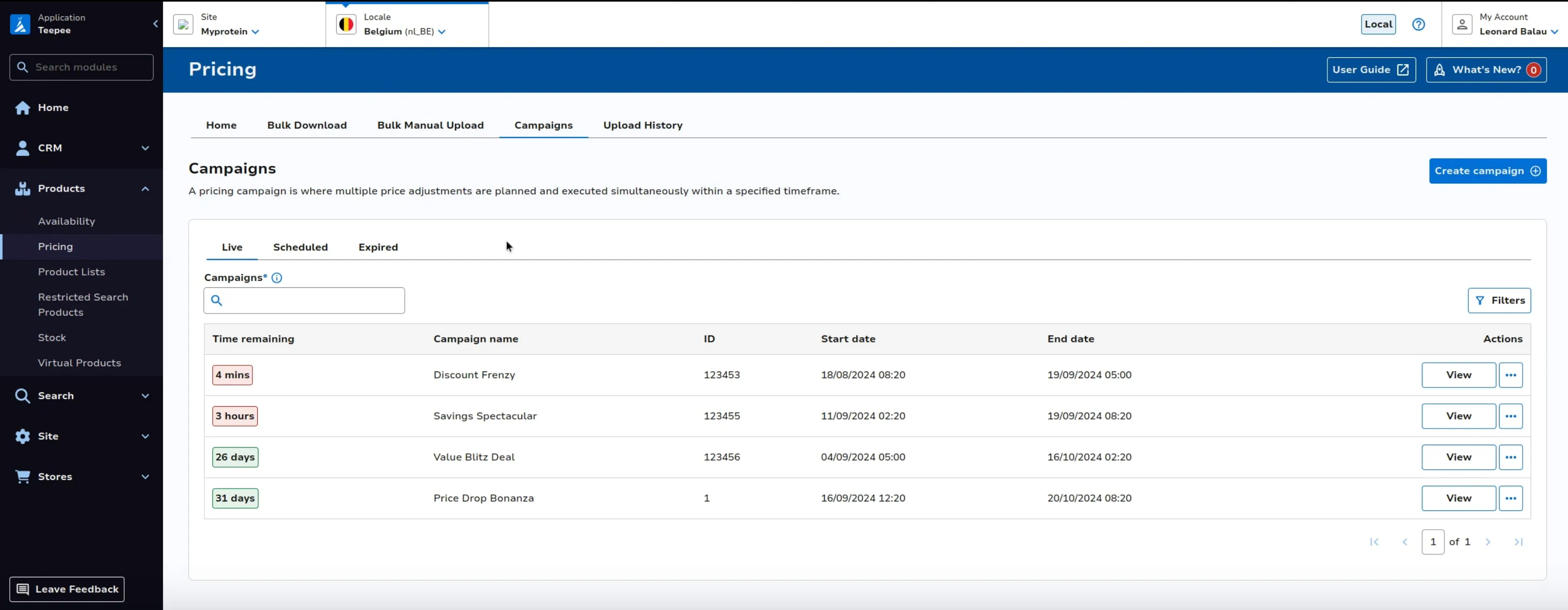
Click View to see more details. Here you’ll be able to download the price changes in CSV format, as well as a history log of changes made to this campaign.
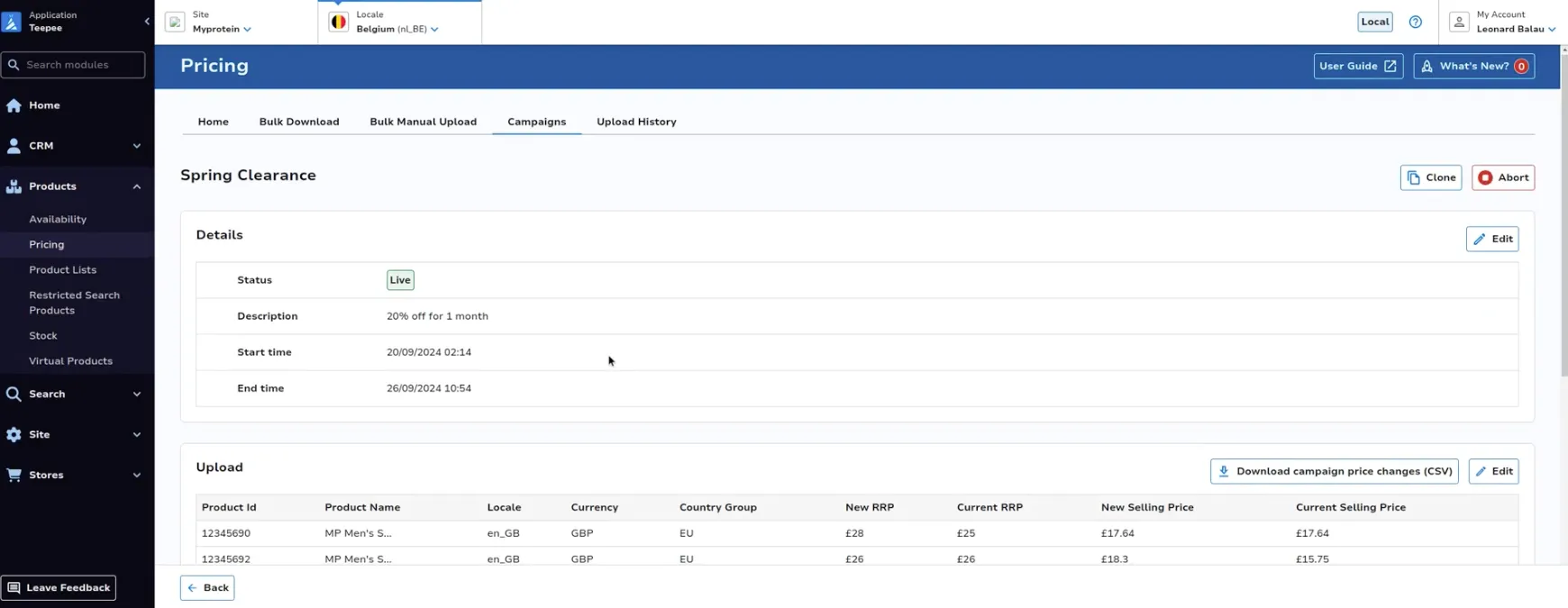
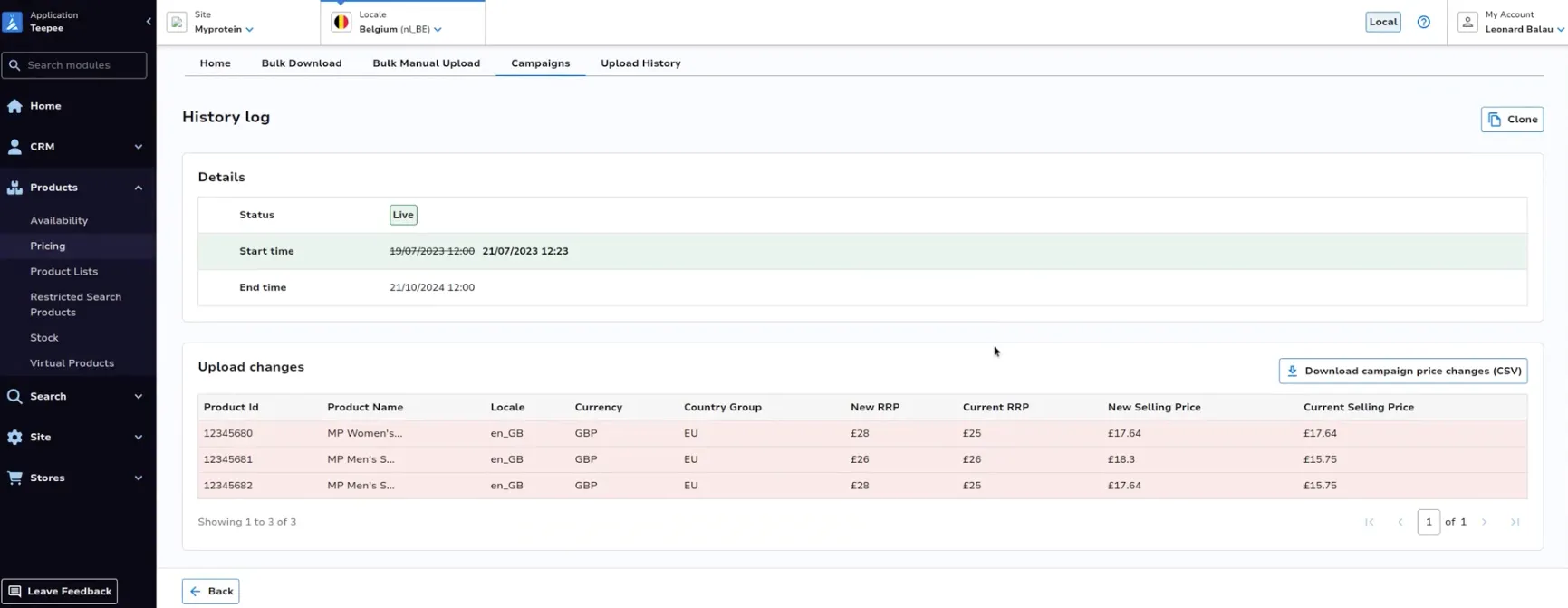
Click Clone campaign to copy this campaign and edit it to create a new campaign.
Click Abort campaign to stop this campaign immediately, returning pricing on site back to the permanent prices as set within Bulk Upload module.
Scheduled
Section titled “Scheduled”This tab is to be used to view any campaigns currently scheduled to go live, meaning the start date of the campaign is in the future.
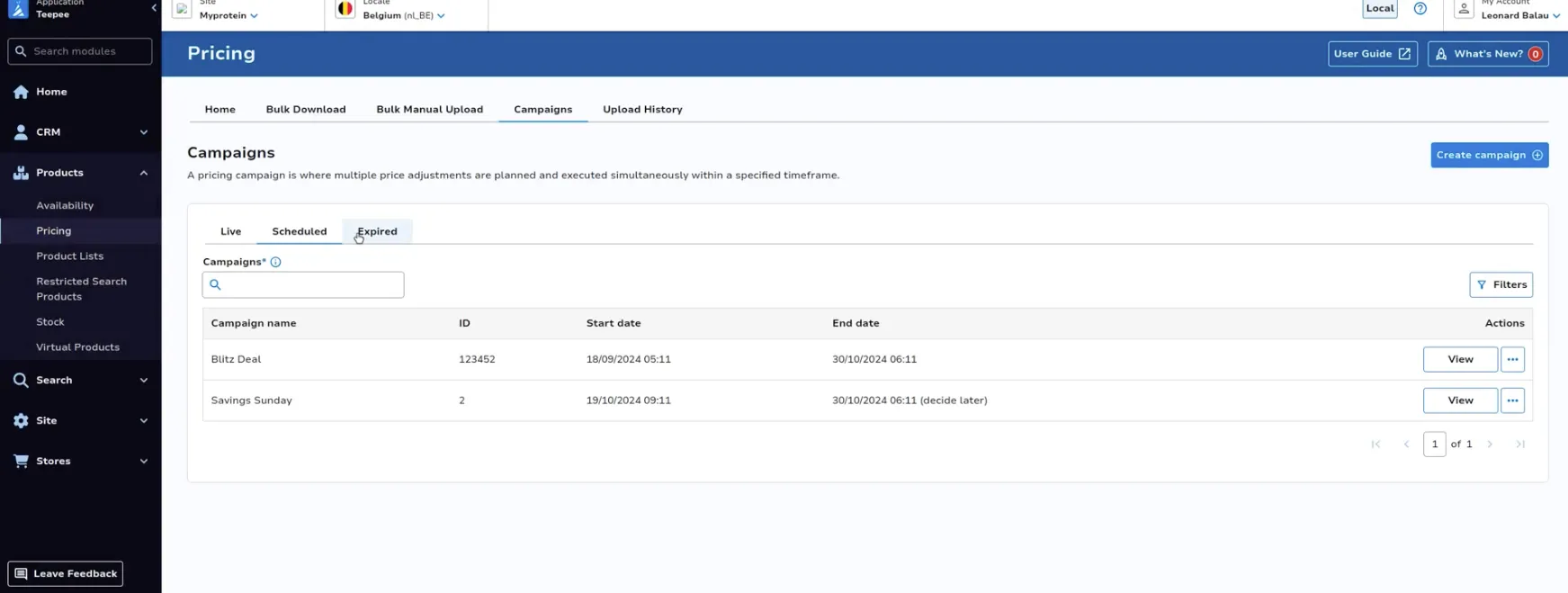
Click View to see more details. Here you’ll be able to download the price changes in CSV format, as well as a history log of changes made to this campaign.
Click Clone campaign to copy this campaign and edit it to create a new campaign.
Expired
Section titled “Expired”This tab is to be used to view any campaigns which were previously live but have now finished, meaning the campaign end date is in the past.
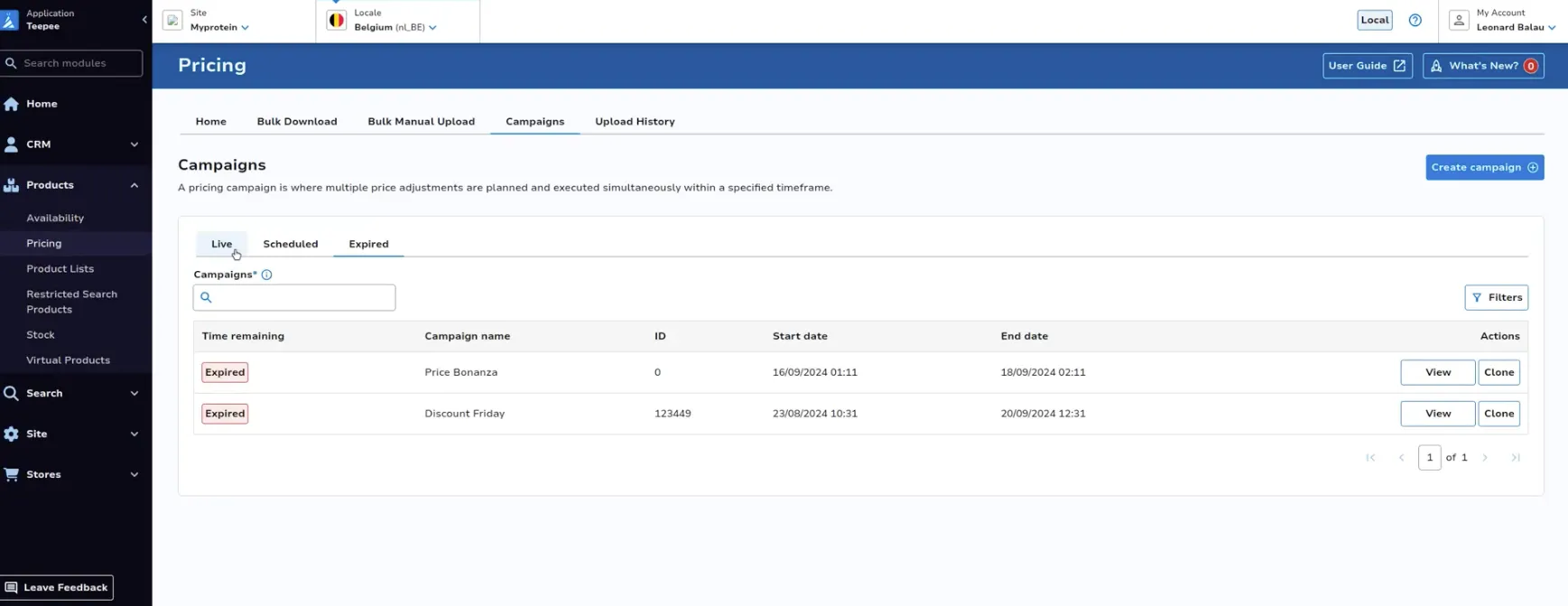
Click View to see more details. Here you’ll be able to download the price changes in CSV format, as well as a history log of changes made to this campaign.
Click Clone campaign to copy this campaign and edit it to create a new campaign.
Create Campaign
Section titled “Create Campaign”Click Create campaign on the landing page.
Specify your campaign name and description.
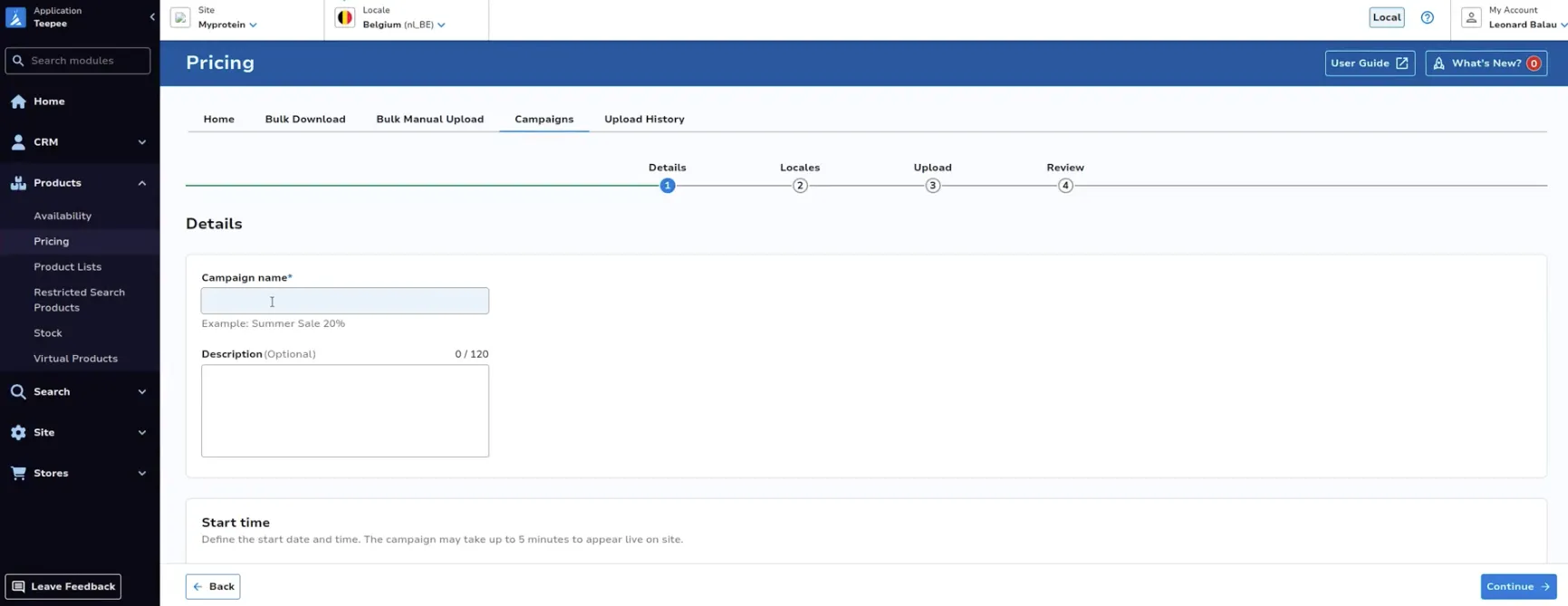
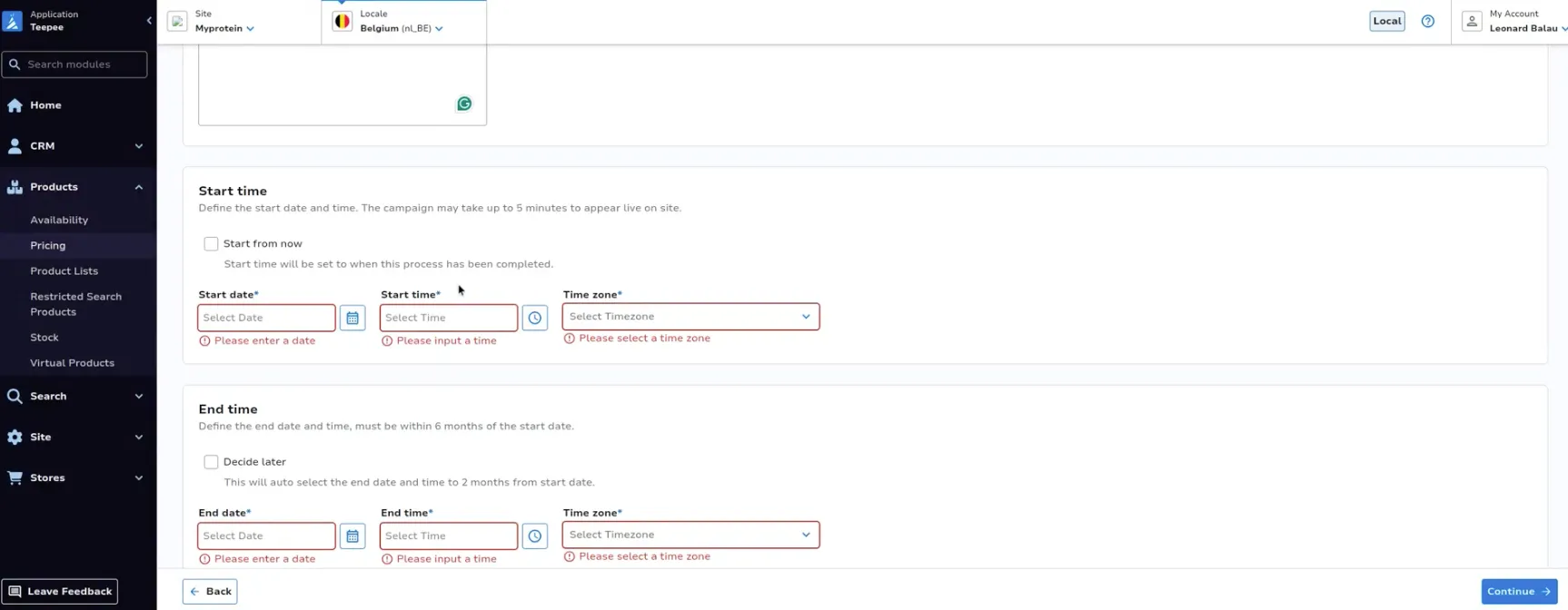
The start time is the date and time you wish for these temporary prices to go live on site. The end date is the date and time you wish prices to return to the permanent prices set within Bulk Upload module.
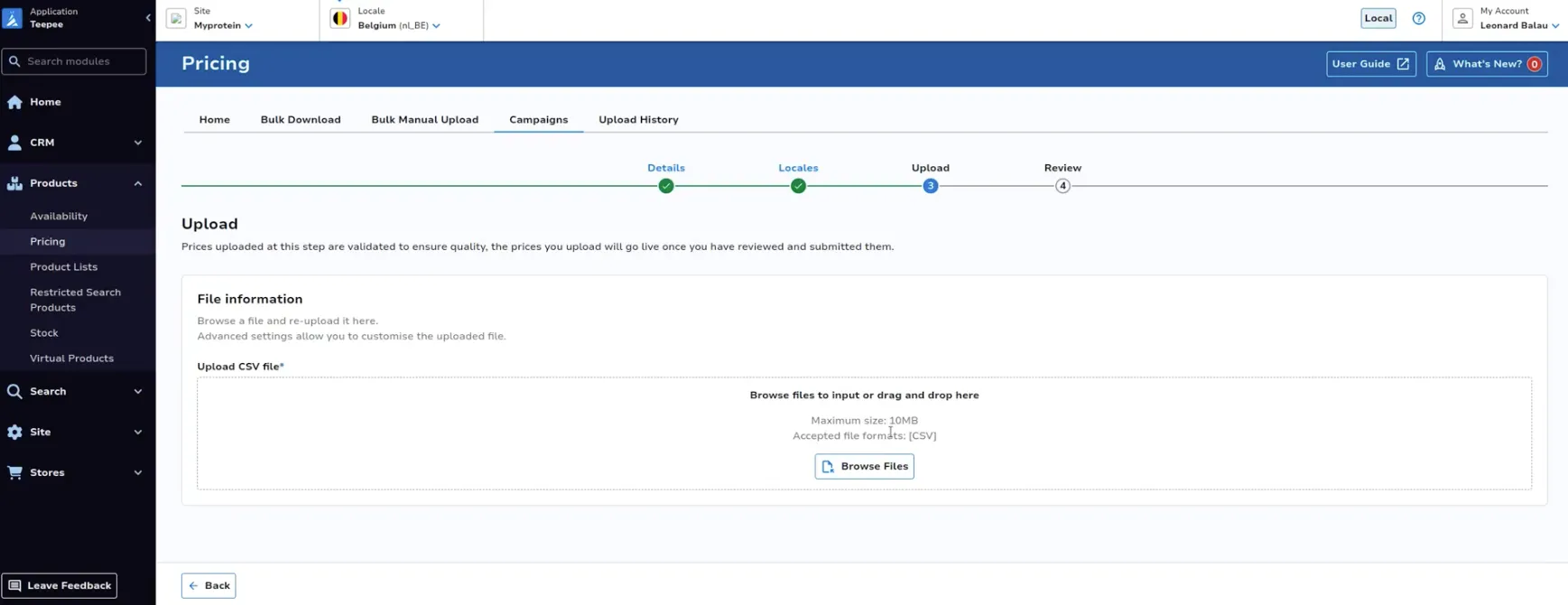
Upload a file; the file must be the same format as those used within Bulk Upload module. You can download prices to edit using the Bulk Download tab.
You can preview your changes and edit the new RRPs and selling prices within the tool. You can filter this page to only show rows which have errors or warnings using the toggle at the top right.
Review your campaign before confirming your changes.
Edit Campaign
Section titled “Edit Campaign”When viewing either a live or scheduled campaign, click View on the campaign you wish to edit.
From this view, you can edit sections of the campaign, such as campaign details and upload file.
Pricing History
Section titled “Pricing History”View price change upload files which have been uploaded for the specified site within the past 30 days. Click the Download CSV button within the actions column to download the referenced file.
To filter results based on a particular SKU, use the search bar. Click the dropdown within the Filename column to see which selling price and RRP were uploaded for the SKU in that file.
Configure Currencies
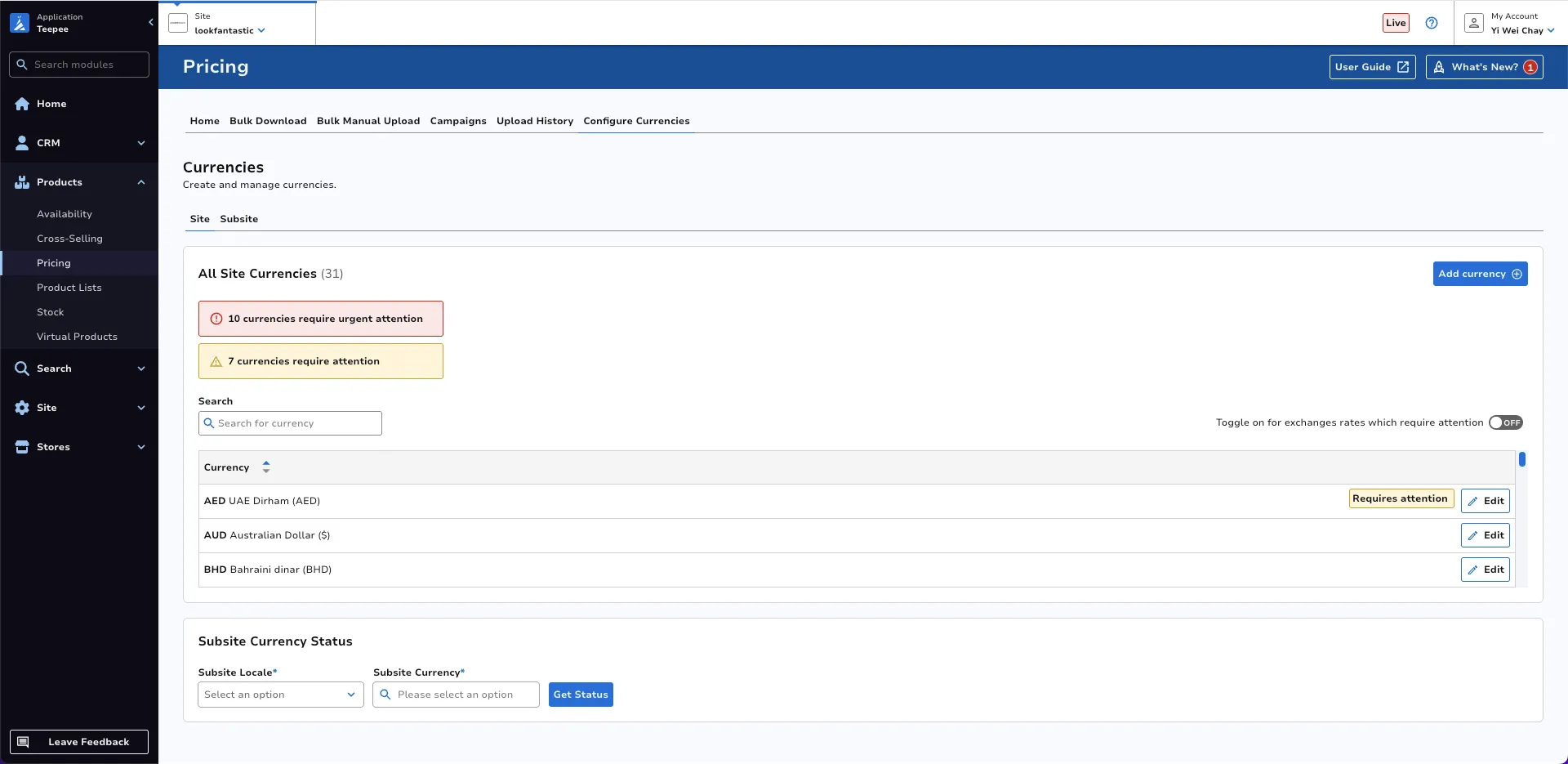
Section titled “Configure Currencies”The Configure Currencies section provides an overview of the currencies assigned to the site and its respective subsites. Users can manage currency exchange rates at the site level by adding or editing them as needed. Additionally, users can monitor the currency statuses of subsites and make adjustments by adding or modifying currencies at the subsite level.
This tab is to be used to view all currencies and default currencies that are assigned to the site. In addition to this, it is also used to view Subsite Currency Status.
The yellow and red warning tags below the All Site Currencies subtitle shows the number of currencies that require attention and the number of currencies that require urgent attention respectively.
- Currencies requiring attention (Yellow Tag): These are currencies where the exchange rate displayed on the site differs from the live exchange rate by 5% to 10%.
- Currencies requiring urgent attention (Red Tag): These are currencies where the exchange rate displayed on the site differs from the live exchange rate by more than 10%.
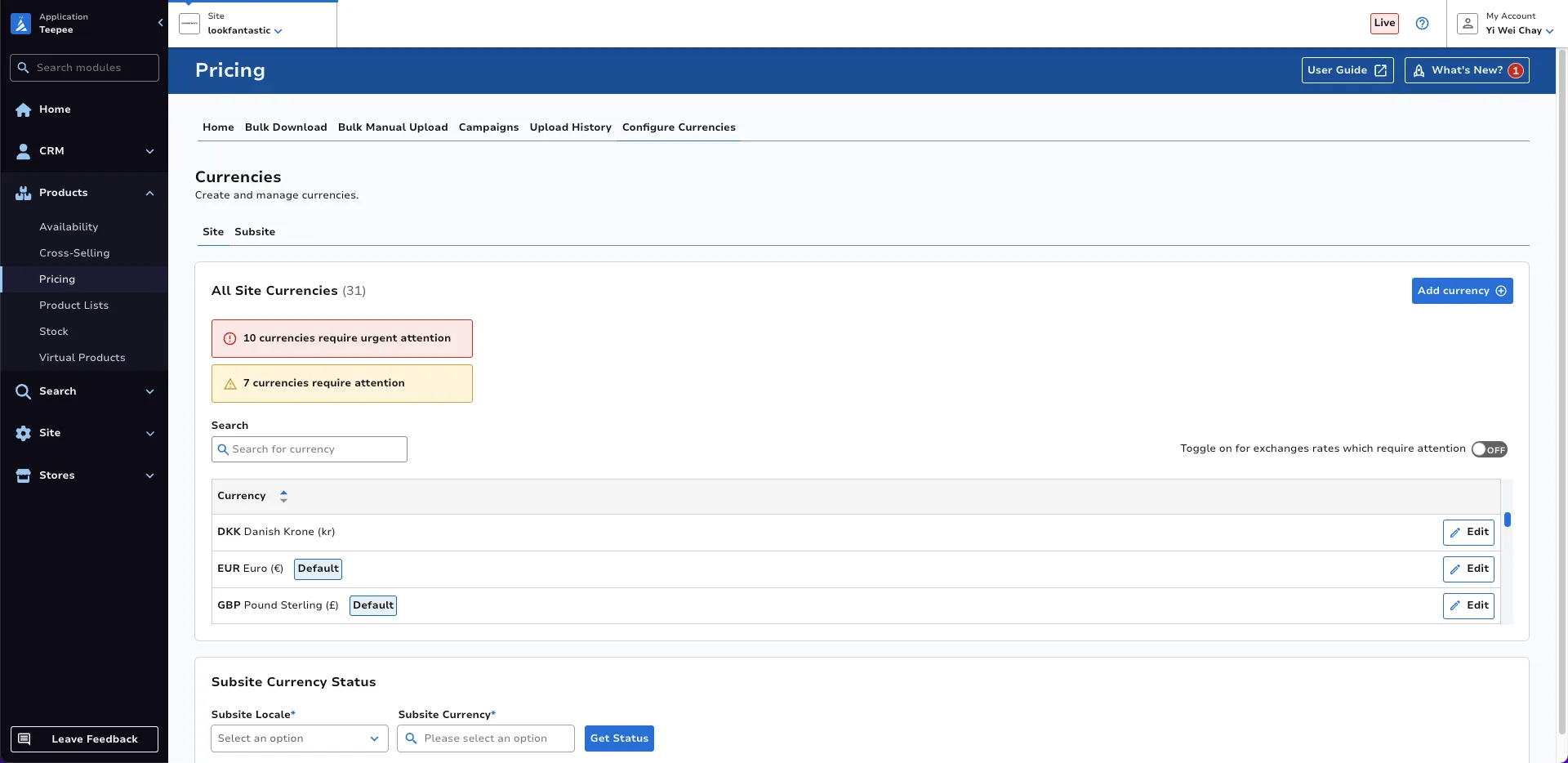
Default currencies will have a Default label beside the currency as shown in the figure below.
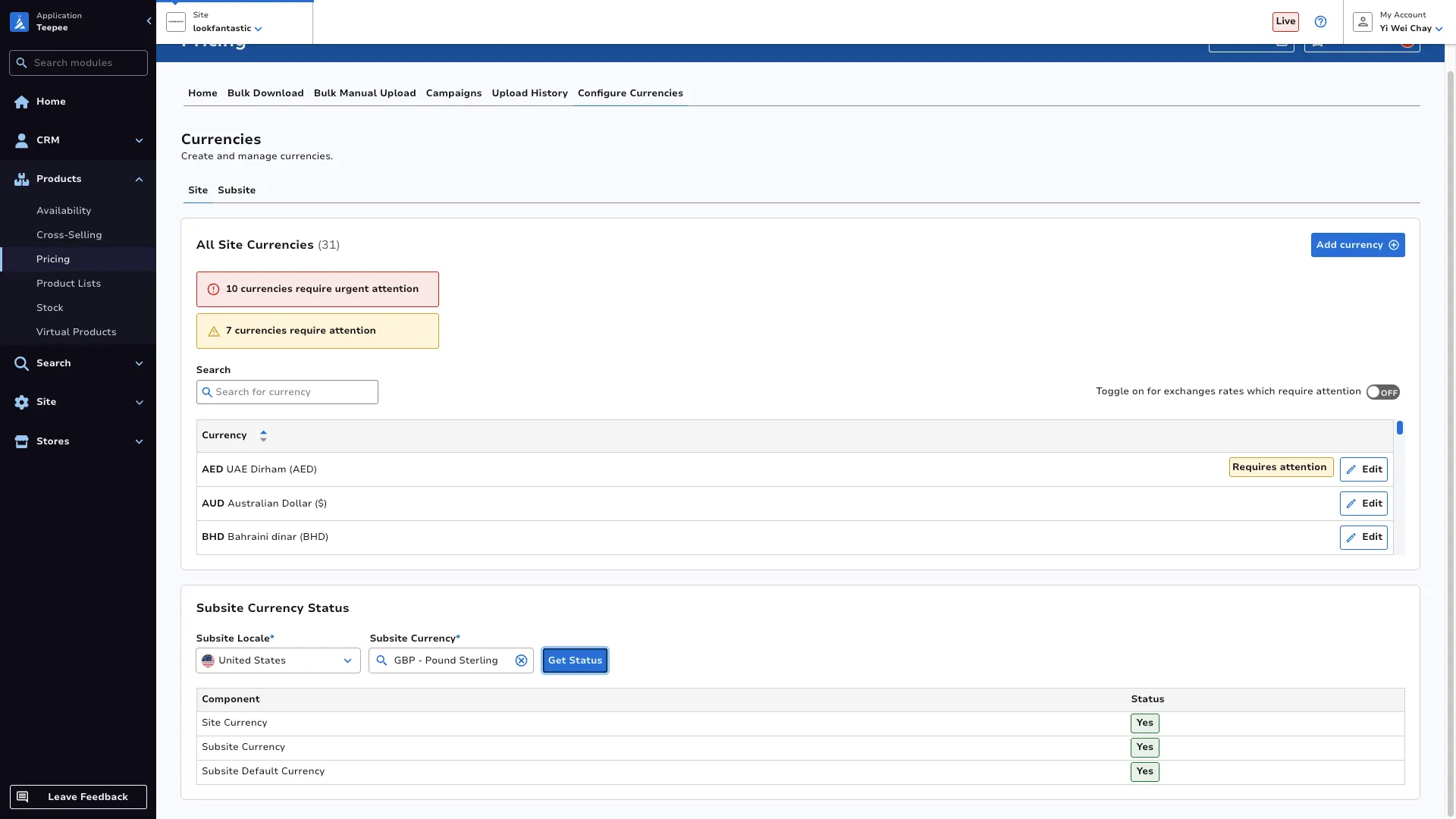
At the bottom of the landing page is the Subsite Currency Status table. This allows the user to get the status of a currency on a subsite.
Site Currencydetermines if a currency is assigned to the site.Subsite Currencydetermines if a currency is ready for use on a subsite.Subsite Default Currencydetermines if the currency is a default currency on a subsite.
Subsite
Section titled “Subsite”This tab is to be used to view all enabled currencies for the subsite.
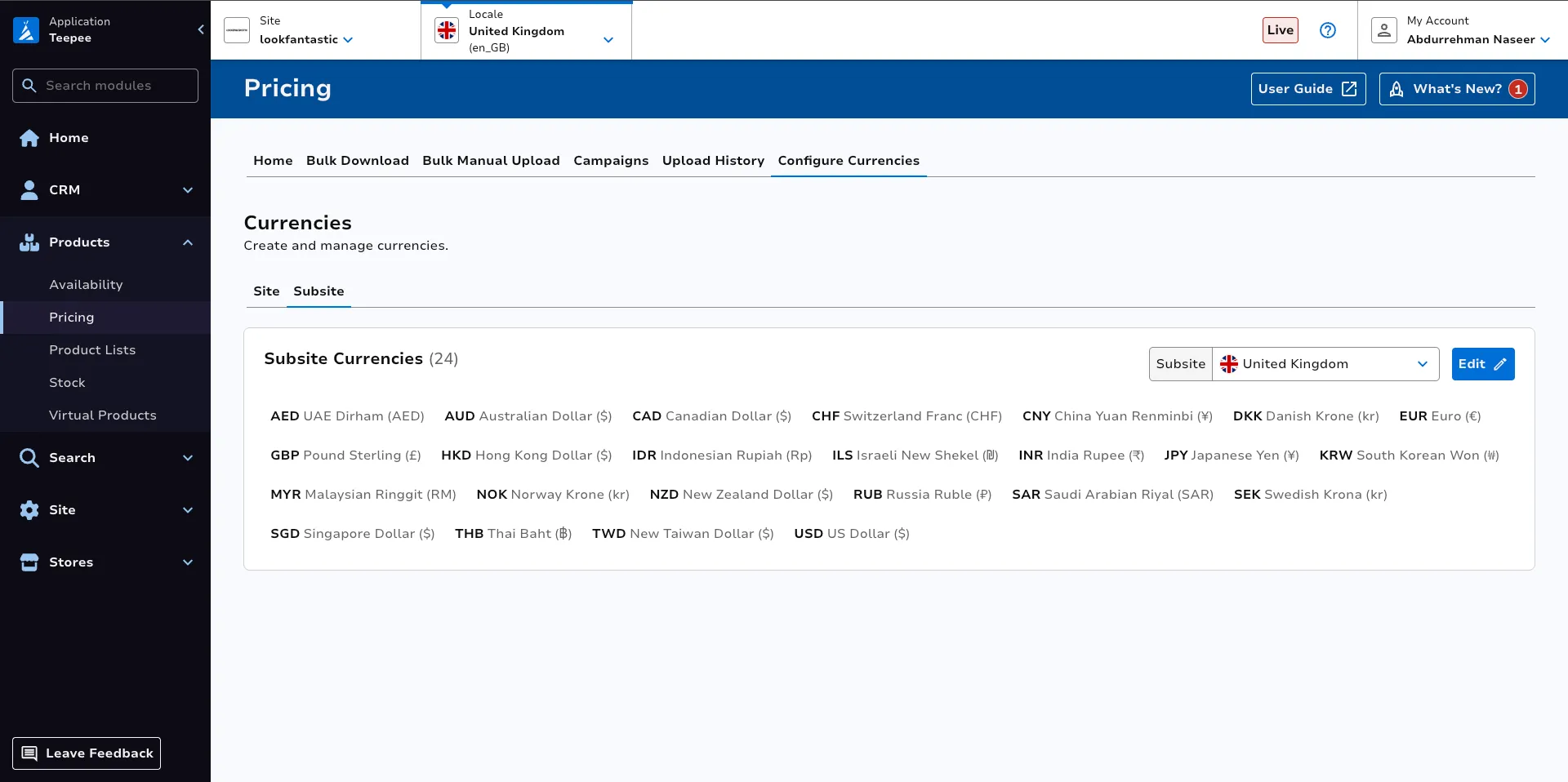
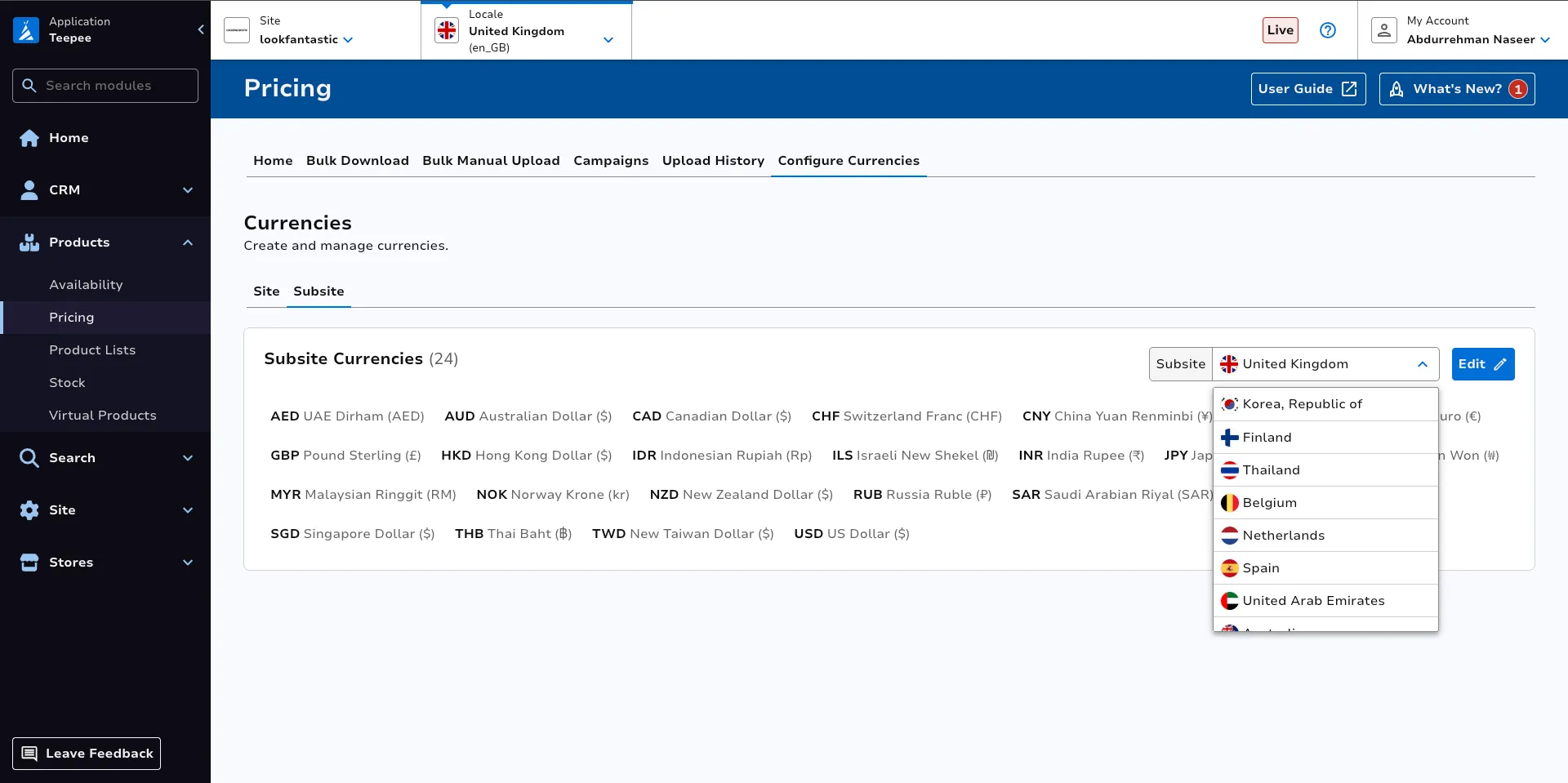
Subsite can be changed by selecting a different option from the dropdown list.
Add Currency
Section titled “Add Currency”To assign a new currency to the site, click Add Currency on the landing page.
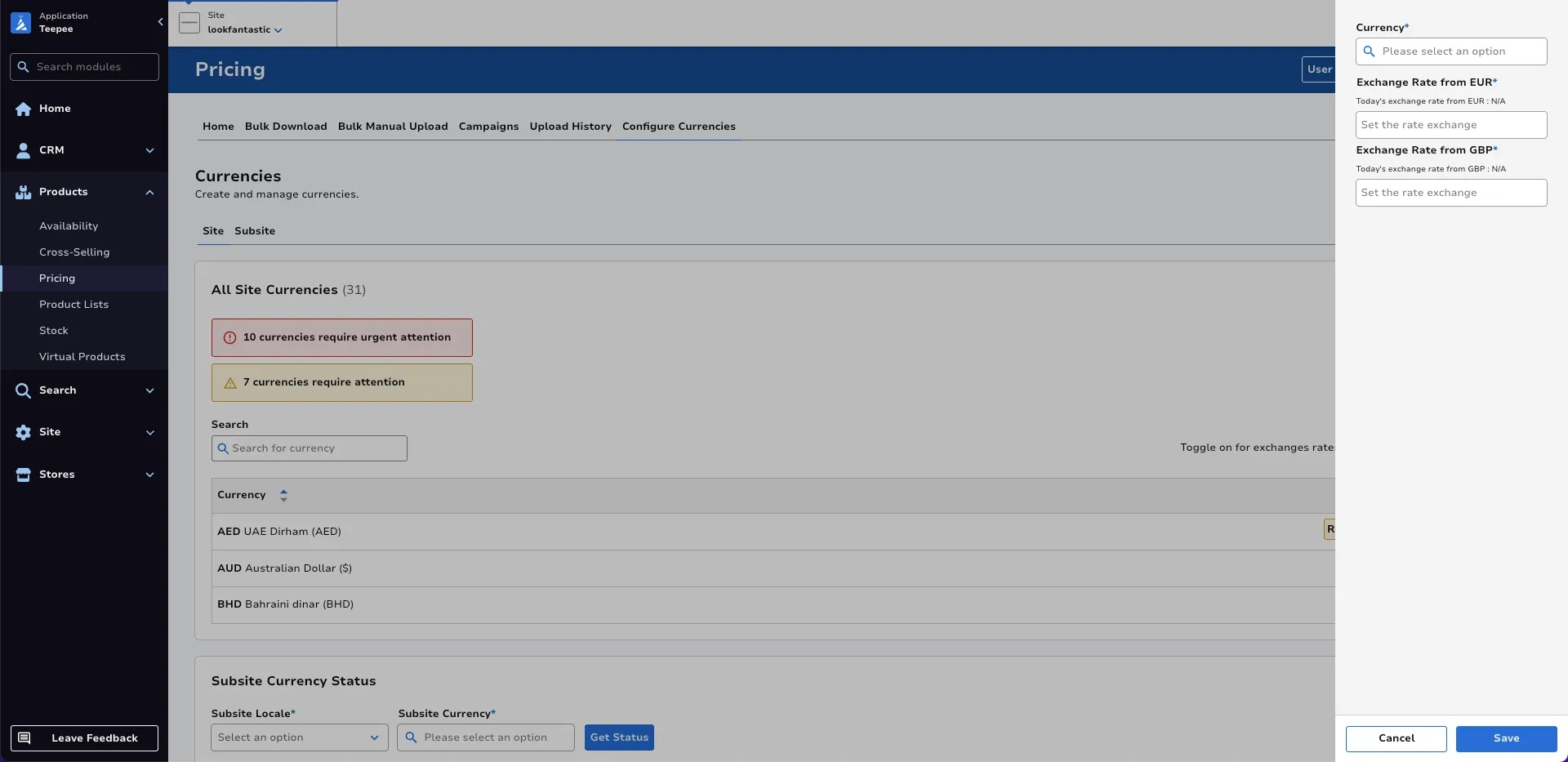
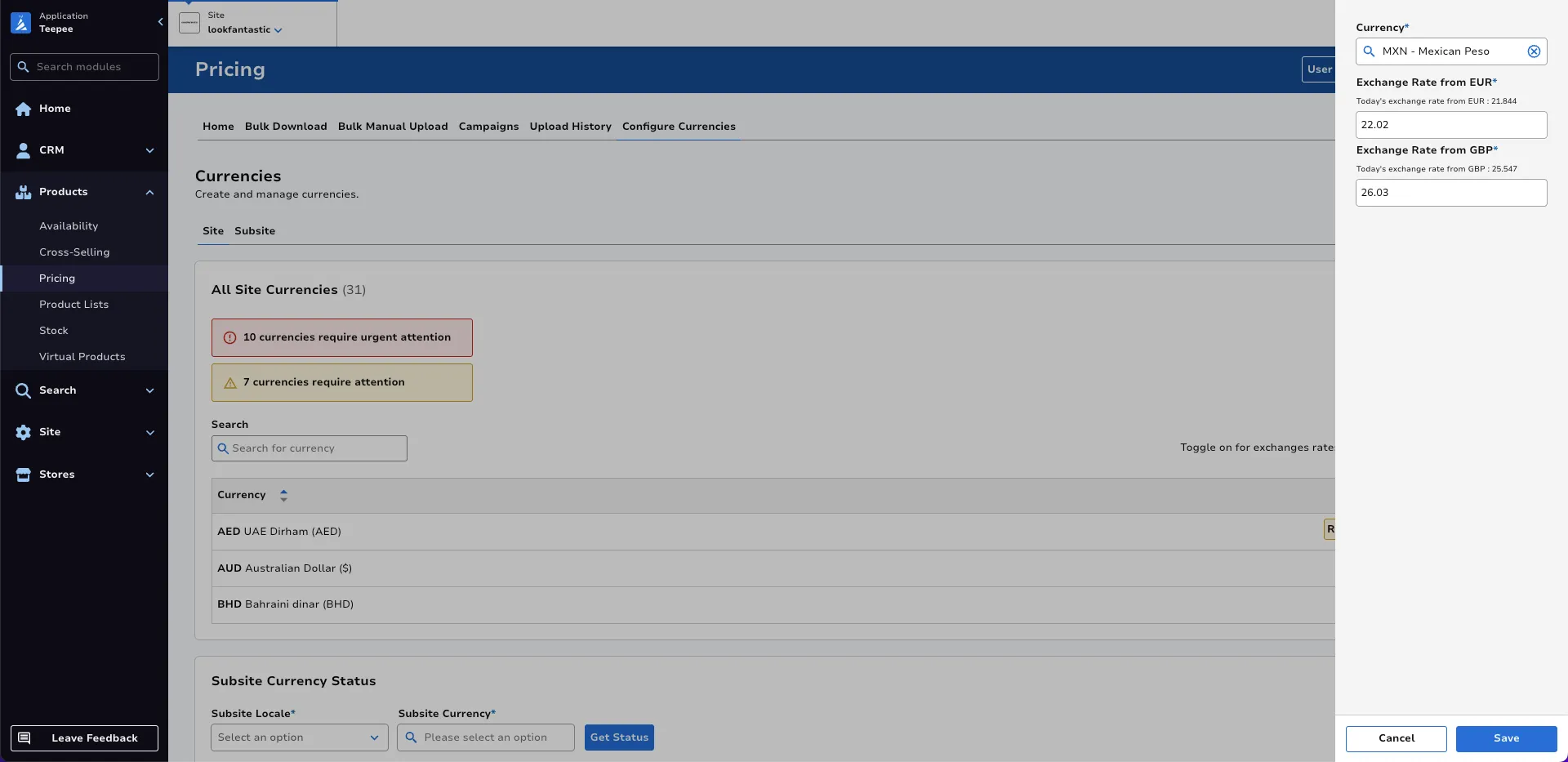
Once a desired currency is selected from the dropdown, the corresponding live exchange rates will be displayed. You can then enter the desired site exchange rates against the default currencies.
In this example:
- Desired site exchange rates: 1 EUR = 22.02 MXN and 1 GBP = 26.32 MXN.
- Live exchange rates: 1 EUR = 21.844 MXN and 1 GBP = 25.547 MXN.
Edit Site Currency Exchange Rates
Section titled “Edit Site Currency Exchange Rates”The current exchange rates for a currency against the default currencies can only be viewed by clicking the Edit Button.
Click Edit on the currency whose exchange rates you wish to change. In this case, AED will be selected.
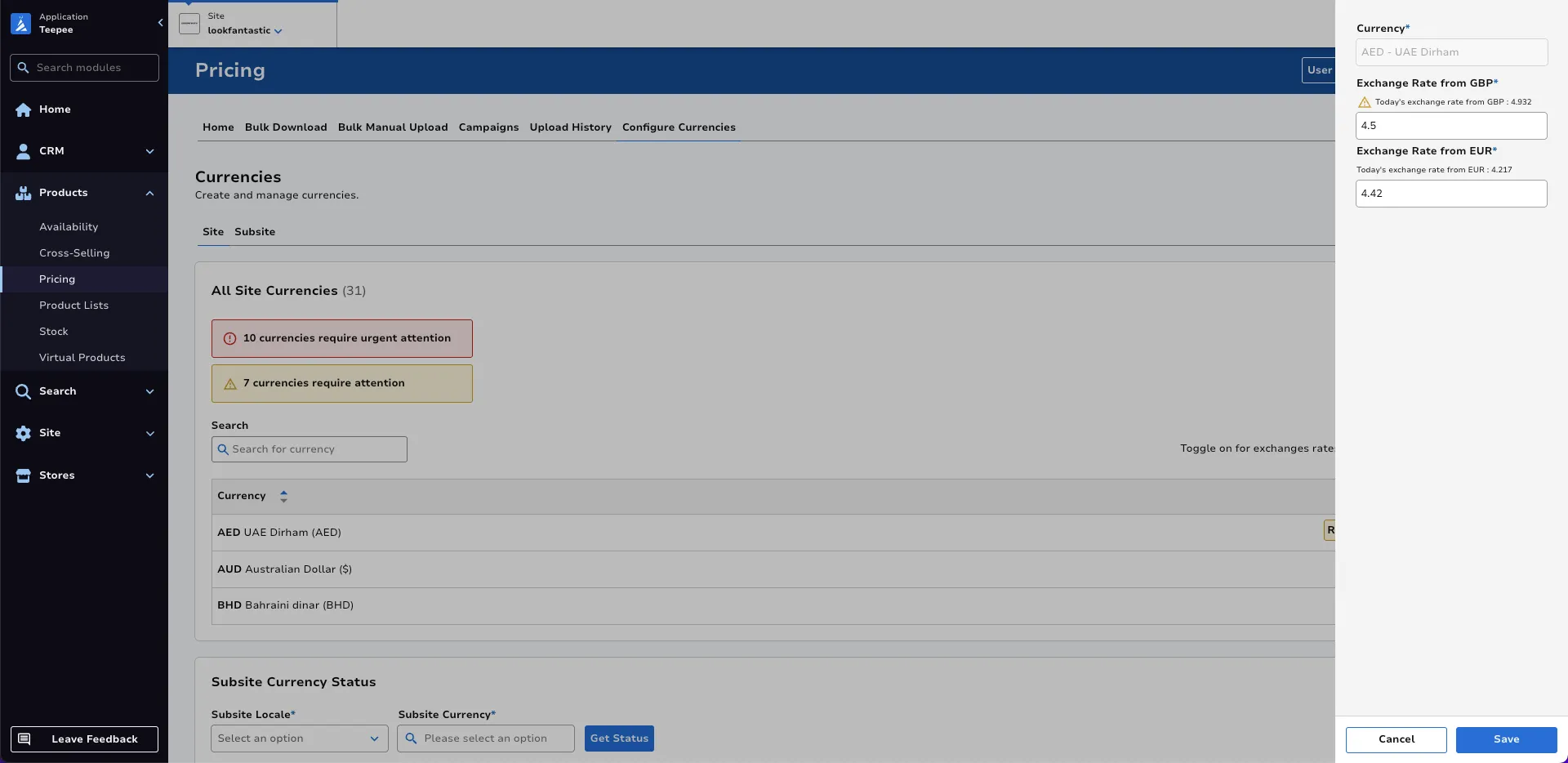
Input the new exchange rates you want. In this case, exchange rate against GBP will be changed from 4.5 to 4.7.
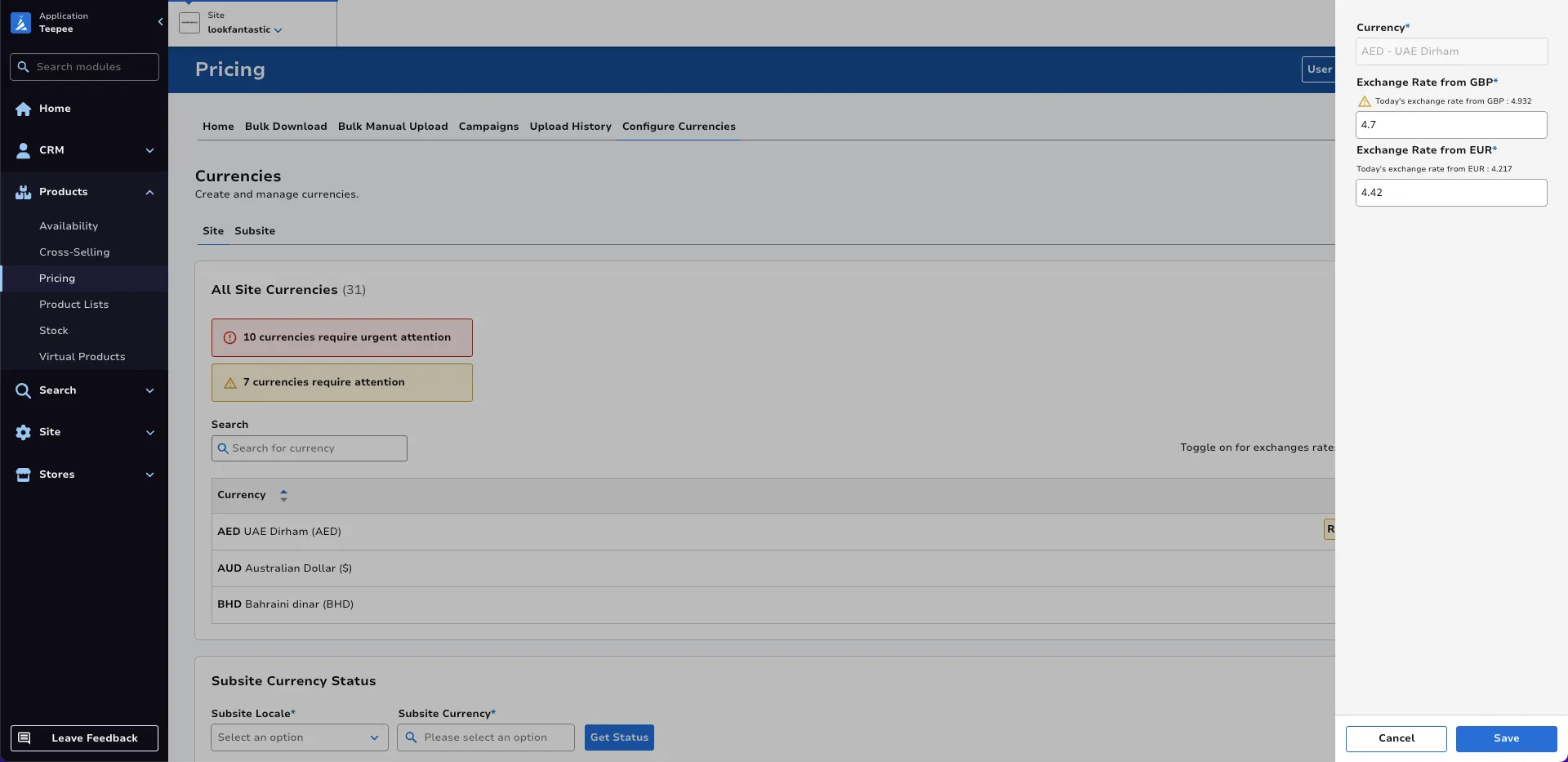
In the scenario shown, the new exchange rates will be: 1 GBP = 4.7 AED and 1 EUR = 4.42 AED.
Once you are satisfied with the changes, click Save.
Edit Subsite Currencies
Section titled “Edit Subsite Currencies”On the Subsite tab, click Edit.
All enabled currencies for the subsite will appear as selected.
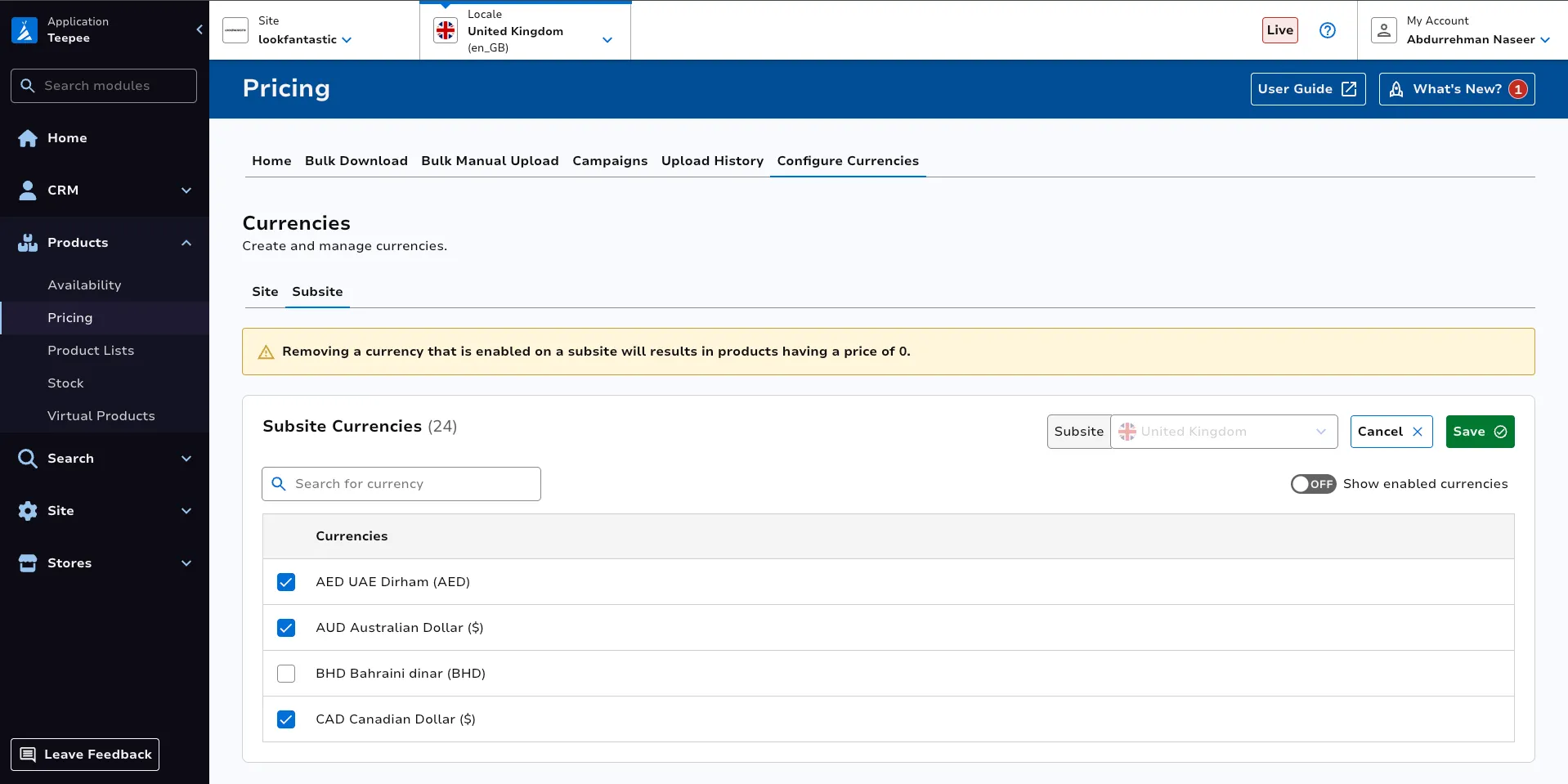
The Show enabled currencies button can be toggled on to display only the enabled currencies.
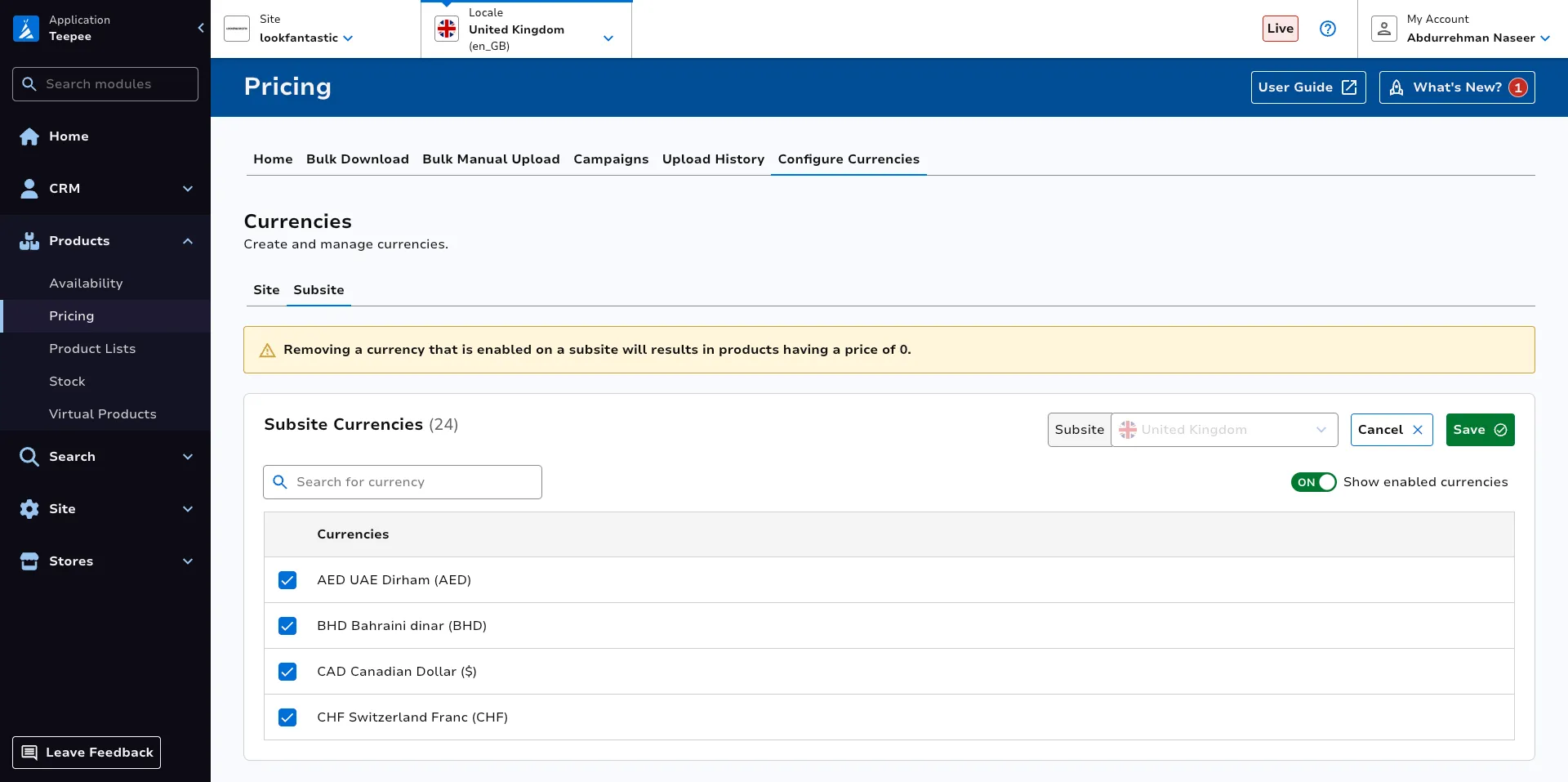
The default currency is marked with a Default label and cannot be unselected.
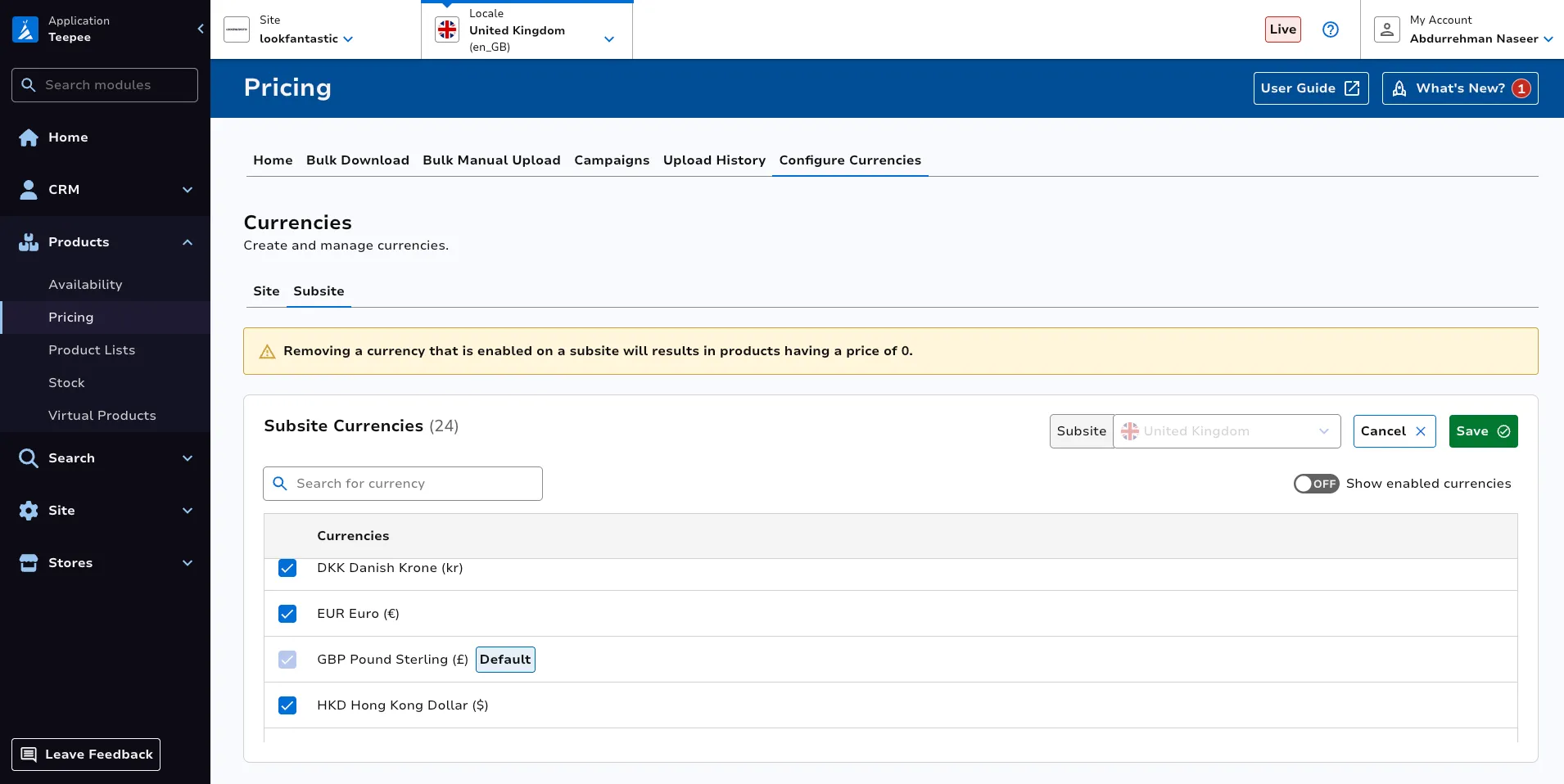
To add a currency, select it. In this case, BHD will be selected.
To remove a currency, unselect it. In this case, AUD will be unselected.
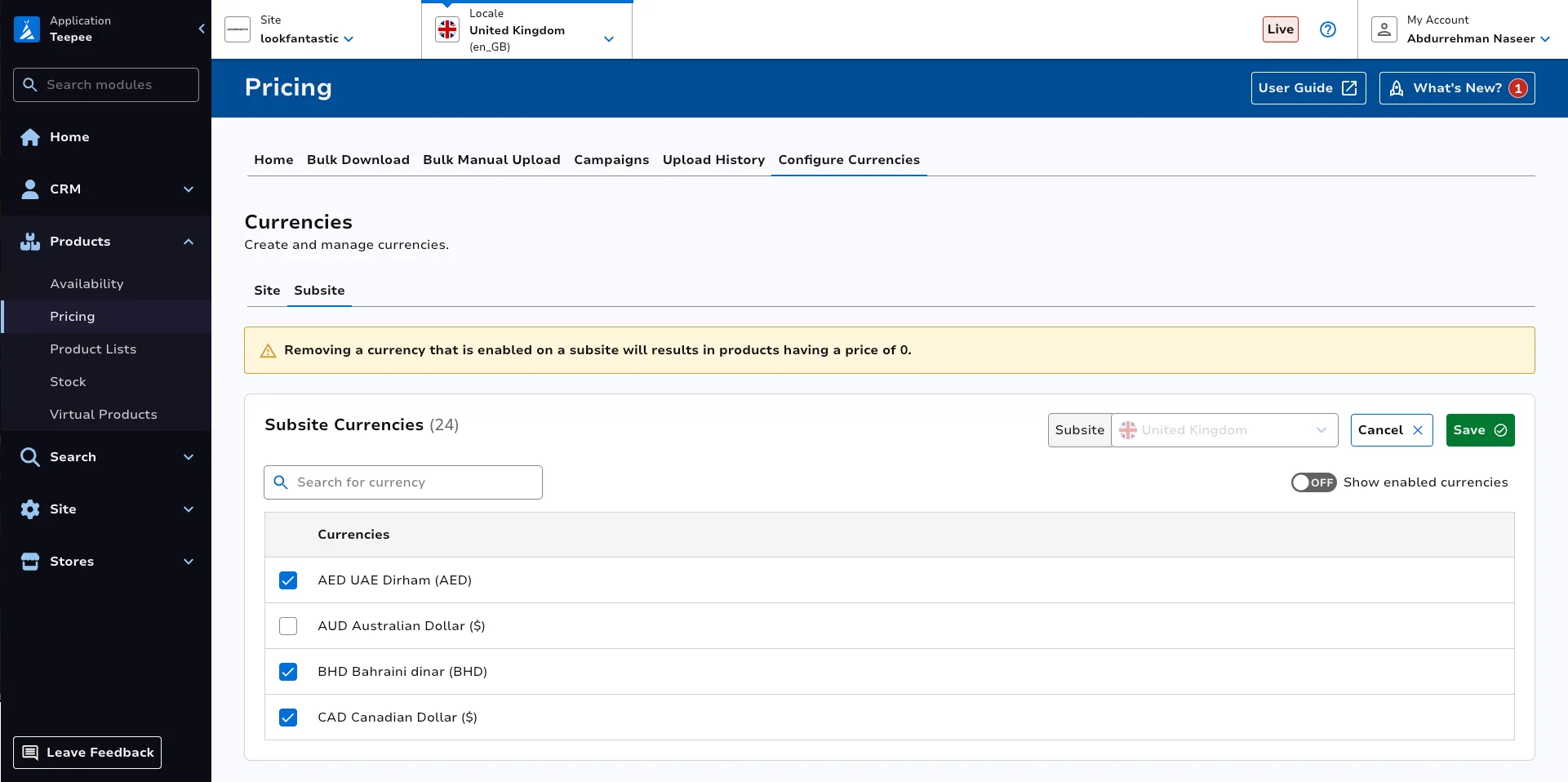
In the end, the currencies you select will determine which ones are set for the subsite. In the scenario shown, BHD will be added to the subsite and AUD will be removed.
Once you are satisfied with your selection, click Save.
Country Groups
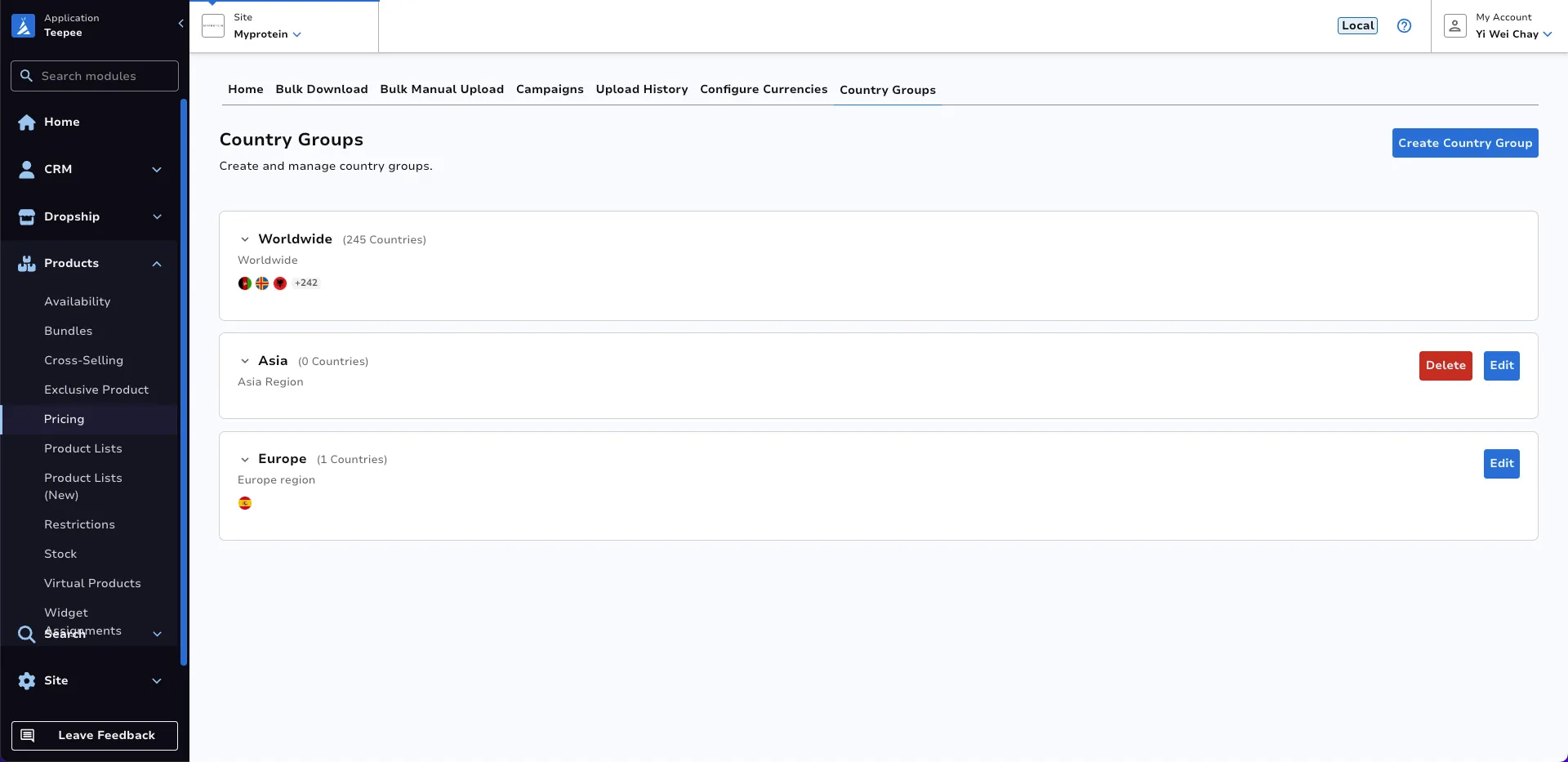
Section titled “Country Groups”Country Groups allows users to group multiple countries together for pricing and shipping purposes. It is primarily used for:
- Different shipping costs across different regions.
- Destination multipliers - adjusting prices based on prices against the Worldwide country group.
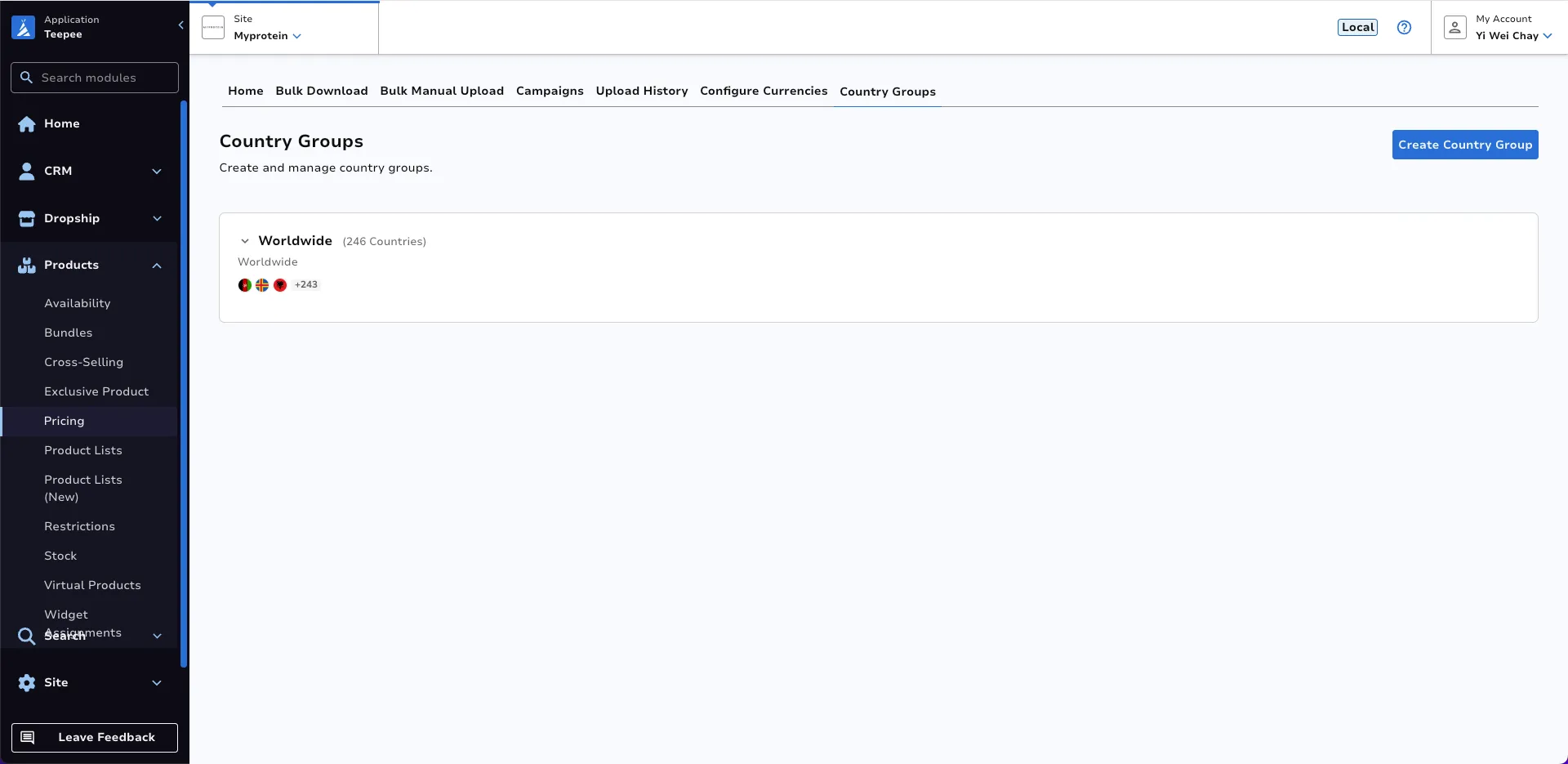
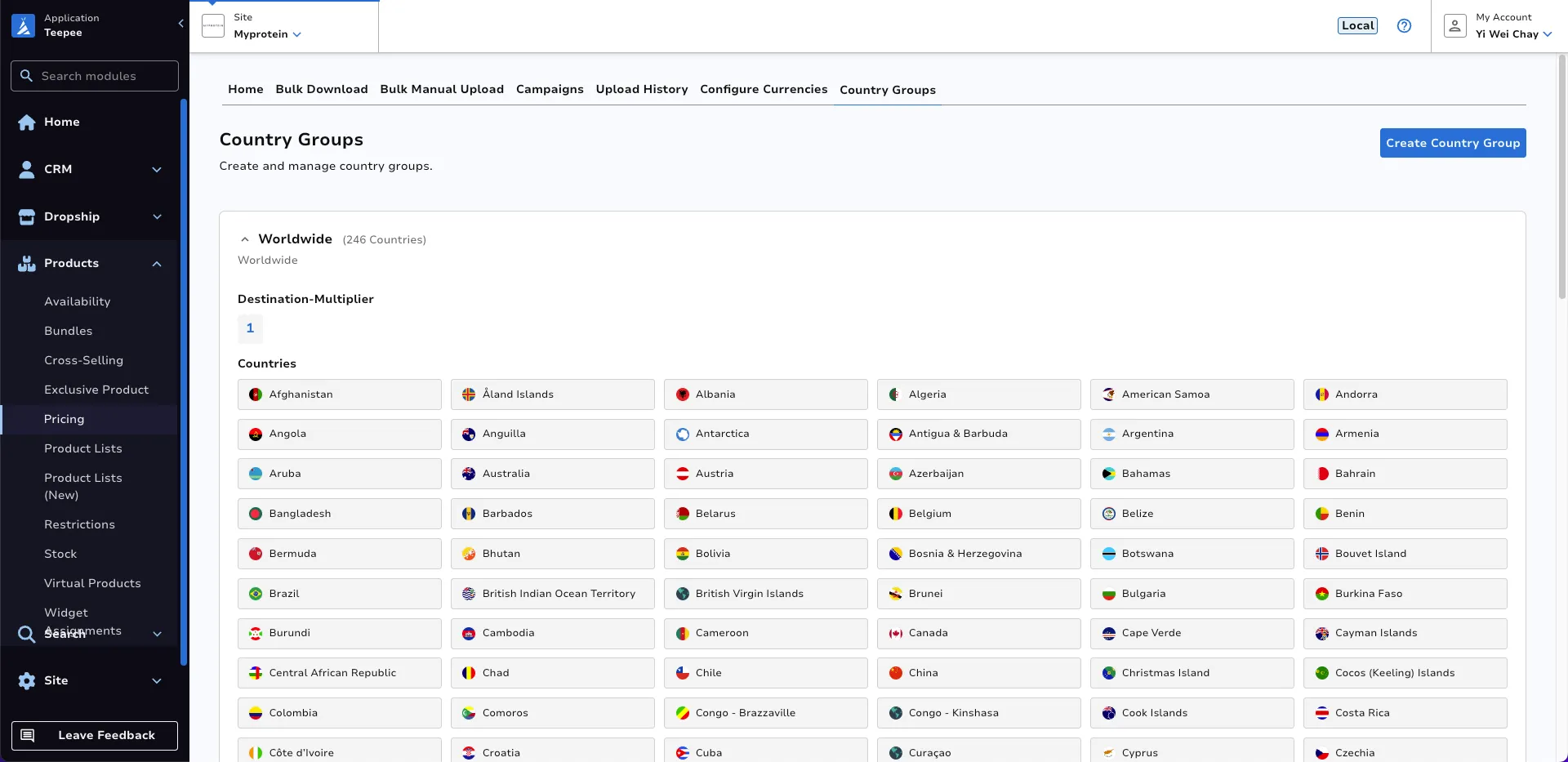
At the landing page of the country groups tab, users can view all the country groups associated to the site. To view the list of countries and destination multiplier within a country group, simply click on the country group, which will expand to show the details. The country groups are ordered alphabetically with the exception that the ‘Worldwide’ country group is always at the top of the list.
Create Country Group
Section titled “Create Country Group”To create a new country group, click the Create Country Group button on the top right of the landing page.
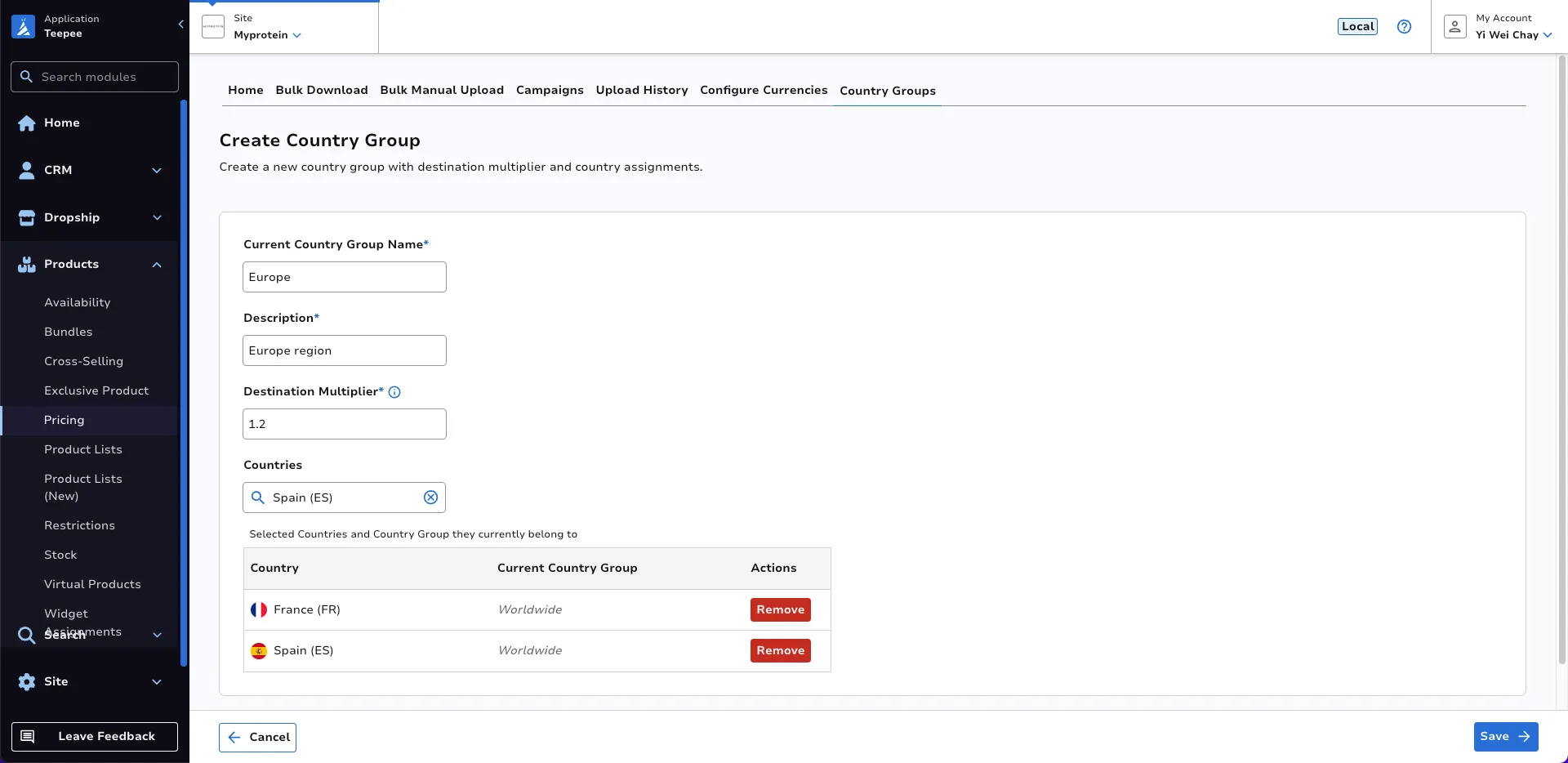
Input the desired country group name, description and destination multiplier. The destination multiplier cannot be a value less than or equal to 0.
Countries can be added to the country group by selecting them from the search dropdown. Once selected, the table shows the users which country group it will be taken from. To remove a country from the country group, click the Remove button.
In this example, the new country group Europe is created with a destination multiplier of 1.2 and includes France and Germany countries, which are taken from the Worldwide country group.
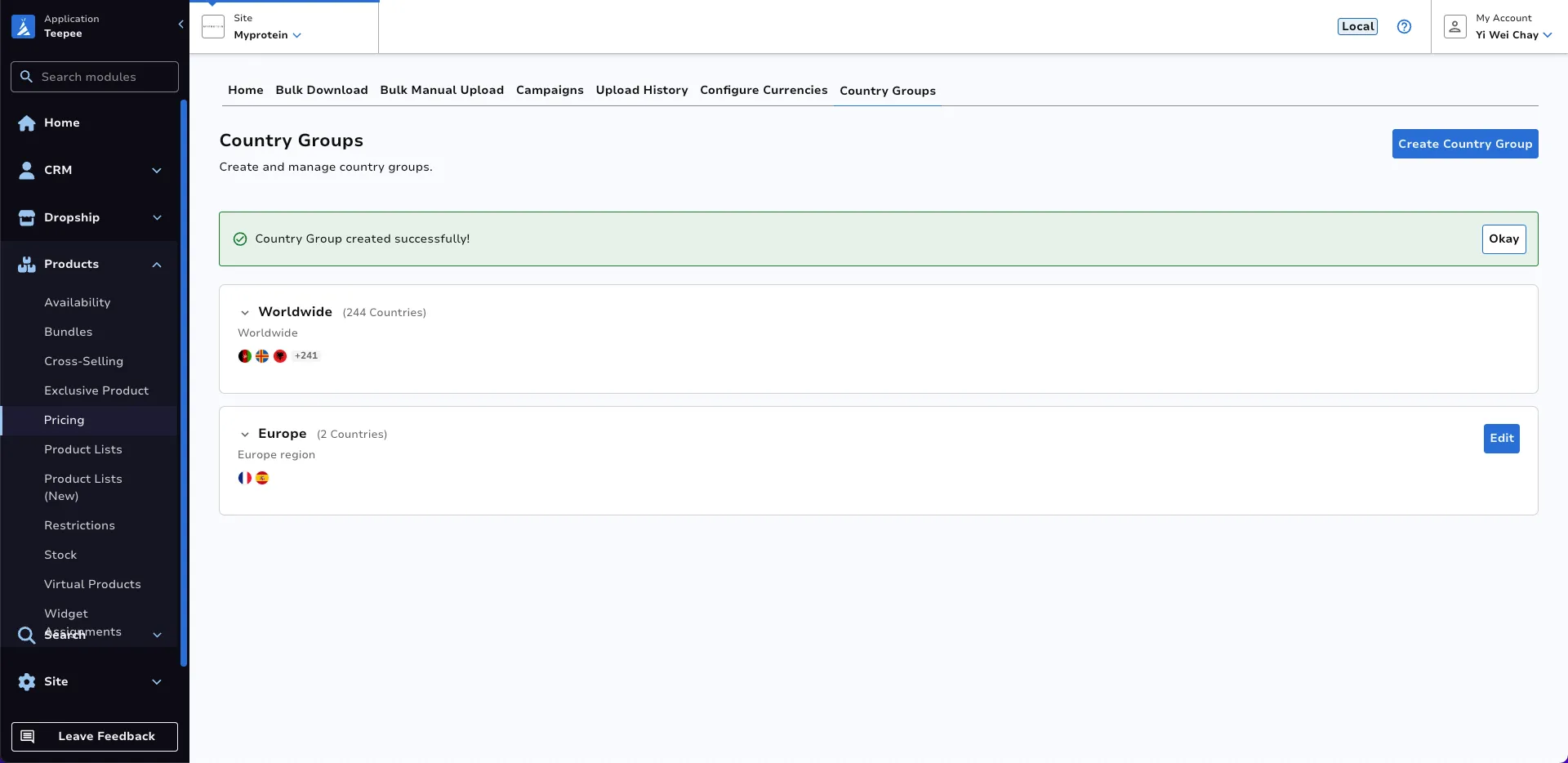
Once satisfied with the details, click Save to create country group. A success message will be shown once the country group is successfully created as below.
Edit Country Group
Section titled “Edit Country Group”To edit an existing country group click the Edit button on the country group you wish to edit from the landing page. The Worldwide country group can not be edited.
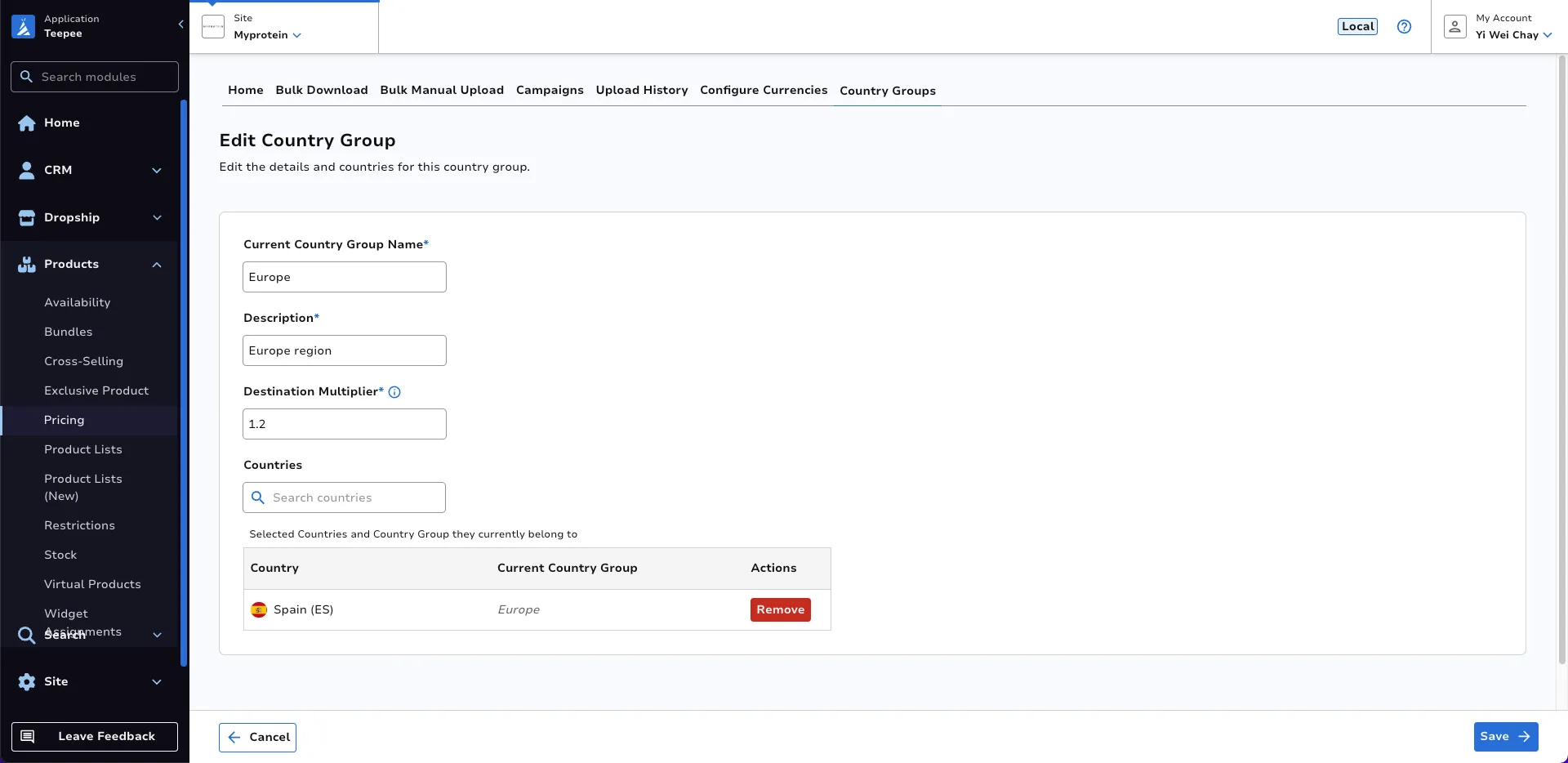
Similar to creating a country group, you can edit the name, description, destination multiplier and list of countries.
In this example, the user is currently editing the Europe country group that was previously created and the France country was removed from the list of countries. After removal, the France country goes back into the Worldwide country group.
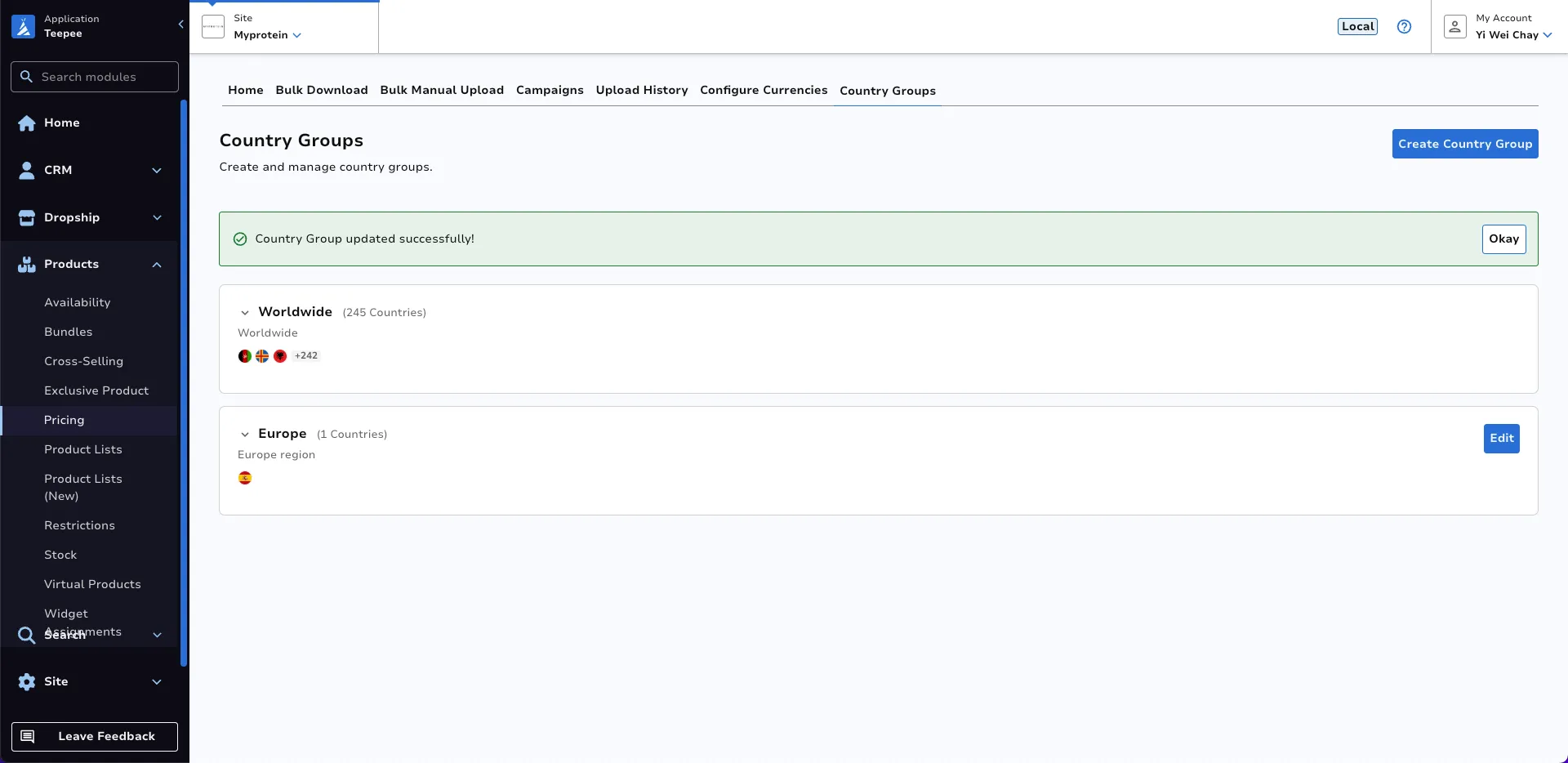
Once satisfied with the changes, click Save to save the changes. A success message will be shown once the country group is successfully updated and the updated country group is shown below.
Delete Country Group
Section titled “Delete Country Group”The deletion of a country group is only possible if it does not have any countries associated with it and if there are no prices associated with it. If there are no countries associated with the country group, a Delete button will be shown on the left of the Edit button.
Once the Delete button is clicked, a confirmation modal will appear to confirm the deletion of the country group.
Individual Pricing
Section titled “Individual Pricing”Individual Pricing allows users to configure prices for individual products. It provides multiple methods to discover products and enables individual price management at the SKU (child product) level across different countries and currencies. The Individual Pricing module serves the following purposes:
- Configure product prices for specific locales (country/language combinations)
- Set Selling Prices - the actual price customers pay
- Set RRP (Recommended Retail Price) - the suggested retail price, often displayed as the original price
- Manage multi-currency pricing within country groups
- Support master/child product hierarchies where variations of a product can have individual prices
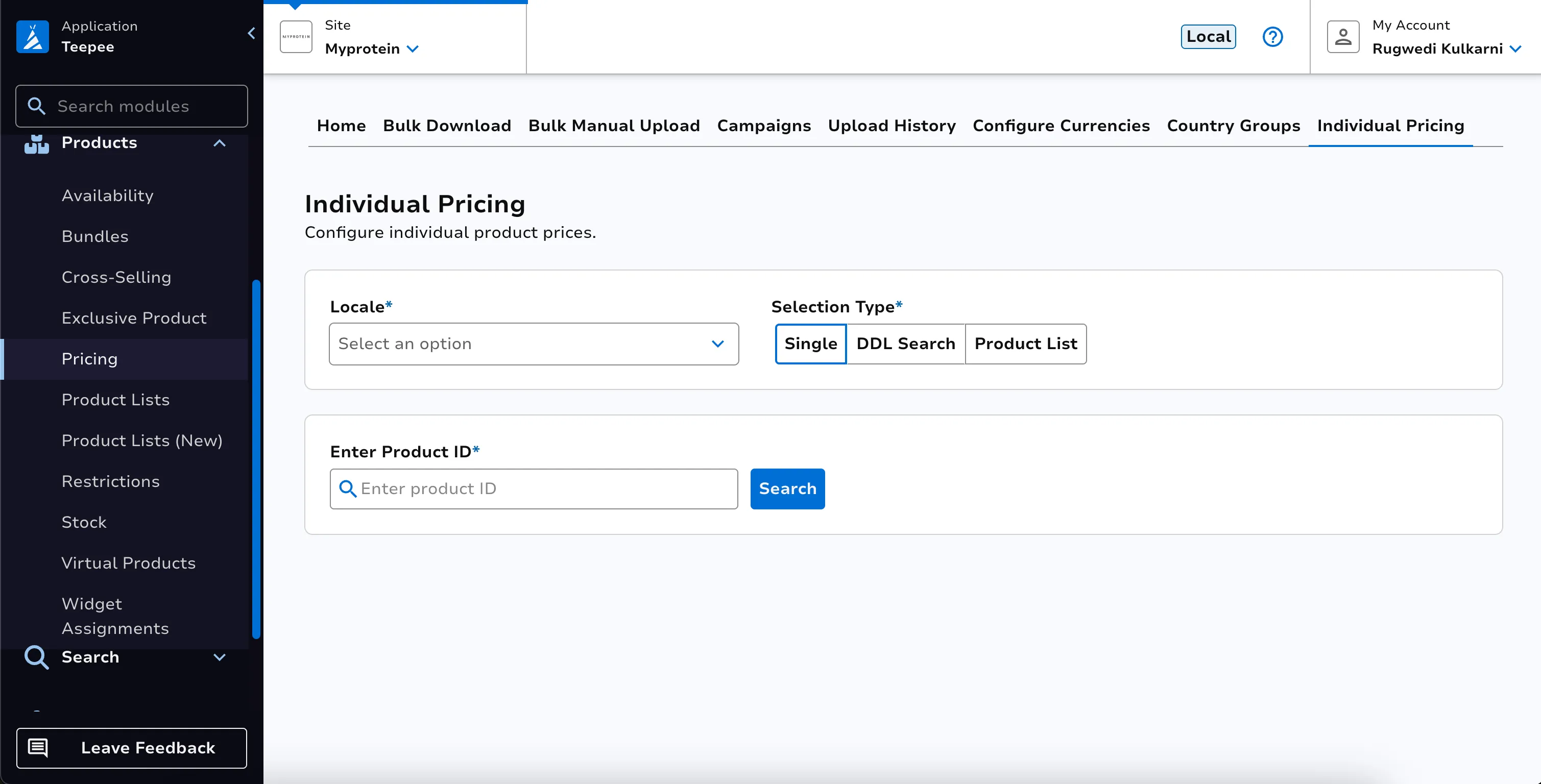
At the landing page of individual pricing tab, user can view a locale tab which is required to be selected before any product search and three other tabs as follows
- Single Product Search
- DDL Search
- Product List Search
Single Product Search
Section titled “Single Product Search”The Single Product Search feature allows users to find a specific product by keying in its unique Product ID.
- Select a locale from the dropdown, click on the
Singletab and enter the numeric value for product ID and click onSearchbutton.
Master product view
Section titled “Master product view”When a Product ID corresponds to a master product, the system displays the Master Product Page with an informational alert indicating that only child products can be priced.
The page presents a paginated table listing all child products associated with the master product. Each row displays the child Product ID and Title, along with an Edit Prices button. Users can navigate through pages to browse all child products.
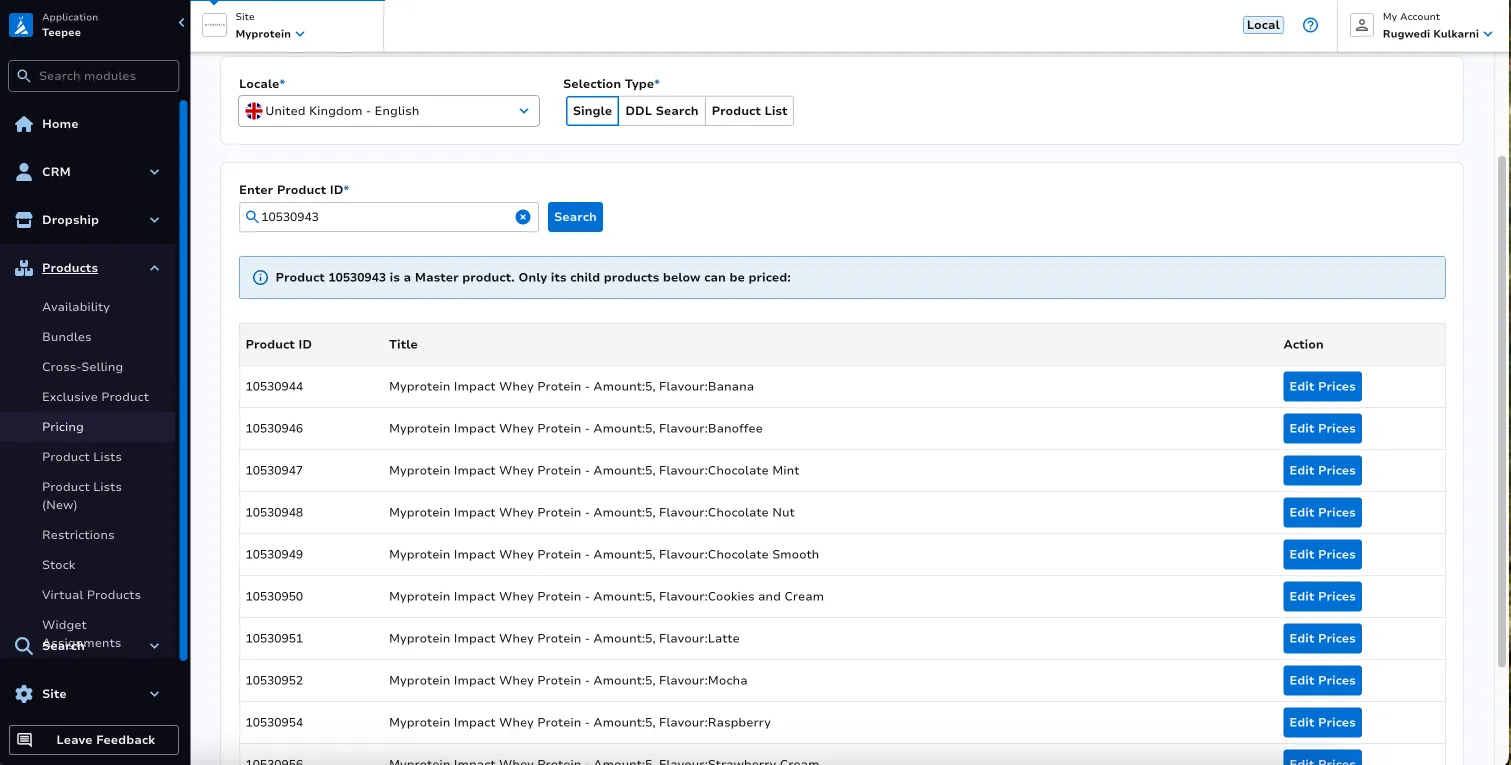
Clicking Edit Prices on a child product navigates to the Child Product Page(See Child Product View section below), where users can configure pricing at the country group level. A Back to Master Product button allows users to return to the master product view.
Child product view
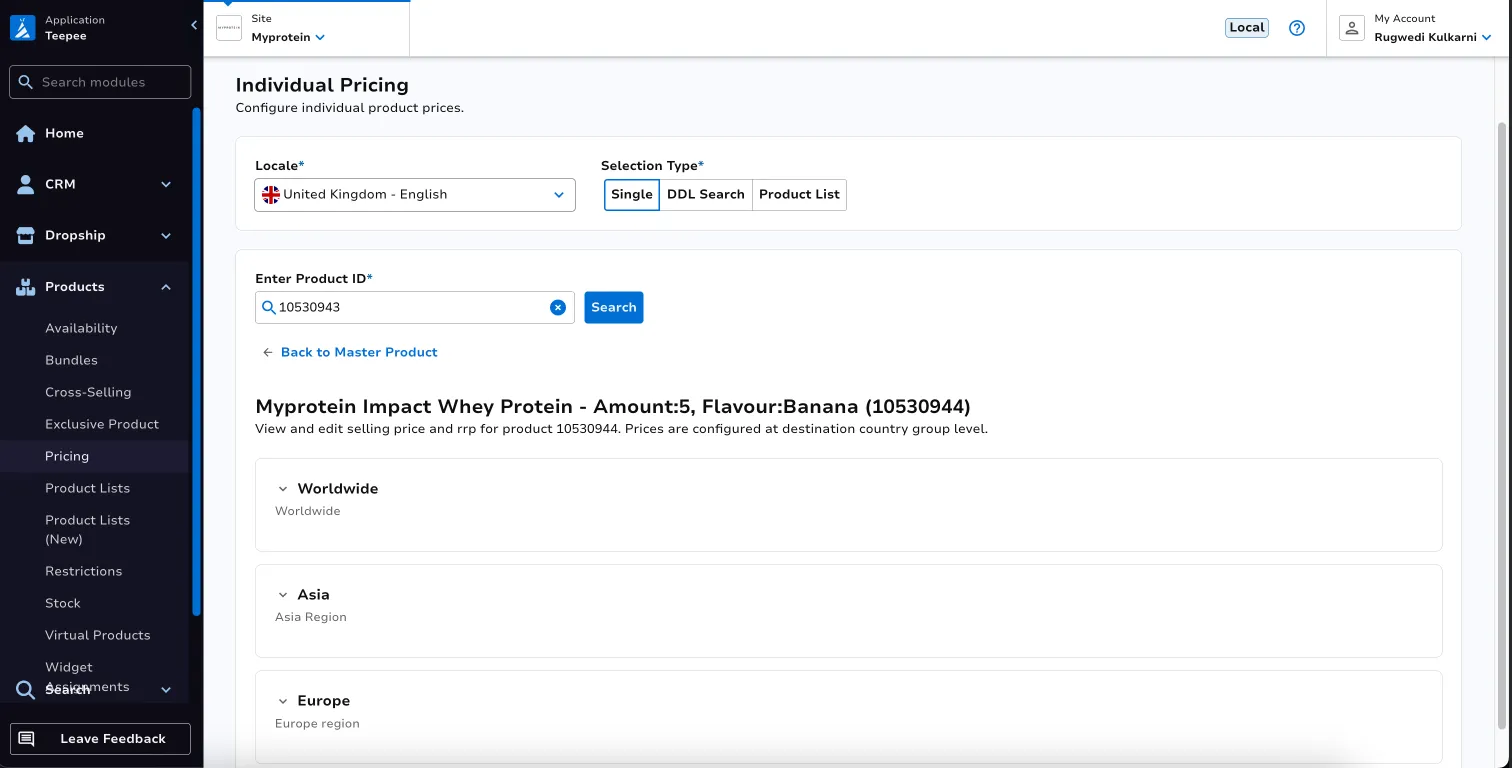
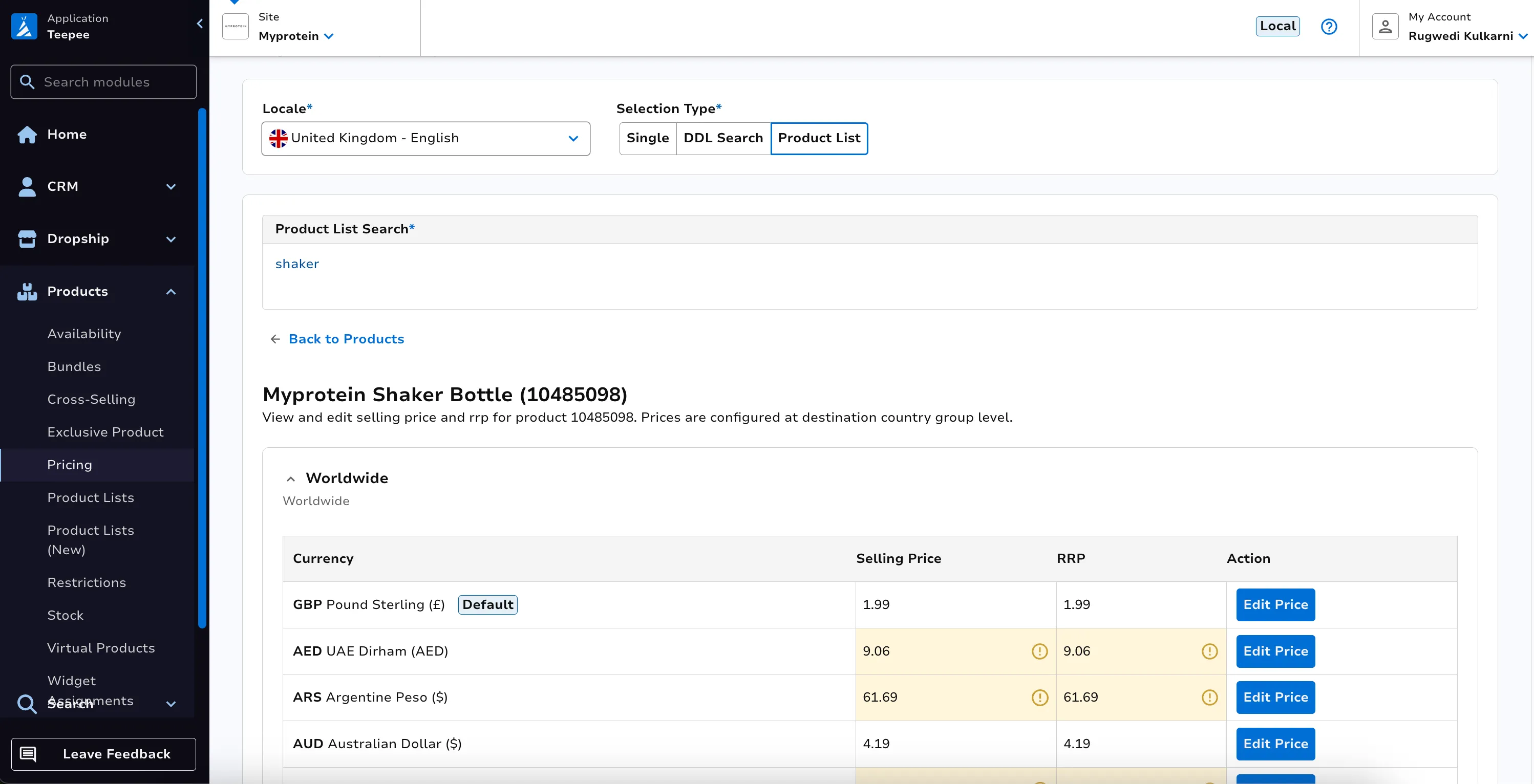
Section titled “Child product view”When a Product ID corresponds to a child product, the system displays the Child Product Page showing the Product Title and Product ID. Prices are configured at the destination country group level.
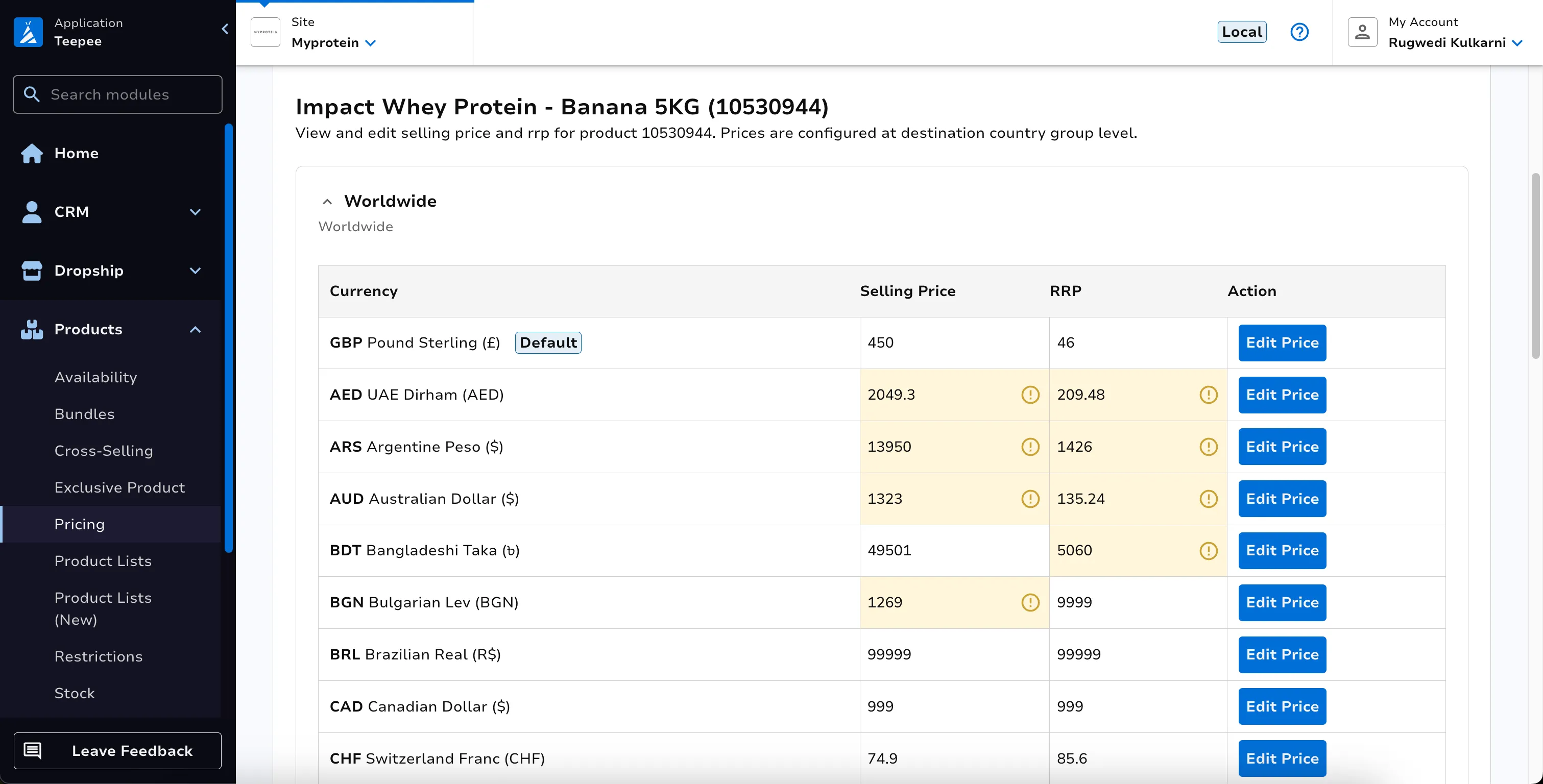
The page displays all applicable country groups as expandable cards. Users can click on a country group header to expand it and view a pricing table showing all supported currencies with their current Selling Price and RRP values.
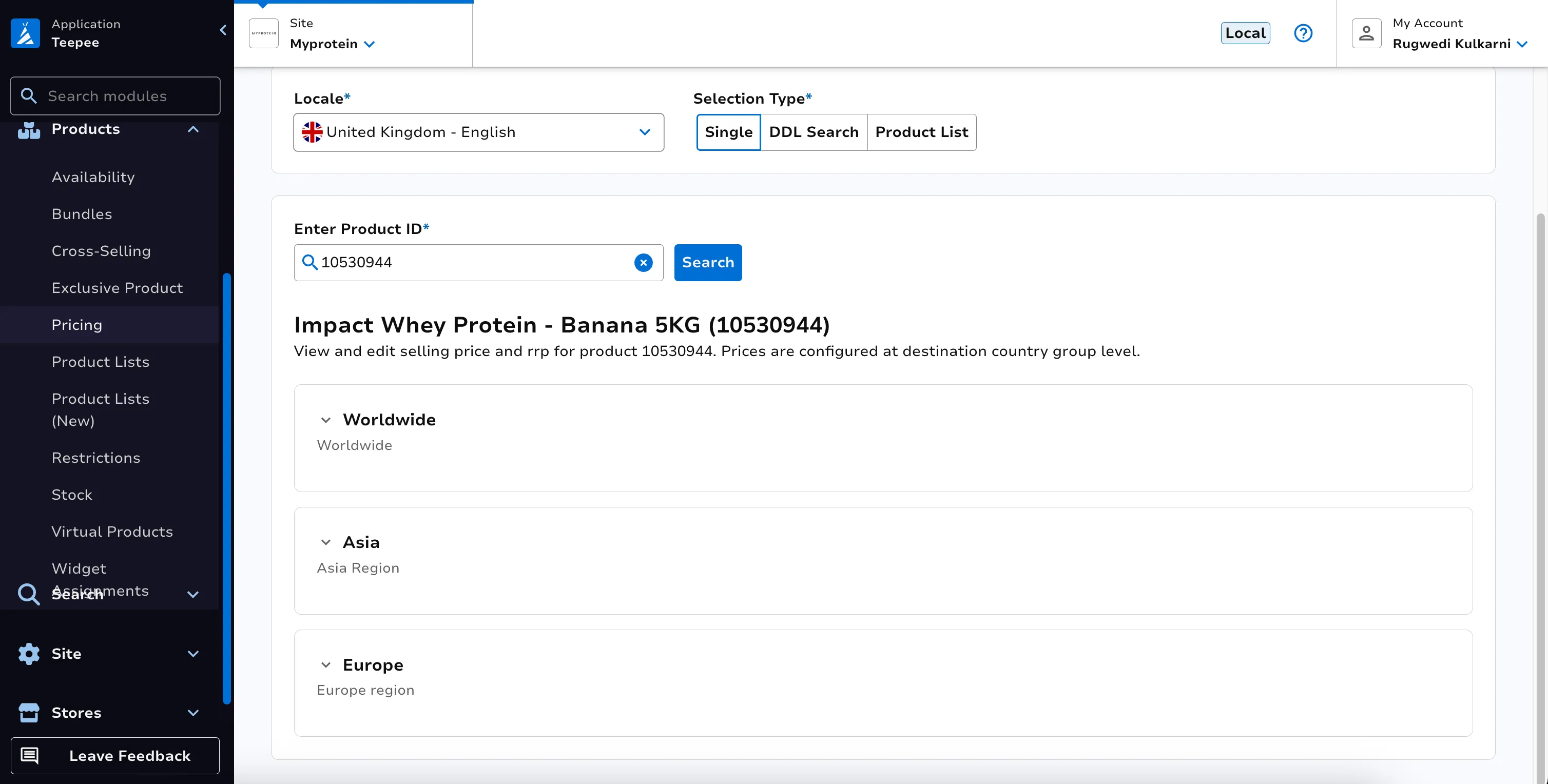
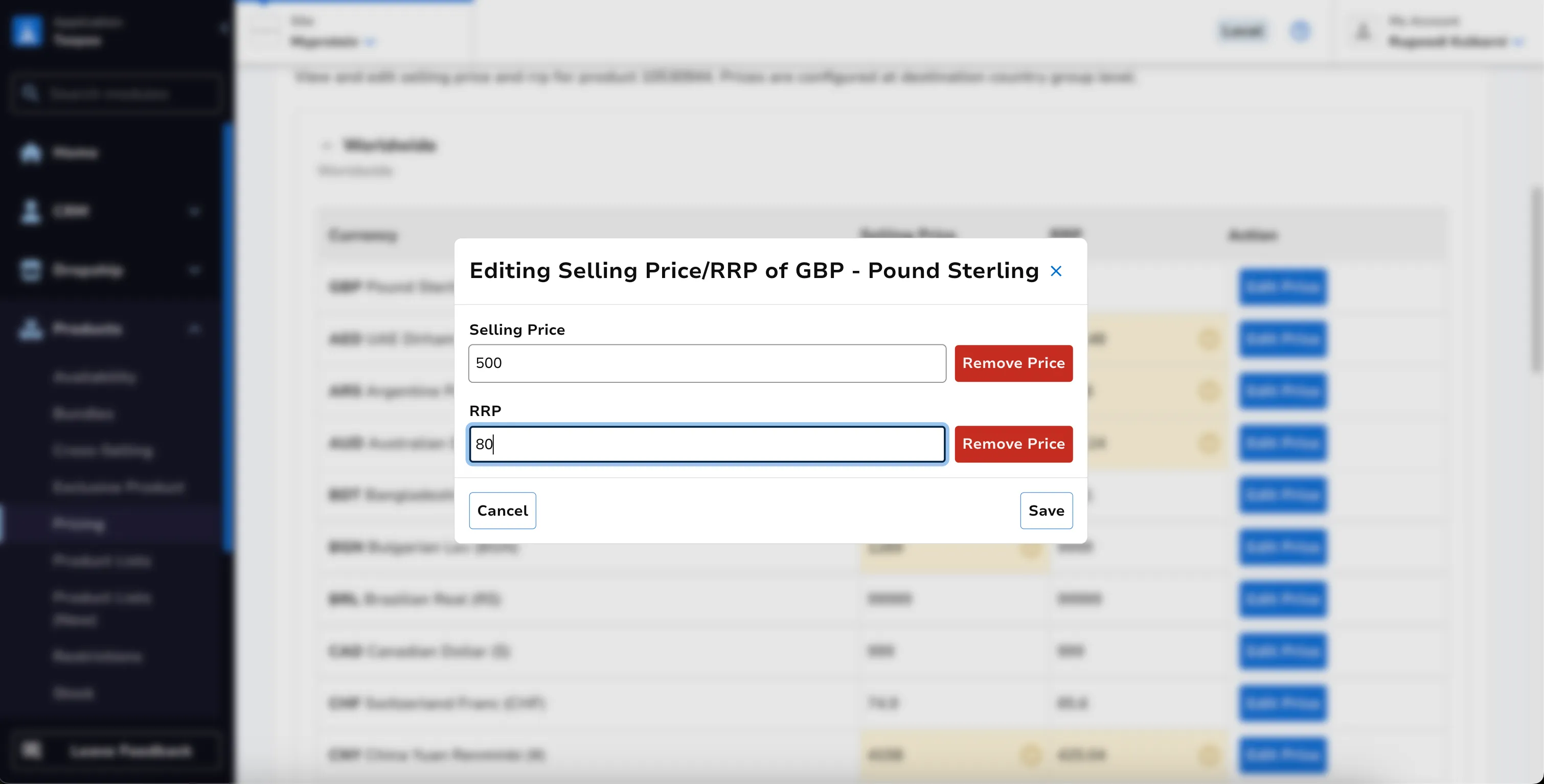
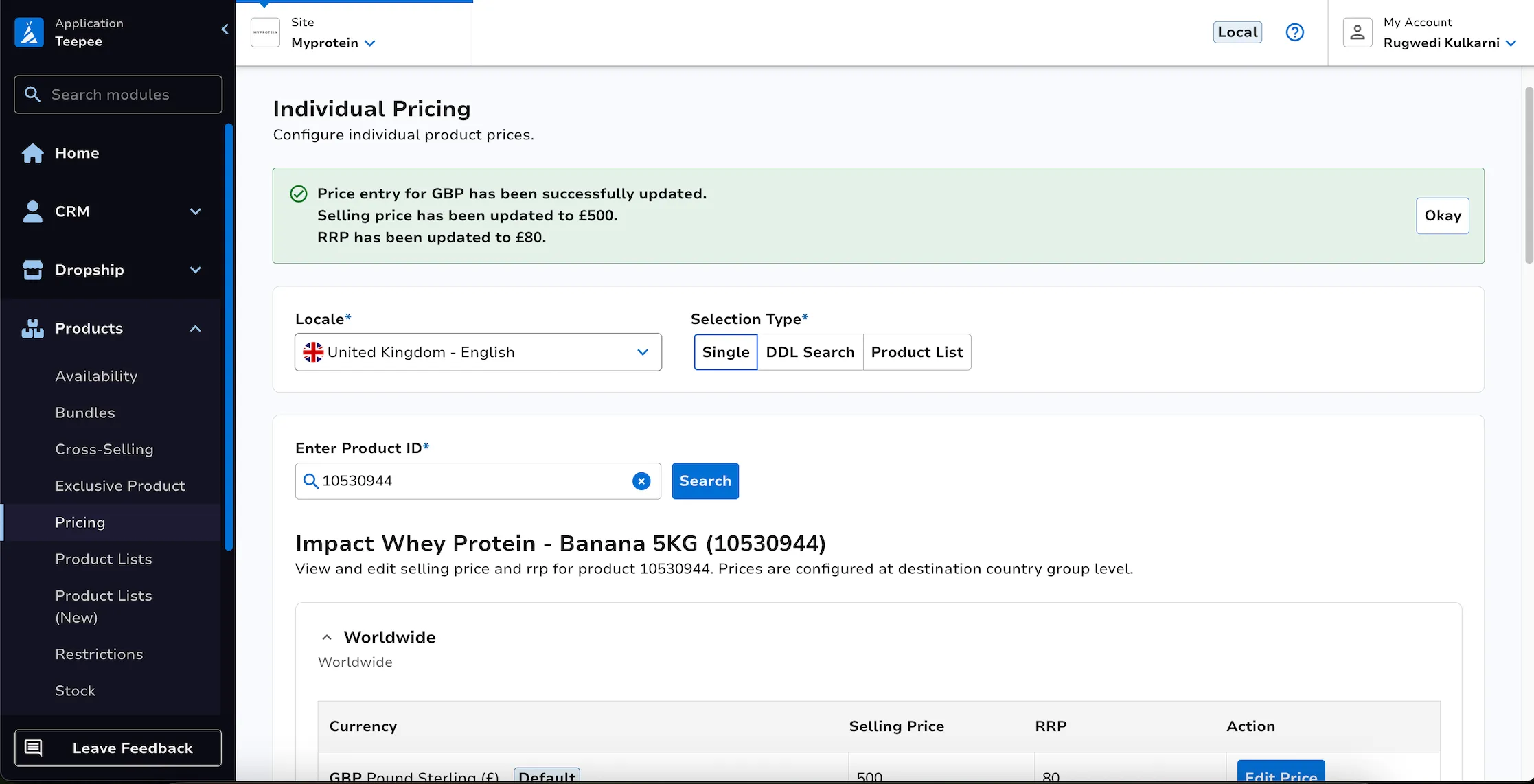
To edit prices, click the Edit Price button for the desired currency row. This opens up a modal dialog where users can modify the Selling Price, RRP, or both. The Remove Price button removes the respective selling price/rrp values, leading to a calculated fallback value after saving. When all the changes are made, clicking the Save button persists the updated pricing configuration and displays a success notification confirming the changes.
DDL Search
Section titled “DDL Search”The DDL Search feature allows users to find products using a Data Driven List (DDL) query. A Data Driven List dynamically populates products based on a search query. It allows users to define product properties to determine which products are included in the results.
- Select a locale from the dropdown, click on the
DDL Searchtab and enter your DDL query in the text area the system automatically searches when the query is valid
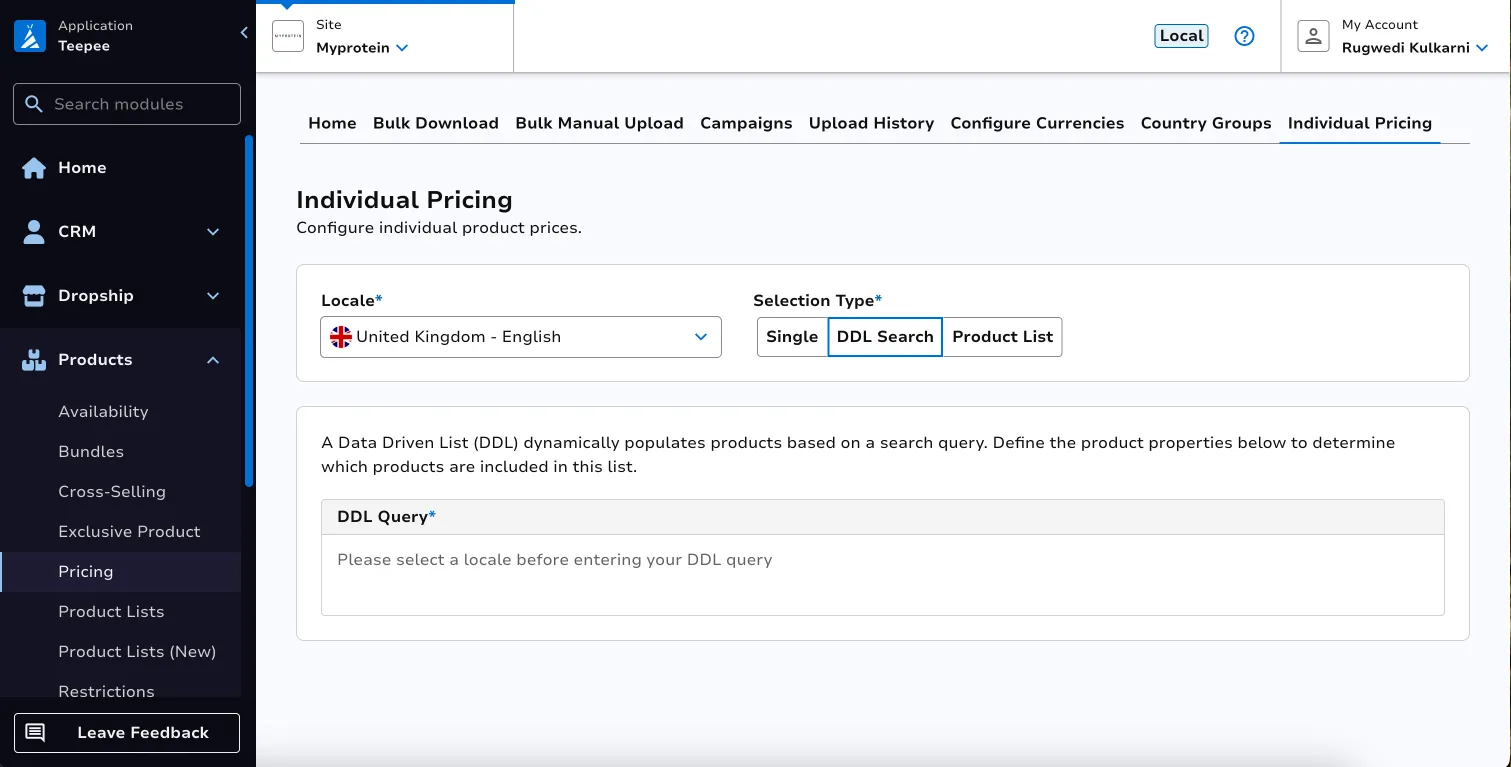
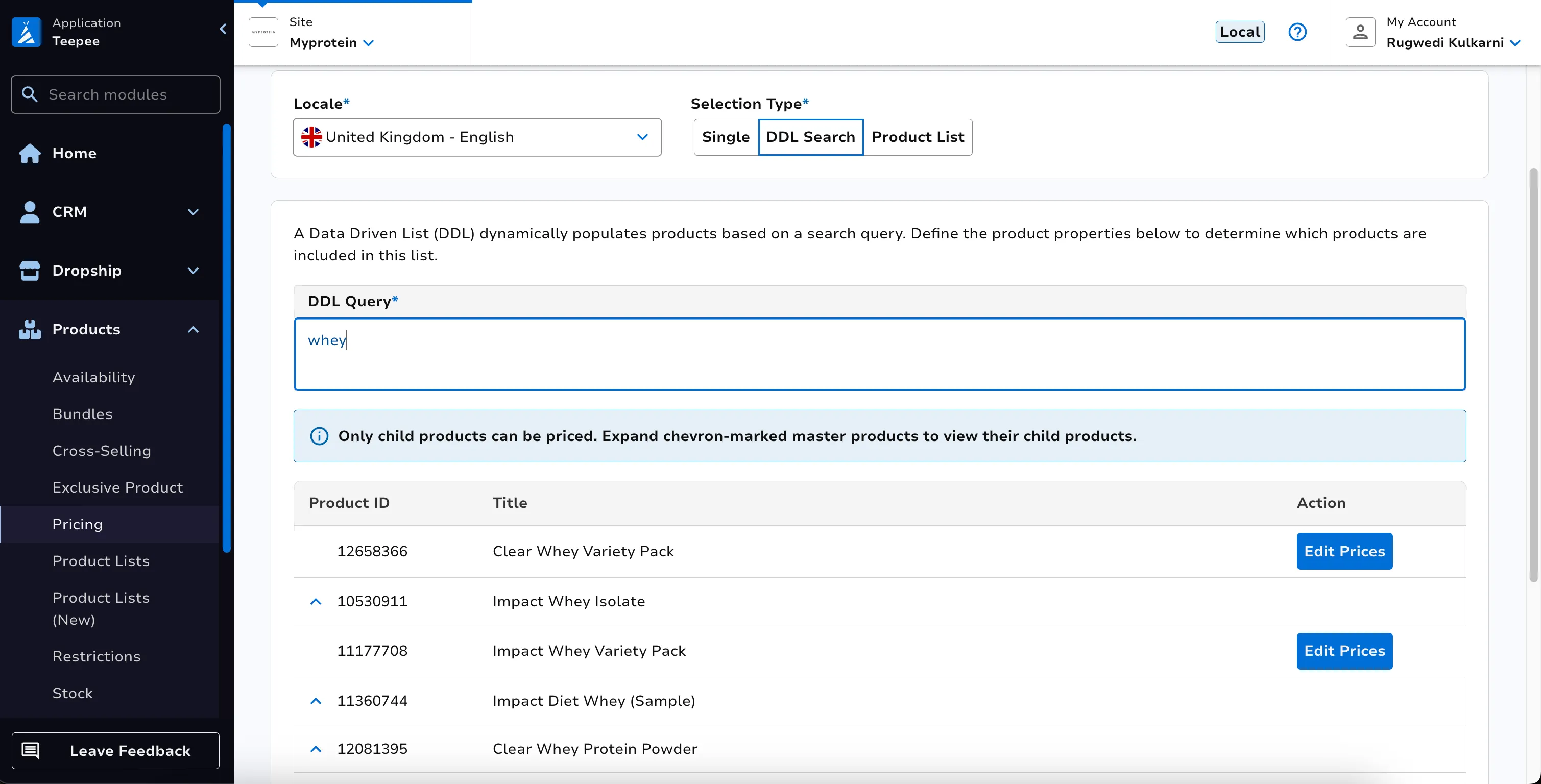
Results show Product ID and Title for each product. Master products are marked with a chevron icon and can be expanded to reveal their child products. An informational alert reminds users that only child products can be priced.
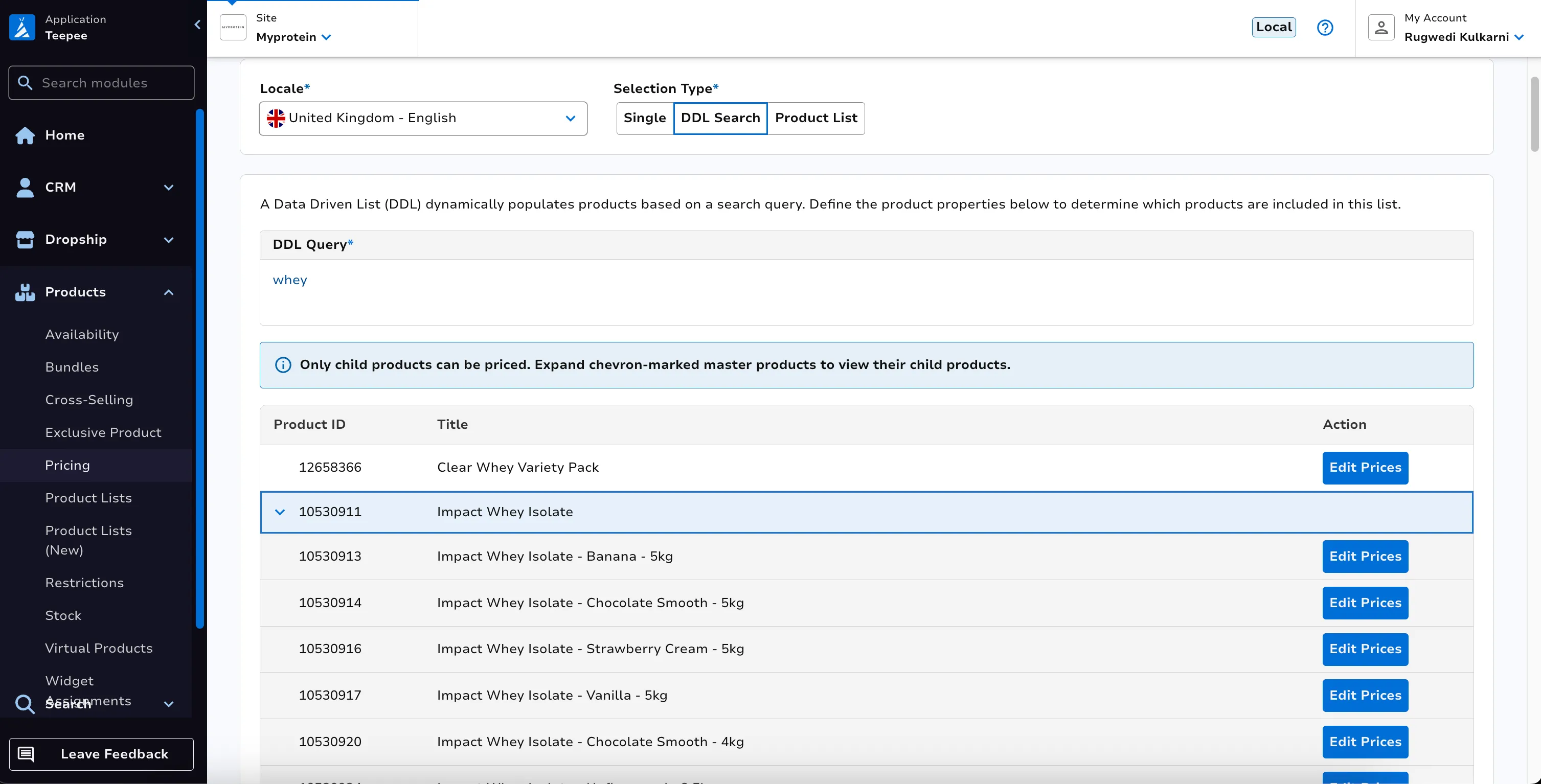
Clicking Edit Prices on a child product navigates to the Child Product Page for pricing configuration. Back to DDL-Search Results button returns to the search result.
Product list search
Section titled “Product list search”The Product List Search feature allows users to browse and search through pre-organized product collections (sections).
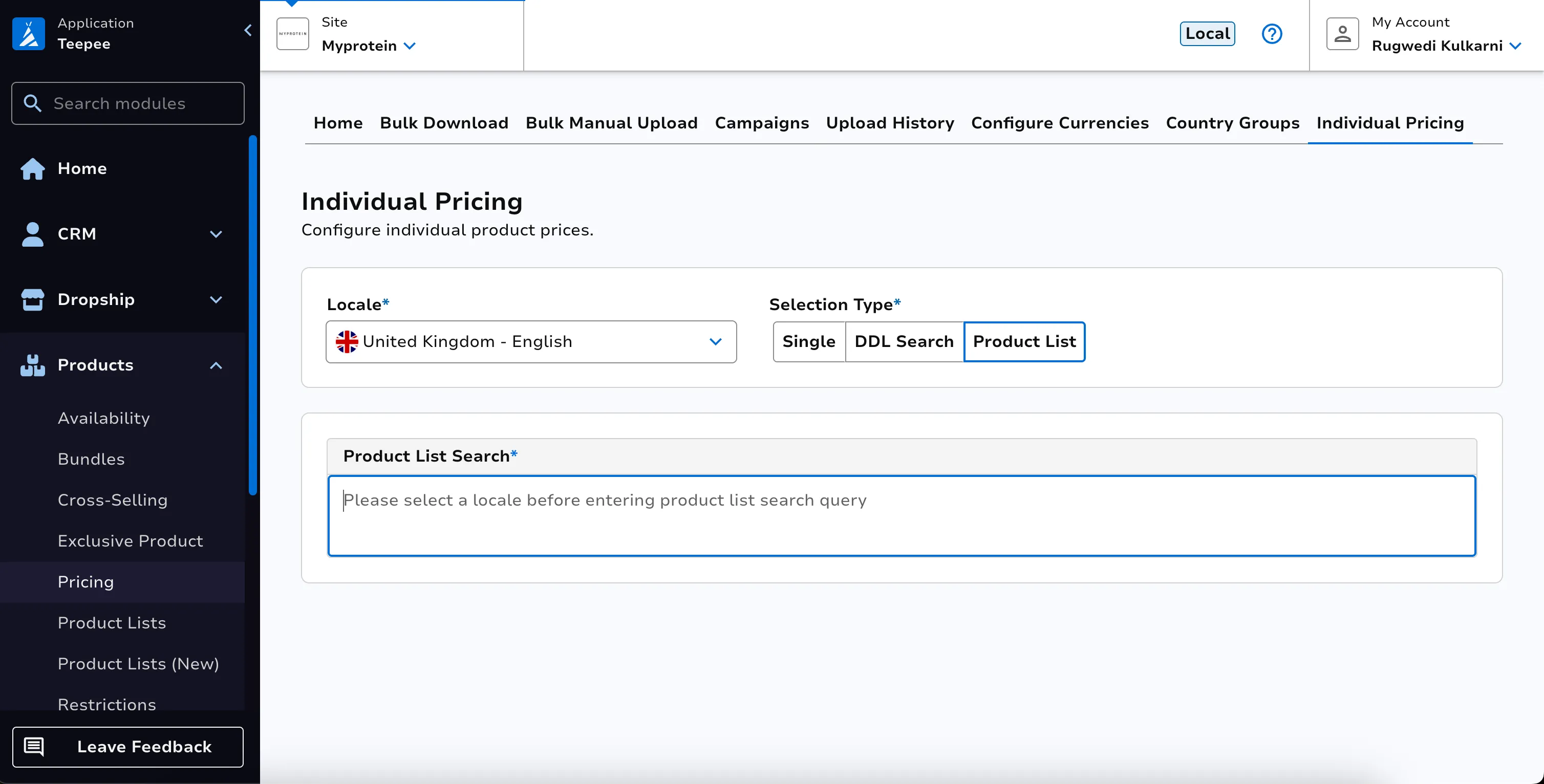
- Select a locale from the dropdown, click on the
Product Listtab and enter a search query to find product lists the automatically searches when the query is valid.
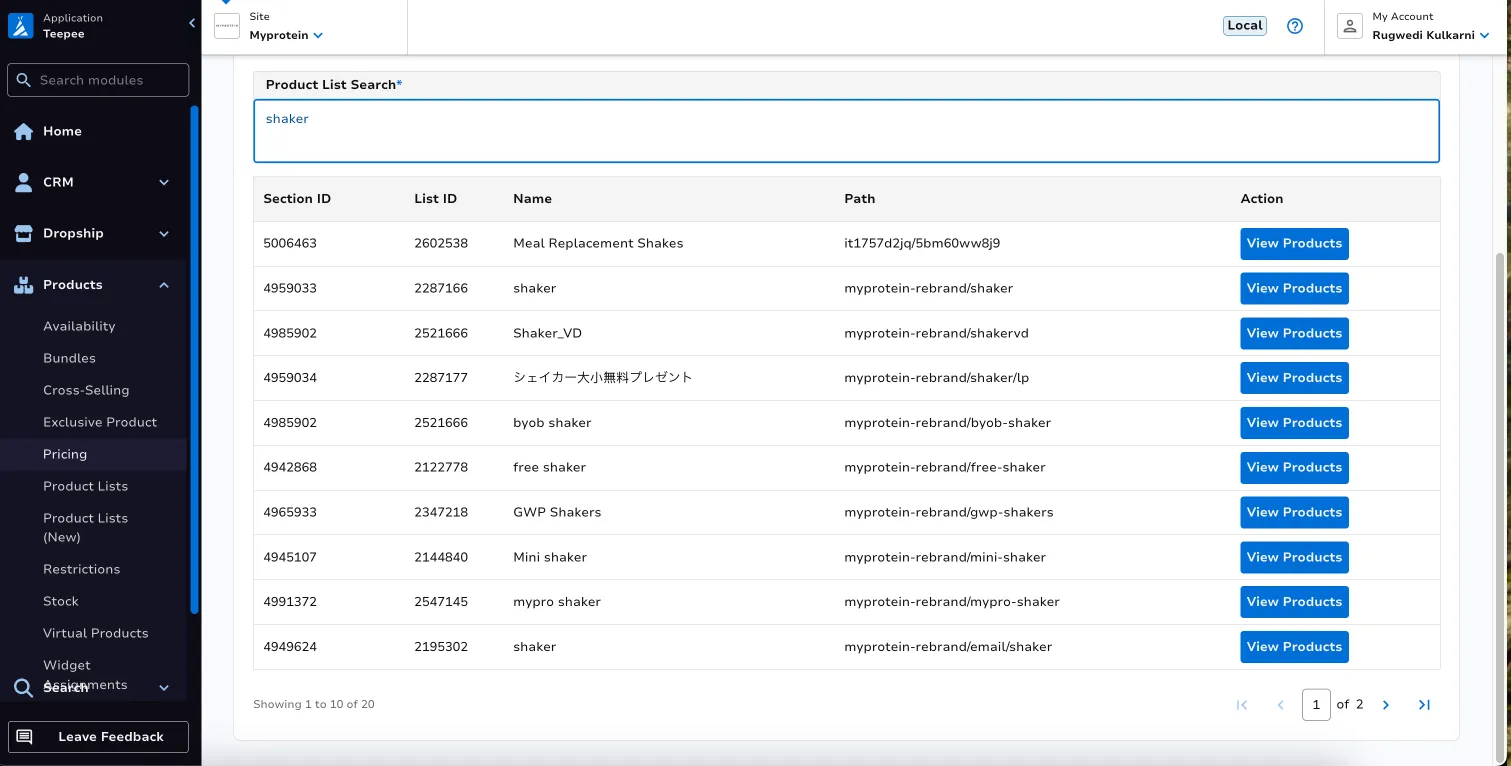
Result displays matching product lists in a paginated table showing Section ID, List ID, Name, and Path.
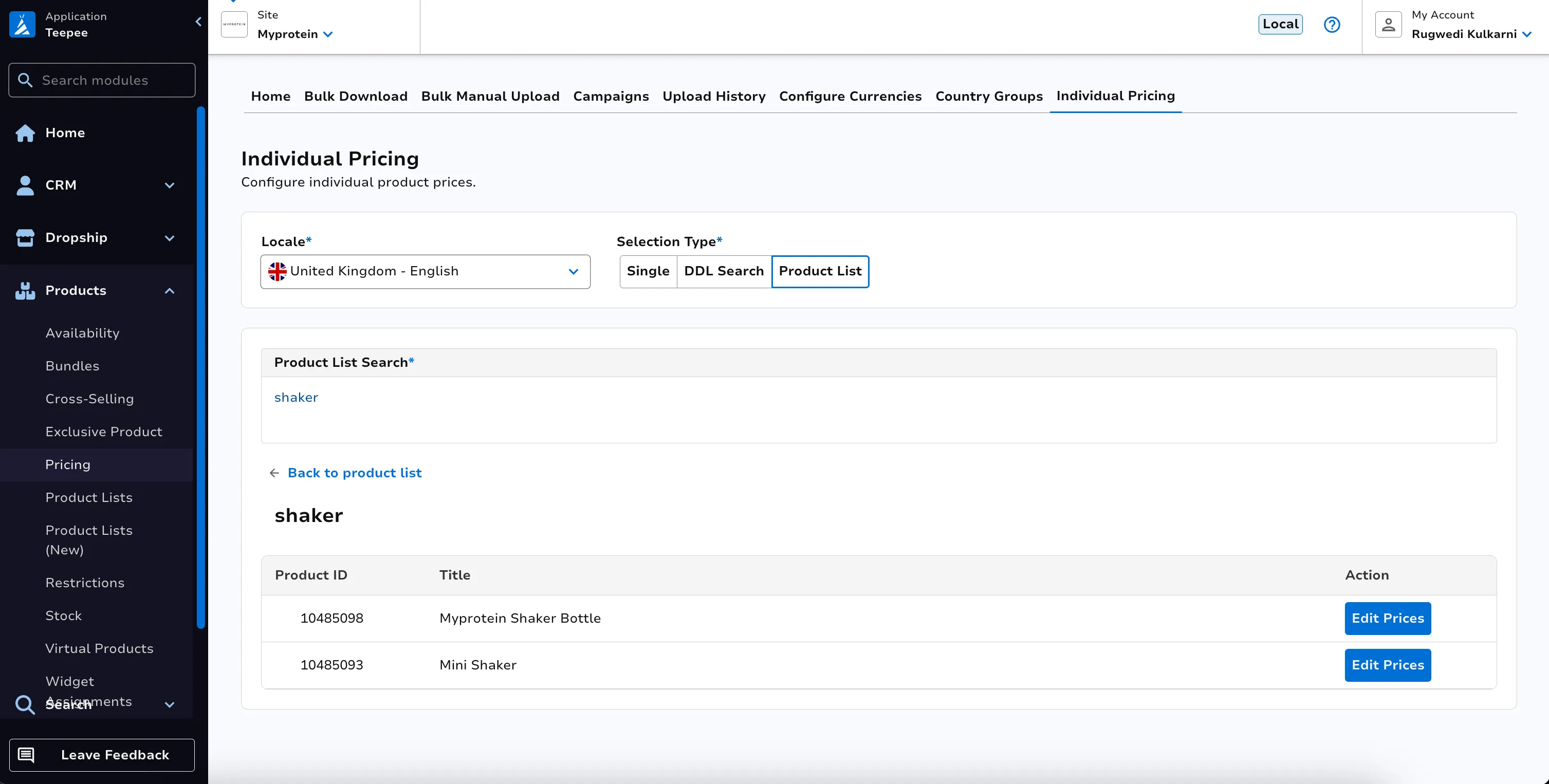
Clicking View Products on a section loads all products within that section. Products are displayed in a paginated expandable table showing Product ID and Title. Master products are marked with a chevron icon and can be expanded to reveal their child products. An informational alert reminds users that only child products can be priced.
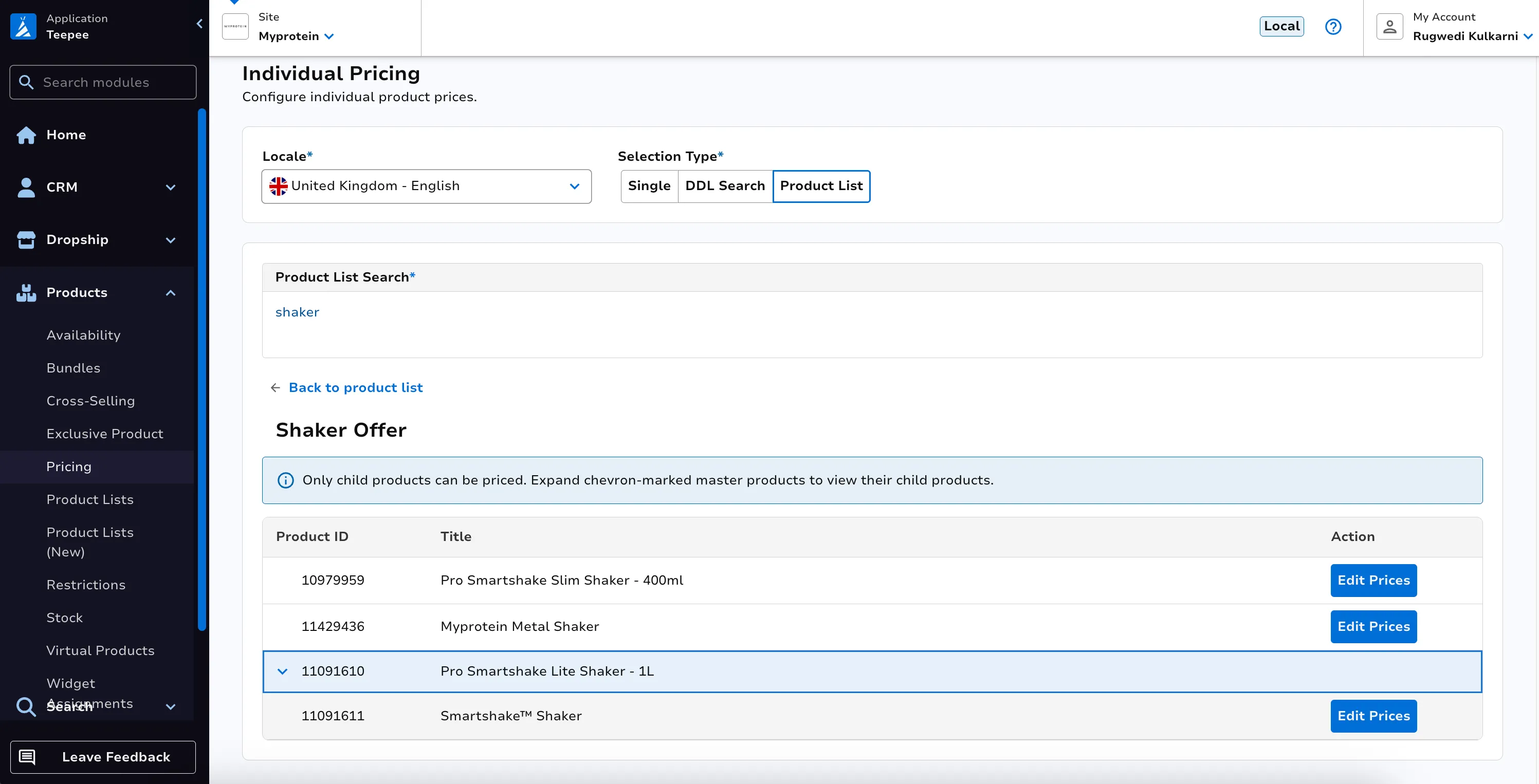
Clicking Edit Prices on a child product navigates to the Child Product Page for pricing configuration. A Back to Products button returns to the products view, and a Back to product list button returns to the section search results.
Glossary
Section titled “Glossary”Channel
Section titled “Channel”The terms Channel and Site are used interchangeably. Examples would be ‘Look Fantastic’ or ‘MyProtein’.
Country Groups
Section titled “Country Groups”Price changes are set against country groups, as a way to apply pricing to a group of countries. Examples include ‘Channel Islands’, ‘Asia’, ‘Worldwide’ (which generally means ‘rest of the world’).
For sites which have many subsites, country groups are rarely used.
For small sites who only have a couple of subsites, country groups are sometimes used as a way to change pricing depending on which country the customer delivery address is in.
I.e. consider a site which only has one subsite en_US; if shipping from the US site to countries in both Asia and South America, these continents could be classed as different country groups, in which case prices could be set higher for all countries in country group ‘Asia’ than those in country group ‘South America’ (to allow for the fact shipping would be more expensive).
A product list is a selection of products, generally used to determine which products will appear on a given list page on site. A DDL, short for Data Driven List, is an automated method of grouping products into a list. DDL queries are based off product content items, for example ‘brand_name’. DDL queries use the following syntax: fieldName:"fieldValue" on string fields or fieldName: [num1 TO num2] on numeric fields. You can combine these constraints together with AND, OR and - (to negate).
Fallback
Section titled “Fallback”If the selling price for a product has not been set for a specific subsite, country group and currency combination, the price shown on site will default back to other pricing within the system in the following order:
Falls back to the default selling price within same subsite
- Falls back to the default currency selling price within the same country group (if populated), uses exchange rates to convert to the customer’s specified currency
- Falls back to the same currency selling price in the default country group (if populated)
- Falls back to the default currency selling price in the default country group (if populated), uses exchange rates to convert to the customer’s specified currency
- Falls back to the Catalogue product RRP which is always in GBP (final fallback - GBP RRP is mandatory field upon product creation so is always populated), uses exchange rates to convert to the customer’s specified currency
Product List
Section titled “Product List”A product list is a selection of products, generally used to determine which products will appear on a given list page on site. Product lists are either a manual selection of products, or data-driven (see DDL).
Subsite
Section titled “Subsite”By subsite we mean a combination of a Channel (e.g. Look Fantastic), and a Locale (e.g. en_GB).