Segments
Summary
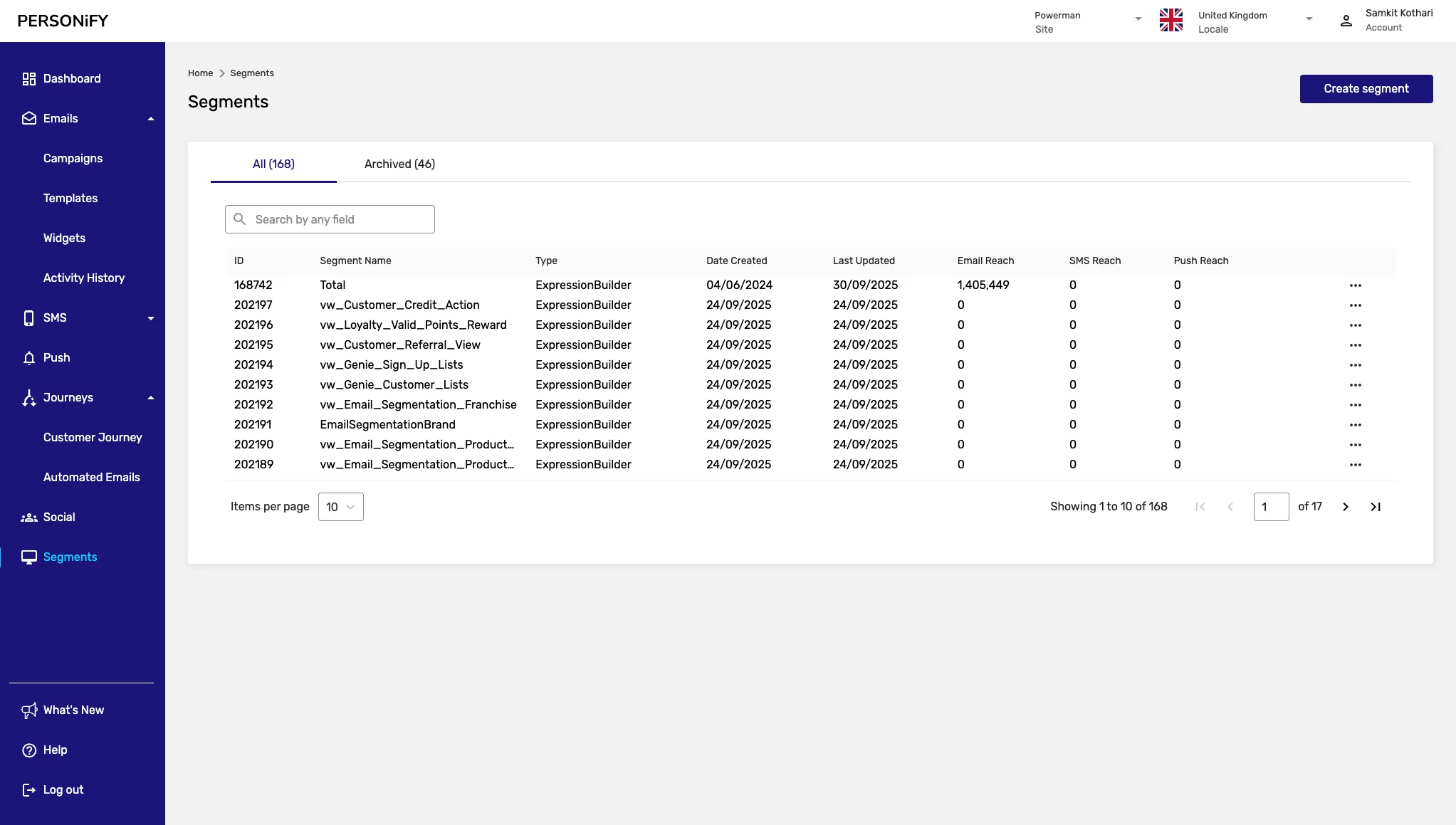
Section titled “Summary”Welcome to the Segments Page, your central hub for managing and organizing your segmented data. This guide will help you effectively navigate and understand the various elements on this page, empowering you to streamline your segment management.
Overview
Section titled “Overview”The Segments Page is designed to offer you a comprehensive view of your segmented data. Whether you’re creating new segments, tracking their performance, or organizing your audience, this platform provides the necessary tools for efficient segment management.
Getting Started
Section titled “Getting Started”In the top right corner of the Segments Page, you’ll find an essential button, the “Create Segment” button that initiates the process of crafting new segments, ensuring you can organize your audience effectively.

Segment Organization
Section titled “Segment Organization”The table for segmented data is organized to offer two primary tabs.
All Tab
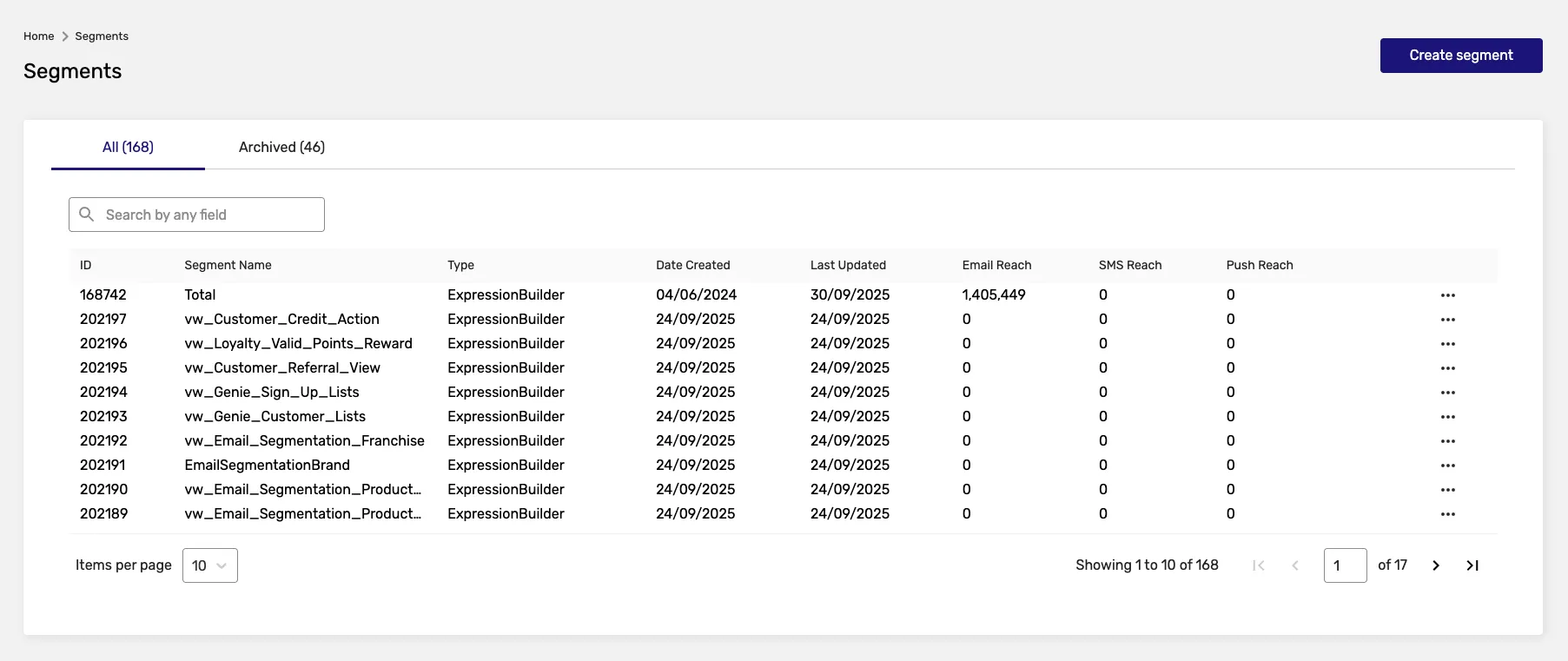
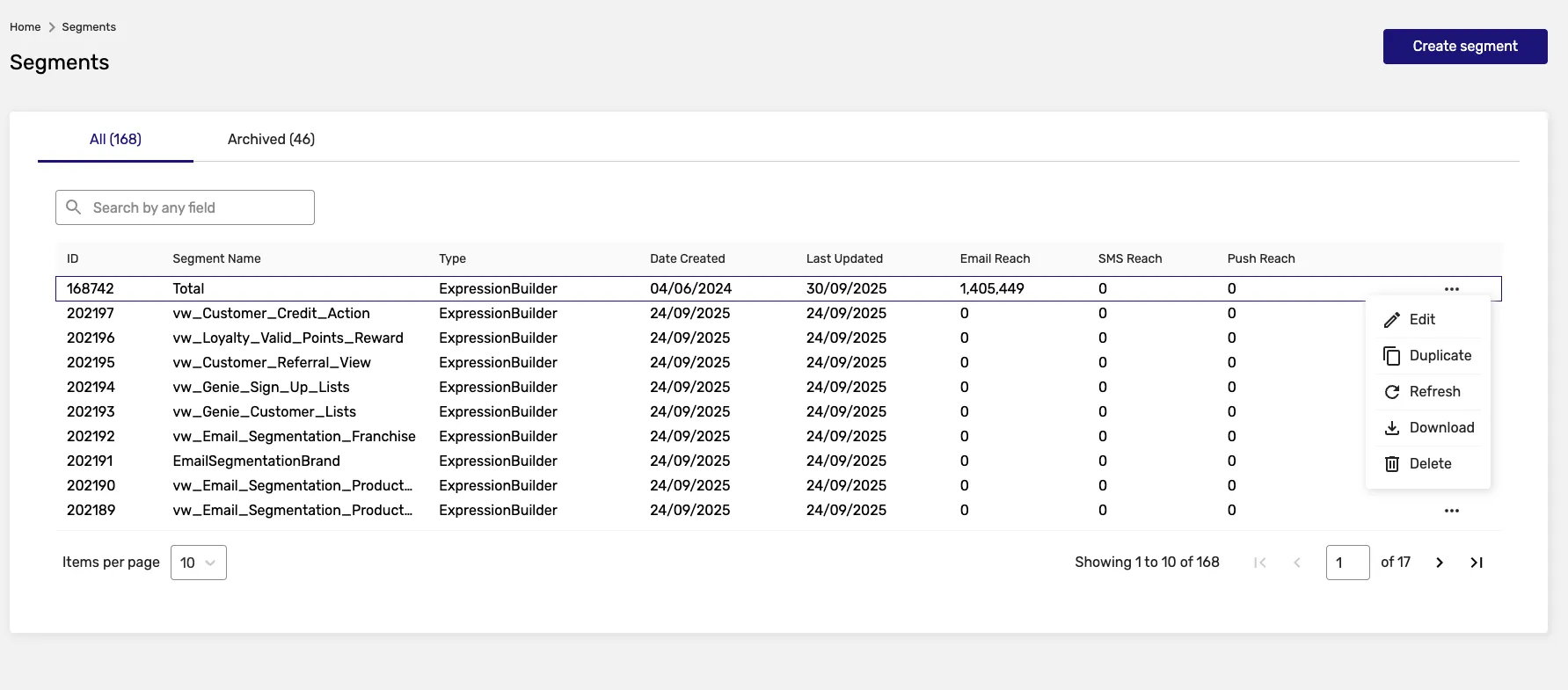
Section titled “All Tab”The “All” tab showcases all types of segments, filtered based on the earliest date of creation or updating. Each type of segment comes with its own set of actions, allowing you to manage your segmented data effectively.
Archived Tab
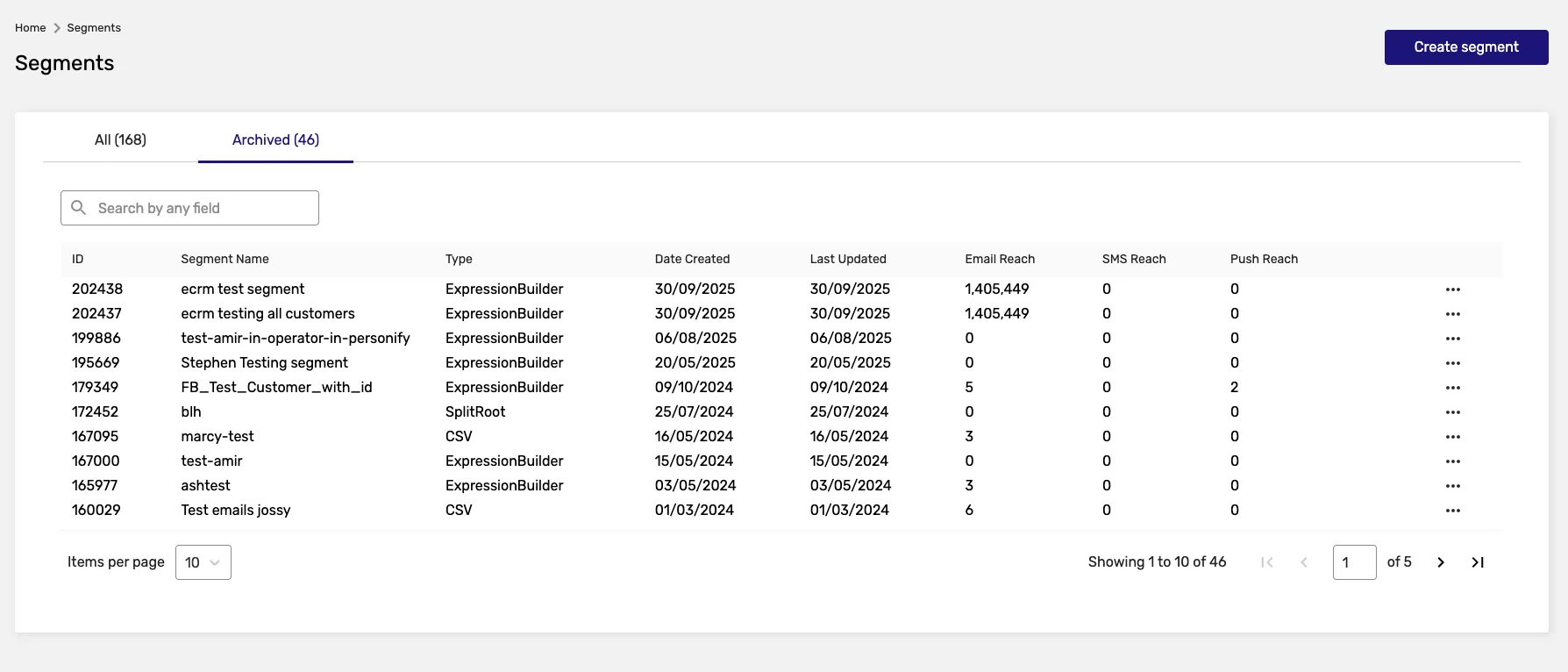
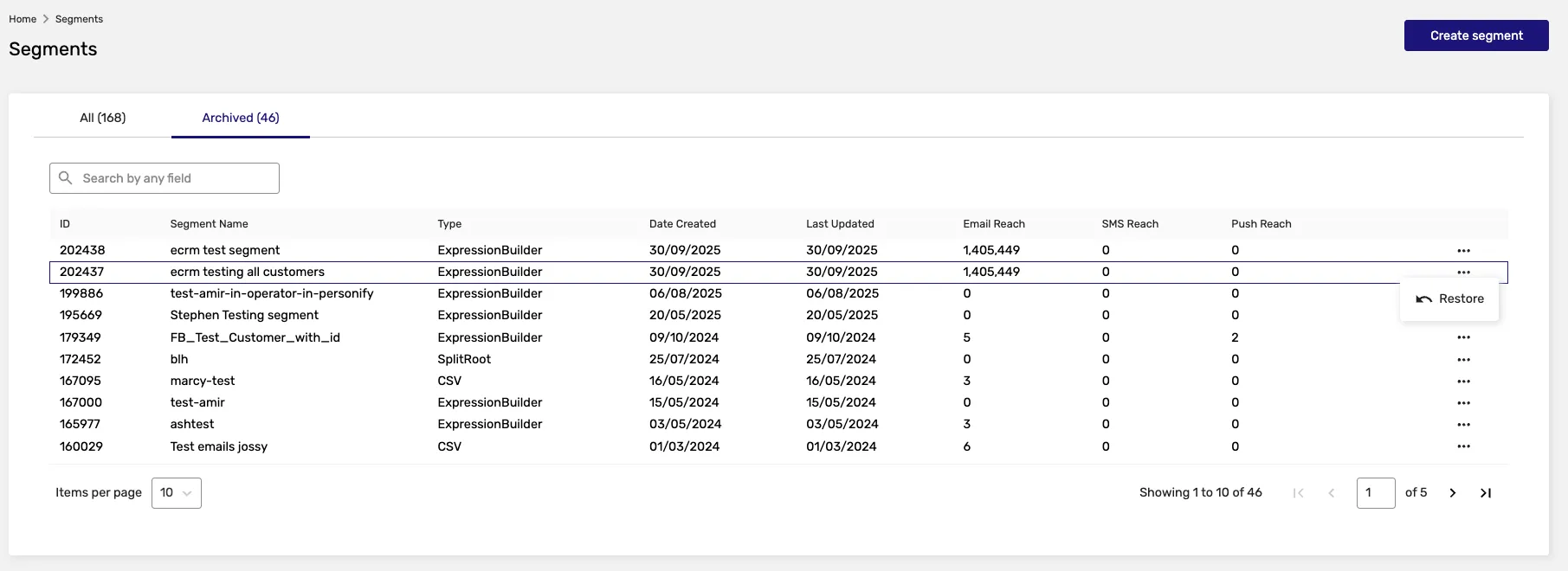
Section titled “Archived Tab”The “Archived” tab is dedicated to archived segments, enabling you to restore them if necessary.
Segment Types
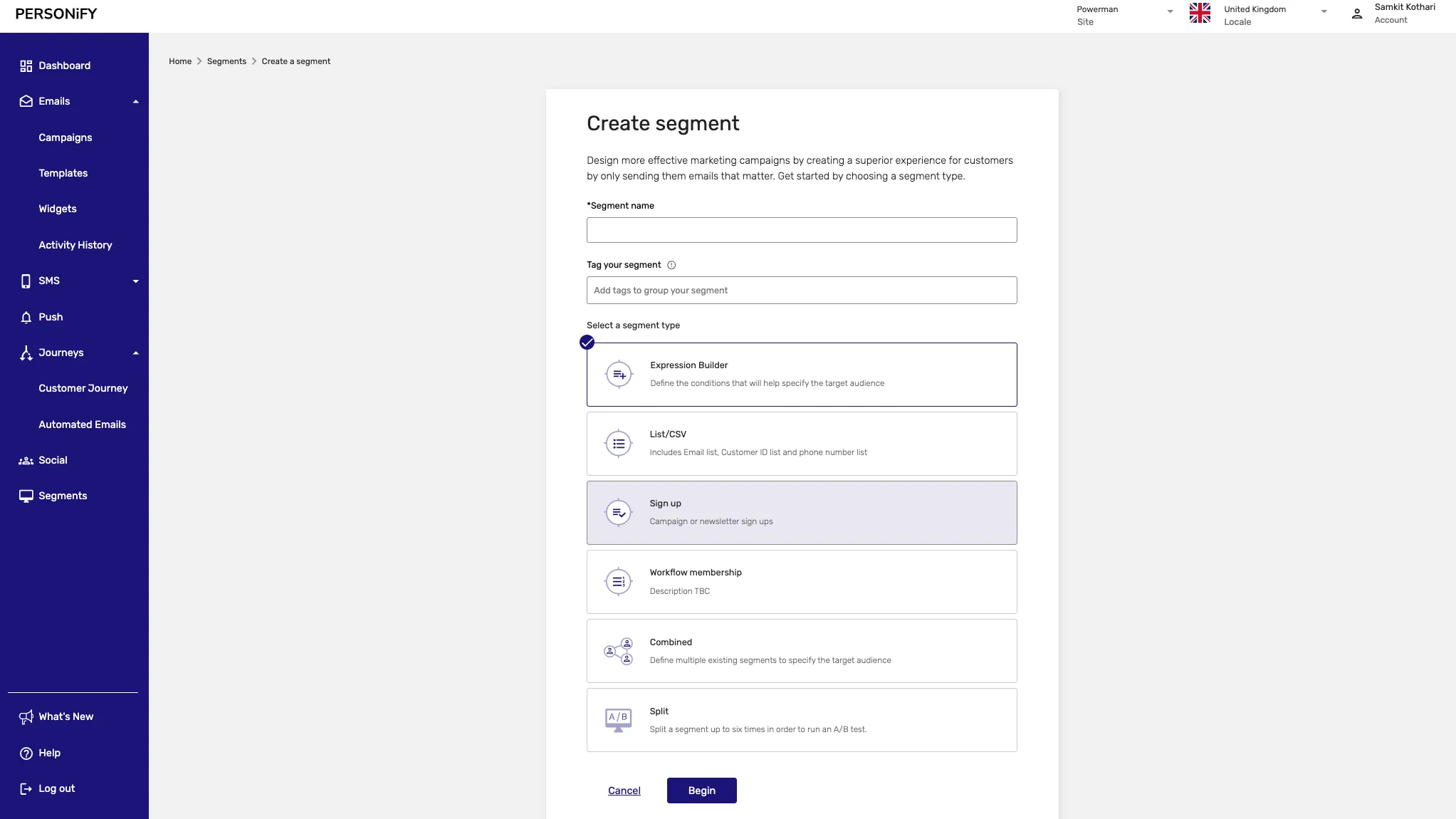
Section titled “Segment Types”The “All” tab will summarize all types of segments with custom actions that can be taken for each type of segment:
Expression Builder Segments
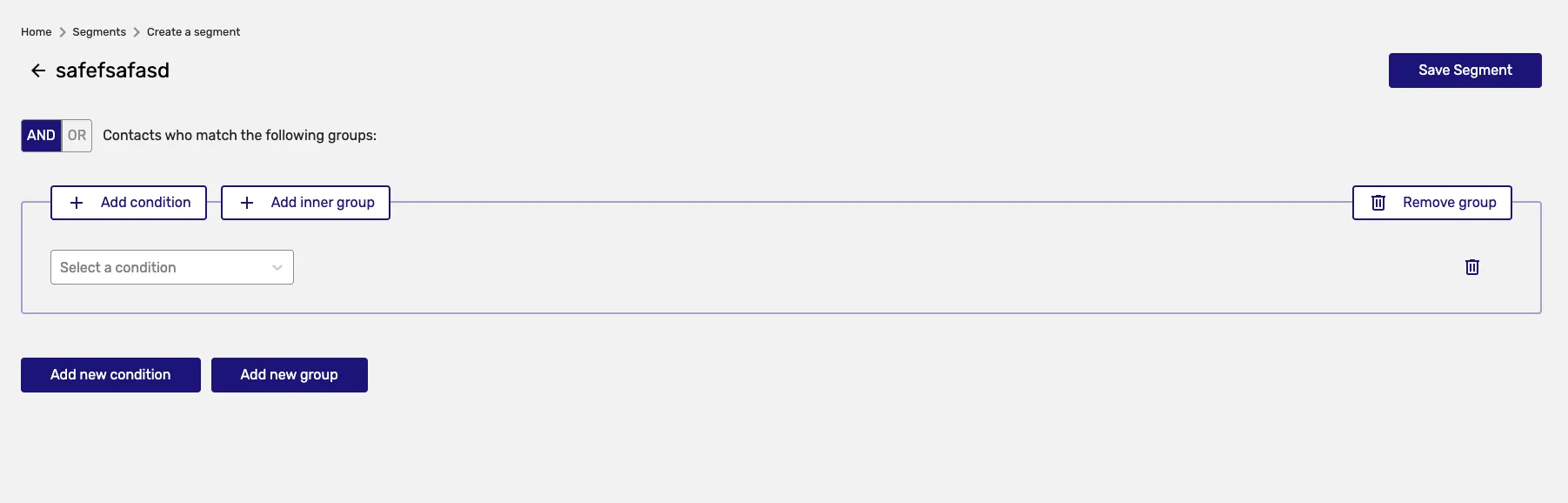
Section titled “Expression Builder Segments”Expression Builder segments allow you to create complex audience criteria using logical expressions and conditions.
List/CSV Segments
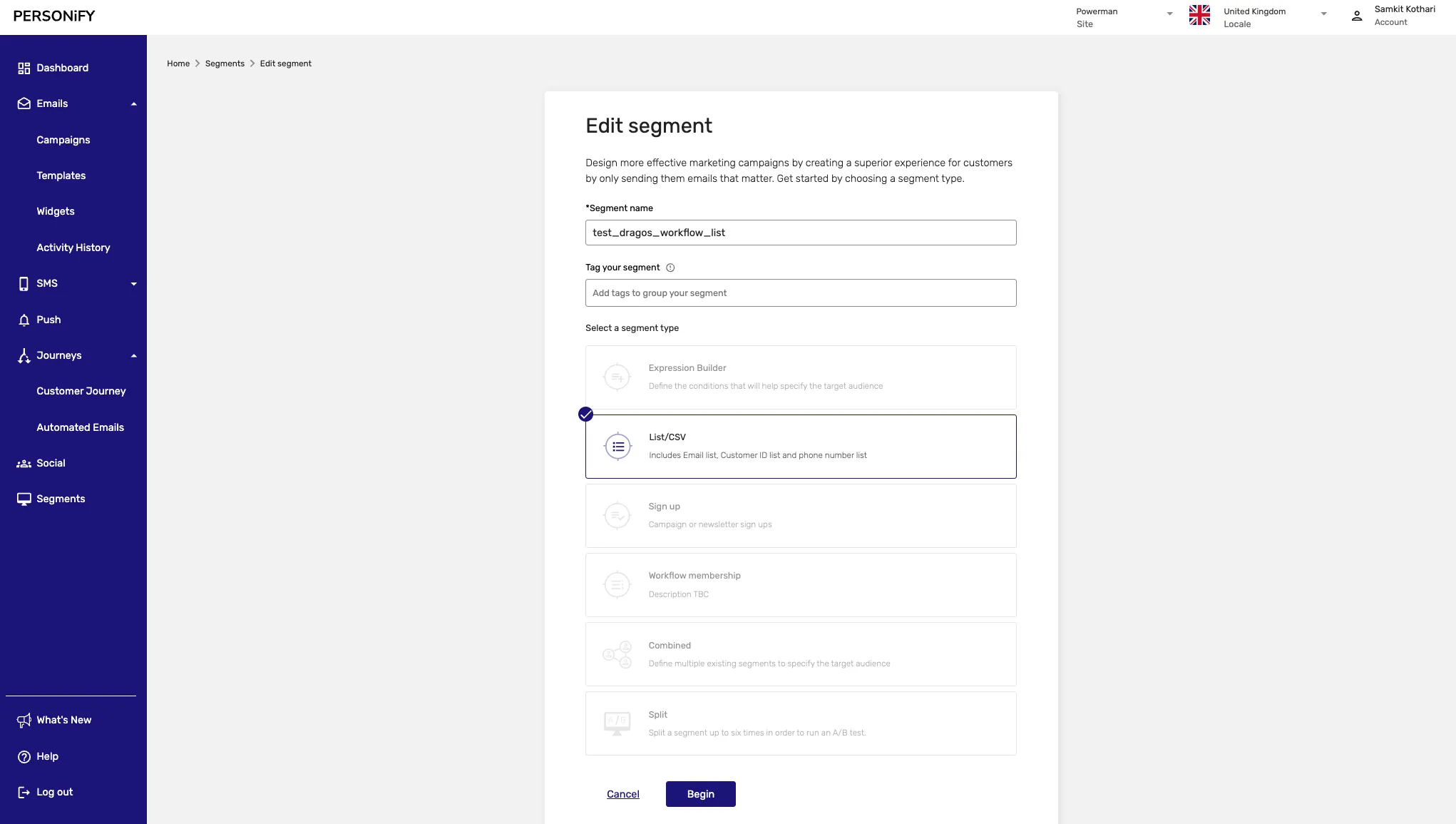
Section titled “List/CSV Segments”List/CSV segments are created by uploading customer lists or CSV files containing audience data.

Sign up Segments
Section titled “Sign up Segments”Sign up segments automatically capture users based on their registration or sign-up behavior.
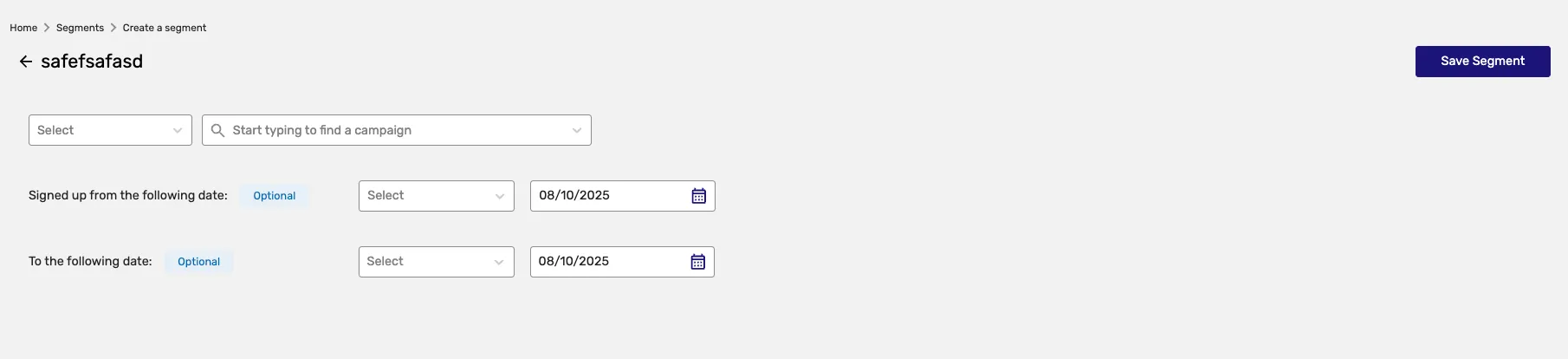
Cutomer Journey Membership Segments
Section titled “Cutomer Journey Membership Segments”Cutomer Journey Membership segments include users based on their participation in specific customer journeys.
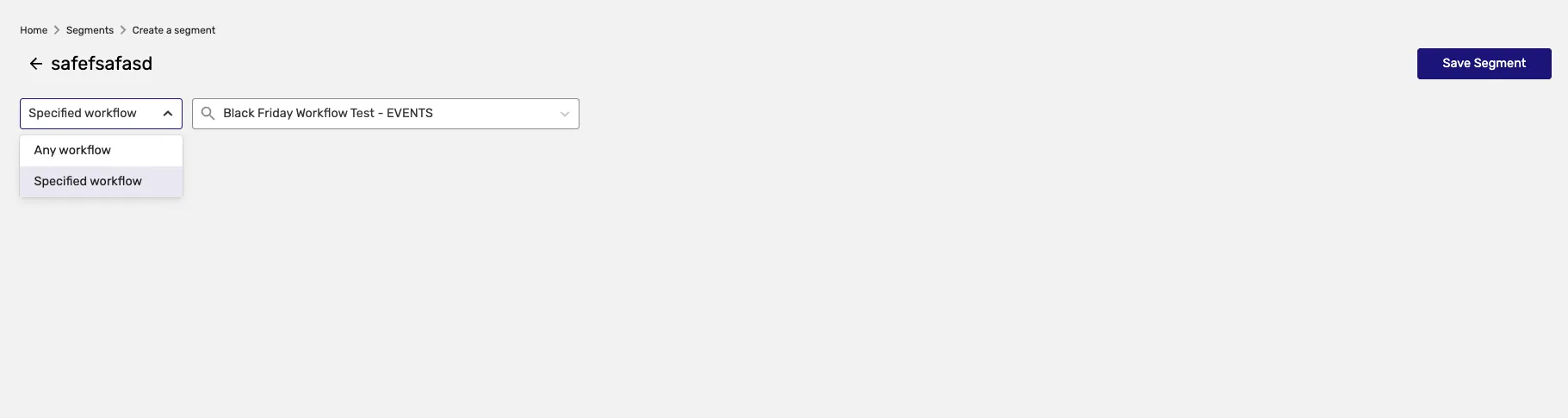
Combined Segments
Section titled “Combined Segments”Combined segments merge multiple existing segments using union, intersection, or exclusion logic.
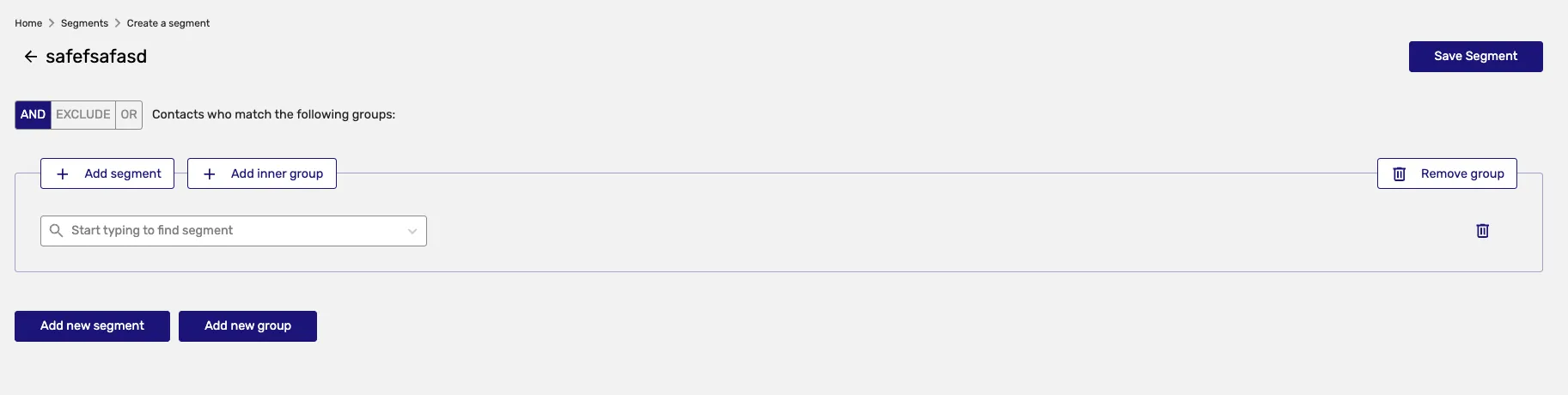
General Segment Actions
Section titled “General Segment Actions”The primary actions available in the “All” tab for each segment type are as follows:
Edit Action
Section titled “Edit Action”Use the “Edit” action to make adjustments to your segments, ensuring they remain up-to-date and in alignment with your audience criteria.
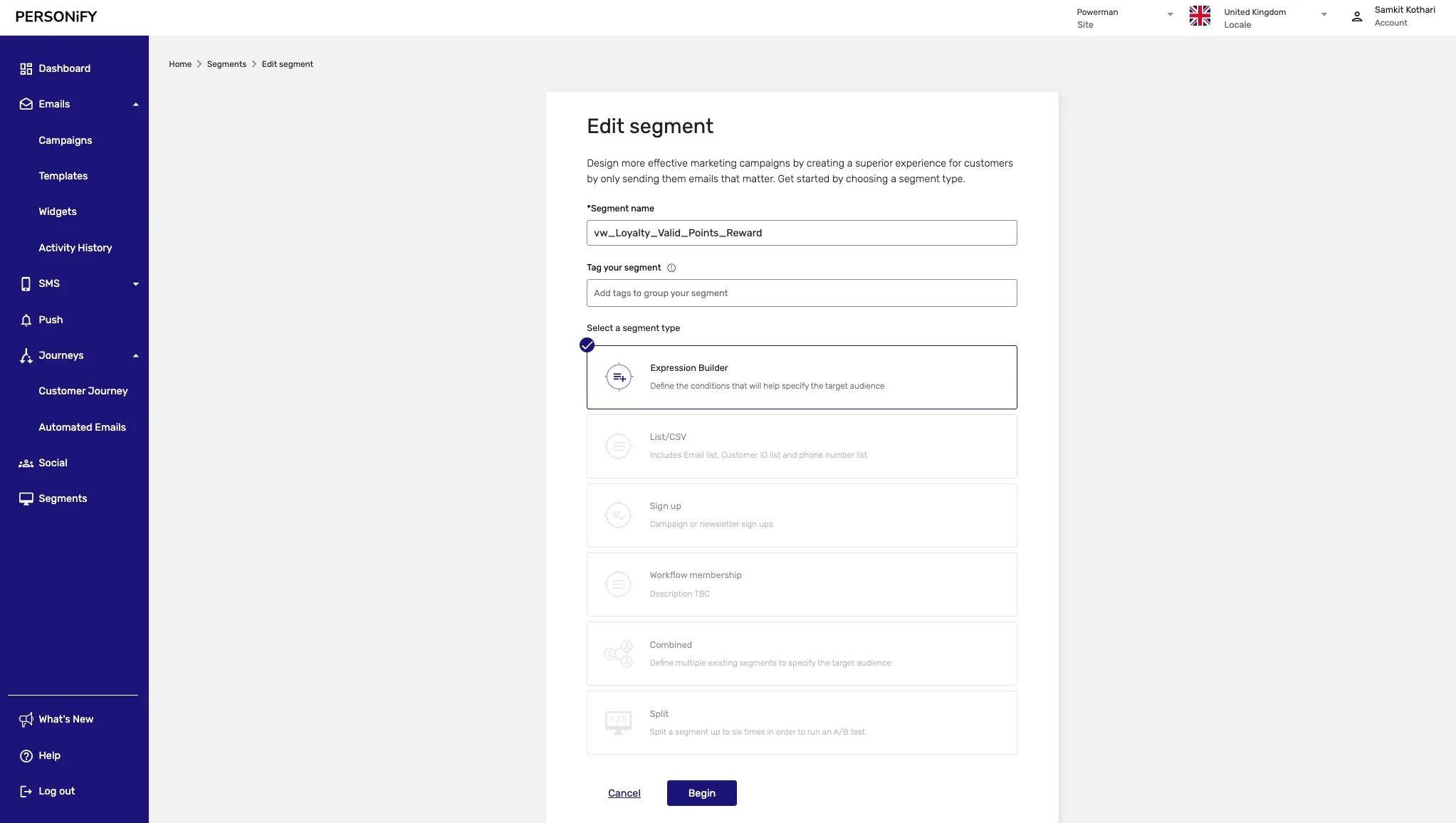
Refresh Action
Section titled “Refresh Action”The “Refresh” action allows you to update the page and ensure you have the latest information at your disposal.
Delete Action
Section titled “Delete Action”The “Delete” function lets you remove segments that are no longer relevant or needed, maintaining an organized workspace.
Segment-Specific Actions
Section titled “Segment-Specific Actions”Each segment type in the “All” tab has its own unique actions:
Duplicate Action (Expression Builder)
Section titled “Duplicate Action (Expression Builder)”The “Duplicate” action is particular to Expression Builder segments, making it easy to create multiple similar segments.
Download Action (Expression Builder & Combined)
Section titled “Download Action (Expression Builder & Combined)”The “Download” action is available for Expression Builder and Combined segments, allowing you to access and export segmented data as needed.
Archived Segment Management
Section titled “Archived Segment Management”In the “Archived” tab, you’ll find a single action:
Restore Action
Section titled “Restore Action”The “Restore” action enables you to bring back archived segments, giving you the flexibility to re-purpose or re-activate your audience criteria.
Creating Segments
Section titled “Creating Segments”Expression Builder Segments
Section titled “Expression Builder Segments”When creating Expression Builder segments, you can:
- Define Conditions: Set up complex logical conditions
- Add Filters: Apply demographic, behavioral, or custom filters
- Test Logic: Preview segment size before saving
- Save and Activate: Make the segment available for campaigns
List/CSV Upload
Section titled “List/CSV Upload”For List/CSV segments:
- File Upload: Upload your customer list or CSV file
- Field Mapping: Map CSV columns to customer attributes
- Data Validation: Verify data quality and format
- Import and Save: Complete the segment creation
Combined Segments
Section titled “Combined Segments”Creating Combined segments involves:
- Select Base Segments: Choose existing segments to combine
- Choose Logic: Select union, intersection, or exclusion
- Preview Results: See the resulting audience size
- Save Combination: Create the new combined segment
Best Practices
Section titled “Best Practices”- Clear Naming: Use descriptive names that explain the segment criteria
- Regular Review: Periodically review segment performance and relevance
- Size Management: Keep segments large enough to be statistically significant
- Data Quality: Ensure high-quality data for accurate segmentation
- Testing: Test segments before using in major campaigns
- Documentation: Document segment criteria and intended use cases
Integration with Campaigns
Section titled “Integration with Campaigns”Campaign Targeting
Section titled “Campaign Targeting”Use segments effectively in your campaigns:
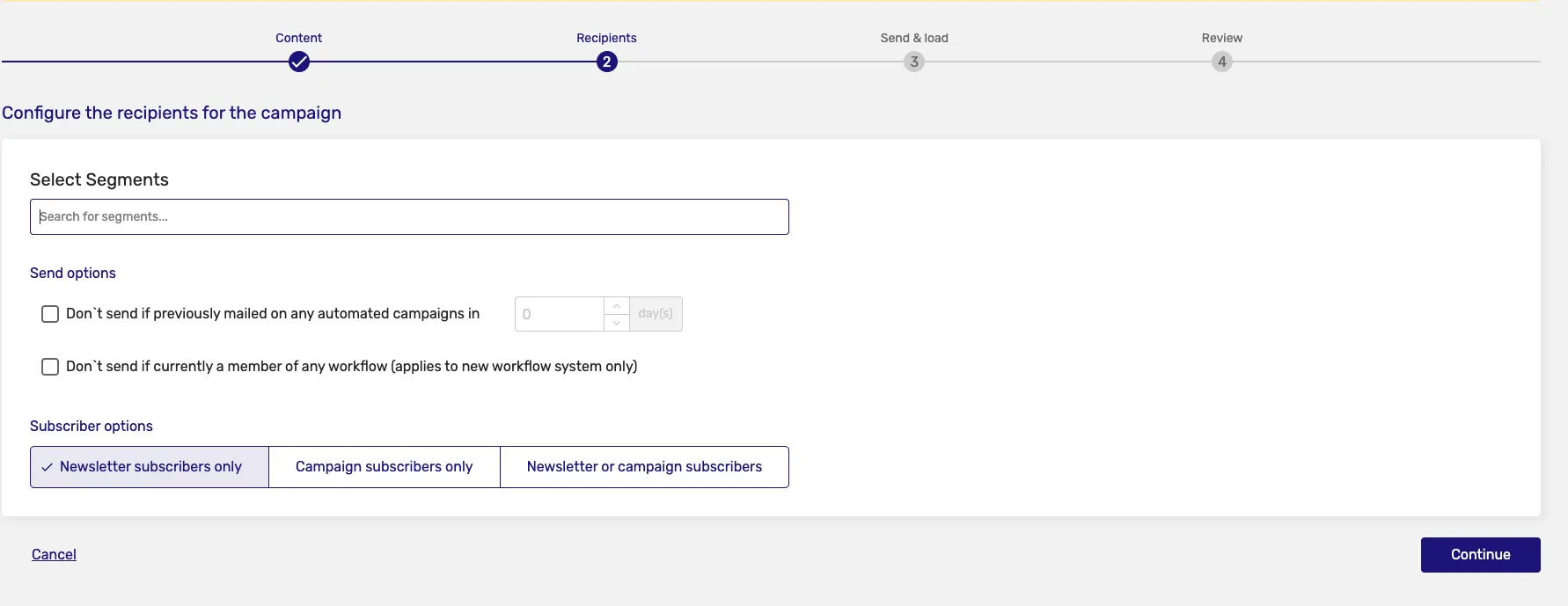
- Multi-segment Campaigns: Target multiple segments in one campaign
- Segment-specific Content: Customize content for different segments
- Exclusion Lists: Use segments to exclude certain audiences
- Lookalike Audiences: Create similar segments based on high-performing ones
Summary
Section titled “Summary”The Segmented Page offers a versatile platform for managing various types of segments. Whether you’re creating, updating, or maintaining organized audience data, this feature-rich tool ensures you have the necessary resources for effective segment management.