Push Notifications
Summary
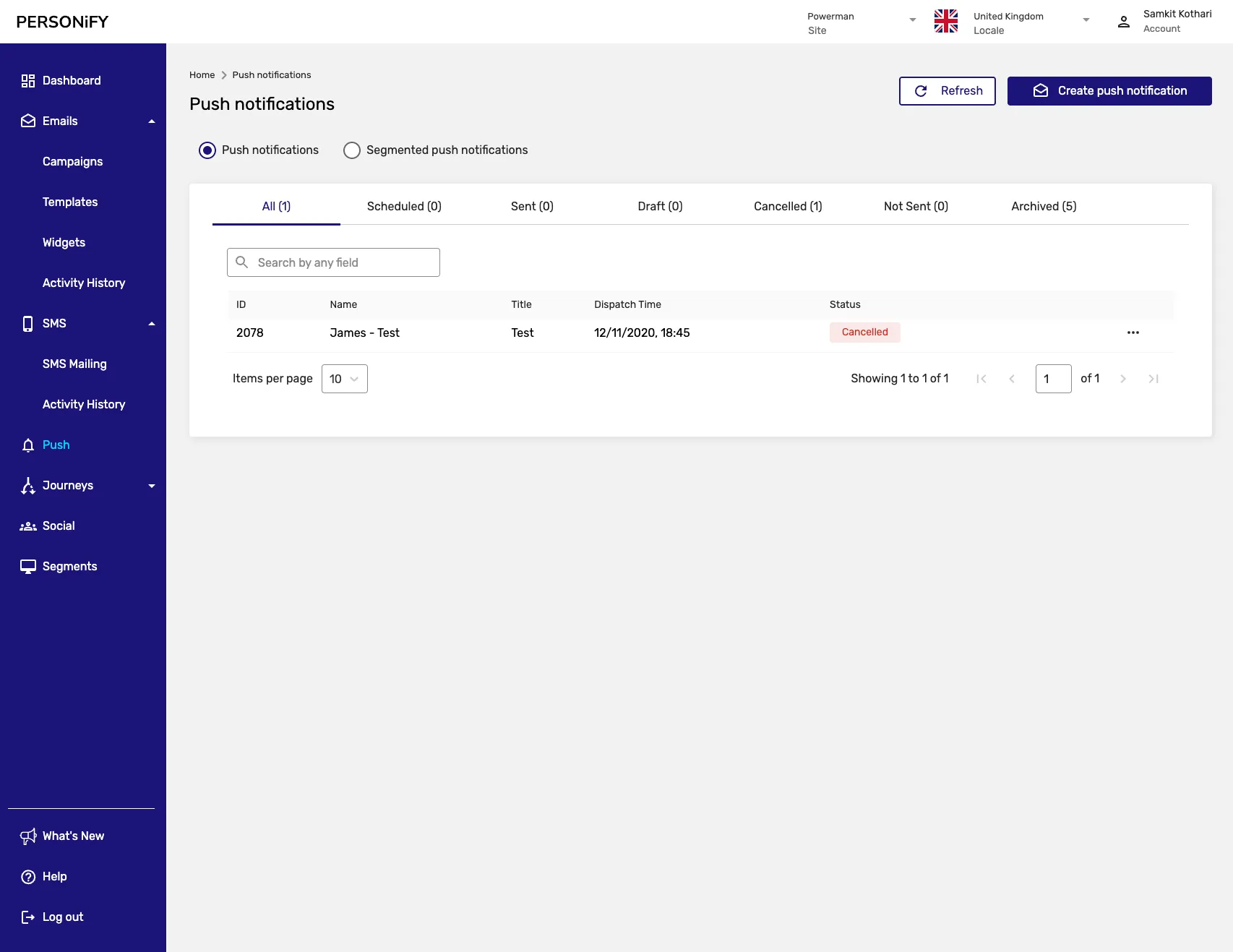
Section titled “Summary”Welcome to the Push Notifications Page, your central platform for managing and orchestrating your push notification campaigns. This guide will assist you in effectively navigating and understanding the various elements on this page, helping you streamline your push notification campaign management.
Overview
Section titled “Overview”The Push Notifications Page offers two distinct types of push notifications: Standard Push Notifications and Segmented Push Notifications. The standard Push Notifications are your typical push notifications, reaching a broad audience based on standard filters applied to recipients. In contrast, Segmented Push Notifications are targeted campaigns directed at specific segments. You can select segments previously created to ensure that your push notifications reach a more defined audience.
Getting Started
Section titled “Getting Started”Similar to the SMS and Workflow pages, the top right corner of the Push Notifications Page features two essential buttons: “Refresh” and “Create Push Notification.” These actions enable you to update the page with the latest data and begin the process of creating new push notifications.

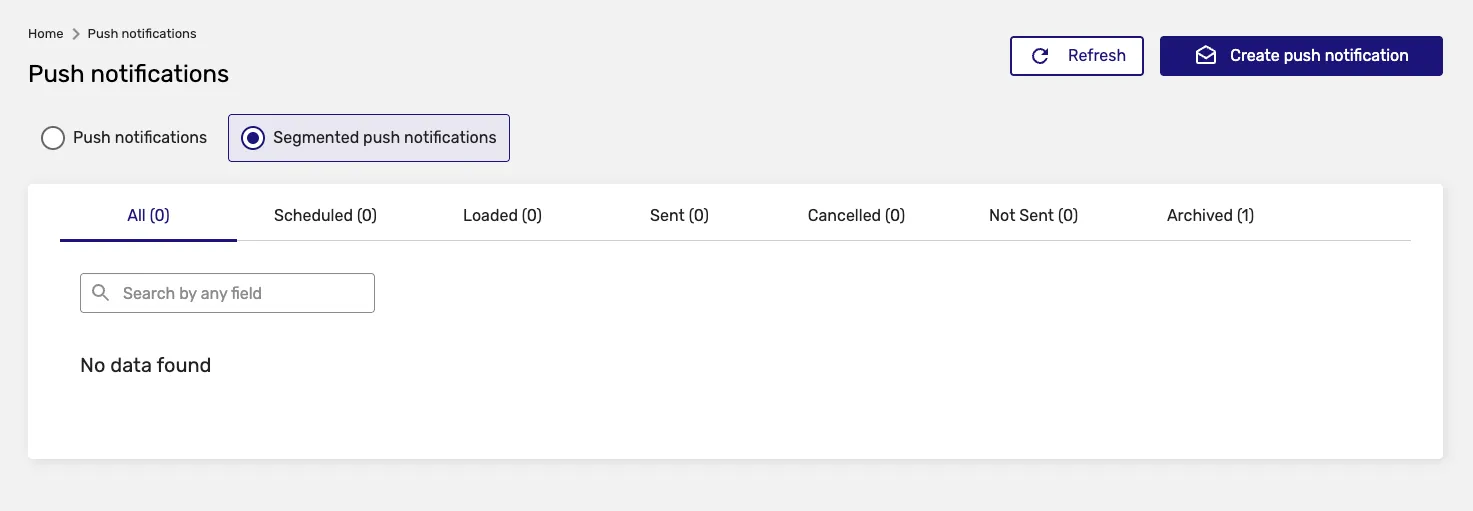
By default, the page displays the Standard Push Notifications. However, as in the workflow page, you can switch to Segmented Push Notifications based on your campaign needs.
Push Notification Types
Section titled “Push Notification Types”Standard Push Notifications
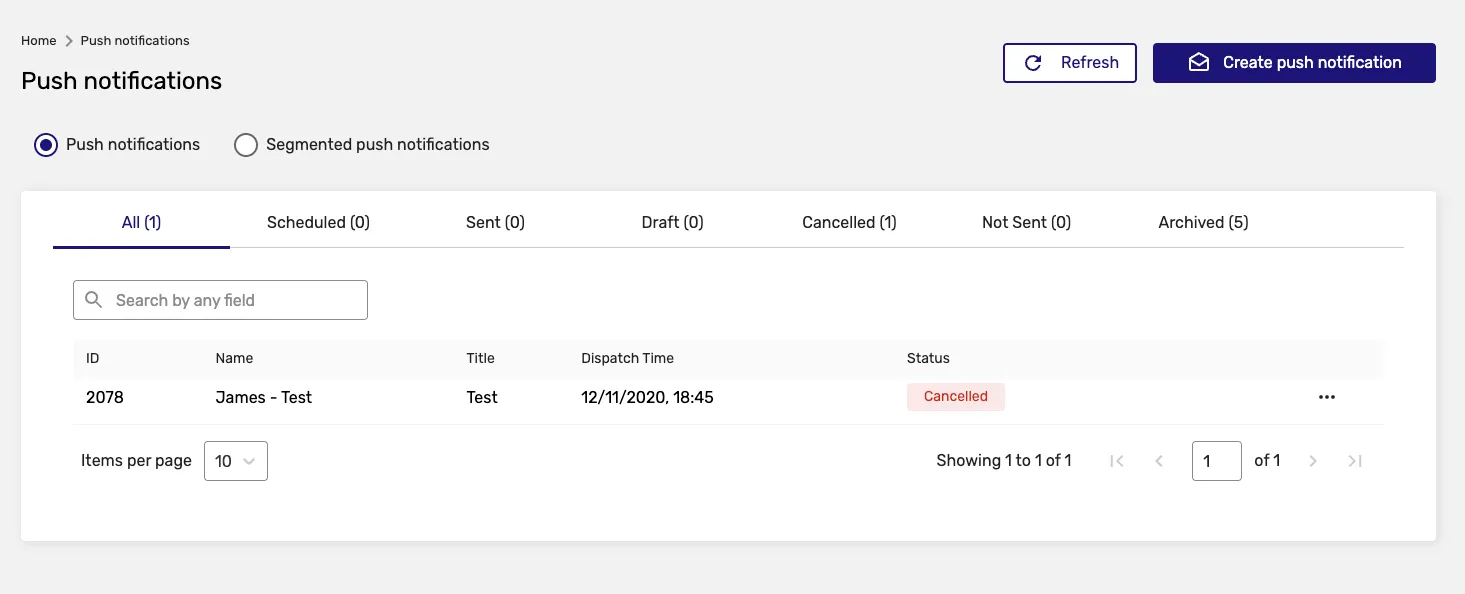
Section titled “Standard Push Notifications”Standard Push Notifications are designed to reach a broad audience using standard filtering criteria. These are ideal for general announcements, promotions, or updates that apply to most of your user base.
Segmented Push Notifications
Section titled “Segmented Push Notifications”Segmented Push Notifications allow you to target specific user segments with tailored messages. This approach ensures higher engagement rates by delivering relevant content to the right audience.
Search and Organization
Section titled “Search and Organization”You can initiate a search to find a specific push notification by name, making it easy to locate and manage your campaigns.
Campaign Status Tabs
Section titled “Campaign Status Tabs”The page offers various tabs to help you organize your push notifications.
All Tab
Section titled “All Tab”The “All” tab contains all push notifications of the selected type, spanning various statuses, including scheduled, loaded, sent, cancelled, and error.
Scheduled Tab
Section titled “Scheduled Tab”Contains push notifications that are scheduled to be sent at a future date and time.
Loaded Tab
Section titled “Loaded Tab”Shows push notifications that have been loaded and are ready for dispatch.
Sent Tab
Section titled “Sent Tab”Displays push notifications that have already been dispatched to recipients.
Cancelled Tab
Section titled “Cancelled Tab”Contains push notifications that have been cancelled before sending.
Error Tab
Section titled “Error Tab”Shows push notifications that encountered errors during the sending process.
Archived Tab
Section titled “Archived Tab”The “Archived” tab groups deleted push notifications and allows you to restore them if necessary.
General Push Notification Actions
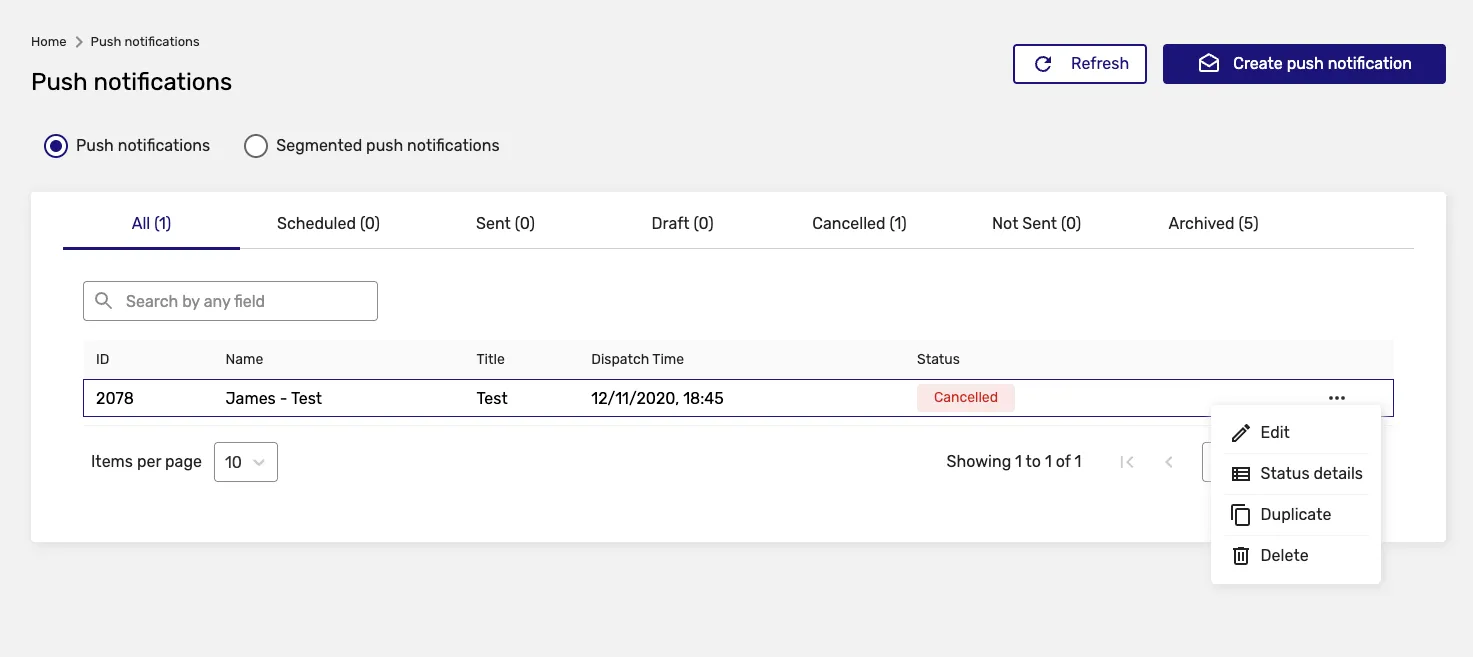
Section titled “General Push Notification Actions”The main actions that can be performed on a push notification are consistent across all types and statuses.
Edit Action
Section titled “Edit Action”The “Edit” action allows you to make necessary adjustments to your push notifications, ensuring they remain up-to-date and aligned with your campaign goals.
Status Details Action
Section titled “Status Details Action”With the “Status Details” action, you can access in-depth analytics on the performance and progress of your push notifications, enabling you to refine your approach and improve campaign outcomes.
Duplicate Action
Section titled “Duplicate Action”The “Duplicate” function simplifies the process of creating similar push notifications or running A/B tests by creating a copy of your existing campaign.
Delete Action
Section titled “Delete Action”The “Delete” action lets you remove push notifications that are no longer relevant or needed, maintaining an organized workspace.
Segmented Push Notification Specific Actions
Section titled “Segmented Push Notification Specific Actions”Bulk Batch Details Action
Section titled “Bulk Batch Details Action”Available for Segmented Push Notifications with statuses of “Sent,” “Scheduled,” or “Cancelled,” offering comprehensive insights into multiple campaigns in one view.
Load Now Action
Section titled “Load Now Action”Available for Segmented Push Notifications that have not been scheduled, “Load Now” is allowing you to initiate the dispatch of your campaign immediately.
Dispatch Now Action
Section titled “Dispatch Now Action”For Segmented Push Notifications without the “Loaded” status, the “Dispatch Now” function allows you to send the campaign immediately, ensuring your message is delivered promptly.
Creating Push Notifications
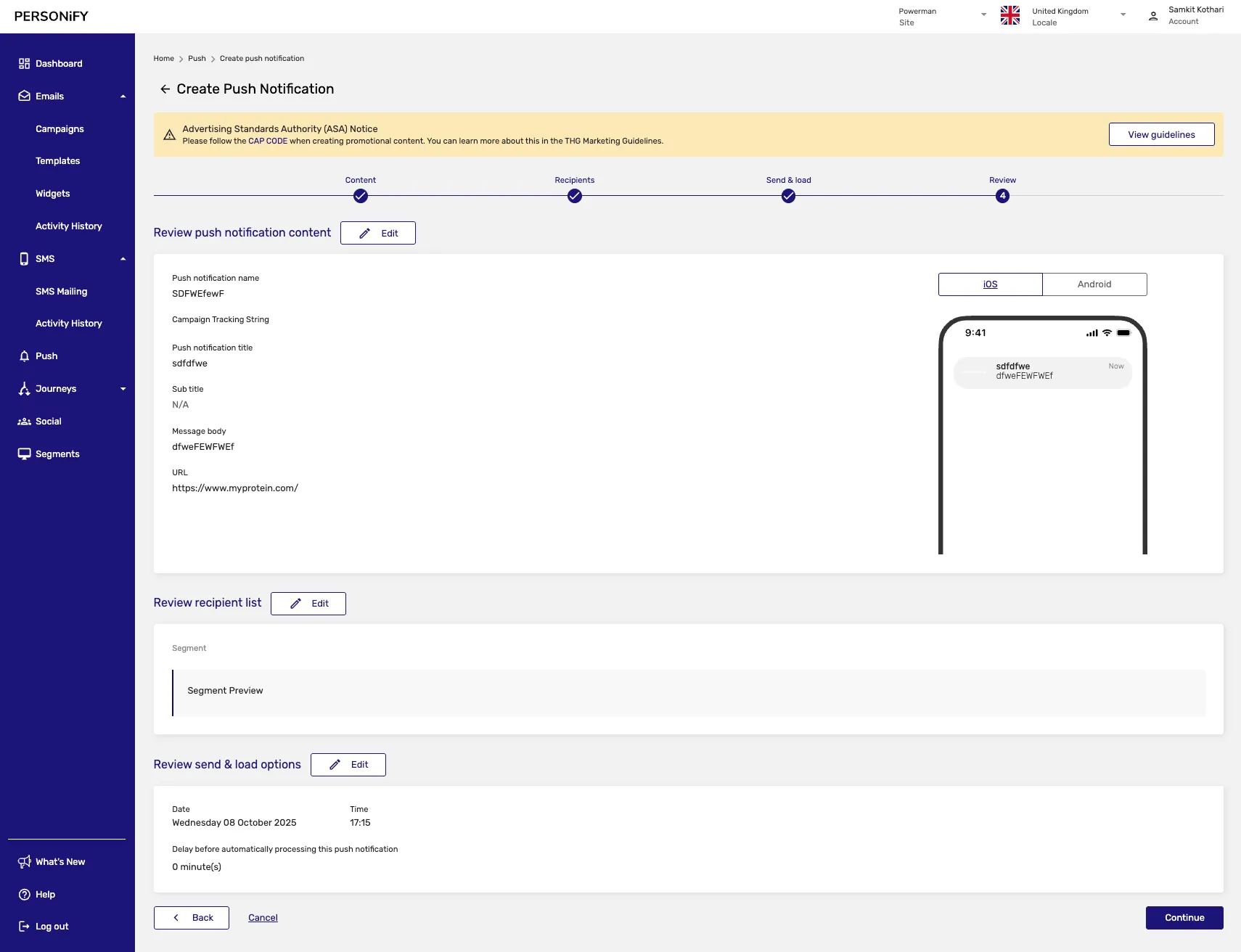
Section titled “Creating Push Notifications”When creating a new push notification campaign, you’ll go through several steps:
- Notification Type: Choose between Standard or Segmented
- Campaign Details: Provide basic information
- Message Content: Compose your notification message
- Targeting: Select audience or segments
- Scheduling: Set when to send the notification
- Review: Final review before saving or sending
Push Notification Features
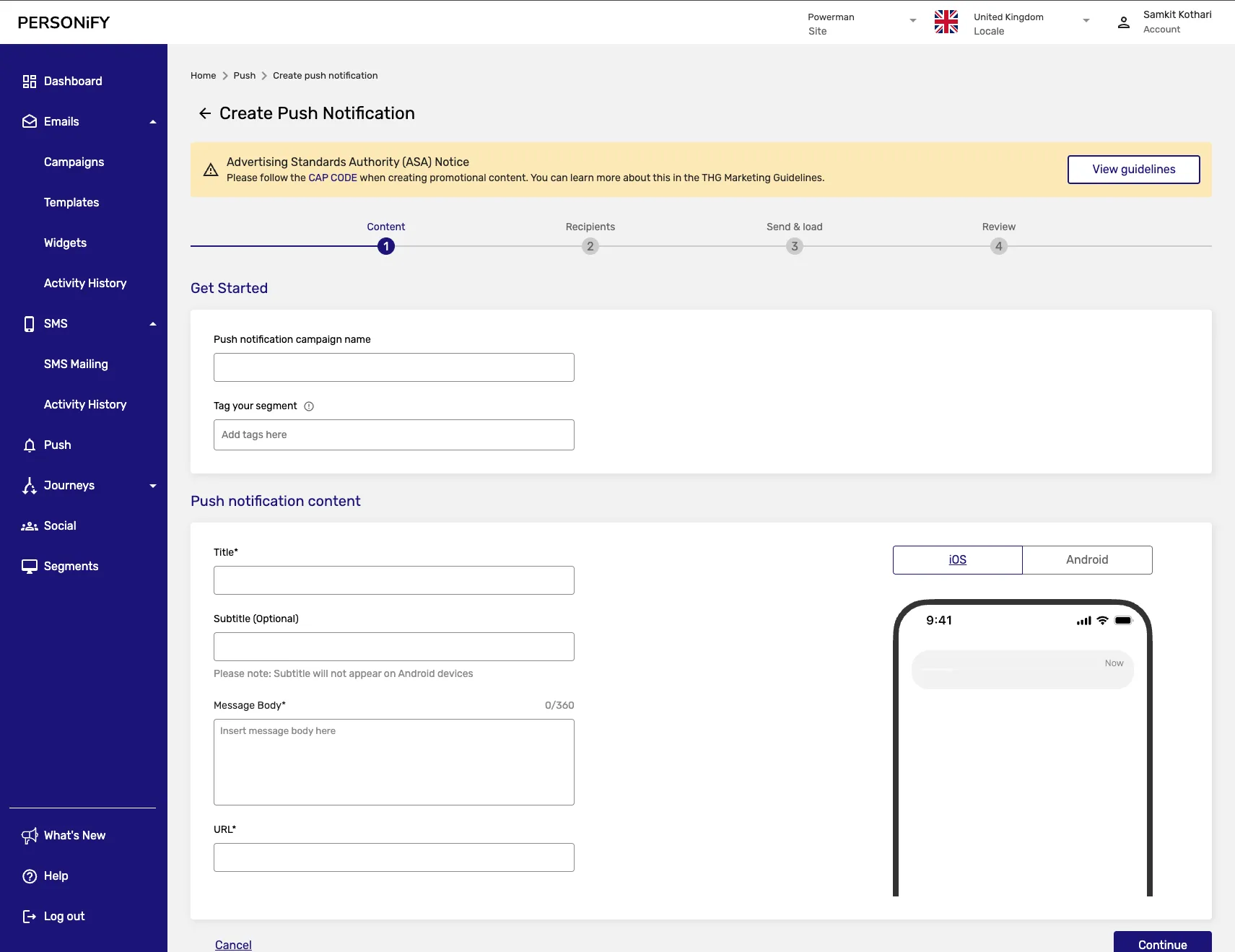
Section titled “Push Notification Features”Message Composition
Section titled “Message Composition”Create engaging push notifications with:
- Title and body text
- Rich media support (images, videos)
- Action buttons
- Deep linking capabilities
- Emoji support
Audience Targeting
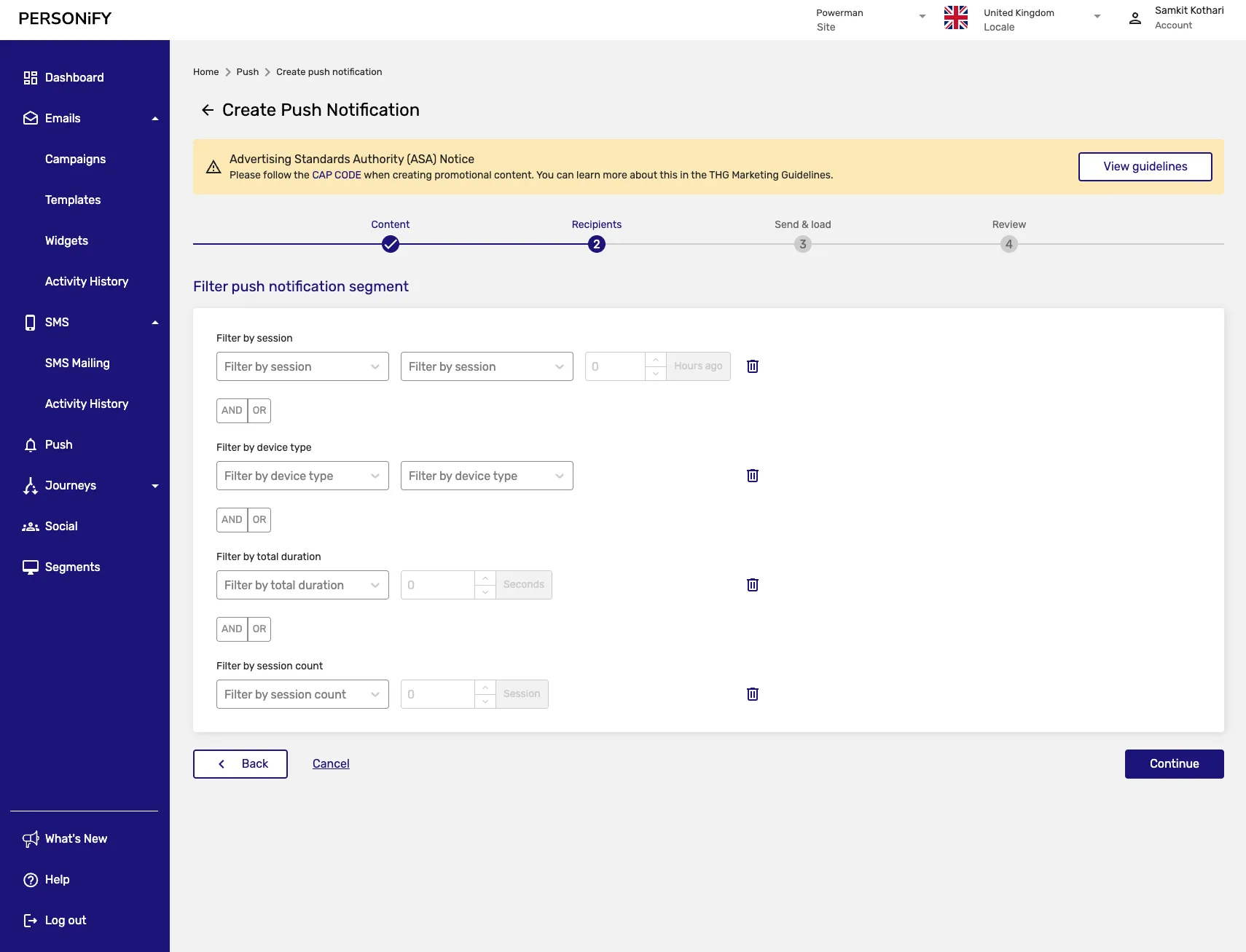
Section titled “Audience Targeting”Target your notifications effectively through:
- Geographic targeting
- Device type filtering
- User behavior segmentation
- Custom audience creation
Scheduling Options
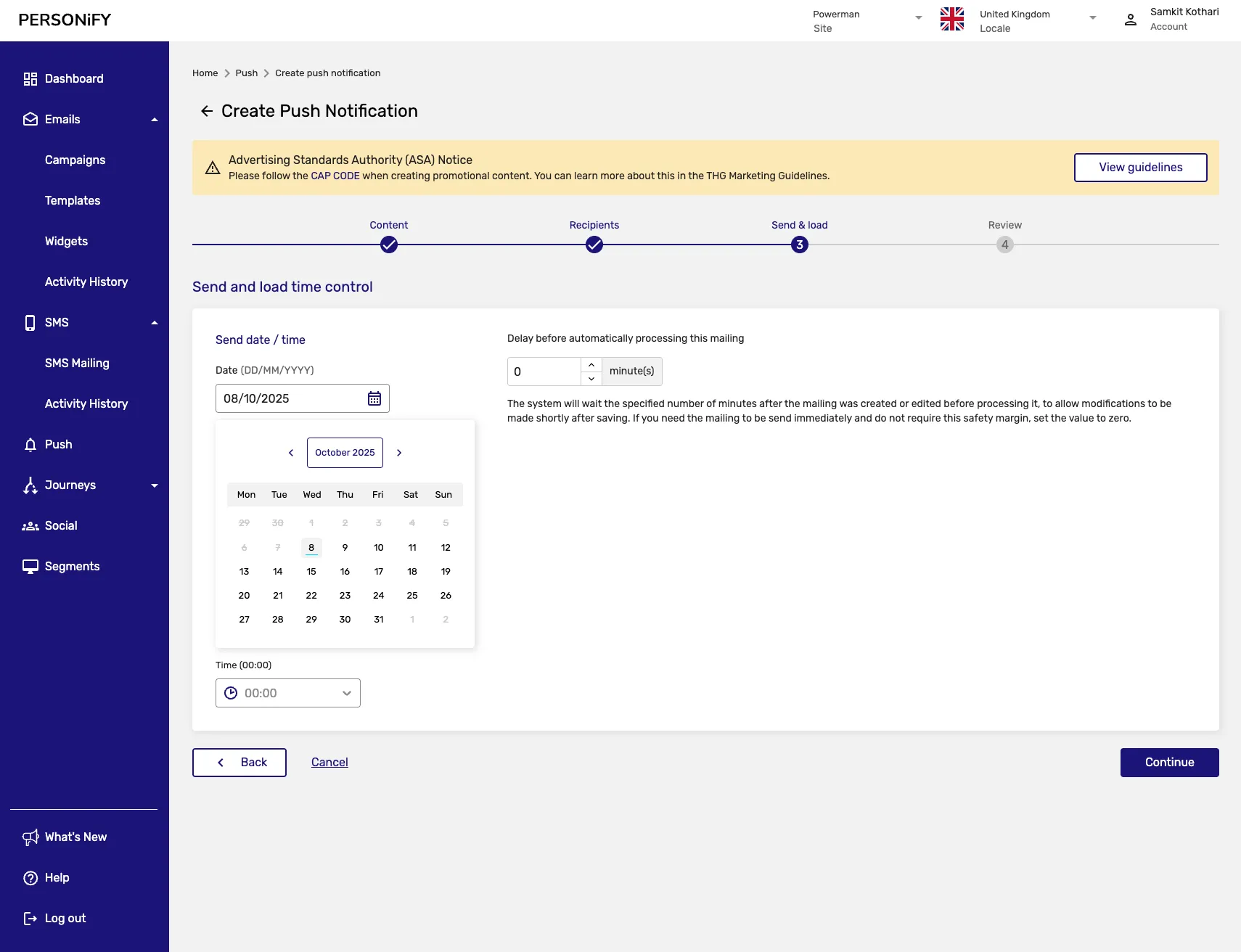
Section titled “Scheduling Options”Schedule your notifications with:
- Immediate sending
- Scheduled delivery
- Time zone optimization
- Recurring notifications
Best Practices
Section titled “Best Practices”- Compelling Content: Create engaging and relevant messages
- Timing: Send notifications when users are most likely to engage
- Personalization: Use user data to personalize notifications
- Frequency: Avoid overwhelming users with too many notifications
- Testing: A/B test different messages and timing
- Segmentation: Use targeted segments for better engagement
Summary
Section titled “Summary”The Push Notifications Page offers a versatile platform for managing both Standard and Segmented Push Notifications. Whether you are targeting a broad audience or specific segments, this platform equips you with the tools to streamline your push notification campaigns effectively.