SMS Mailing
Summary
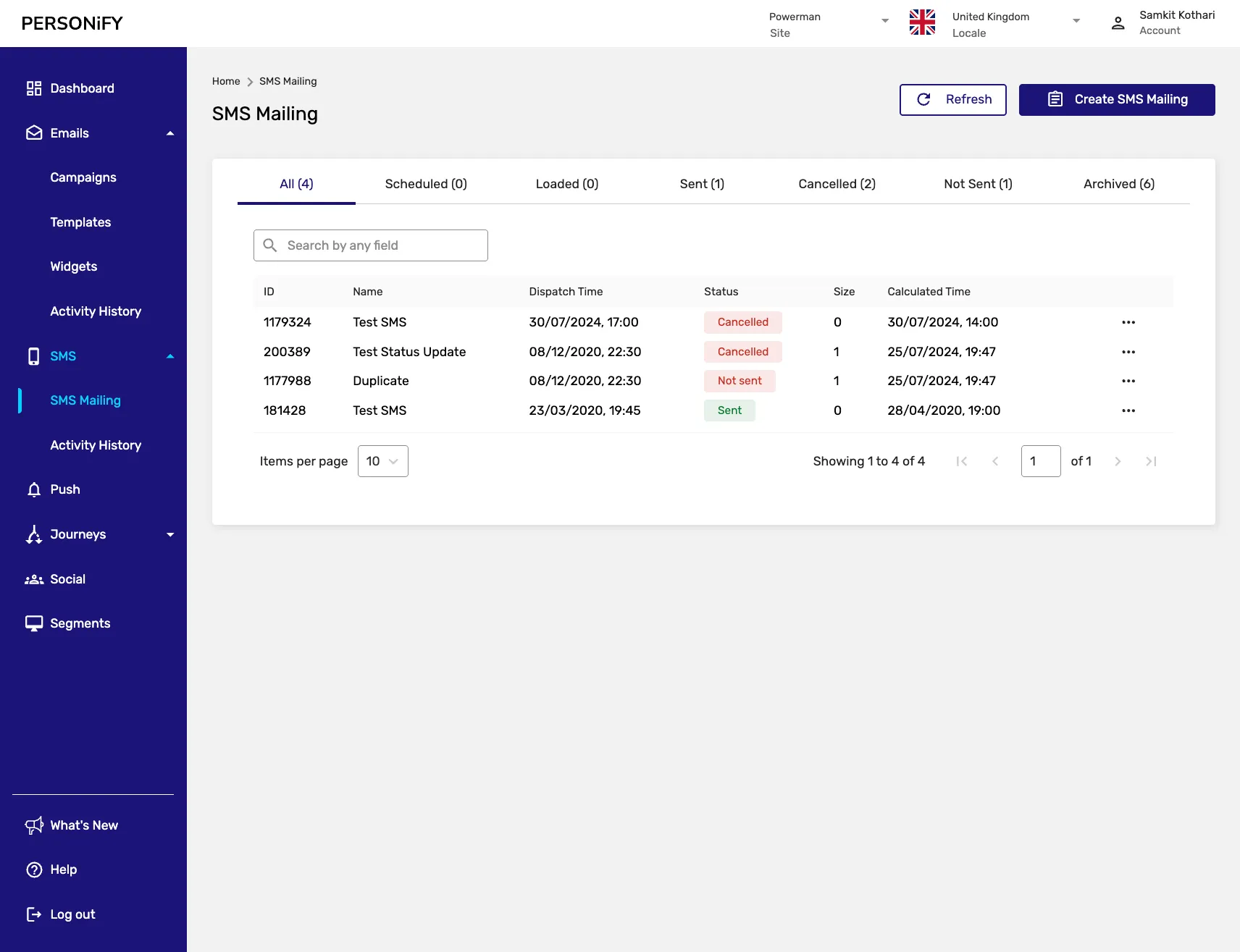
Section titled “Summary”Welcome to the SMS Mailing Page, your central hub for managing and overseeing your SMS mailings. This guide will assist you in effectively navigating and understanding the various elements on this page, empowering you to optimize your SMS campaign management.
Overview
Section titled “Overview”The SMS Mailing Page is designed to provide a comprehensive view of your SMS mailings. Whether you are creating new SMS campaigns, refreshing your page for the latest data, or taking actions on existing mailings, this platform equips you with the necessary tools for efficient SMS campaign management.
Getting Started
Section titled “Getting Started”At first glance, the SMS Mailing Page may resemble the structure of workflow pages, offering two actions in the top right corner: “Refresh” and “Create SMS Mailing.” These actions allow you to update the page with the latest data and initiate the creation of new SMS mailings, respectively.

Refresh Button
Section titled “Refresh Button”Use the “Refresh” button to ensure you have the most up-to-date information about your SMS campaigns.
Create SMS Mailing Button
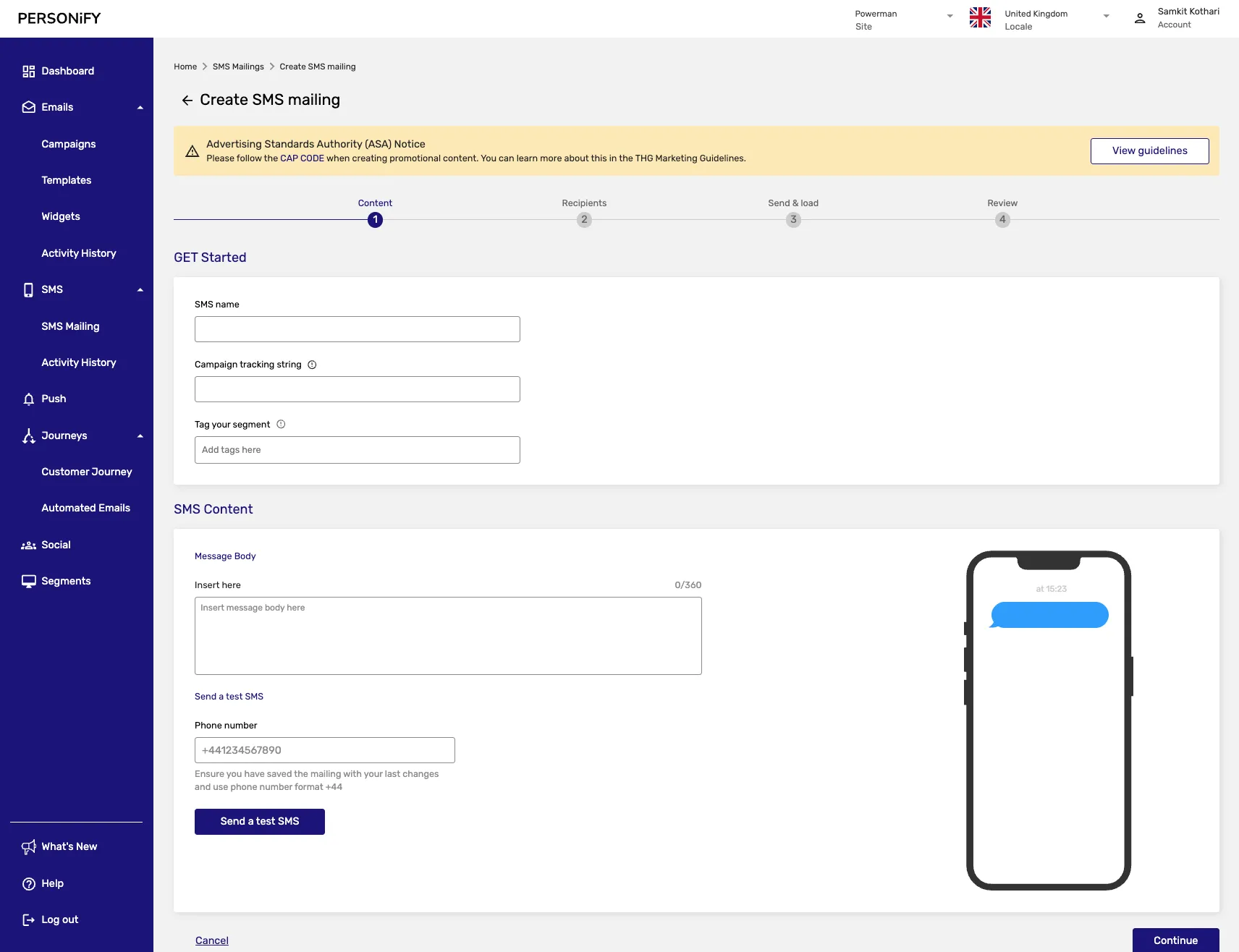
Section titled “Create SMS Mailing Button”The “Create SMS Mailing” button launches the SMS campaign creation process.
SMS Campaign Organization
Section titled “SMS Campaign Organization”The table itself shares similarities with email mailing, containing multiple statuses and tabs to help you categorize and manage your SMS mailings efficiently.
Campaign Status Tabs
Section titled “Campaign Status Tabs”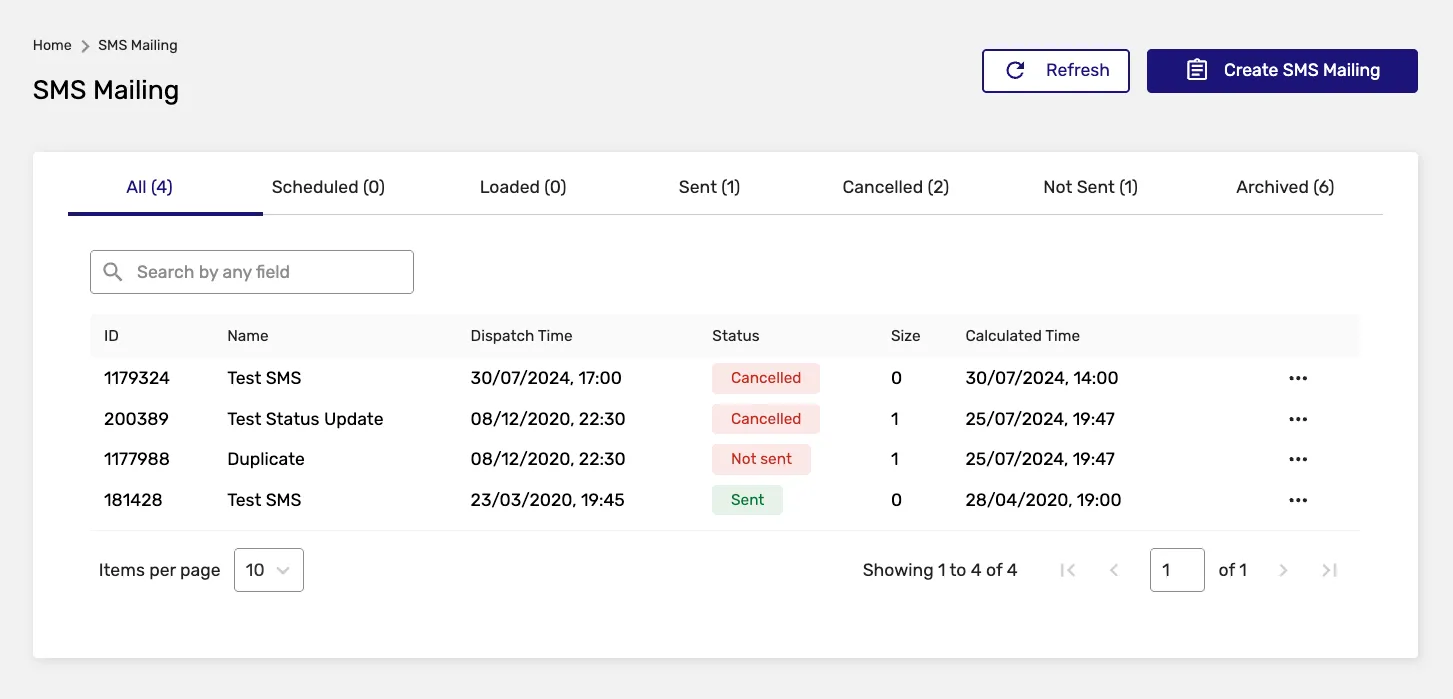
All Tab
Section titled “All Tab”The “All” tab displays all your SMS mailings, regardless of their current status.
Scheduled Tab
Section titled “Scheduled Tab”Contains SMS campaigns that are scheduled to be sent at a future date and time.
Loaded Tab
Section titled “Loaded Tab”Shows SMS campaigns that have been loaded and are ready for dispatch.
Sent Tab
Section titled “Sent Tab”Displays SMS campaigns that have already been dispatched to recipients.
Cancelled Tab
Section titled “Cancelled Tab”Contains SMS campaigns that have been cancelled before sending.
Not Sent Tab
Section titled “Not Sent Tab”Shows SMS campaigns that failed to send or encountered issues during the sending process.
Archived Tab
Section titled “Archived Tab”The “Archived” tab is dedicated to SMS mailings that have been archived, providing you with a historical record of past campaigns.
Search and Filter Features
Section titled “Search and Filter Features”The search functionality is readily available, enabling you to locate specific SMS mailings by name. This feature simplifies the process of finding the exact campaign you are interested in.
General SMS Campaign Actions
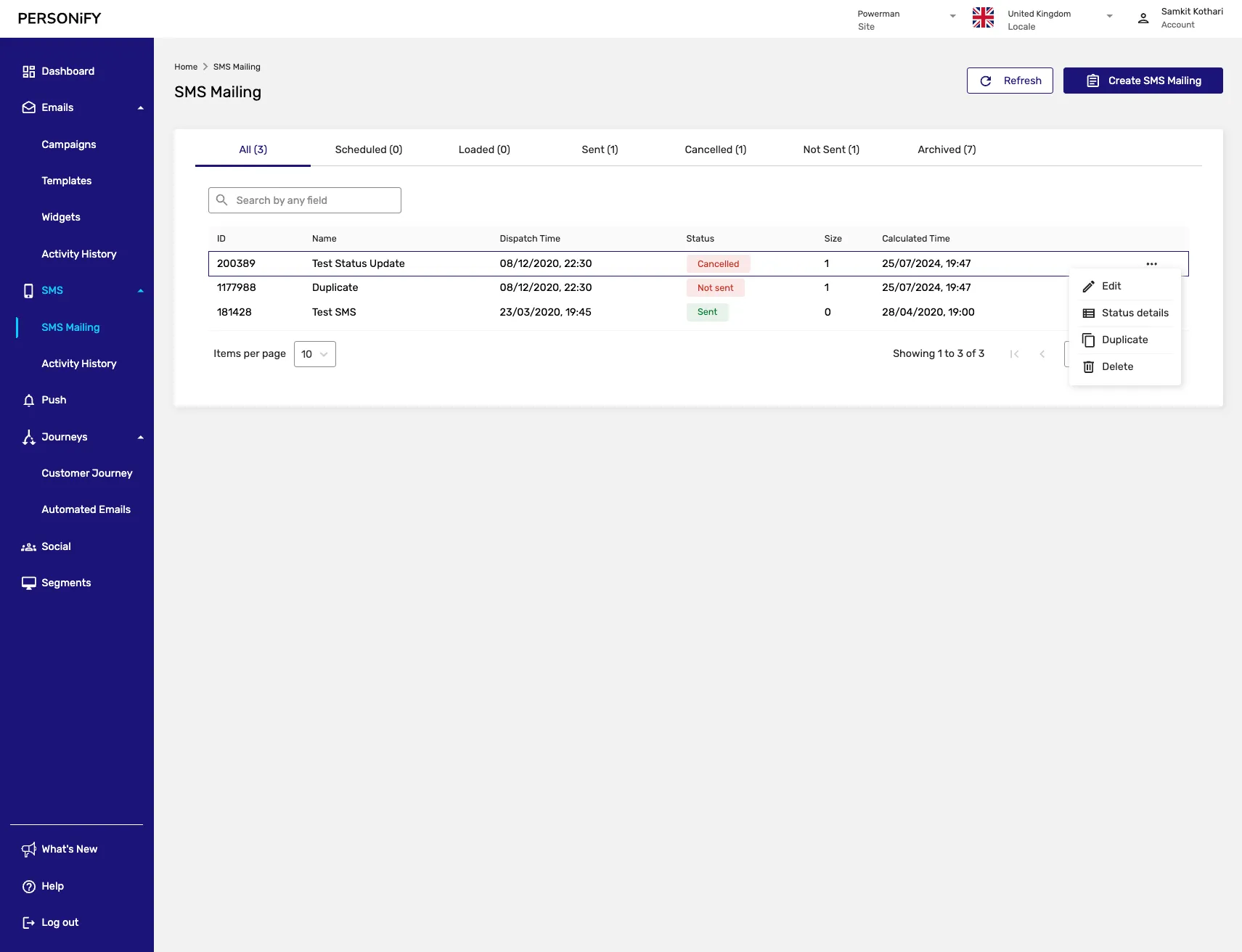
Section titled “General SMS Campaign Actions”Edit Action
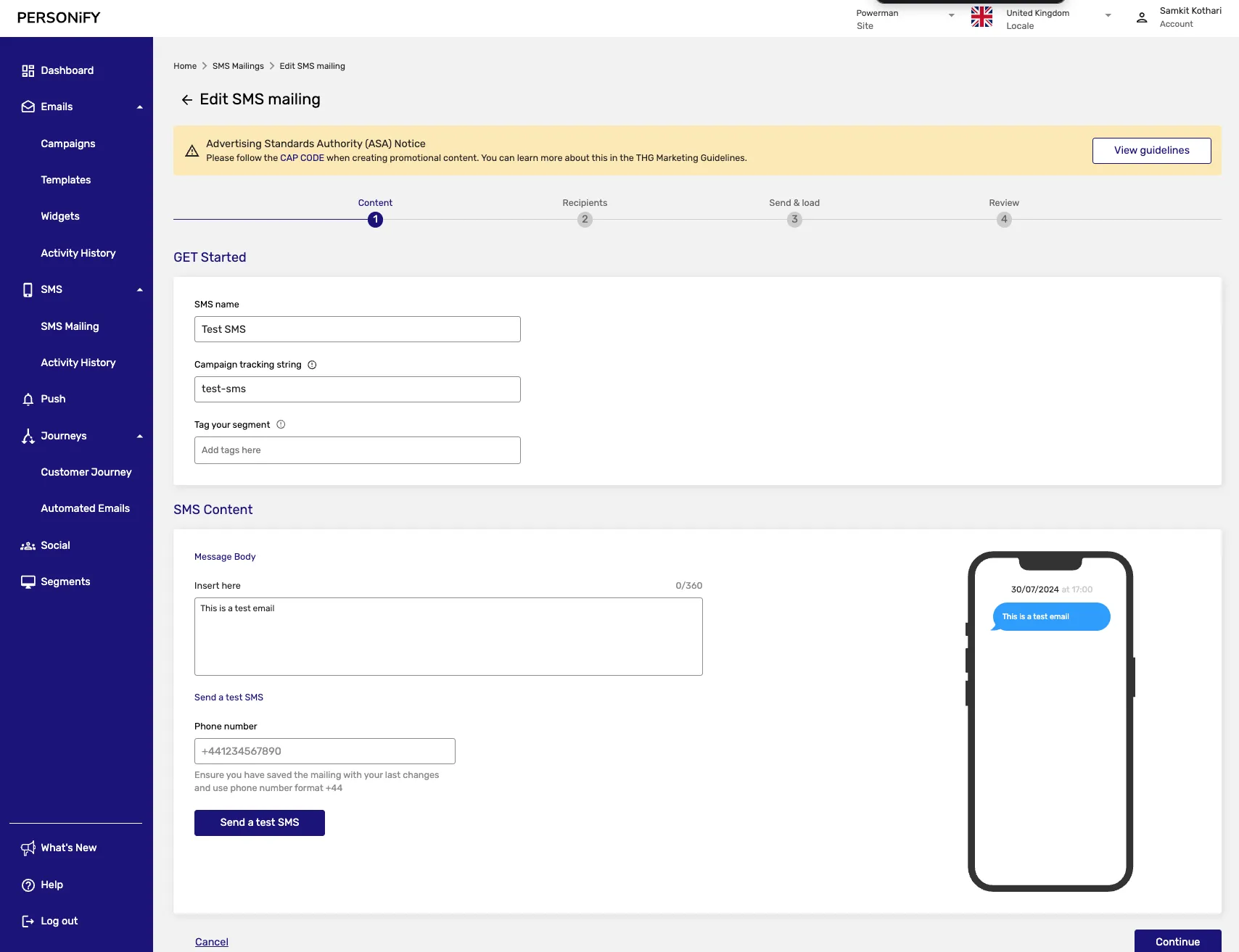
Section titled “Edit Action”The general actions available for SMS mailings start with the “Edit” action to make necessary modifications to your SMS campaigns, ensuring they remain current and effective.
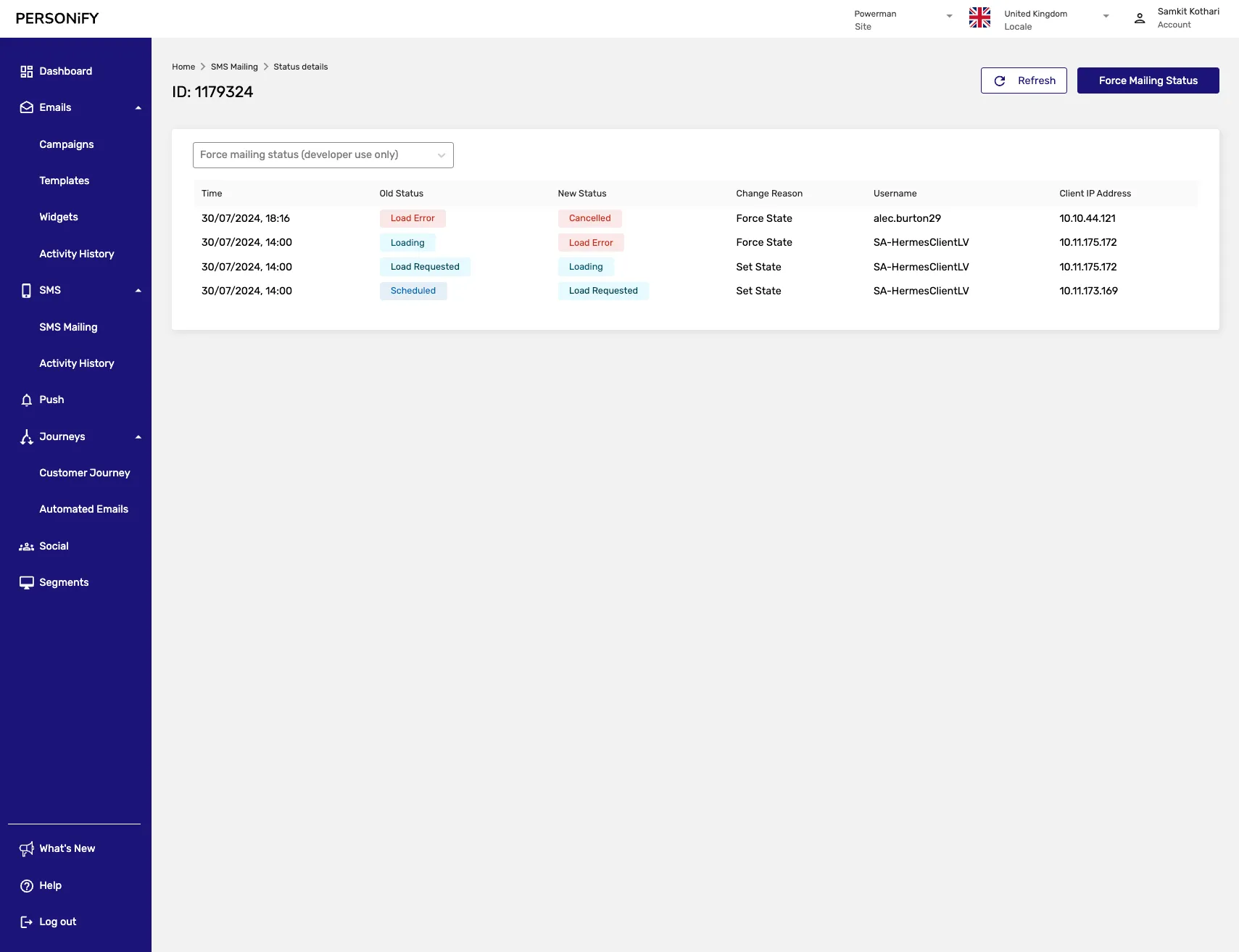
Status Details Action
Section titled “Status Details Action”The “Status Details” action provides a deeper understanding of the performance and progress of your SMS mailings, enabling you to refine your approach and improve campaign outcomes.
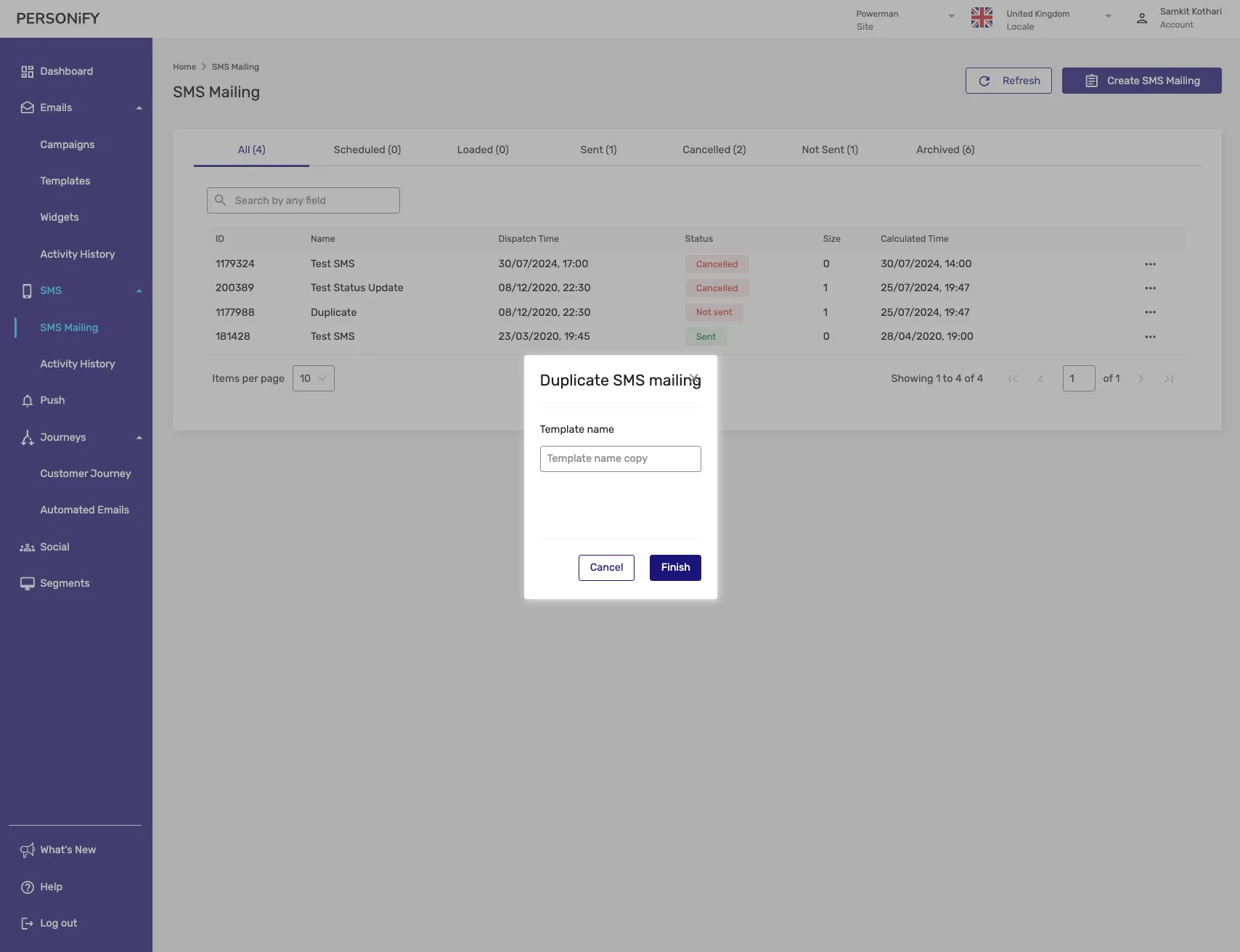
Duplicate Action
Section titled “Duplicate Action”The “Duplicate” function allows you to create a copy of an existing SMS campaign, streamlining the process of creating similar campaigns.
Delete Action
Section titled “Delete Action”With the “Delete” action, you can remove SMS mailings that are no longer relevant or needed, maintaining a clutter-free workspace.
Status-Specific Actions
Section titled “Status-Specific Actions”Load Now Action
Section titled “Load Now Action”Additional, depending on the status of the SMS mailing, actions could include the “Load Now” action that is available for SMS mailings without the “Scheduled” status. It allows you to dispatch a scheduled SMS campaign immediately, ensuring your message reaches your audience promptly.
Dispatch Now Action
Section titled “Dispatch Now Action”For SMS mailings with statuses other than “Loaded,” the “Dispatch Now” function allows you to send the campaign immediately, ensuring that your message is delivered without delay.
Bulk Batch Details Action
Section titled “Bulk Batch Details Action”This feature is accessible for SMS mailings with the statuses of “Sent,” “Scheduled,” or “Cancelled,” offering comprehensive insights into multiple campaigns in one view.
Creating an SMS Campaign
Section titled “Creating an SMS Campaign”When creating a new SMS campaign, you’ll go through several steps:
- Campaign Details: Provide basic information about your SMS campaign
- Recipients: Select your target audience or segments
- Message Content: Compose your SMS message
- Scheduling: Set when to send the campaign
- Review: Final review before saving or sending
SMS Campaign Management Features
Section titled “SMS Campaign Management Features”Message Composition
Section titled “Message Composition”Create compelling SMS messages with:
- Character count tracking
- Personalization options
- Link shortening
- Emoji support
Recipient Management
Section titled “Recipient Management”Manage your SMS recipients through:
- Segment selection
- Individual recipient management
- Opt-out handling
- Compliance tracking
Best Practices
Section titled “Best Practices”- Message Length: Keep messages concise and impactful
- Timing: Send messages at appropriate times for your audience
- Compliance: Ensure compliance with SMS regulations and opt-out requirements
- Personalization: Use recipient data to personalize messages
- Testing: Test messages before sending to large audiences
Summary
Section titled “Summary”The SMS Mailing Page offers a comprehensive solution for SMS campaign management. Whether you’re tracking the performance of your campaigns, making adjustments, or accessing historical data, this platform provides the tools you need to streamline your SMS marketing efforts.