Campaigns
Summary
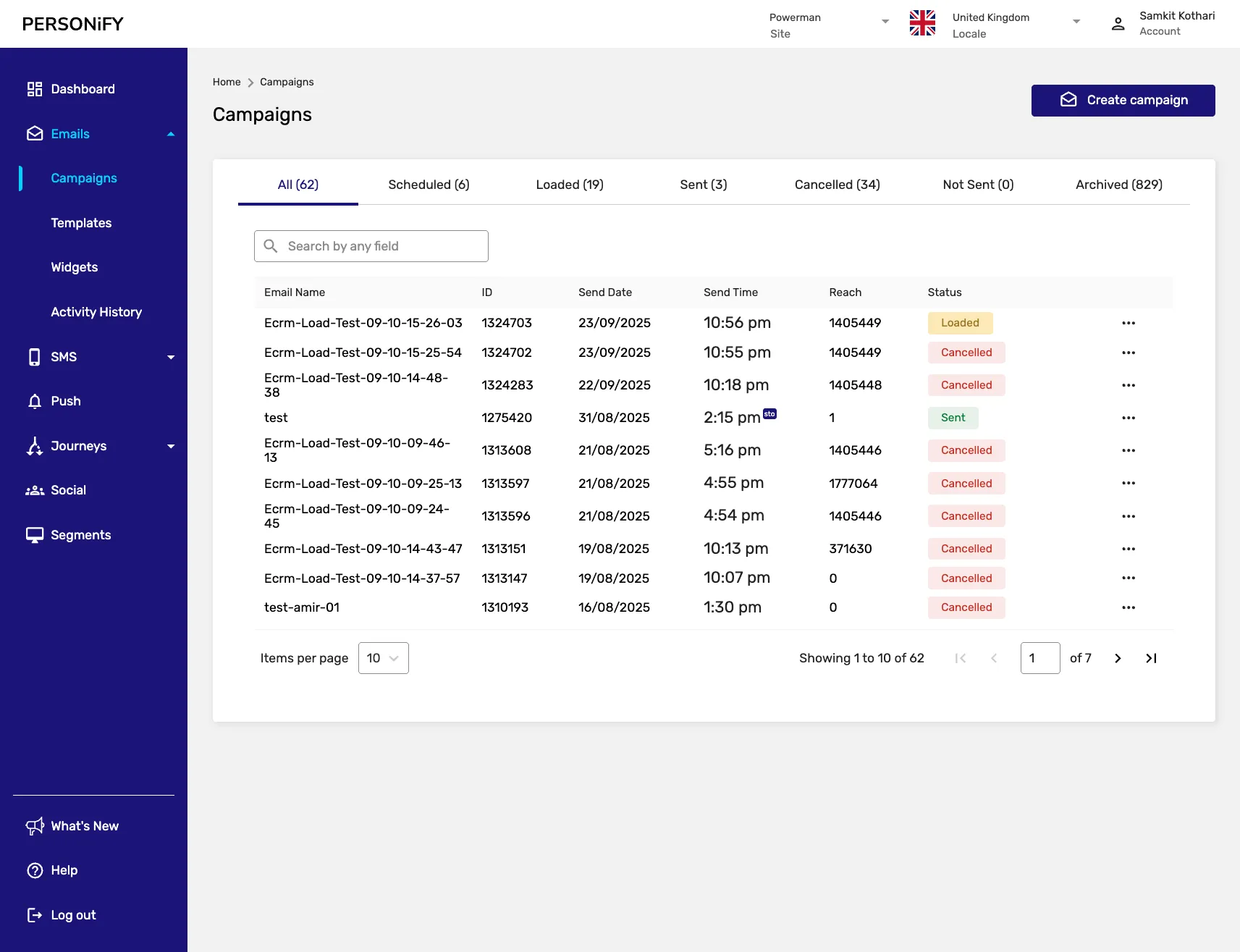
Section titled “Summary”The Campaigns page serves as a central hub for managing and tracking all your email campaigns. This guide will help you effectively navigate and understand the various elements on this page.
Overview
Section titled “Overview”This is your go-to destination for managing and monitoring email campaigns with ease. Whether you’re creating new campaigns, tracking the performance of existing ones, or seeking specific campaign details, this page offers a comprehensive set of tools and information to streamline your email marketing efforts.
Getting Started
Section titled “Getting Started”In today’s digital age, email marketing is a powerful tool for businesses and organizations to connect with their audiences. Managing email campaigns efficiently is essential for reaching your marketing goals.
The “Campaigns” page is your gateway to success in this endeavor. The “Campaigns” page serves as a central hub for all things email campaigns. Whether you’re a novice or a seasoned email marketer, this platform offers a user-friendly approach to getting your email campaigns off the ground.
Creating a Campaign
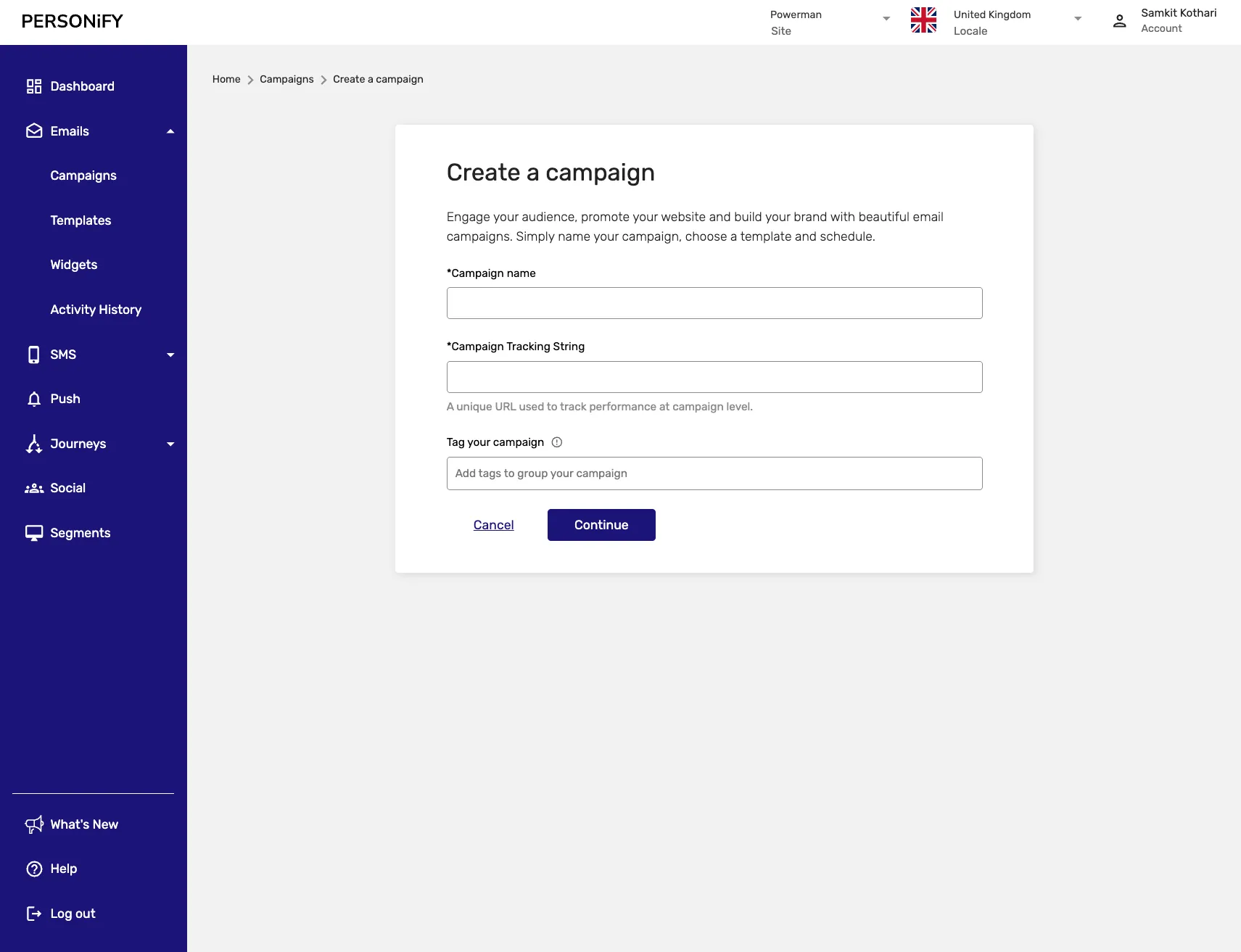
Section titled “Creating a Campaign”At the heart of email marketing lies the creation of campaigns that resonate with your audience. The “Create Campaign” button, prominently located at the top right of the page, is your first point of contact. Clicking this button launches your journey into email marketing.
The creation process is intuitive, starting with essential campaign details. You’ll be prompted to provide:
- A unique name for your campaign
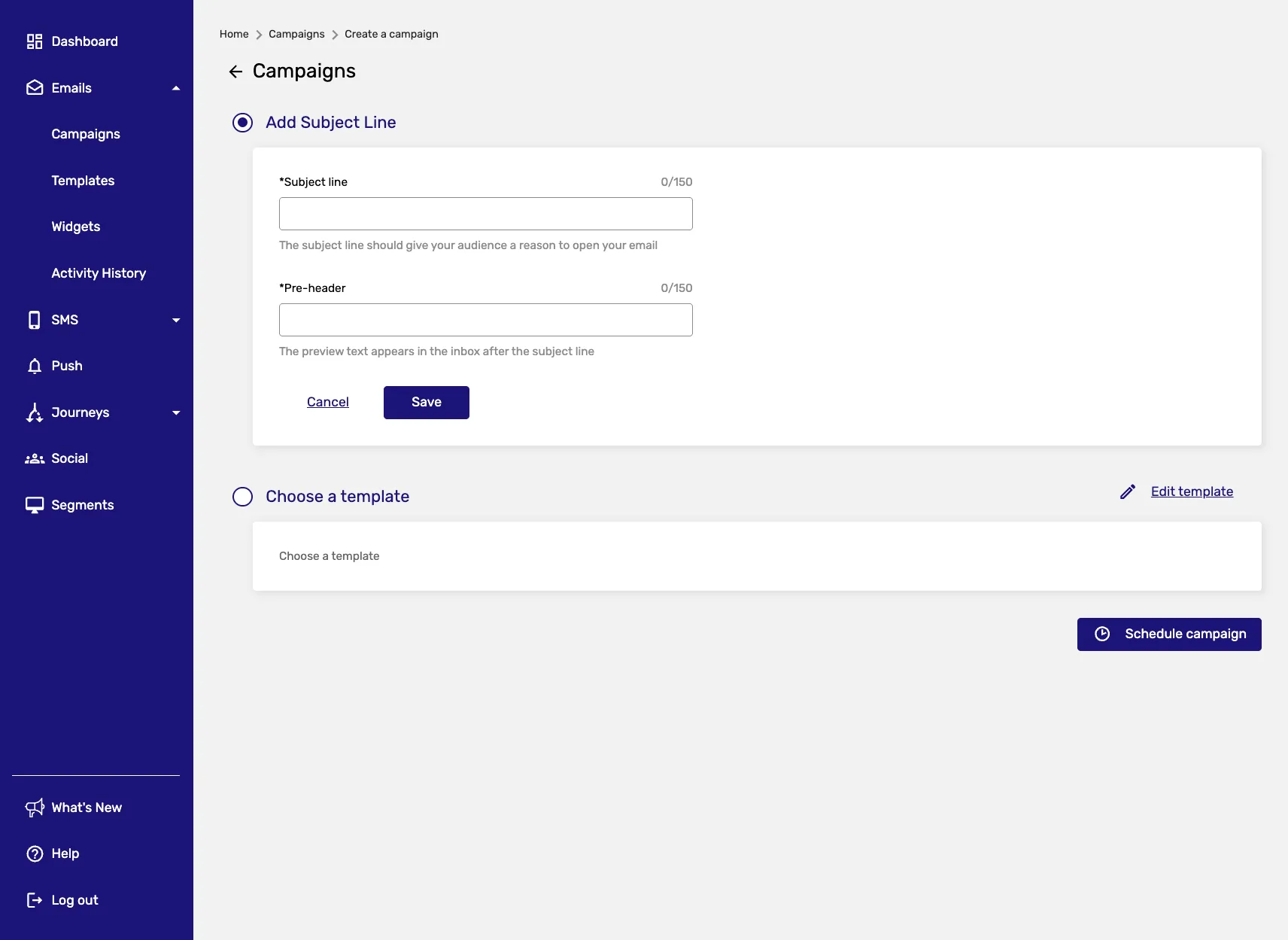
- Select recipients
- Design your email content
- Decide when to send it
Step 1: Initial Campaign Setup
Step 2: Campaign Configuration
Step 3: Scheduling Options The ability to schedule campaigns according to your audience’s preferences is a valuable feature. You have complete control over the timing, ensuring your message reaches your recipients at the most opportune moment. When scheduling campaigns, you can take advantage of Send Time Optimisation to automatically determine the best delivery time for each recipient based on their engagement patterns.
Step 4: Review and Save
Once you’ve composed your campaign, take a moment to review and confirm the details. This is your opportunity to ensure everything is in order before you hit the “Save” button.
Managing Campaigns
Section titled “Managing Campaigns”Email marketing is not just about sending emails—it’s also about tracking their performance. The “Campaigns” table is where you’ll see all of your email campaigns in one organized view.
The status column gives you an instant update on the progress of your campaigns. Whether they are scheduled, canceled, or have already been sent, this section keeps you in the loop.
Campaign Actions
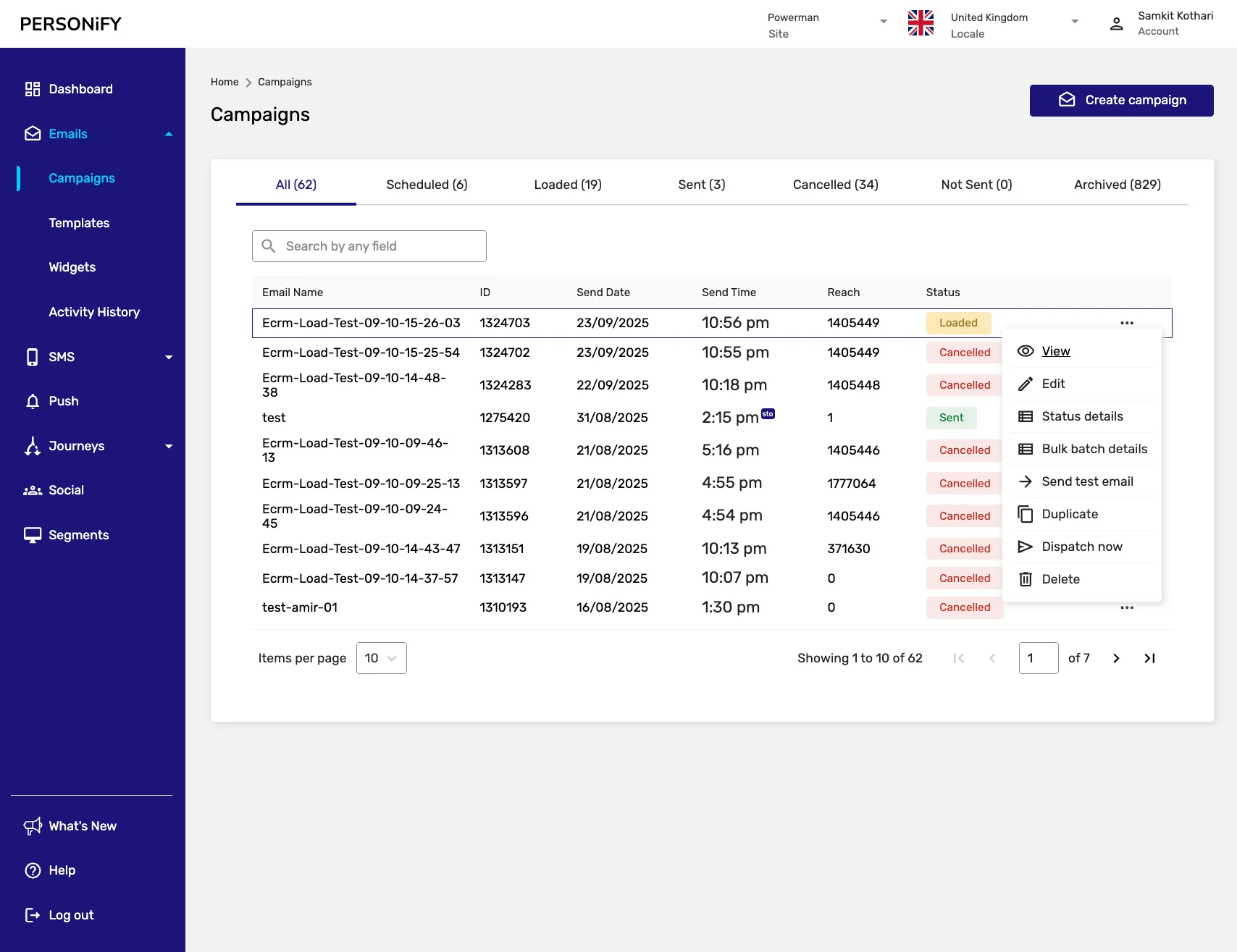
Section titled “Campaign Actions”The campaigns interface provides various actions to help you manage your campaigns effectively:
Available Actions
Section titled “Available Actions”View Action
Section titled “View Action”For Scheduled, Sent, and Cancelled Campaigns statuses, the “View” action allows you to get a detailed overview of a campaign, giving you insights into the content, recipient list, and scheduling.
Edit Action
Section titled “Edit Action”Use the “Edit” function to make any necessary modifications to your campaigns, ensuring they remain current and effective.
Status Details
Section titled “Status Details”This action offers a deeper dive into the performance of your campaigns. It provides comprehensive data on how well your campaign is faring.
Duplicate Action
Section titled “Duplicate Action”The “Duplicate” function allows you to create a copy of a campaign, simplifying the process of creating similar campaigns.
Load Now Action
Section titled “Load Now Action”With “Load Now,” you can initiate an immediate dispatch of your scheduled campaign, ensuring it reaches your audience right away.
Dispatch Now Action
Section titled “Dispatch Now Action”For campaigns with the “Loaded” status, the “Dispatch Now” action allows you to send the campaign immediately, ensuring that your message is delivered without delay.
Delete Action
Section titled “Delete Action”The “Delete” action lets you remove campaigns that are no longer relevant or needed, keeping your workspace clutter-free.
Special Features for Not Sent Campaigns
Section titled “Special Features for Not Sent Campaigns”In addition to the actions mentioned above, “Not Sent” campaigns offer an extra feature that will be in hand for the not sent Campaigns:
Bulk Batch Details
Section titled “Bulk Batch Details”This feature provides a comprehensive overview of all the campaigns that are not sent. It allows you to manage multiple campaigns at once, making it easier to handle a large number of pending campaigns efficiently.
Campaign Workflow
Section titled “Campaign Workflow”The typical campaign workflow follows these steps:
- Create: Use the “Create Campaign” interface to set up your campaign
- Configure: Set up recipients, content, and scheduling
- Review: Check all details before finalizing
- Launch: Send immediately or schedule for later
Best Practices
Section titled “Best Practices”- Clear Objectives: Define what you want to achieve with each campaign
- Audience Targeting: Use segmentation to reach the right people
- Content Quality: Ensure your message is relevant and engaging
- Timing: Send campaigns when your audience is most likely to engage
- Testing: Use the duplicate feature to test different approaches
- Performance Monitoring: Regularly check campaign status and results
Summary
Section titled “Summary”These actions cater to the diverse needs of managing campaigns across various statuses, providing you with the flexibility to control and optimize your email marketing efforts effectively.
The “Campaigns” page is your ally in streamlining your campaigns, ensuring that your messages reach your audience at the right time and in the right way.
Happy campaign management!