Templates
Summary
Section titled “Summary”The “Templates” page is your central platform for managing and organizing your email templates. This guide will help you navigate and make the most of this essential feature.
Overview
Section titled “Overview”The “Templates” page empowers you to efficiently manage and organize your email templates. Whether you’re creating new templates, searching for existing ones, or performing actions on them, this platform provides you with the tools you need for effective email campaign management.
Getting Started
Section titled “Getting Started”Your journey begins with the “Create New Template” button. It allows you to craft fresh templates that align with your goals. For templates already in use, navigate seamlessly between the different template categories to keep your collection organized.
Template Organization
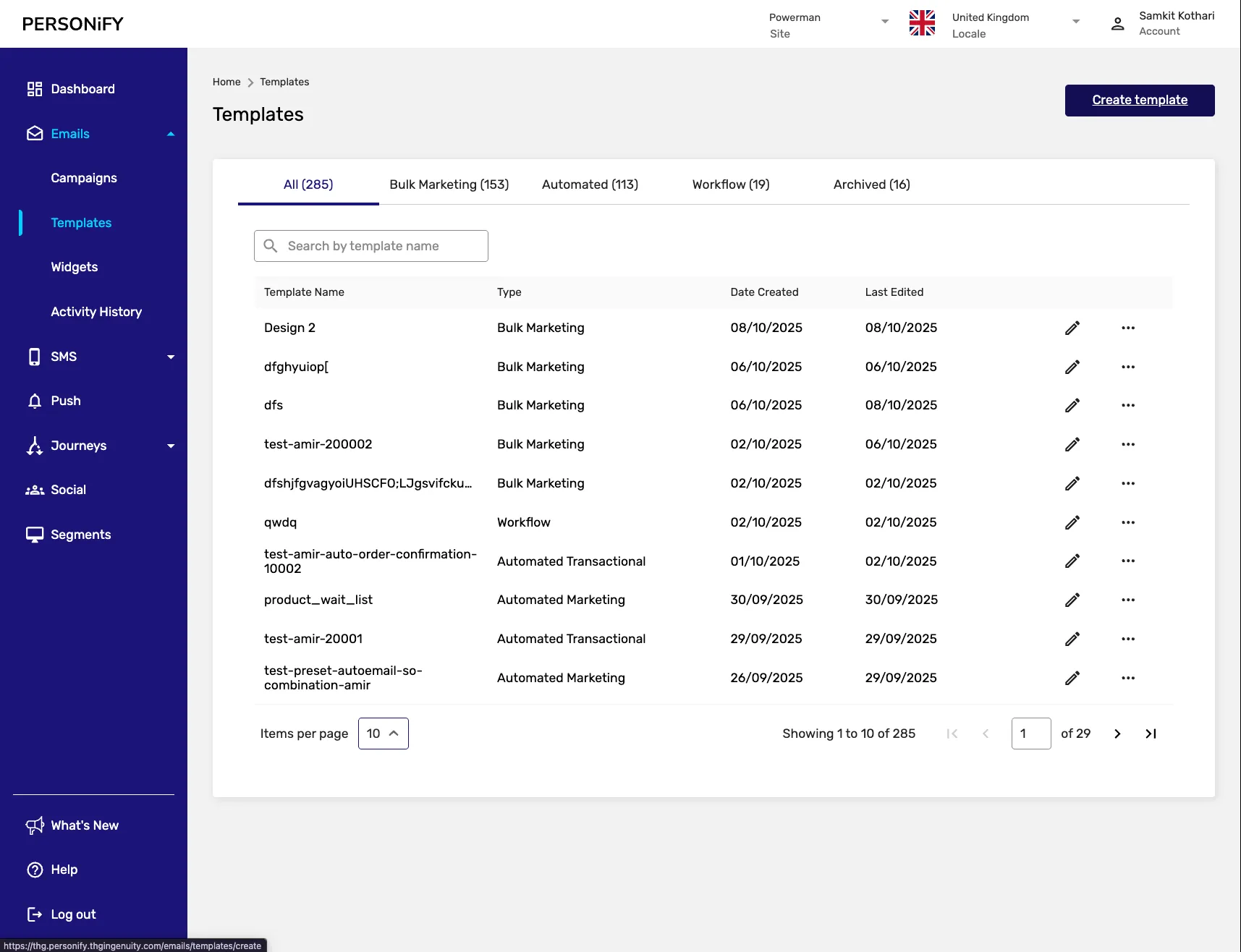
Section titled “Template Organization”The Templates page is organized into five distinct tabs, each serving a specific purpose for different types of templates:
All Tab
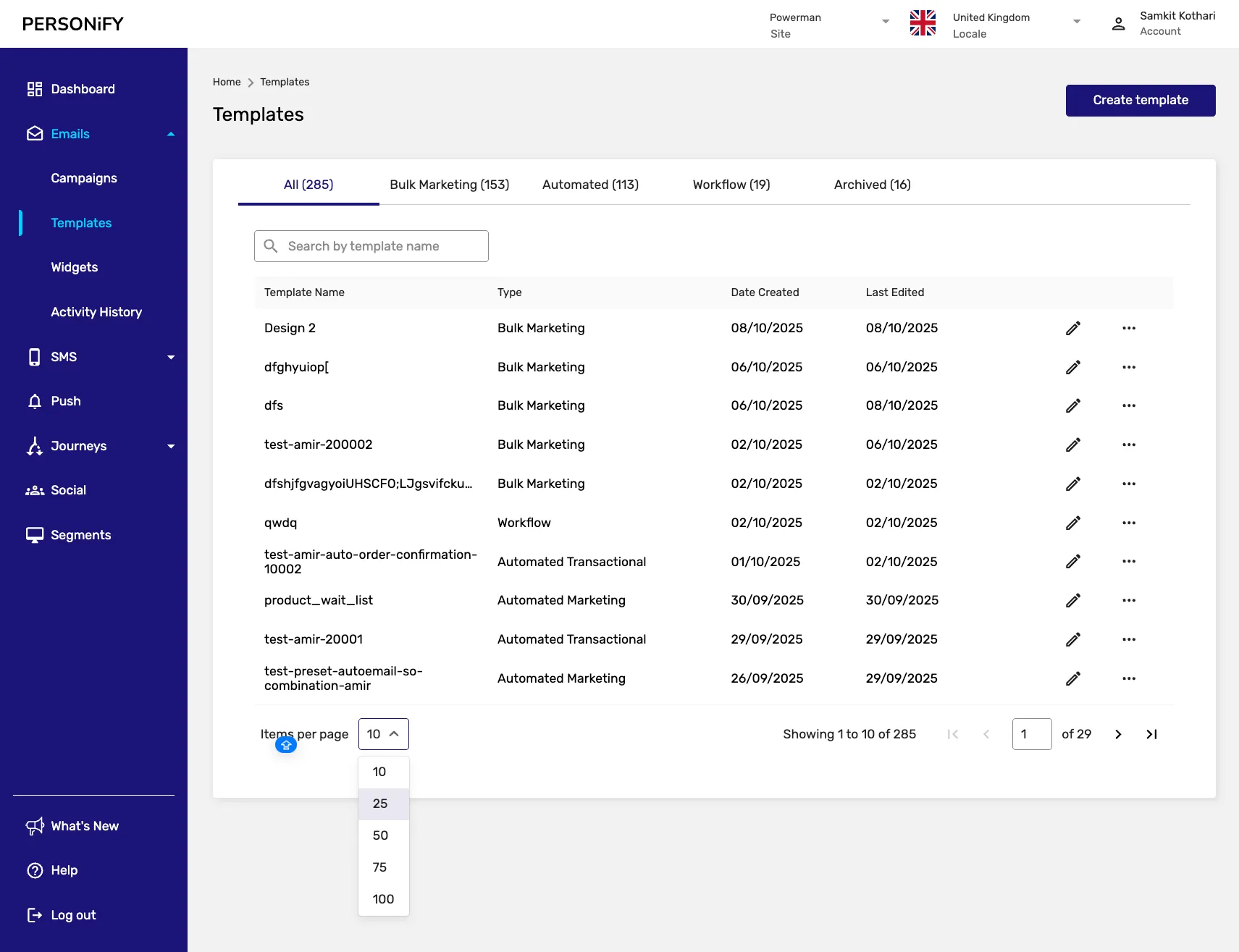
Section titled “All Tab”The “All” tab presents a comprehensive view of all your templates across all categories. This tab displays the complete collection of templates available in your system, providing a holistic overview of your template library.
Bulk Marketing Tab
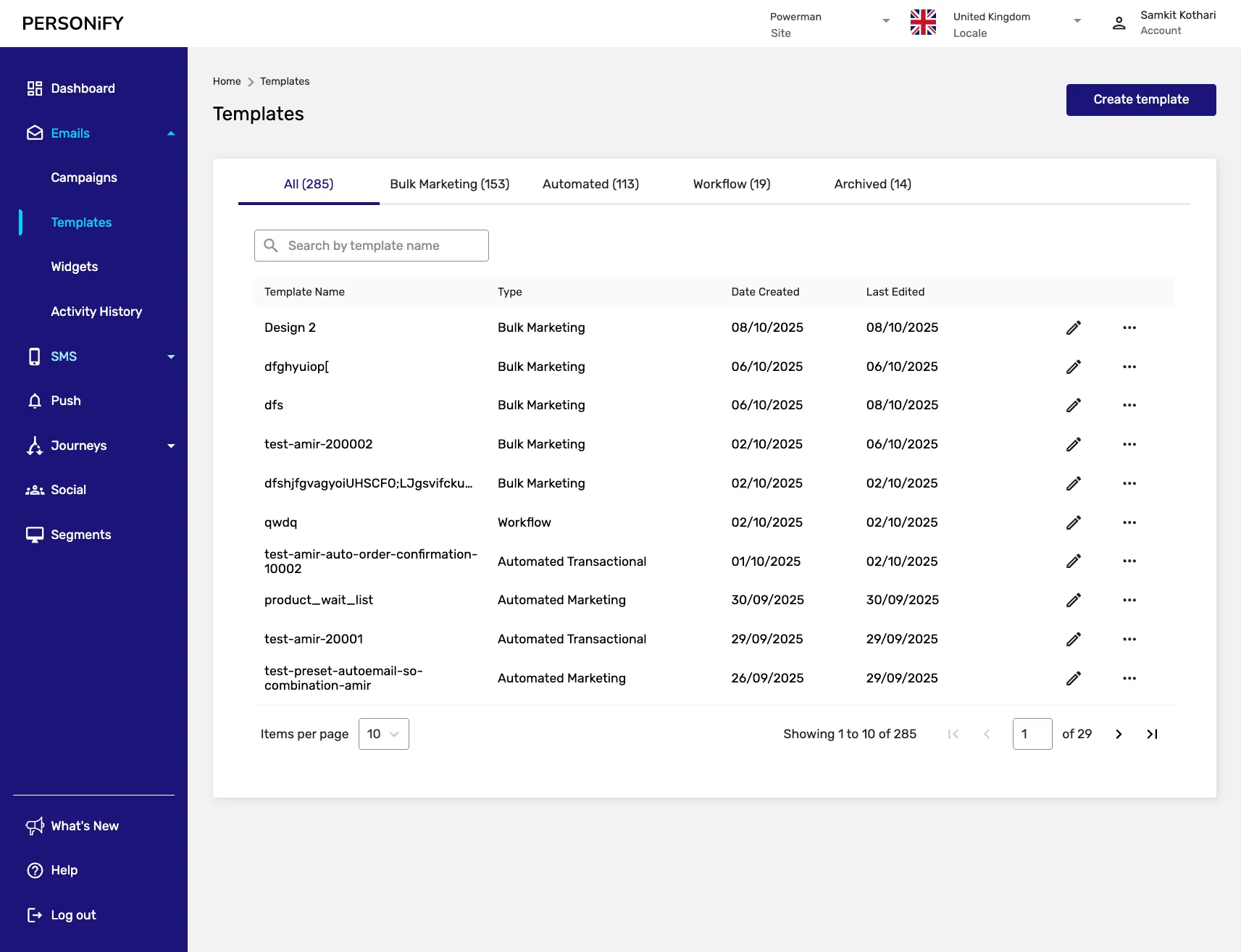
Section titled “Bulk Marketing Tab”The “Bulk Marketing” tab contains templates specifically designed for large-scale marketing campaigns. These templates are optimized for sending to large audiences and typically include promotional content, newsletters, and mass communication materials.
Automated Tab
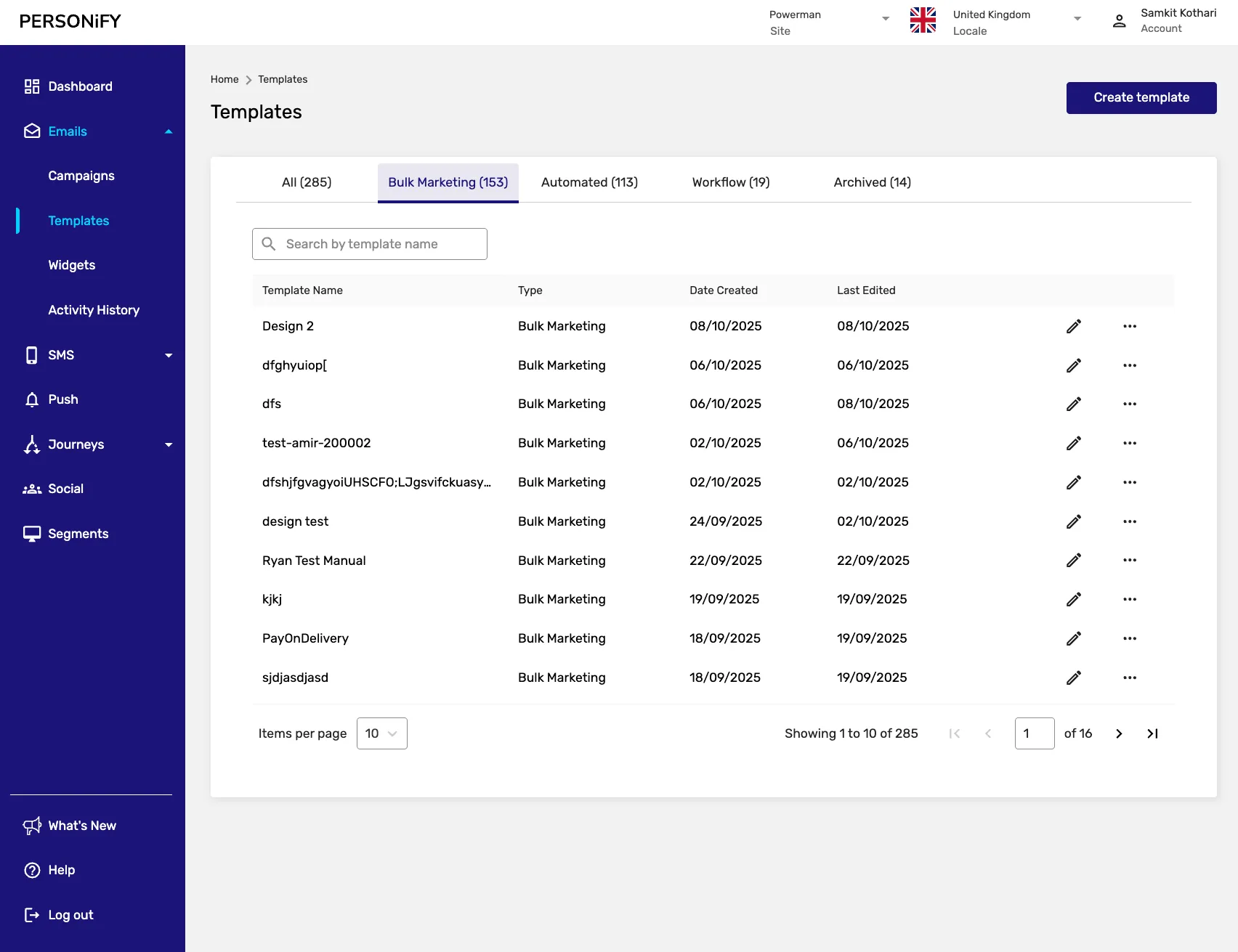
Section titled “Automated Tab”The “Automated” tab houses templates used in automated workflows and triggered campaigns. These templates are designed to work seamlessly with automation systems, including welcome emails, follow-up sequences, and behavior-triggered messages.
Workflow Tab
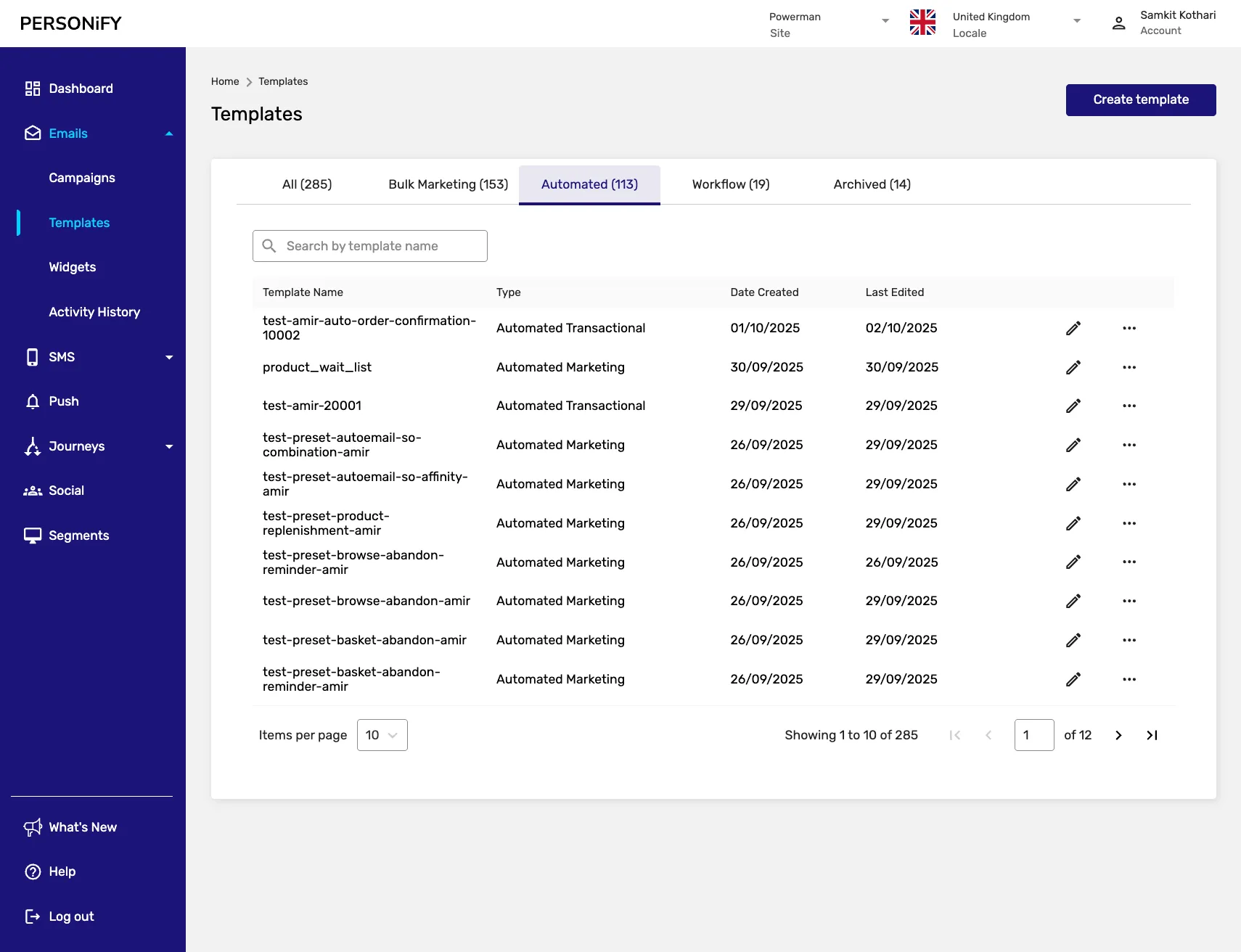
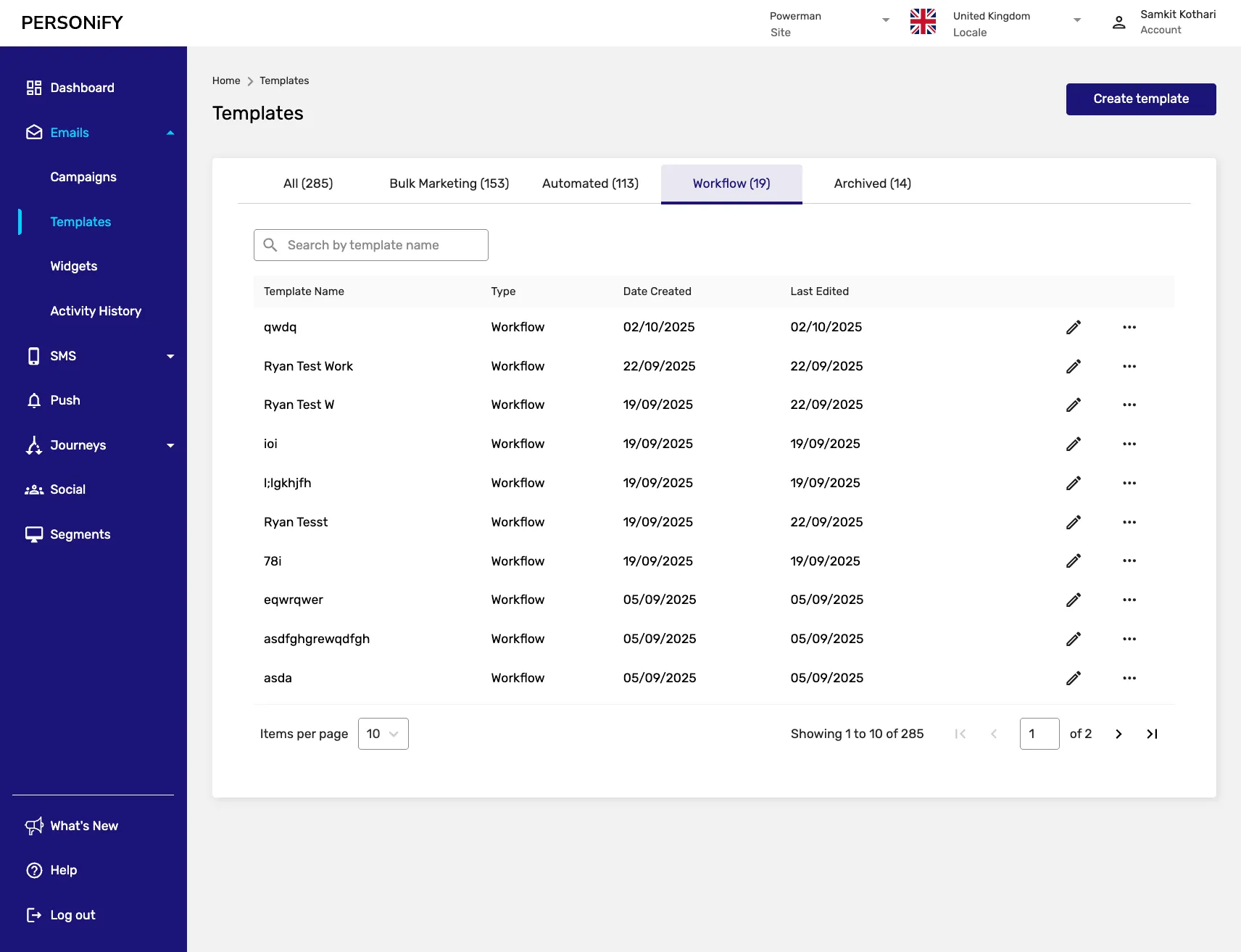
Section titled “Workflow Tab”The “Workflow” tab contains templates specifically created for workflow-based campaigns. These templates are integrated into multi-step marketing workflows and customer journey sequences.
Archived Tab
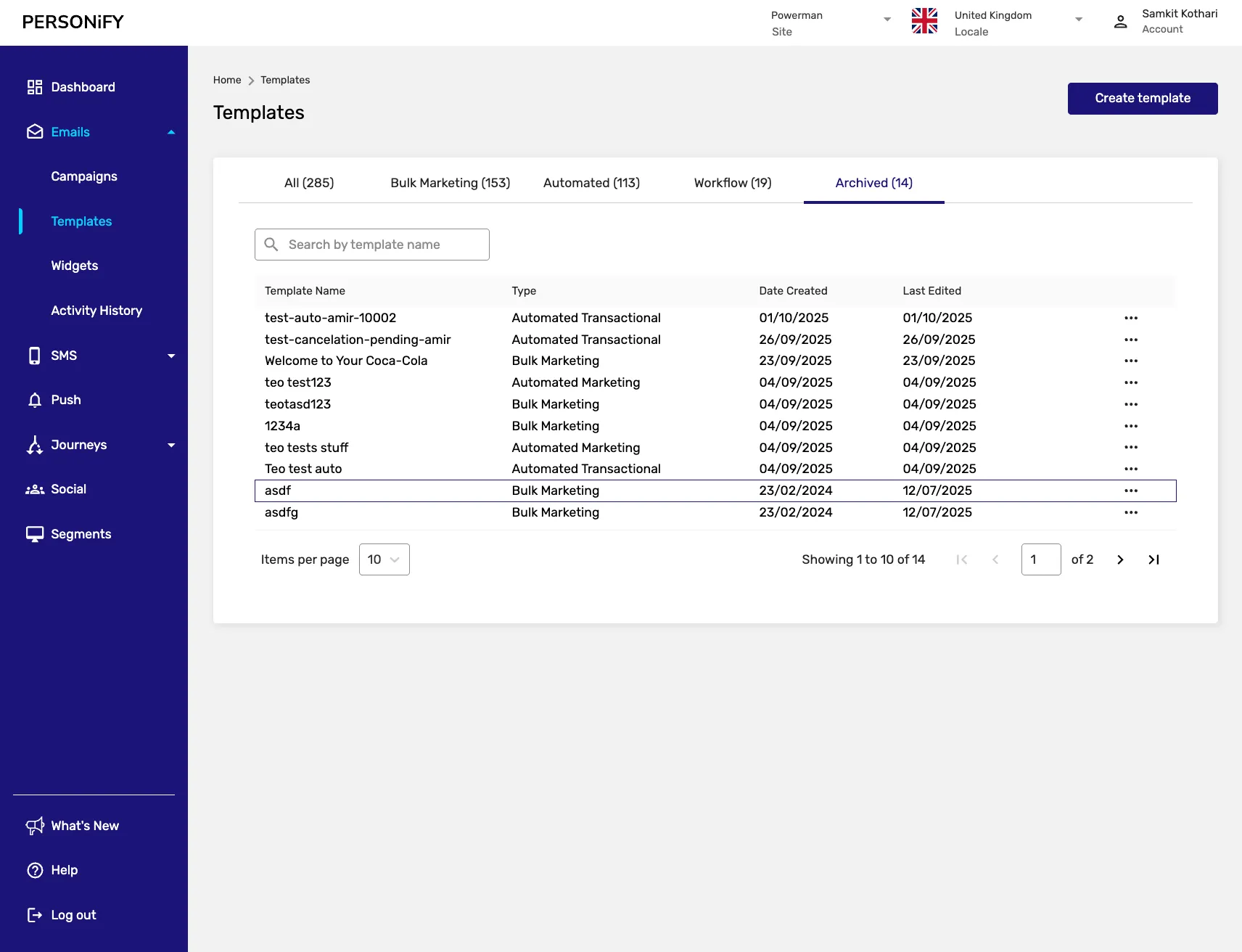
Section titled “Archived Tab”The “Archived” tab simplifies operations, allowing you to view and revive templates as needed. This provides a clean workspace while preserving templates you might need in the future.
Template Actions
Section titled “Template Actions”View Action
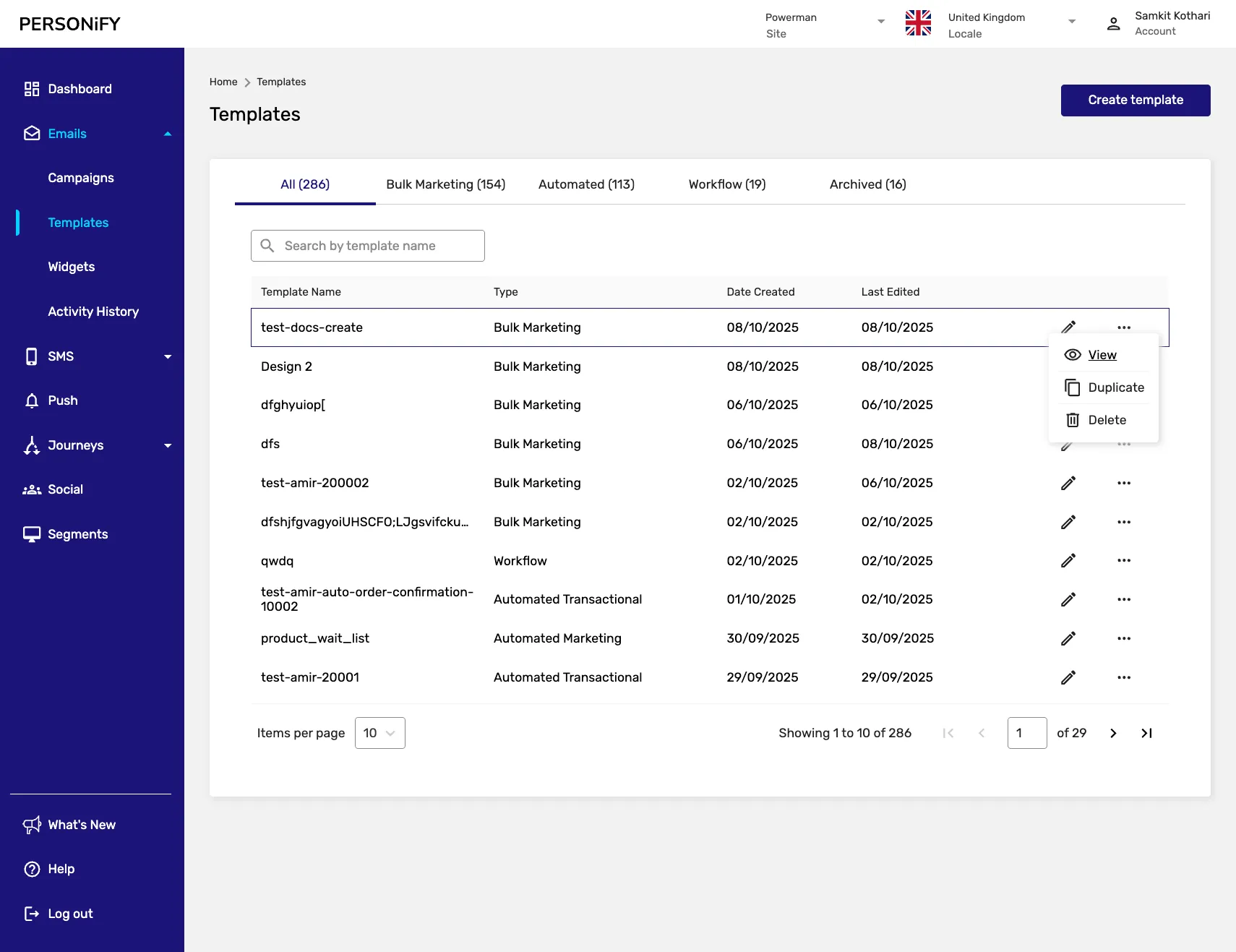
Section titled “View Action”This action provides an in-depth look at the intricate details of your template, allowing you to examine its structure.
Edit Action
Section titled “Edit Action”Use this tool to make precise modifications to your templates, ensuring they align perfectly with your campaign needs.
Duplicate Action
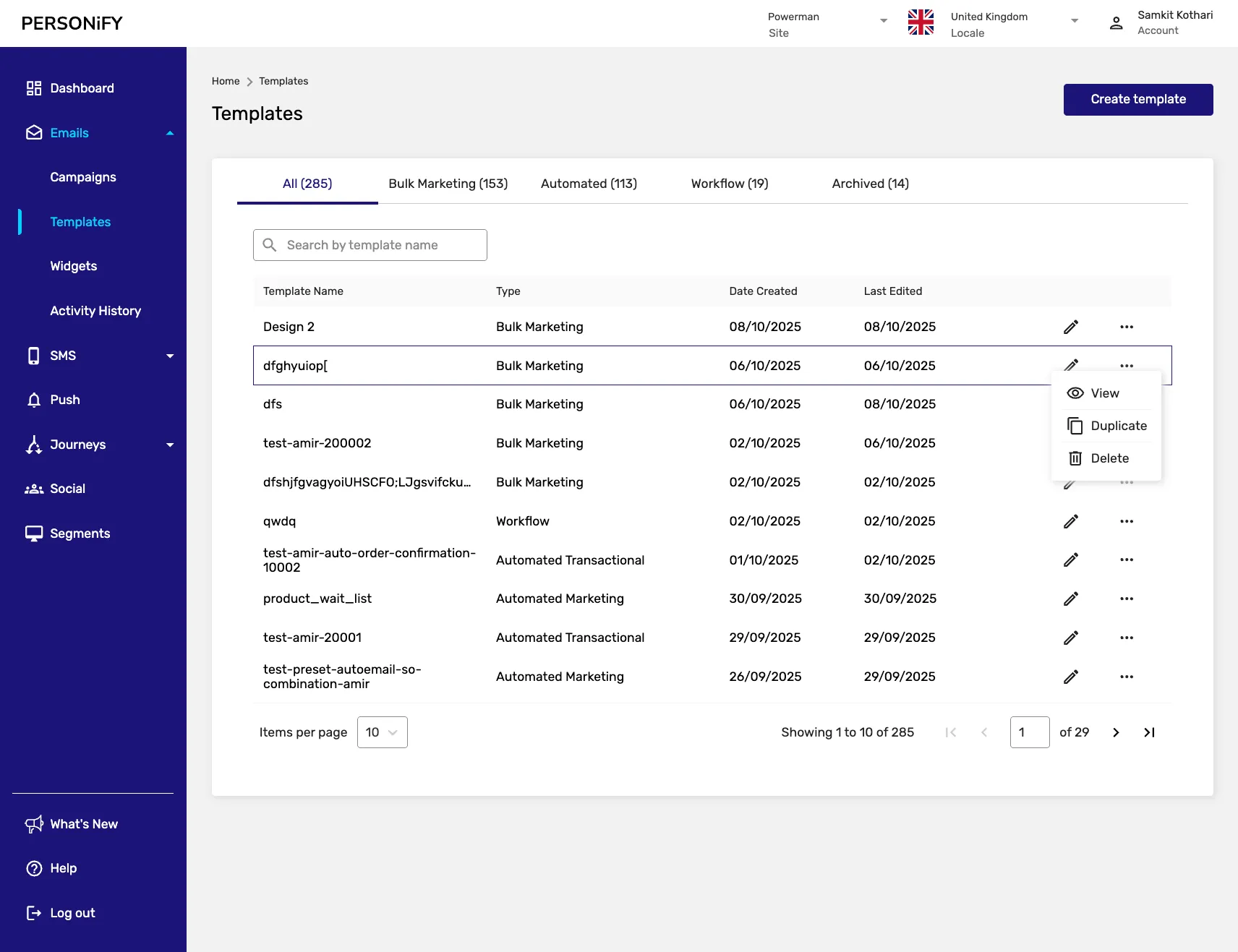
Section titled “Duplicate Action”Think of this as creating a precise replica of your template, ready for further customization or reuse.
Delete Action
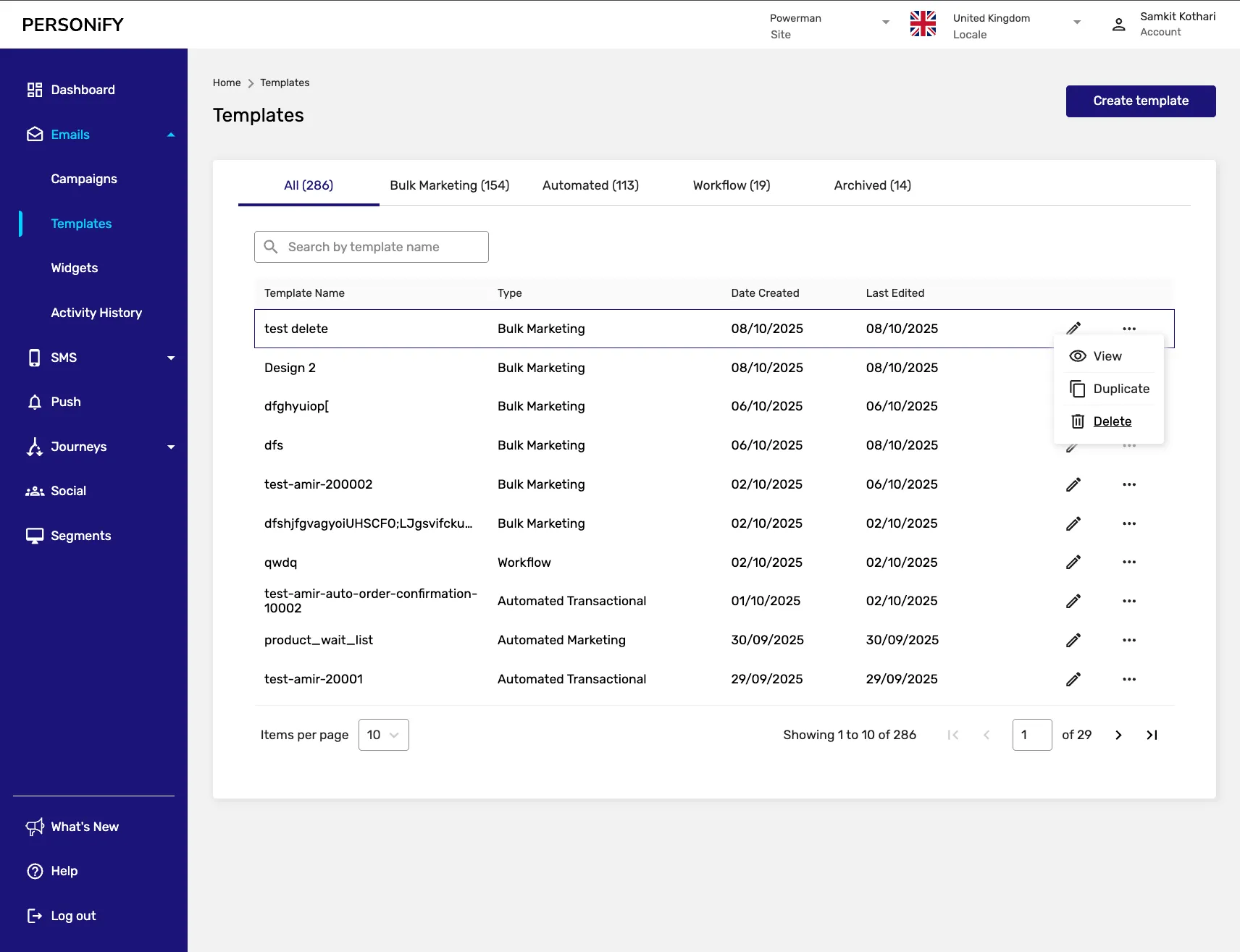
Section titled “Delete Action”When a template has served its purpose or is no longer needed, this action allows you to remove it from your collection, ensuring your workspace remains clutter-free.
Creating a New Template
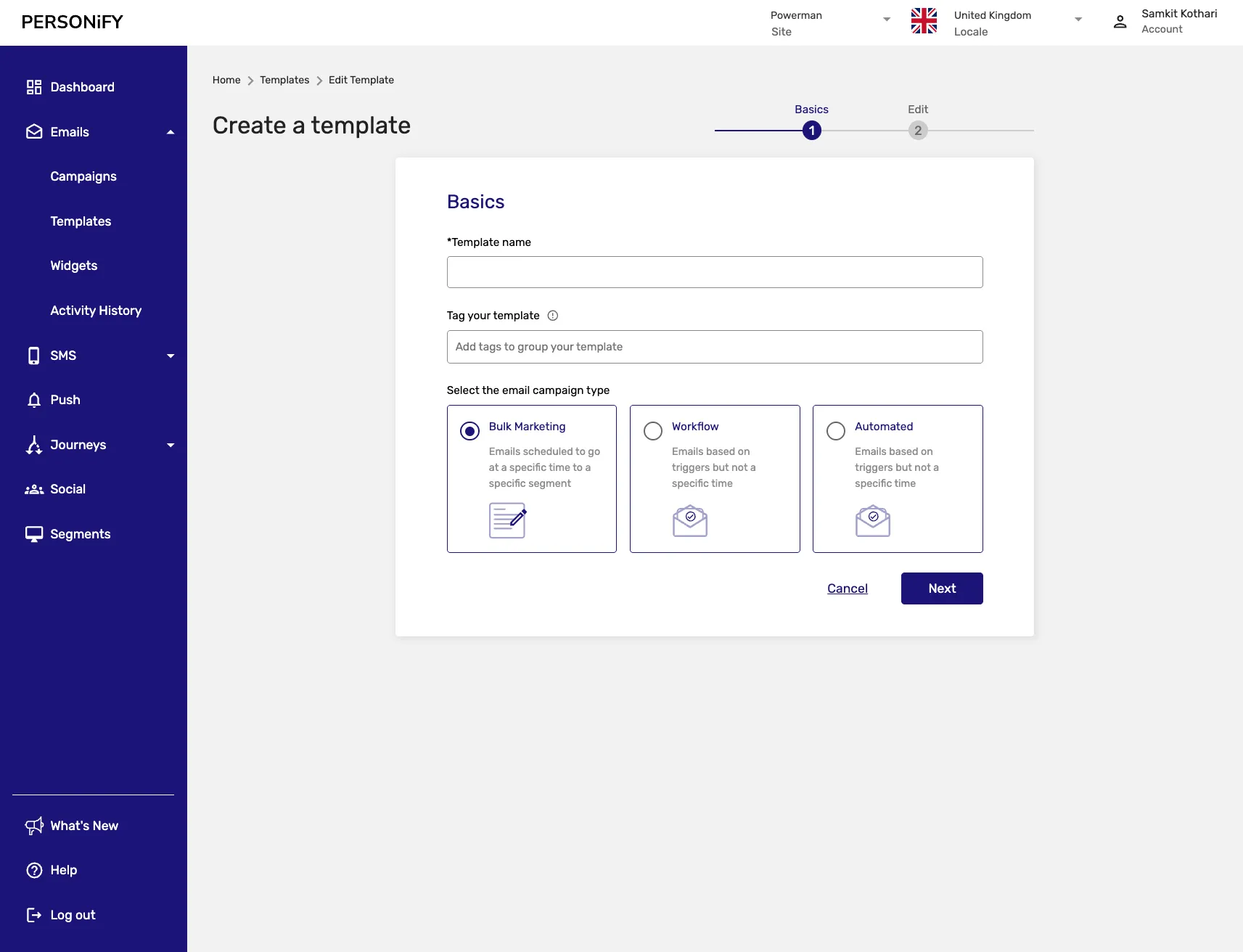
Section titled “Creating a New Template”When creating a new template, you’ll be guided through a step-by-step process:
- Template Details: Provide basic information about your template
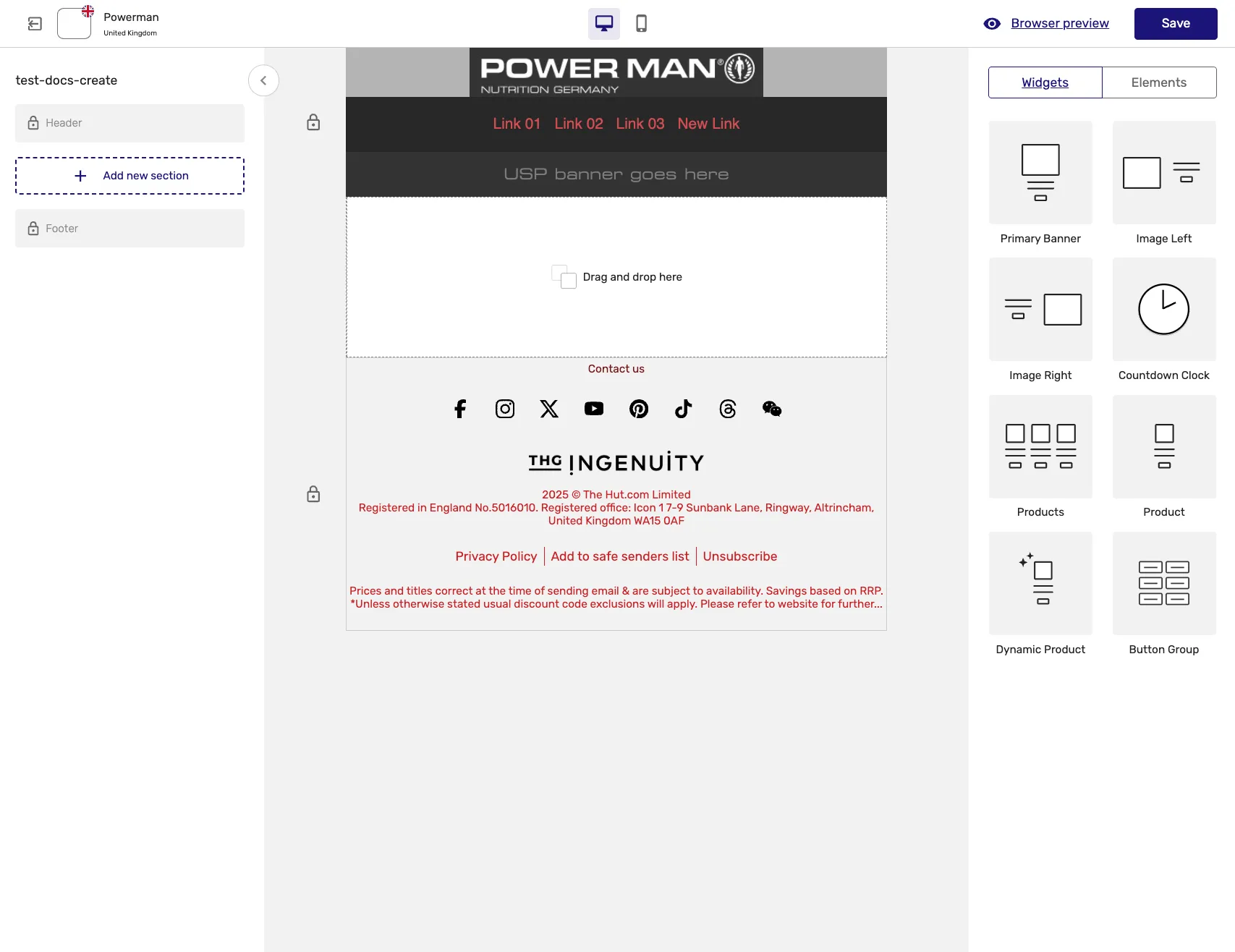
- Design: Create the visual layout and content
- Preview: Review your template before saving
- Save: Store your template for future use
Template Management Features
Section titled “Template Management Features”Search Functionality
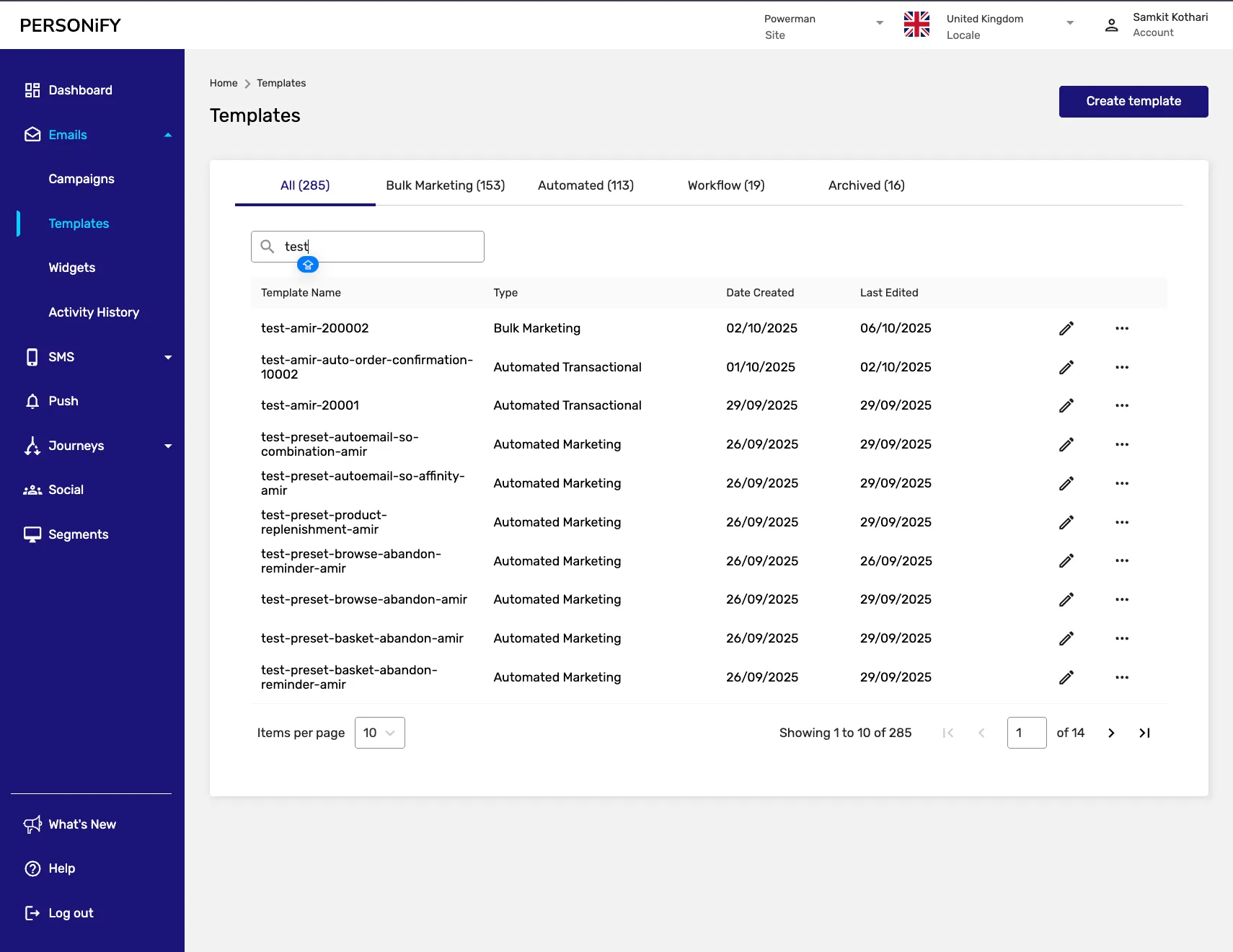
Section titled “Search Functionality”Use the search bar to quickly locate specific templates by name.
Search Options
Section titled “Search Options”Use the search functionality to quickly locate templates by name.
Template Preview
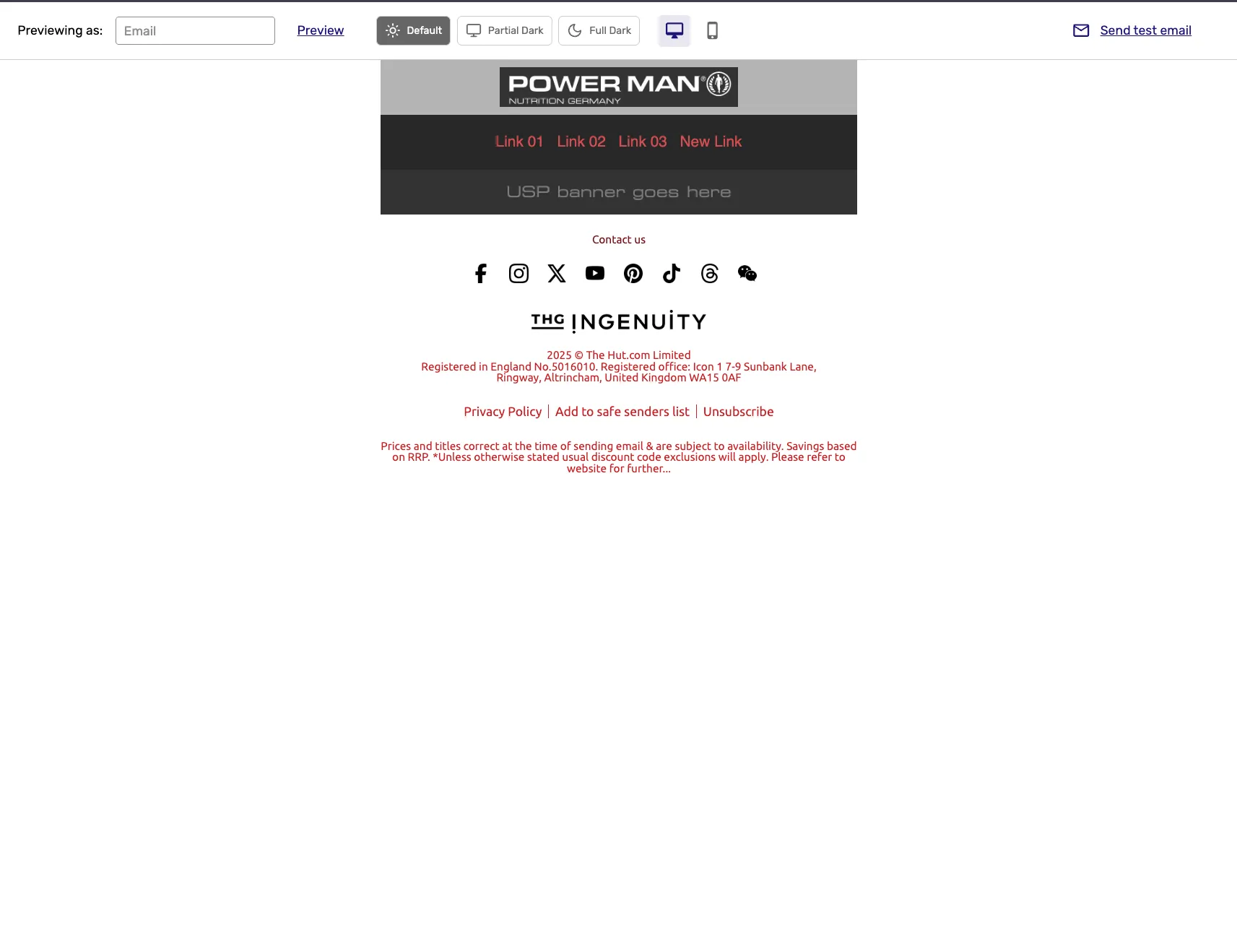
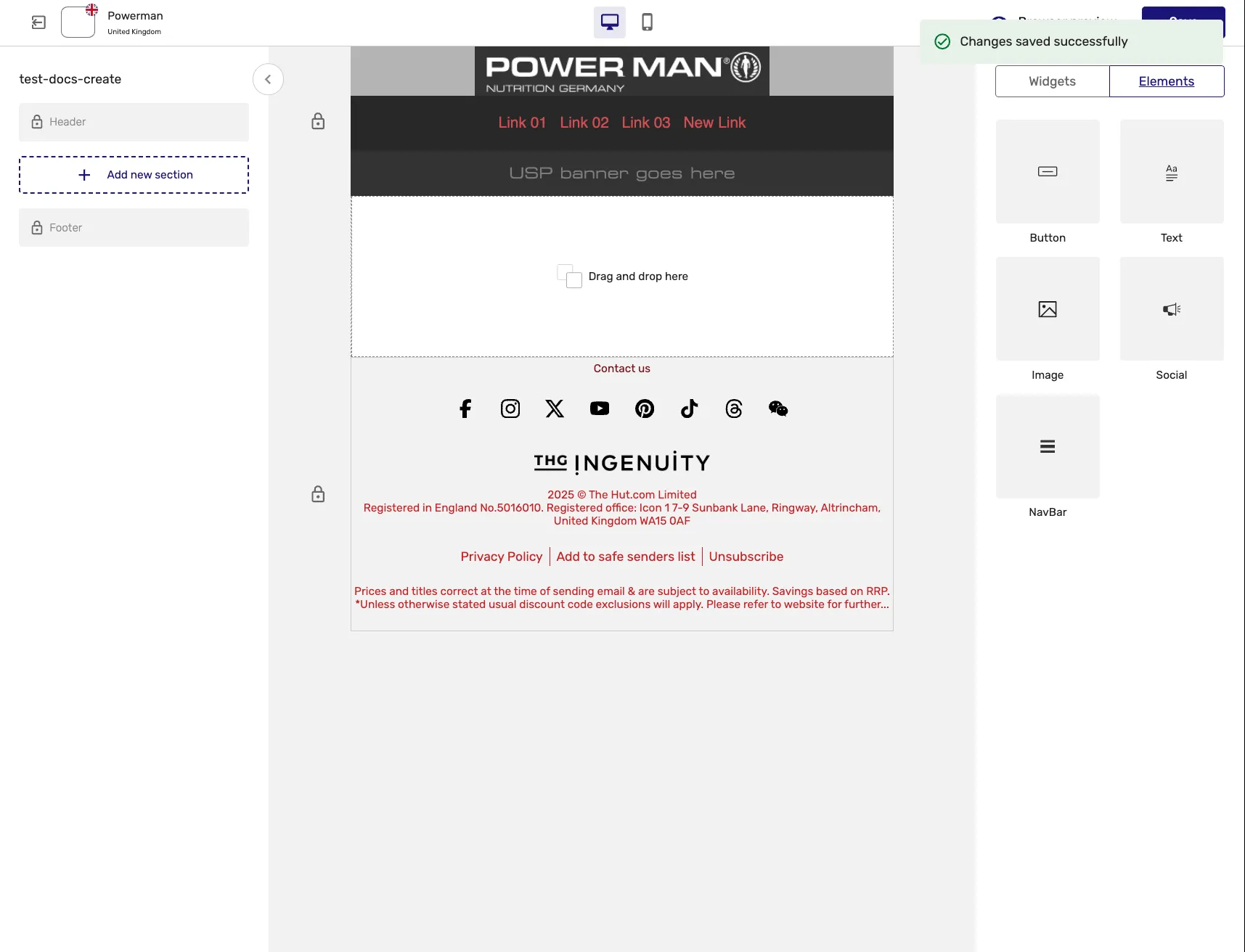
Section titled “Template Preview”Get a quick preview of your templates without opening the full editor. You can change the device type and toggle dark mode preview to see how your templates will appear across different viewing conditions.
Best Practices
Section titled “Best Practices”- Organize by Category: Group similar templates together for easy access
- Use Descriptive Names: Make template identification quick and easy
- Regular Maintenance: Archive outdated templates to keep your workspace clean
- Version Control: Use the duplicate feature to create variations of successful templates
Summary
Section titled “Summary”The Template Page serves as both your creative workshop and digital library, aimed at streamlining your email template management. Should you have questions or require guidance on this tech-driven journey, our Help Center stands ready to assist you.
Happy template management!