Widgets
Widgets are reusable parts of an email—such as headers, footers, and custom content blocks—that can be applied across multiple email templates. This guide explains how to use the Widgets page, manage existing widgets, and understand how changes affect your templates.
1. What Are Widgets?
Section titled “1. What Are Widgets?”Widgets are modular sections that help you build email templates quickly and consistently.
Types of Widgets
Section titled “Types of Widgets”Header/Footer Widgets
Section titled “Header/Footer Widgets”- Used globally across all templates for the selected site and locale
- Ensure consistent branding across emails
- Cannot be duplicated
- Only one header and one footer per site + locale
Custom Widgets
Section titled “Custom Widgets”- Flexible blocks you can insert into templates
- Examples: promotional banners, product blocks, reusable CTA blocks
- Can be duplicated across locales, but not if they contain dynamic content
2. Widgets Page Overview
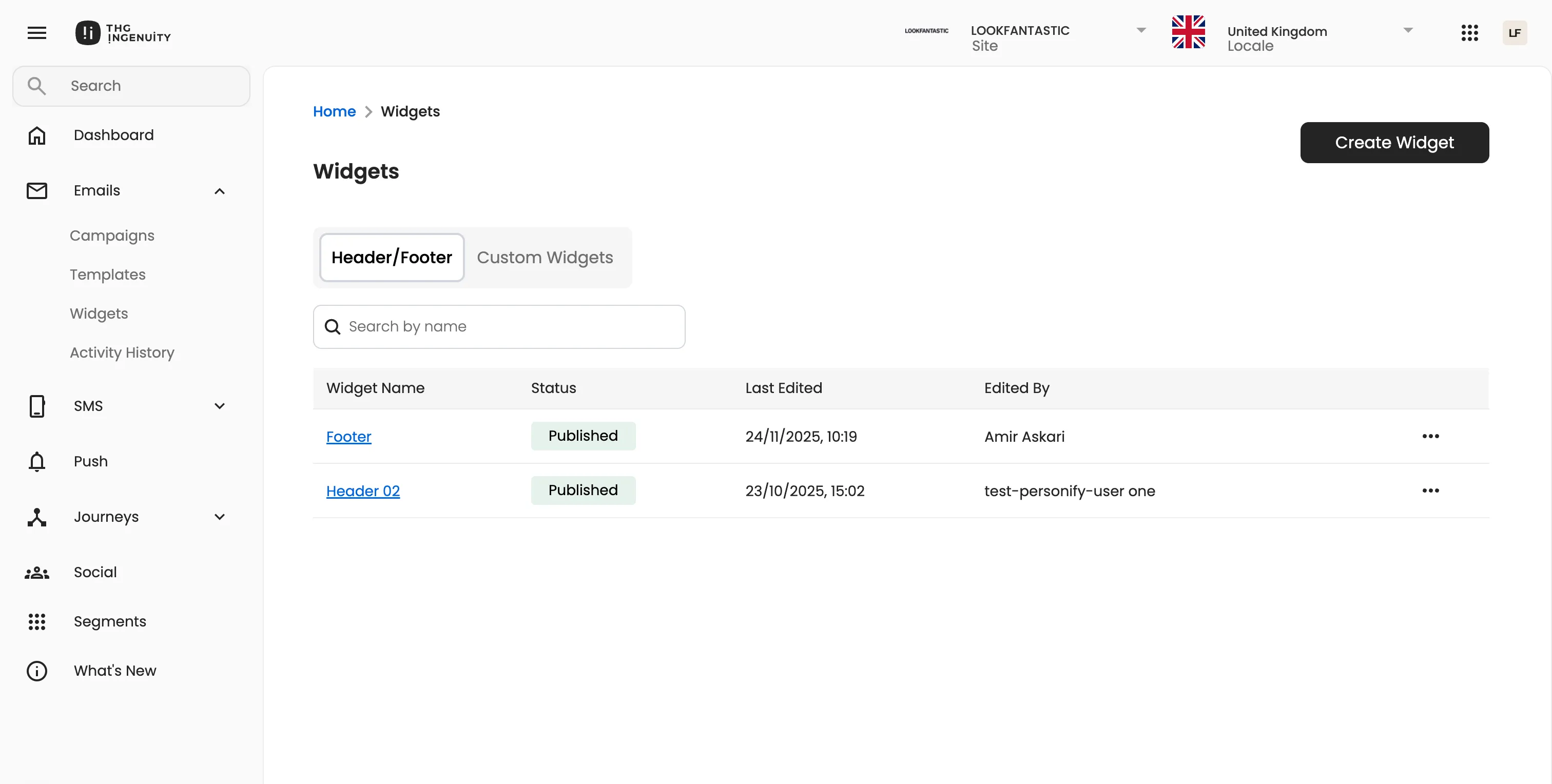
Section titled “2. Widgets Page Overview”When you open the Widgets page, you will see:
Main Features
Section titled “Main Features”- List of widgets displayed in a table
- Widget status (e.g., Published)
- Last edited date
- Last edited by
- Search bar to find widgets by name
- Create Widget button
Header/Footer
Section titled “Header/Footer”Displays the header and footer widgets defined for the selected site and locale.
Custom Widgets
Section titled “Custom Widgets”Displays all custom reusable widgets created for this brand, site, or locale.
3. Creating a Widget
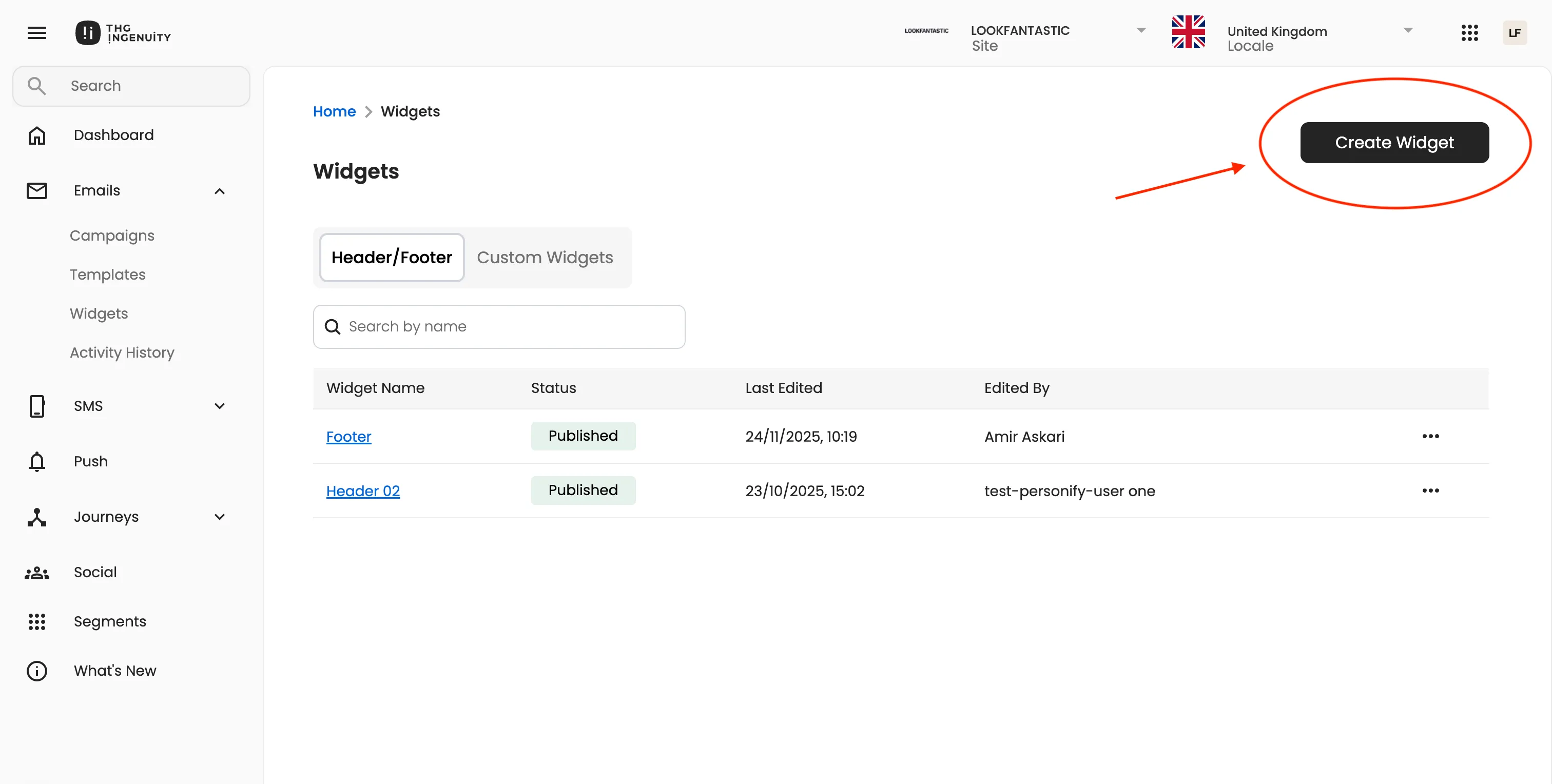
Section titled “3. Creating a Widget”- Click Create Widget (top-right corner).
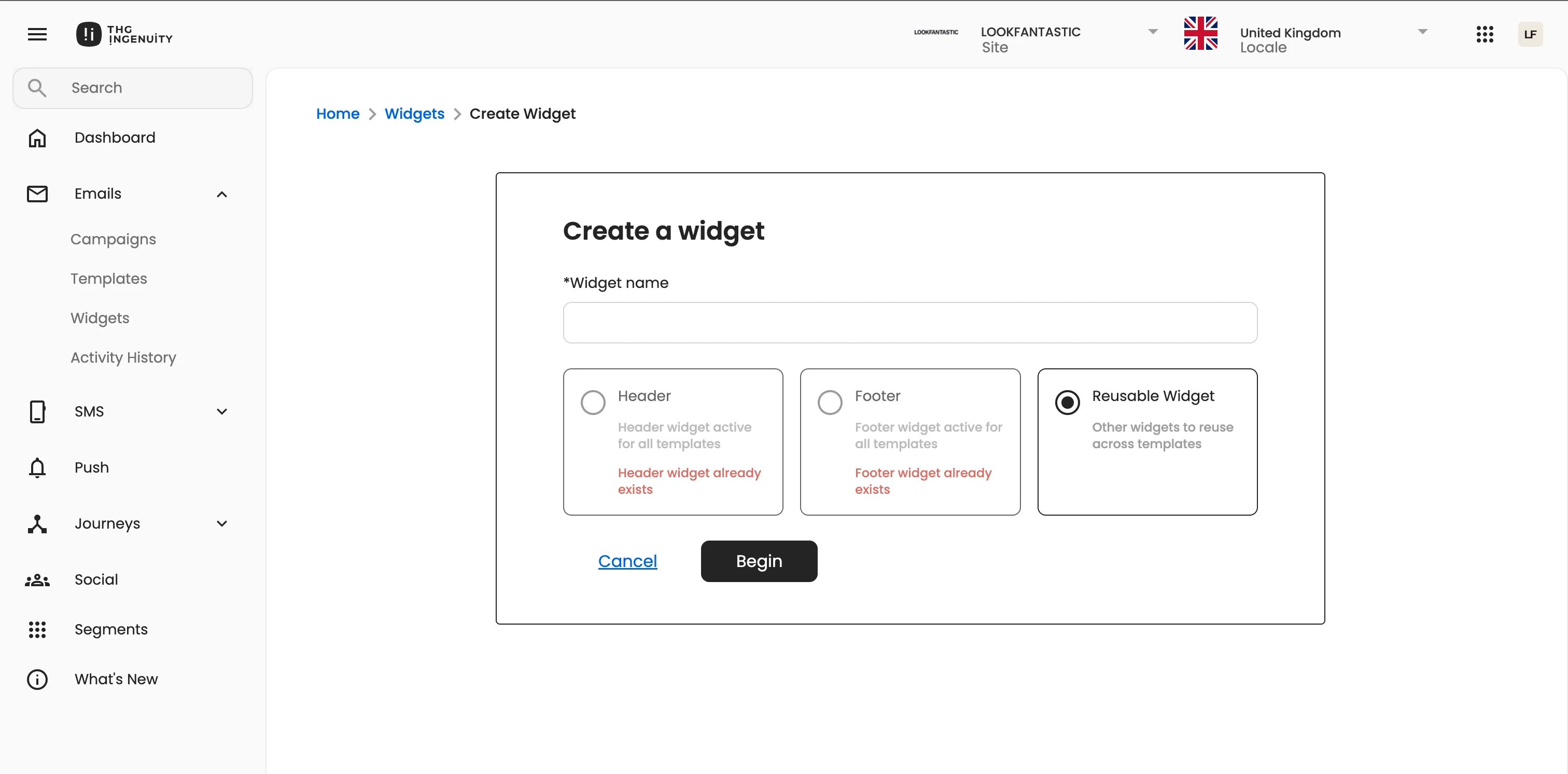
- Choose the type of widget you want to create.
- Design your widget in the editor.
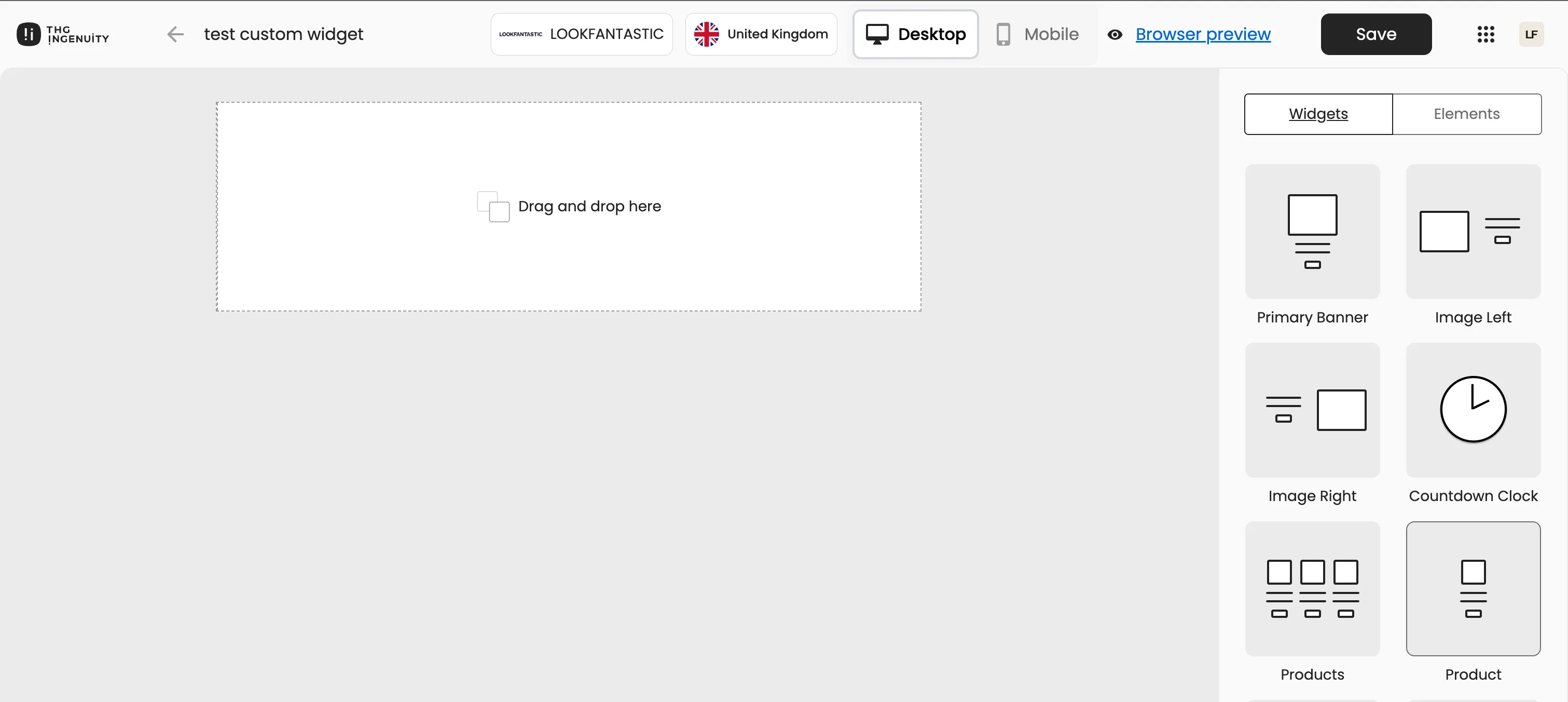
- Save or publish it.
- Published widgets become available for use in email templates.
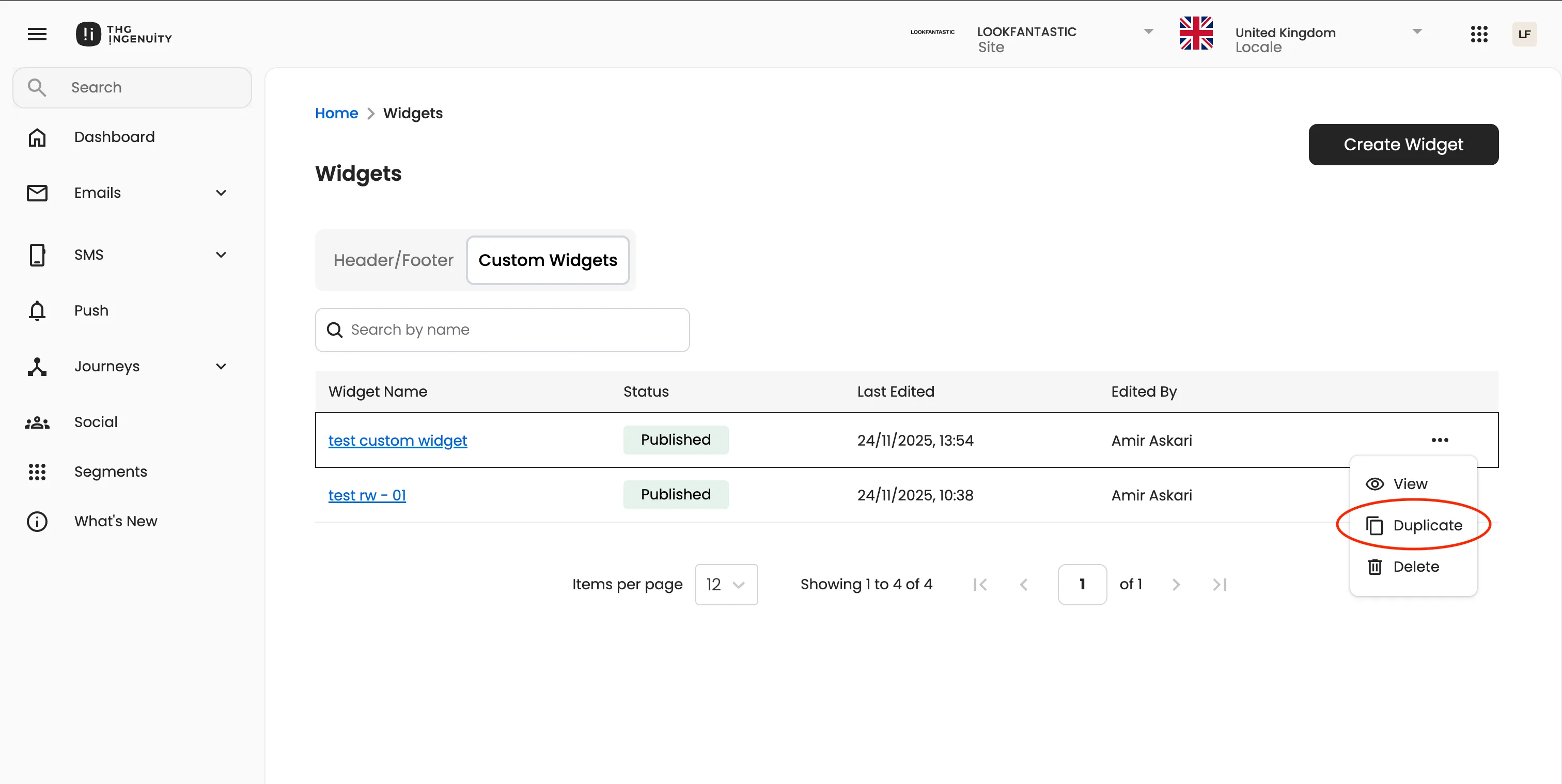
4. Duplicating Widgets
Section titled “4. Duplicating Widgets”You can duplicate Custom Widgets, but:
Widgets containing dynamic content cannot be duplicated across locales.
Header/Footer widgets cannot be duplicated.
5. Updating a Widget
Section titled “5. Updating a Widget”To update an existing widget:
- Go to the Widgets table.
- Find the widget you want to edit.
- Click on the widget name in the table.
- This opens the widget editor.
- Make your changes, then Save or Publish.
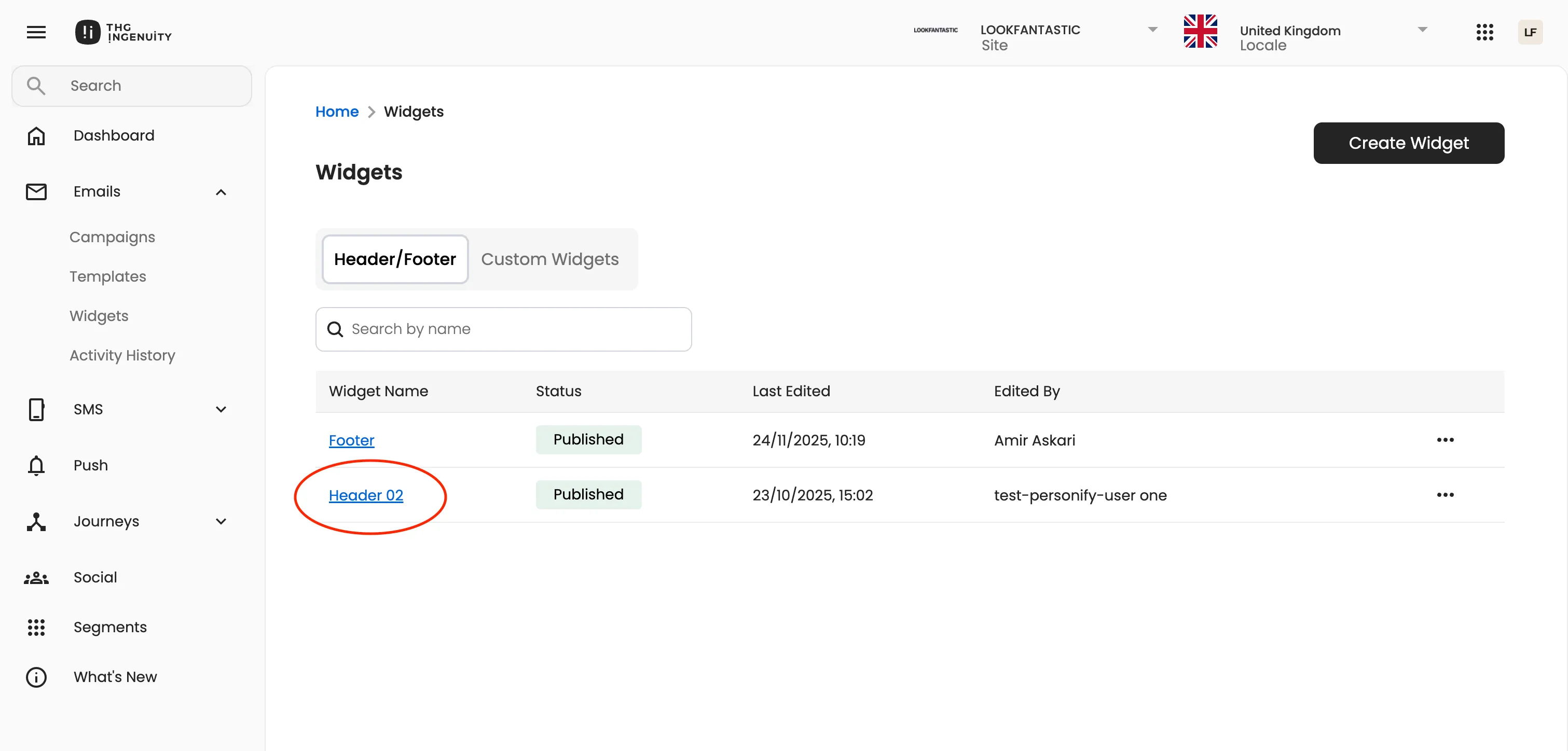
- Updating a widget automatically updates every email template that uses it.
- This applies to both Header/Footer and Custom Widgets.
6. Deleting Widgets
Section titled “6. Deleting Widgets”Widgets can be deleted, but this may affect existing templates.
What Happens When You Delete a Widget?
Section titled “What Happens When You Delete a Widget?”- The system shows all templates currently using that widget.
- You must confirm before deleting.
- After confirmation, the widget moves to Trash.
Effects of Deleting
Section titled “Effects of Deleting”Deleting Header/Footer Widgets
Section titled “Deleting Header/Footer Widgets”- Impacts all email templates for the selected site and locale.
Deleting Custom Widgets
Section titled “Deleting Custom Widgets”- Impacts all templates where the widget is used.
Templates using deleted widgets may break or show missing content and should be reviewed.
7. Best Practices
Section titled “7. Best Practices”- Avoid deleting global widgets unless absolutely required.
- Always review affected templates before confirming deletion.
- Use clear, descriptive names (e.g.,
Promo Banner – Winter 2025). - Avoid dynamic content in widgets intended for duplication.
- Keep headers and footers updated to maintain consistent branding.