Availability
Summary
Section titled “Summary”This page is to be used to view and refresh the availability of products. For those with elevated permissions, the availability status can be changed for products using this page as well.
In general, a product is said to be available to be bought if there is allocatable stock and the release date for the product is in the past. However this can be manually altered using availability statuses, as described below.
Availability Statuses
Section titled “Availability Statuses”The product is available to be bought if there is allocatable stock in a warehouse and the release date for the product is in the past.
The product will always be available to be bought, regardless of any other factors like stock.
FORCE_UNTIL_STOCK
Section titled “FORCE_UNTIL_STOCK”Prior to their being allocatable stock for this product, the product will always be available to be bought. Once there is allocatable stock, the availability status will automatically switch to AUTO.
FORCE_WITH_STOCK
Section titled “FORCE_WITH_STOCK”Prior to their being allocatable stock for this product, the product will be available to be bought against a specified number of predefined units. Once this number of predefined units are bought, the product will no longer be available. Once there is then allocatable stock, the availability status will automatically switch to AUTO.
FORCE_UNTIL_RELEASE
Section titled “FORCE_UNTIL_RELEASE”Prior to the release date for this product, the product will always be available to be bought. Once the release date is in the past, the availability status will automatically switch to AUTO.
DO_NOT_SELL
Section titled “DO_NOT_SELL”The product will never be available, regardless of any other factors like stock.
How to View the Availability of a Product
Section titled “How to View the Availability of a Product”View Current Availability Status
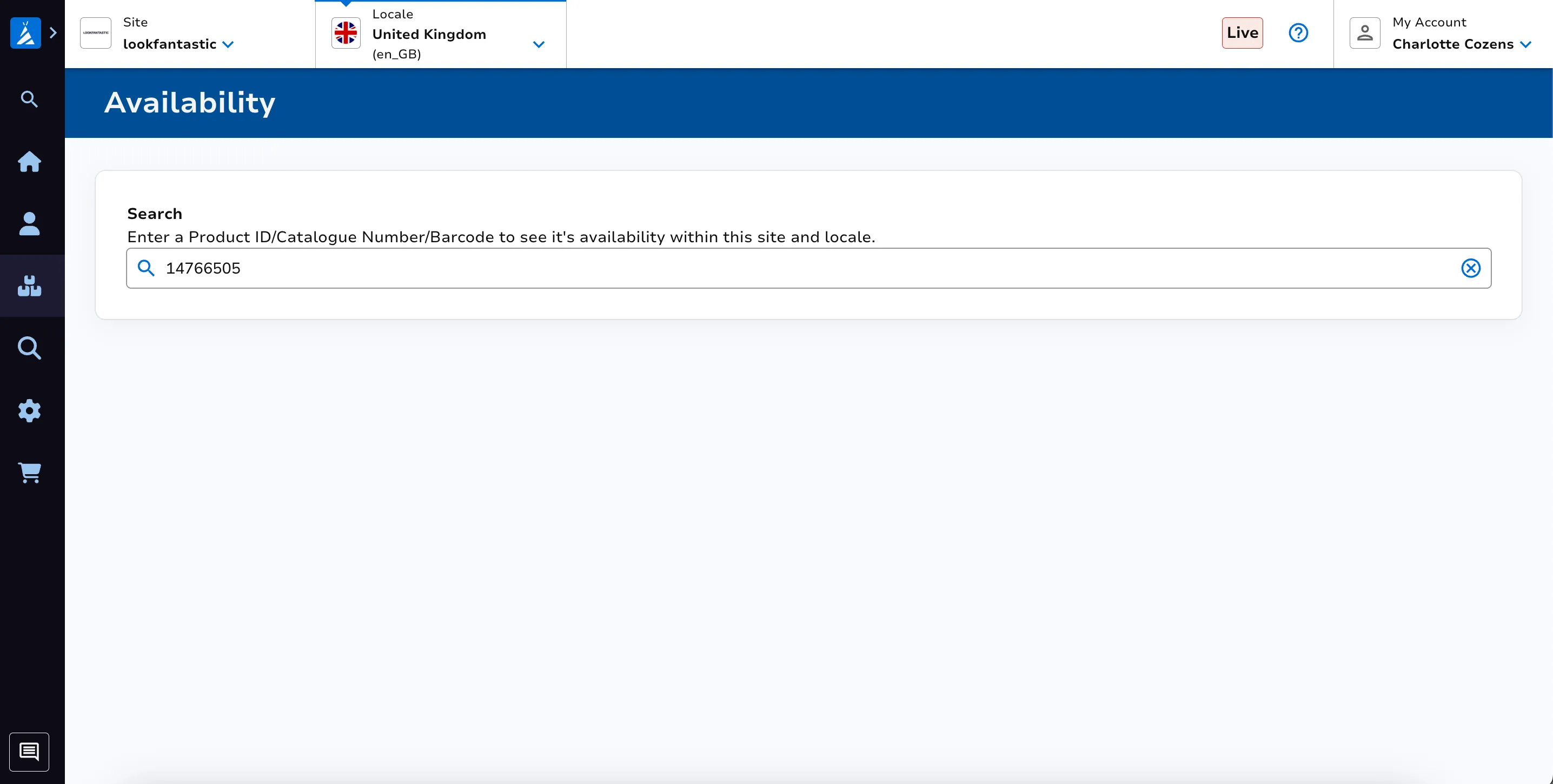
Section titled “View Current Availability Status”Enter your SKU.
You can now see information relating to the availability of the product. This includes the Status, Available or Unavailable.
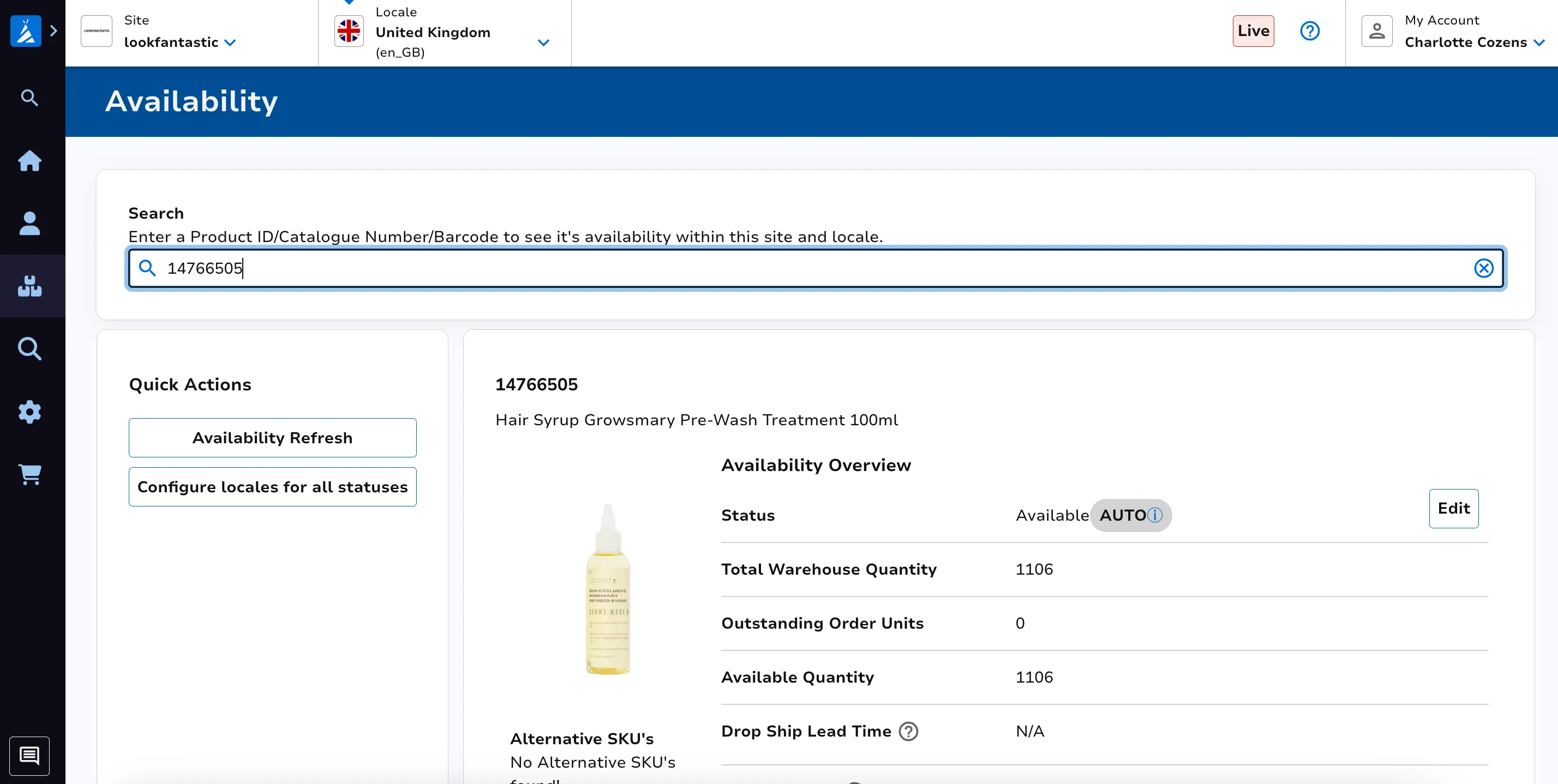
If you believe this status is out of date with the current status of stock, try hitting the Availability Refresh button. In general, manual refreshes of availability are not required; the system will automatically update the status once stock changes. Please contact THG for further support if you are unclear on the reasons for a particular product’s availability status.
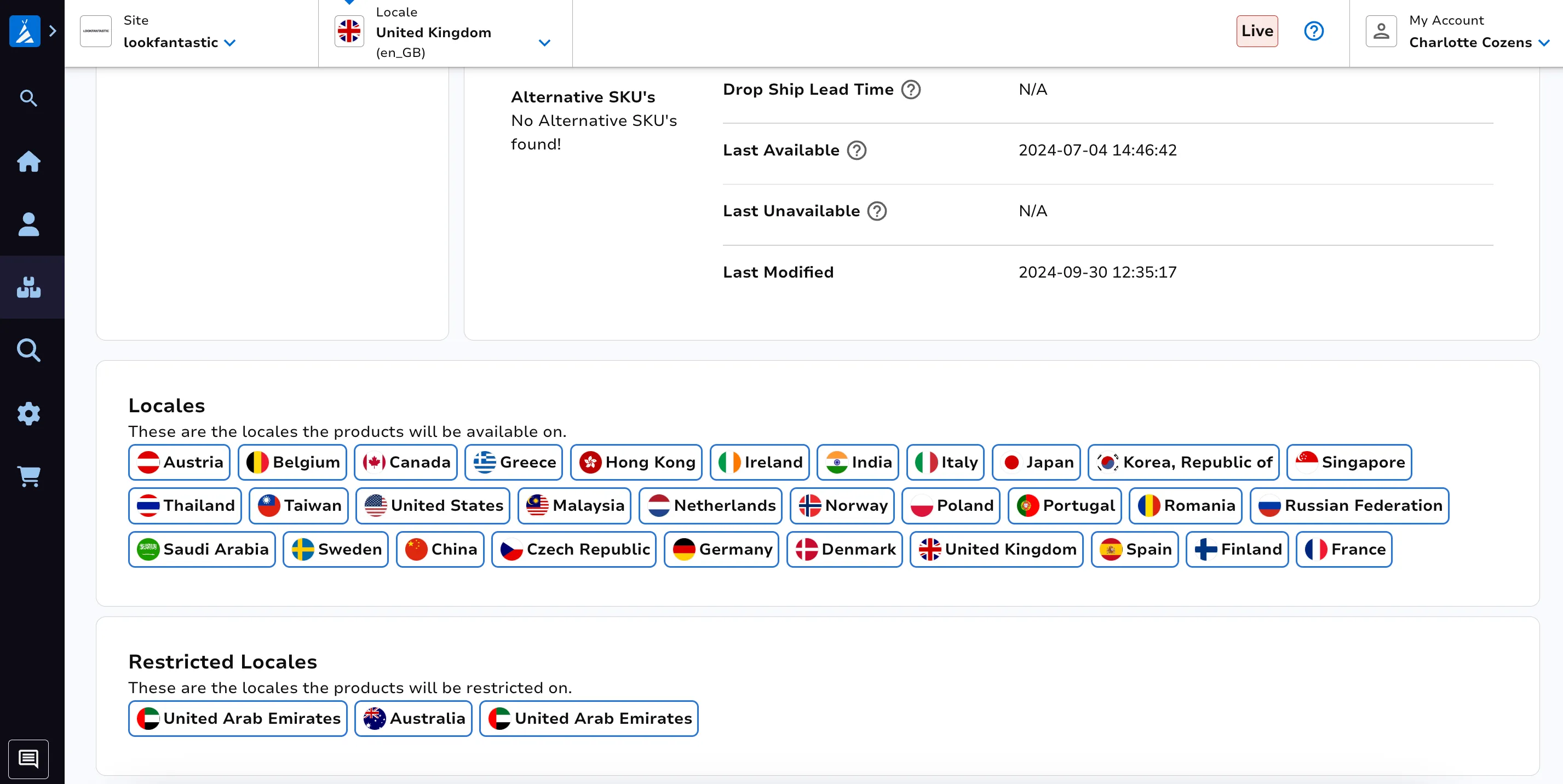
If you scroll down the page, you can view which locales the product is currently available on. You can also see any restrictions which have been set which will prevent the product from being available.
Edit Availability Statuses
Section titled “Edit Availability Statuses”For those with elevated permissions, you can change the availability status for this specific product and locale using the Edit button on the right hand side of the page.
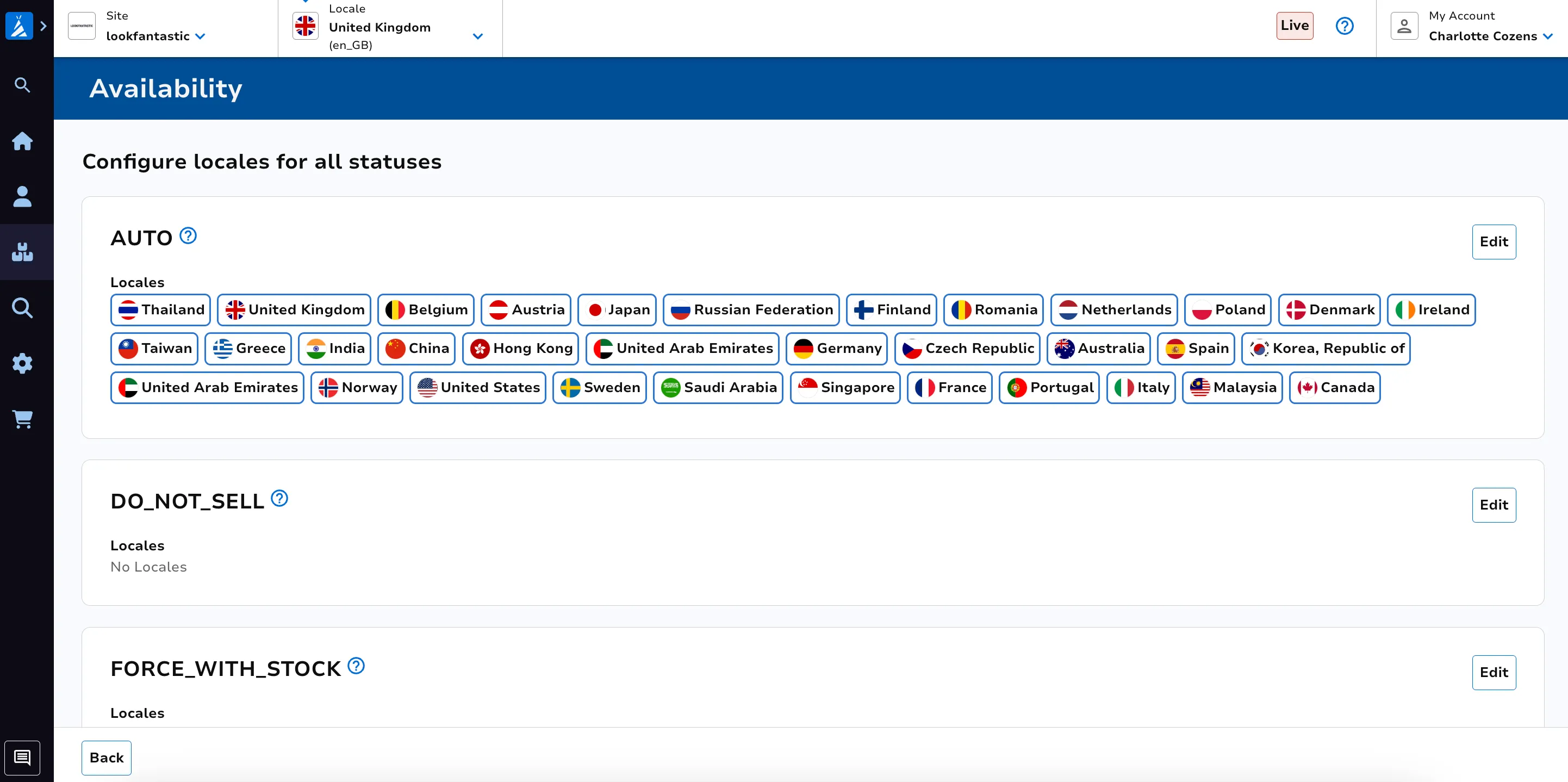
If you would like the availability status change to apply to multiple locales, click the configure locales for all statuses button. From this page, you can easily determine which status the product should have for all locales.
View Current Stock Breakdown
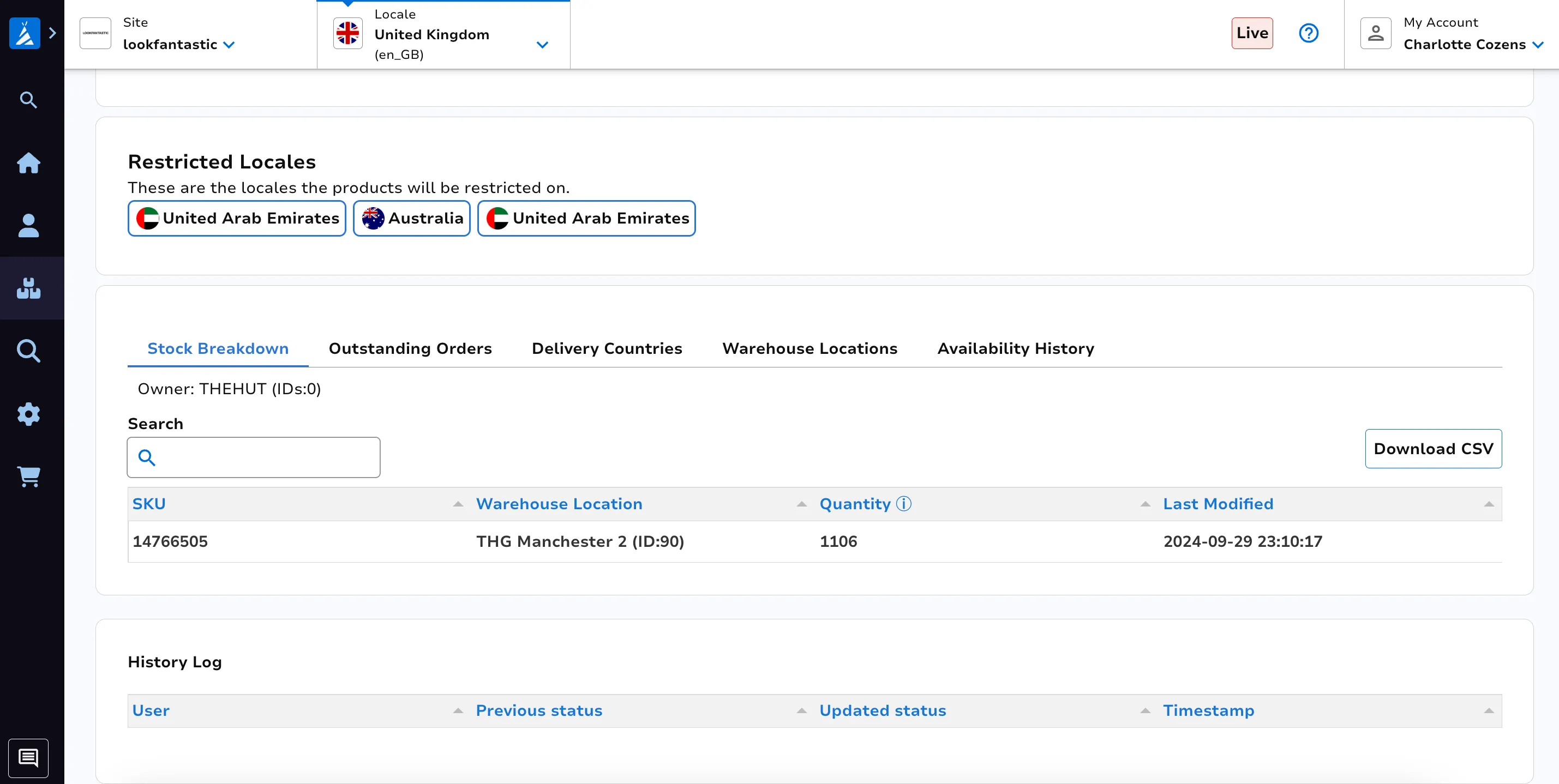
Section titled “View Current Stock Breakdown”View the current stock quantity in particular warehouses via the Stock Breakdown tab. Download this information in a CSV using the Download CSV button on the right hand side.
View Outstanding Orders
Section titled “View Outstanding Orders”An outstanding order is an order which is yet to be fulfilled.
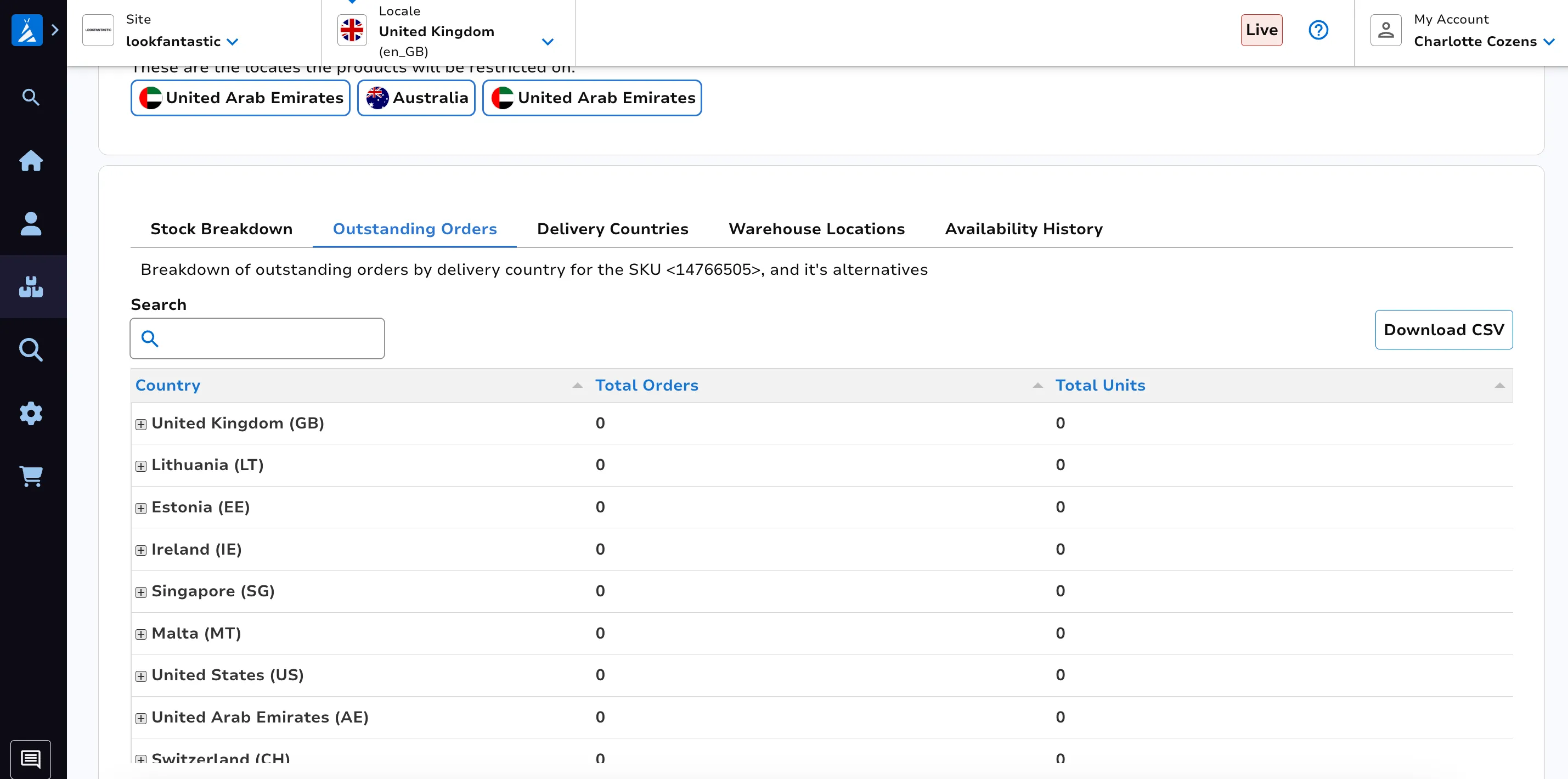
View the current number of outstanding orders, including the total number of units of this product, across applicable countries via the Outstanding Orders tab. Download this information in a CSV using the Download CSV button on the right hand side.
Stock will be allocated to outstanding orders before it becomes allocatable for new customer orders on the website. The presence of outstanding orders can explain why a product is unavailable even though there is stock in a warehouse.
View Delivery Countries
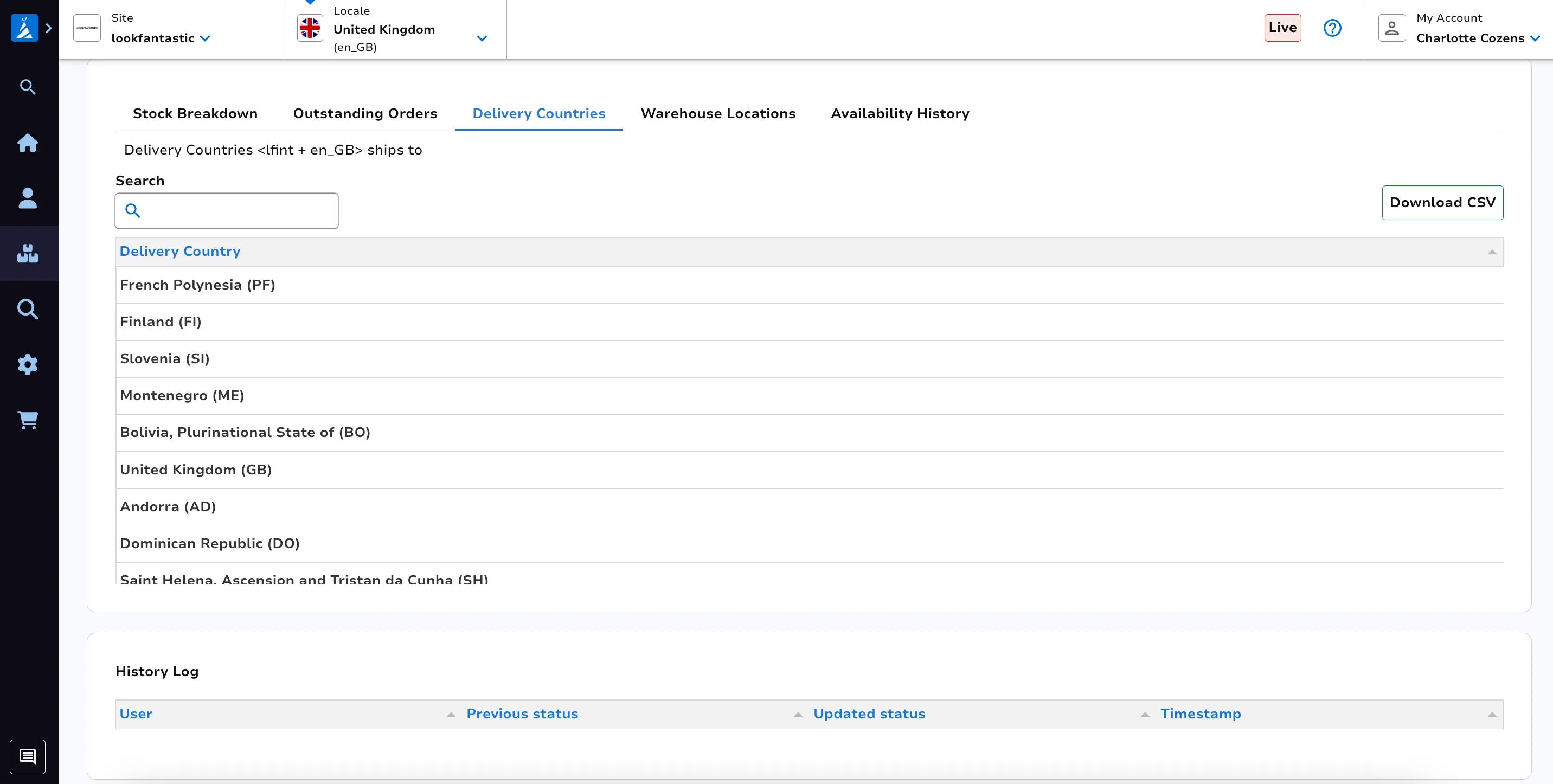
Section titled “View Delivery Countries”View the countries where this particular site can ship to. Download this information in a CSV using the Download CSV button on the right hand side.
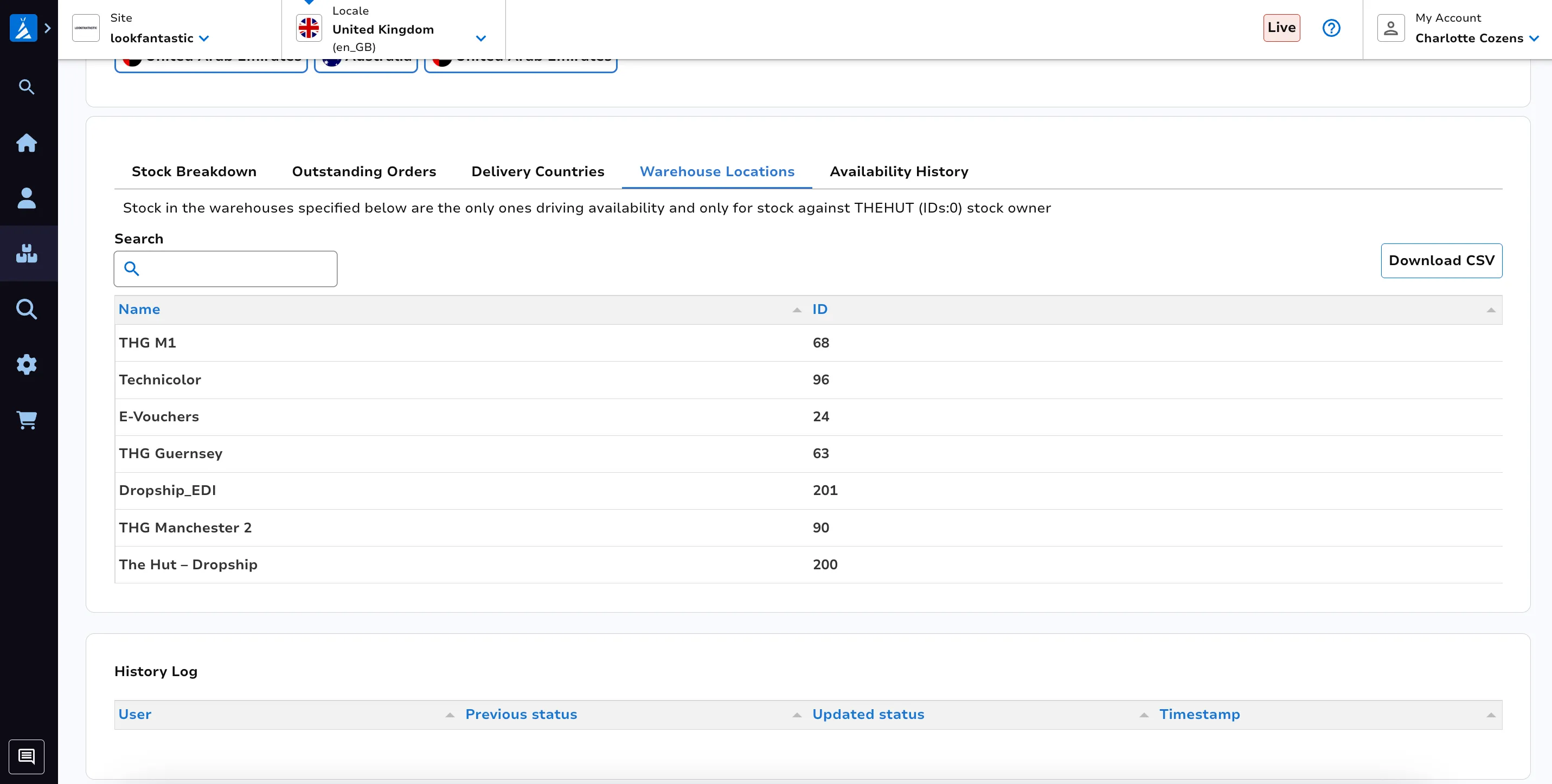
View Warehouse Locations
Section titled “View Warehouse Locations”View the warehouses containing stock driving availability for this product, for the specified site. Download this information in a CSV using the Download CSV button on the right hand side.
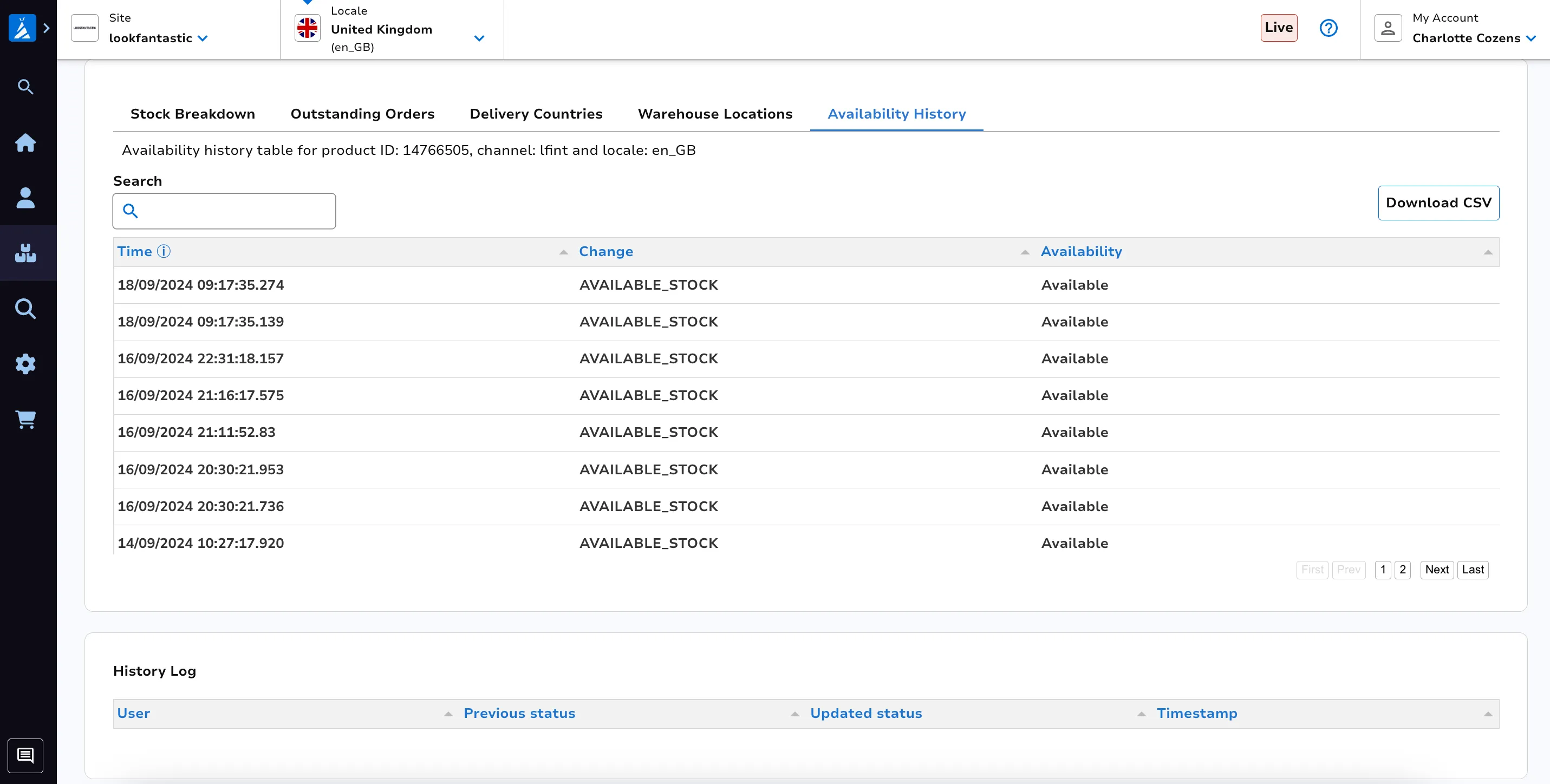
View Availability History
Section titled “View Availability History”View the availability history for the specified product and site. If new stock goes to a warehouse, this will reflect as a change to availability. Download this information in a CSV using the Download CSV button on the right hand side.