Widgets Library
Summary
Section titled “Summary”Widgets Library module is to be used to view, edit, create, detele and clone widgets for a site.
View Widgets
Section titled “View Widgets”On the landing page you will be able to view all widget templates for your site. You can view all widgets using a particular template by selecting the desired widget template from the top left dropdown.
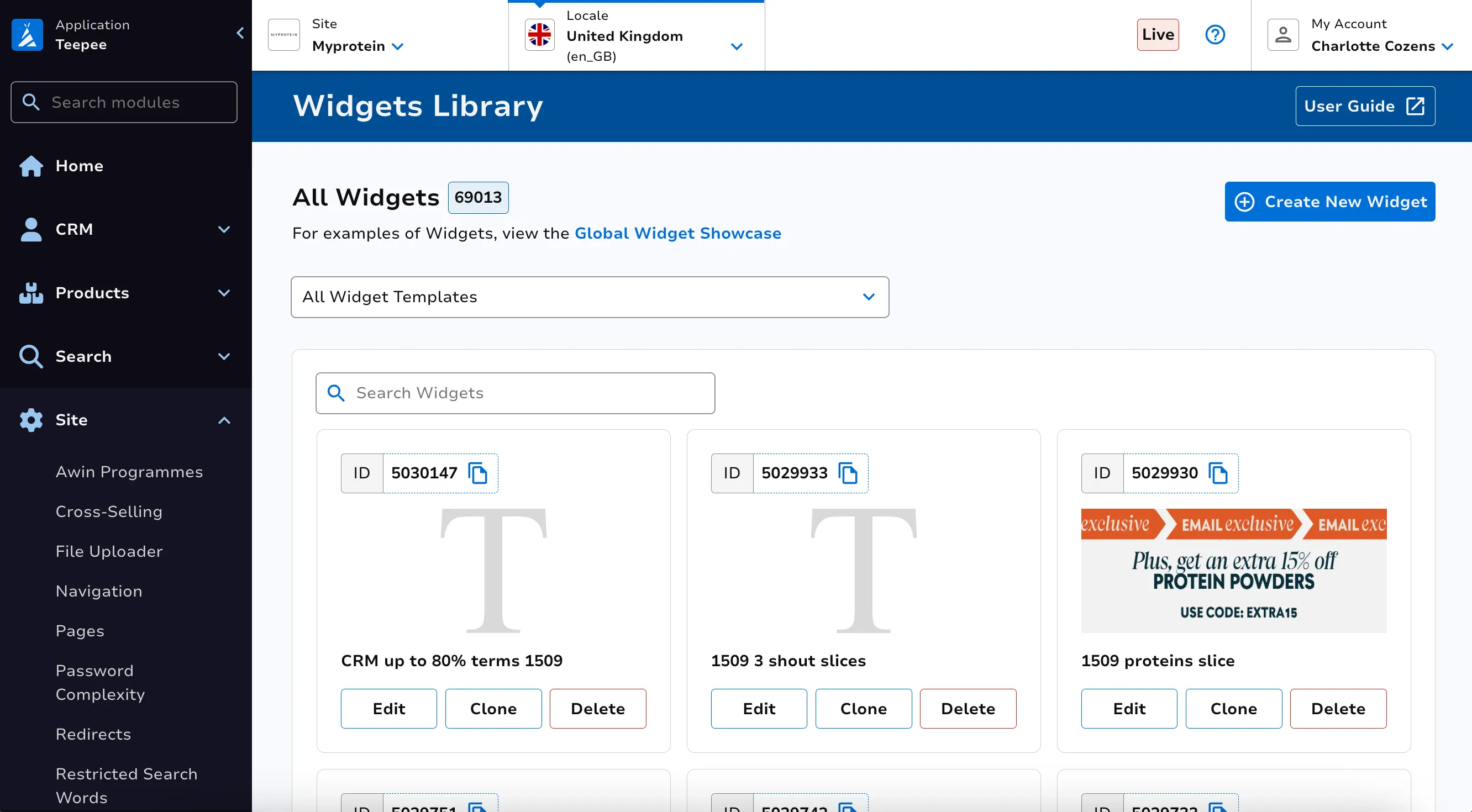
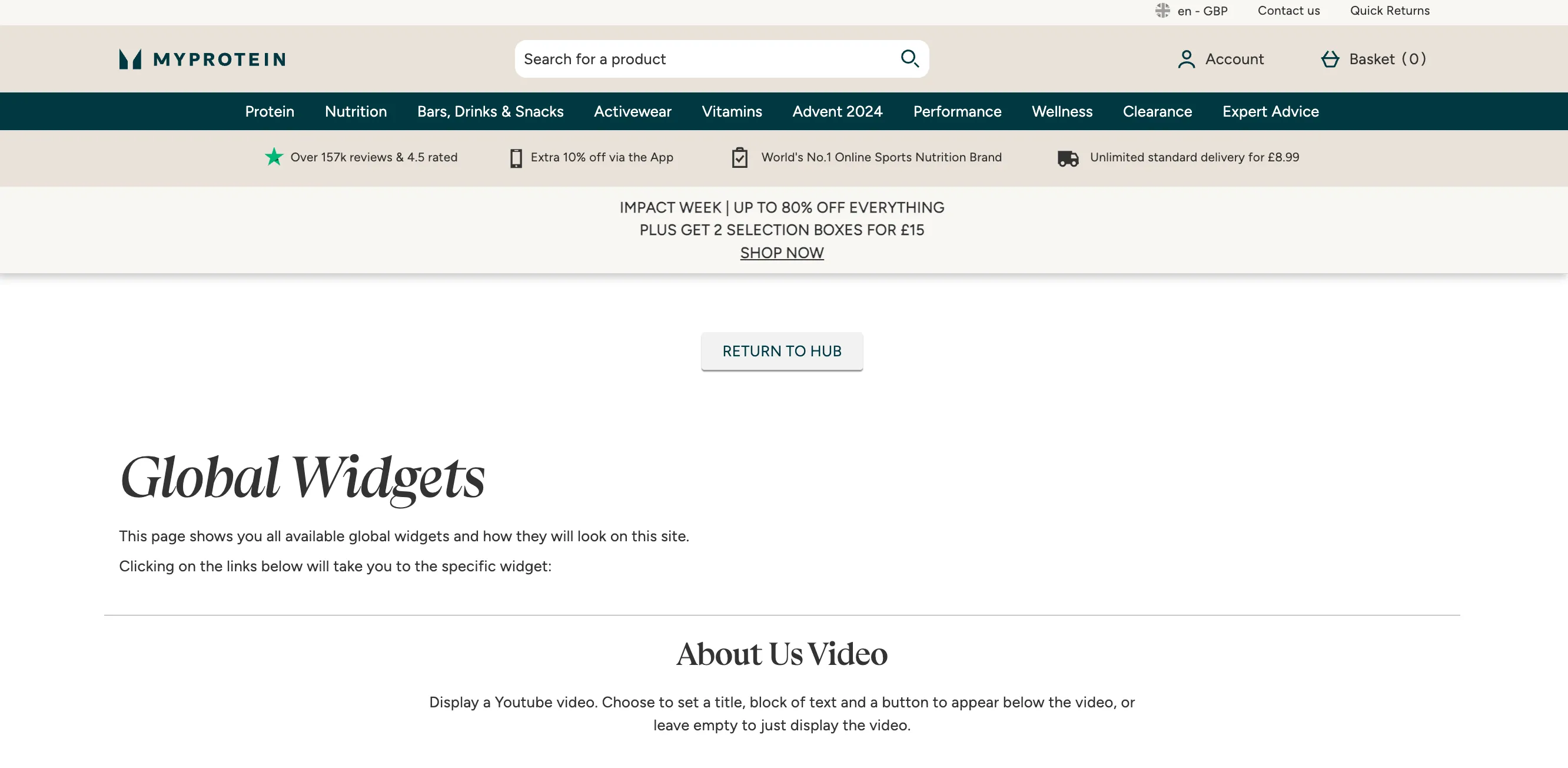
You can view exactly how widgets will look on your site by clicking the Global Widget Showcase button at the top of the page.
Edit an Existing Widget
Section titled “Edit an Existing Widget”Click the Edit button.
Now edit the input fields accordingly.
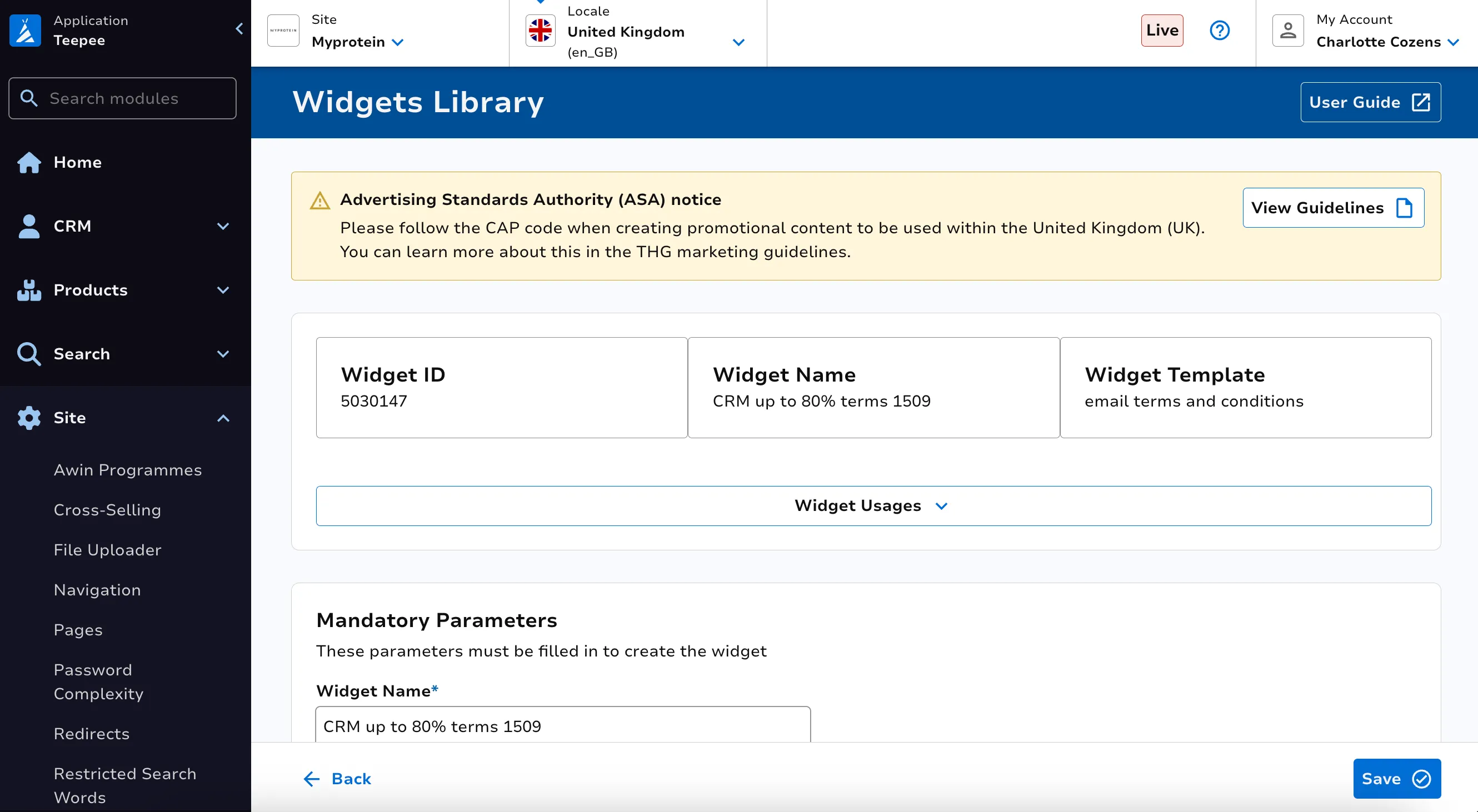
You can review where this widget is used on site via the Widget Usages dropdown.
Once you’re ready with your changes, click Save at the bottom right of the page.
Clone a Widget to other Locales
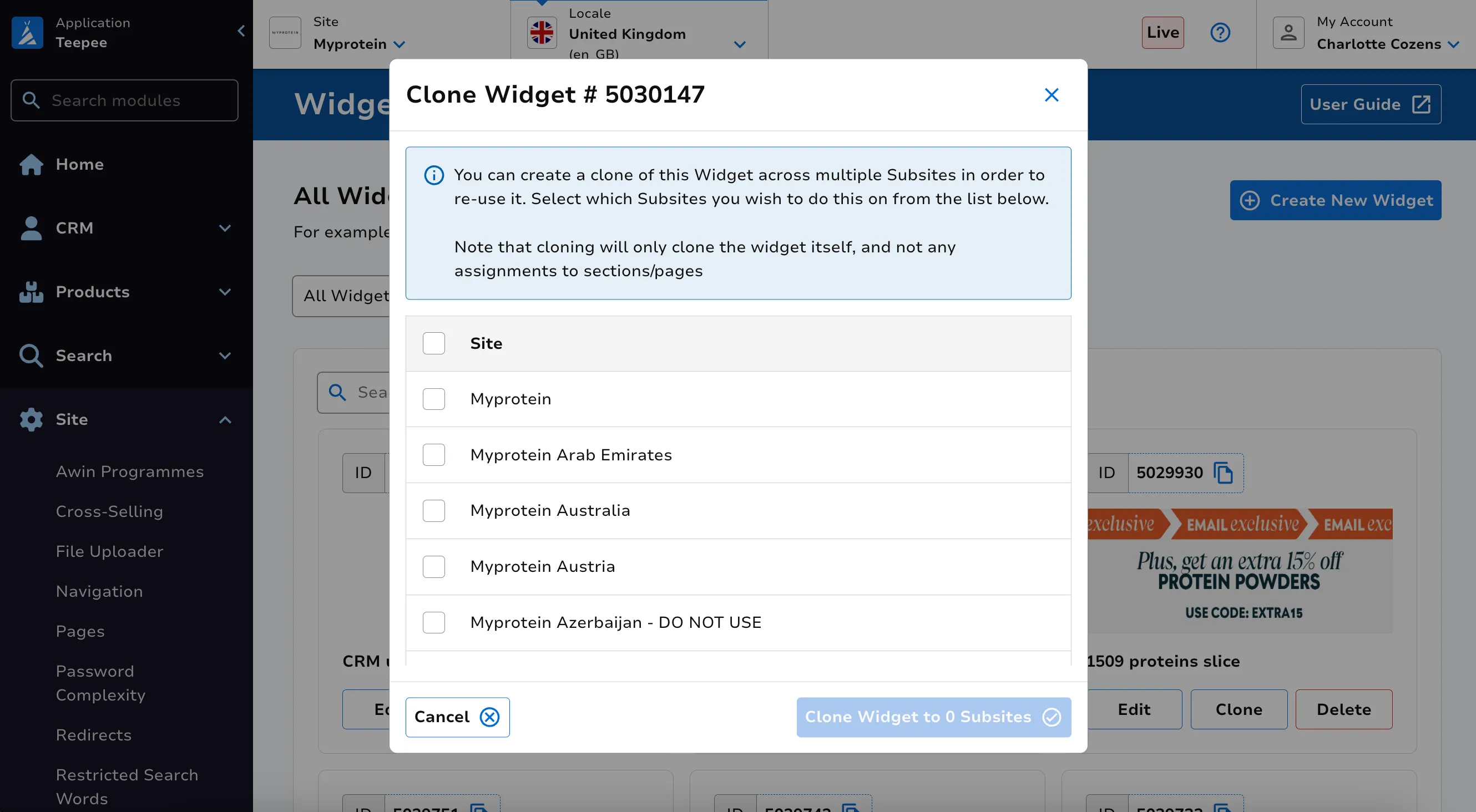
Section titled “Clone a Widget to other Locales”You can clone a widget to another locale of your site using the Clone button.
As described on the page, this will only clone the widget itself, not any assignments to sections or pages on site.
Select the other sites you wish to clone your widget to, then click Clone Widget to <x> Subsites to go ahead.
Create a New Widget
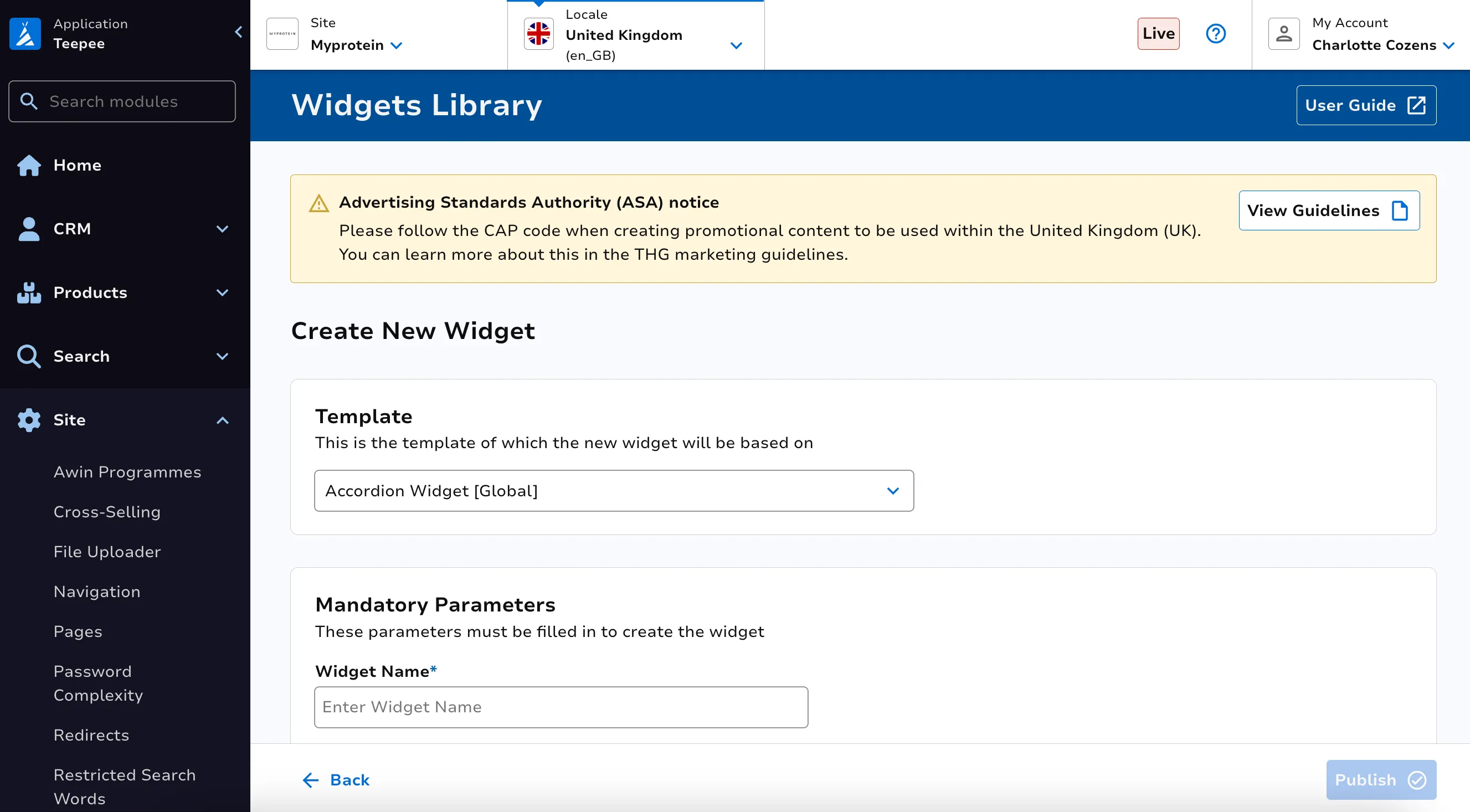
Section titled “Create a New Widget”Click the Create Widget on the main page.
Then select which Widget Template you require. Populate the required fields. Once ready, click Save at the bottom right of the page to save your widget.
Delete a Widget
Section titled “Delete a Widget”To delete a widget, firstly click Delete on the corresponding widget.
Review use cases of the widget on site.
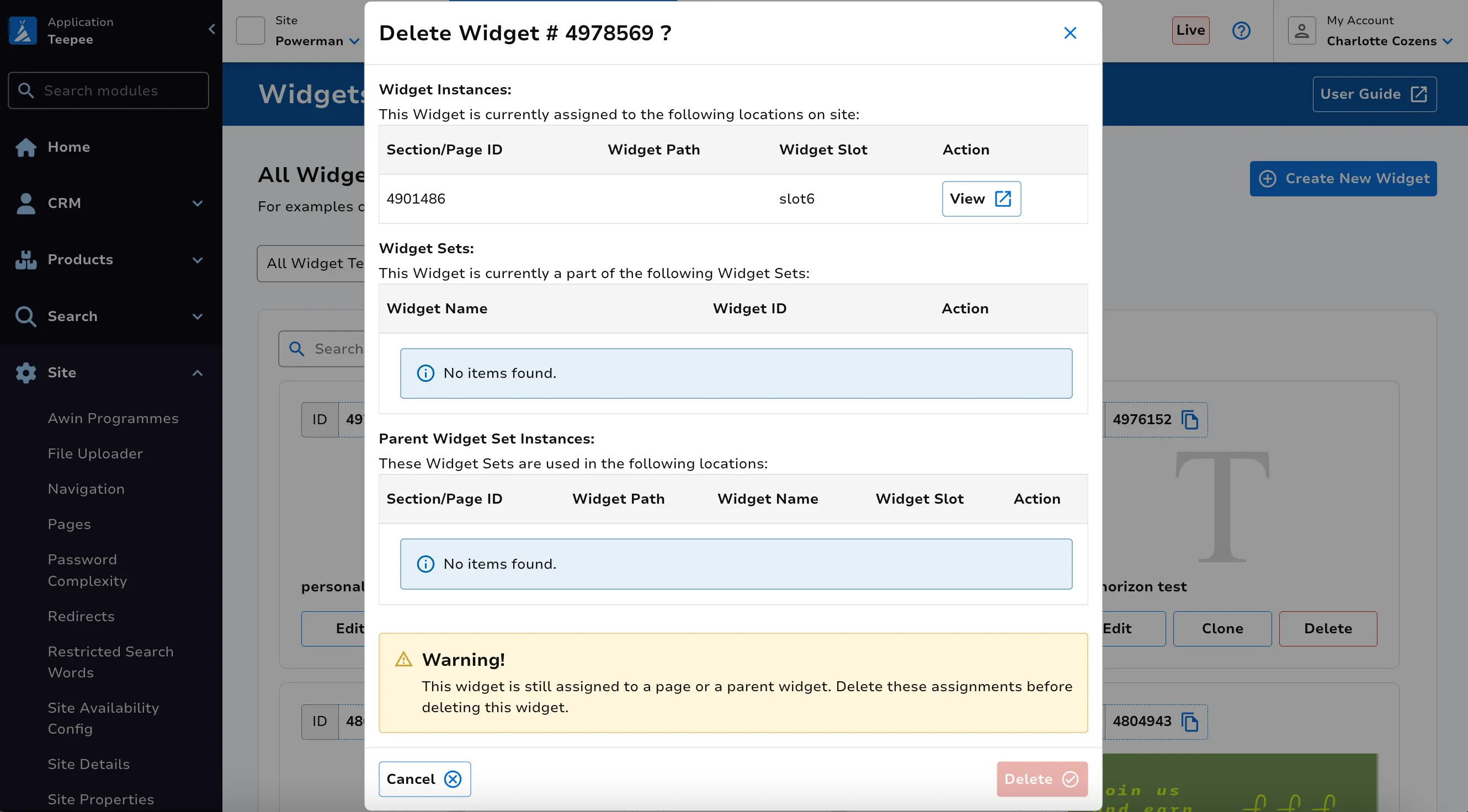
Once ready, click Delete in order to remove this widget.